How to Send WHMCS Invoice & Ticket Notifications on WhatsApp (2026 Guide)
How to Send WHMCS Invoice & Ticket Notifications on WhatsApp (2026 Guide)
Applies to: any WHMCS install you run on cPanel hosting (you bring your own WHMCS licence).
Why send WHMCS alerts on WhatsApp
Invoice emails get buried in Promotions tabs. Clients miss due dates, services get suspended and your support line fills up with “why is my site down?” messages. Sending WHMCS notifications on WhatsApp fixes that, because almost every client in India reads WhatsApp within minutes.
In this guide you’ll install the ShoHost WHMCS WhatsApp notification module, connect a WhatsApp backend, map your invoice and ticket events to message templates and send a test. By the end, clients get invoice, reminder, overdue and ticket-reply alerts on WhatsApp automatically.
This guide is for hosting businesses and resellers who run their own WHMCS, so you’ll need a WHMCS licence to follow it. WHMCS and the WhatsApp module are not included with reseller, master, alpha or lifetime hosting plans and are sold separately.
Before you start (prerequisites)
- A working WHMCS install with admin access. You bring your own WHMCS licence.
- The module supports the latest WHMCS versions, on PHP 7.4+ (PHP 8.x recommended).
- cPanel login for the account that hosts WHMCS (Method 1), or SFTP details (Method 2), or SSH / cPanel Terminal (Method 3).
- A fresh backup of your WHMCS files and database. See our cPanel backup and restore guide.
- The module zip downloaded from your ShoHost client area.
- For the Meta backend: a Meta Business account, a WhatsApp Cloud API token and a phone number ID.
Time and difficulty
| Time | Difficulty | Risk | Downtime |
|---|---|---|---|
| ~20 min | Intermediate | Low | None |
How it works in short
Upload the ShoHost WhatsApp module to /modules/addons, activate it in WHMCS Admin > System Settings > Addon Modules, choose a backend (ShoHost hosted API, Meta WhatsApp Cloud API or your own MPWA gateway), map the invoice and ticket events to templates, then send a test invoice message.
Why WhatsApp for billing and support alerts
Email still matters for records, but WhatsApp is where clients actually look. A short “Invoice #1234 of ₹1,199 is due tomorrow, pay here” message gets paid faster than a long email. Ticket replies on WhatsApp also stop clients from opening duplicate tickets because they didn’t see your answer.
The module sends WHMCS events to the client’s phone number: invoice created, reminder, overdue and paid; ticket opened and replied; service activated and suspended; and domain renewal.
Choose a backend: ShoHost hosted API vs Meta Cloud API vs self-hosted (MPWA)
Version 3.2.0 shows three backends as provider cards in Settings, and you switch between them there. Pick the one that fits how much control you want.
Comparison table
| ShoHost WA (hosted) | Meta WhatsApp Cloud API | MPWA (self-hosted) | |
|---|---|---|---|
| Who hosts the API | ShoHost (API key) | Meta | You, on your own server |
| Template sync | No | Yes | No |
| Delivery/read tracking | No | Yes (webhooks) | No |
| Two-way replies | No | Yes (webhooks) | No |
| Best for | Quick start, no Meta setup | Meta-approved templates, tracking, replies | Full control of your own gateway |
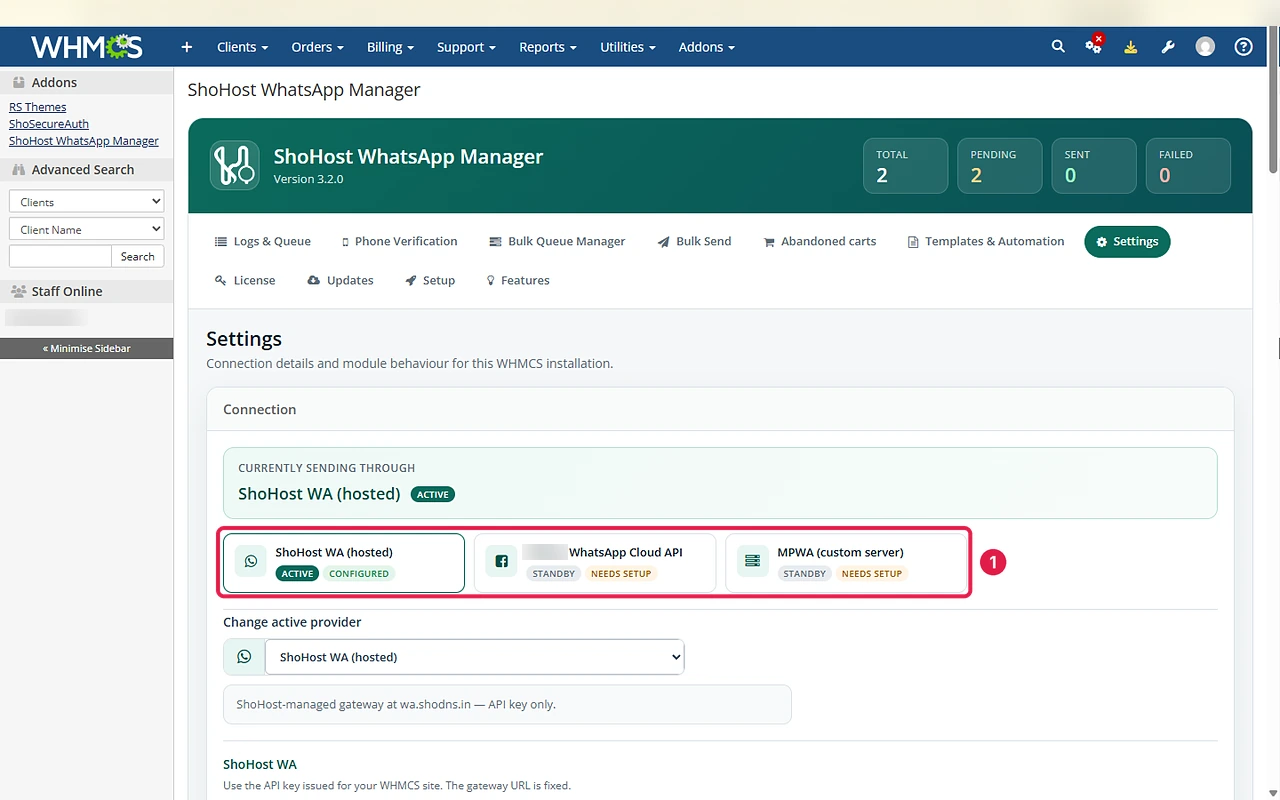
Pricing from the live product card: $2/month module licence, $19.20/year (all fees included) annual with the optional ShoHost-hosted API, or $15 one-time if you use your own gateway.
Method 1: Upload with cPanel File Manager (recommended)
Step 1: Upload the module to /modules/addons
In cPanel > Files > File Manager, open your WHMCS folder, then modules/addons. Click Upload, choose the module zip, then right-click it and choose Extract. The module folder now sits inside modules/addons.
<whmcs-root>/modules/addons/<module-folder>/Replace <whmcs-root> with your WHMCS directory (for example public_html/billing) and <module-folder> with the folder name inside the zip.
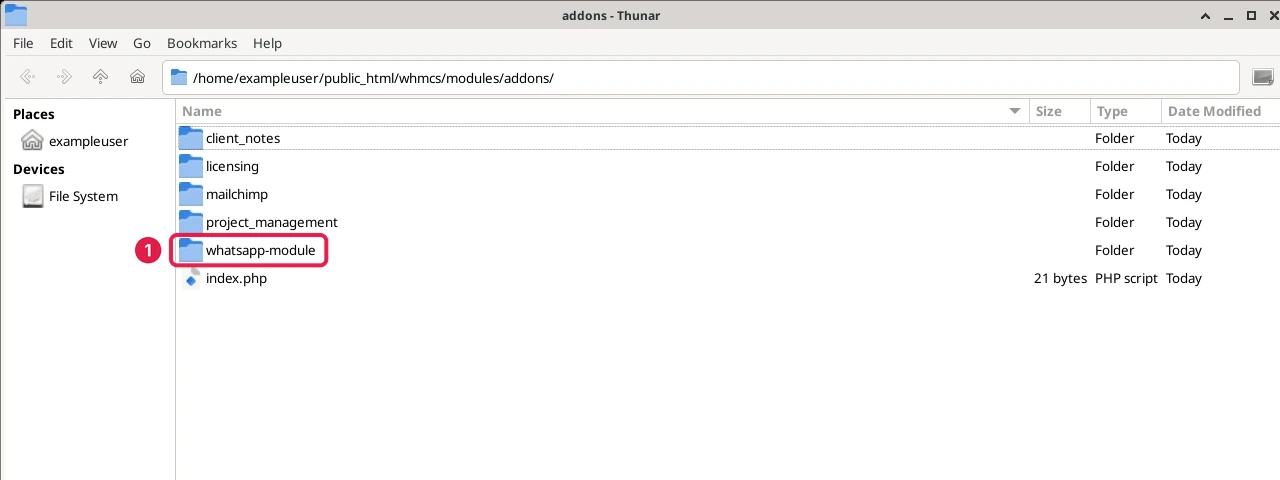
You should see one new folder in modules/addons, with no extra nested folder of the same name.
Step 2: Activate it in System Settings > Addon Modules and set access control
In WHMCS Admin > System Settings > Addon Modules, find the WhatsApp module and click Activate. Then click Configure, tick the admin role groups that may use it under Access Control and save.
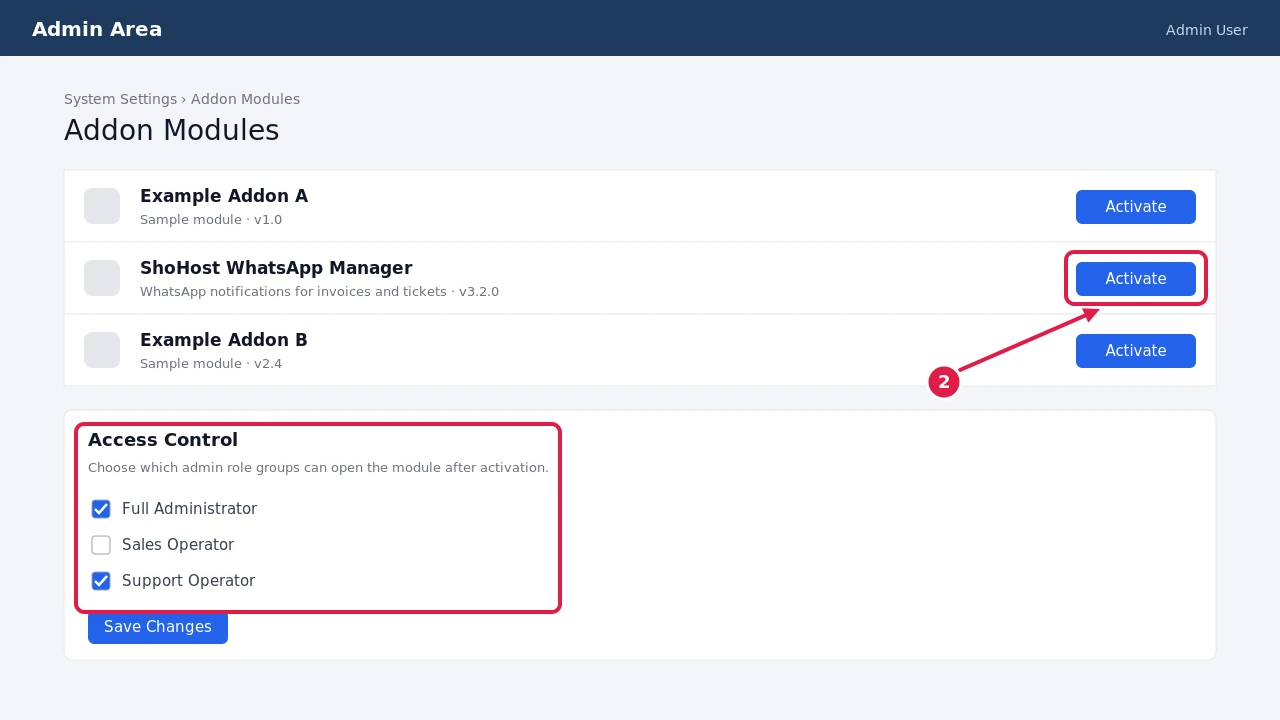
If it worked, the module shows as active and appears under Addons in the admin menu.
Step 3: Pick a backend and add your credentials
In Addons > WhatsApp module > Settings, choose the API provider from the provider cards. For ShoHost WA, paste your API key. For Meta Cloud API, paste the Cloud API token (a permanent system-user access token) and the phone number ID of the WhatsApp number that sends messages, plus the WhatsApp Business Account ID, which is needed for template sync. For MPWA, enter your gateway URL and key. Save.
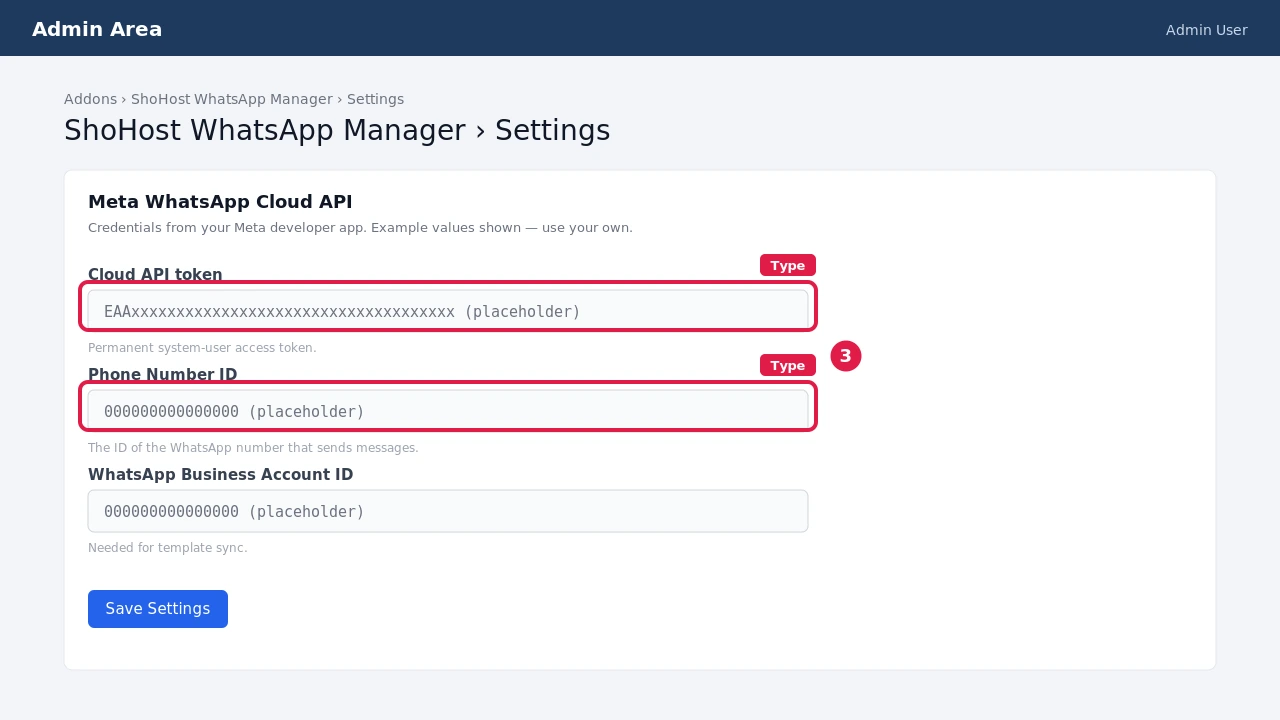
The settings save with no connection error.
Step 4: Map WHMCS events to templates
In Module > Templates, pick an event such as Invoice Created, write or select the template and use merge fields for the client name, invoice number, amount and pay link. Repeat for reminders, overdue, paid and ticket replies. On Meta Cloud, use templates Meta has approved.
Hi {client_name}, invoice #{invoice_id} for {amount} is due on {due_date}. Pay here: {invoice_link}The merge-field names above are examples. Use the exact fields your module’s template editor lists.
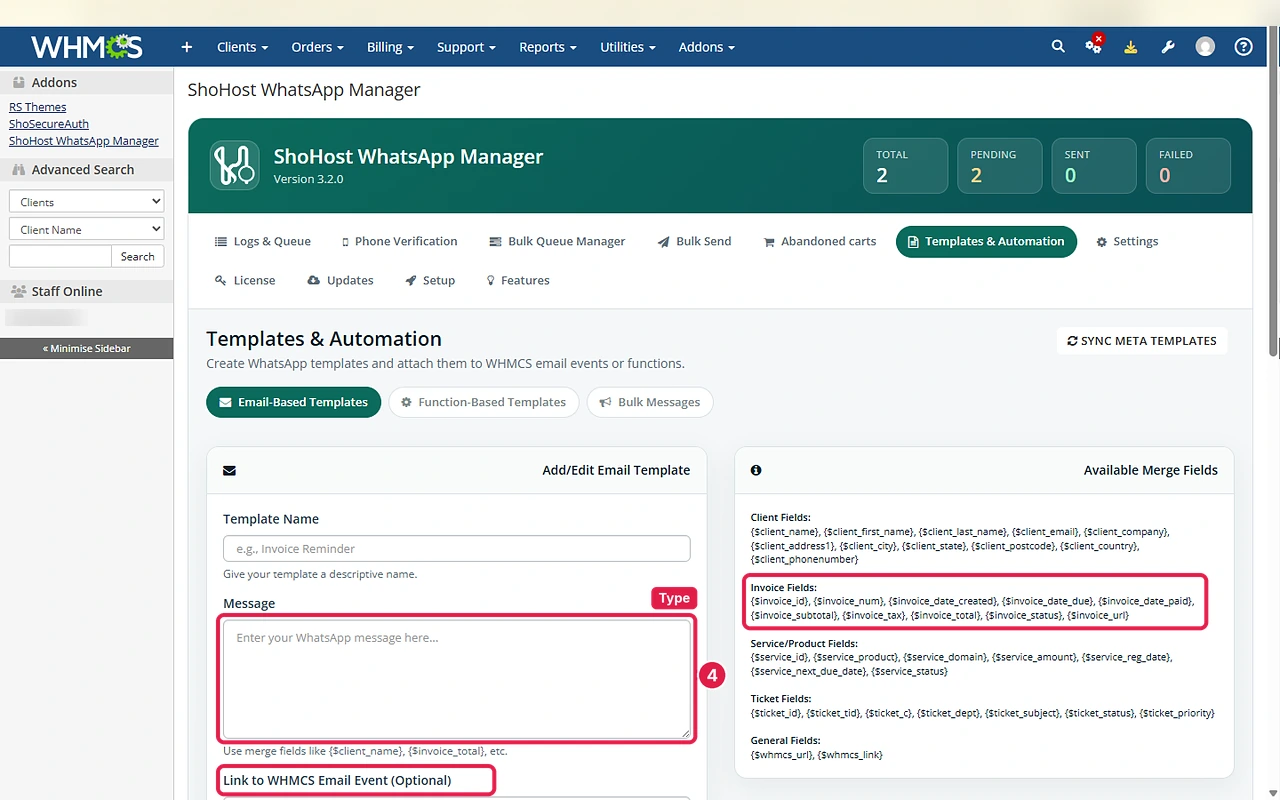
You should find that each event you need shows a mapped template and is switched on.
Step 5: Send a test invoice notification
Create a test client with your own WhatsApp number, then create a small invoice for them in Billing > Invoices > Create Invoice. Check your phone and the module’s Message log.
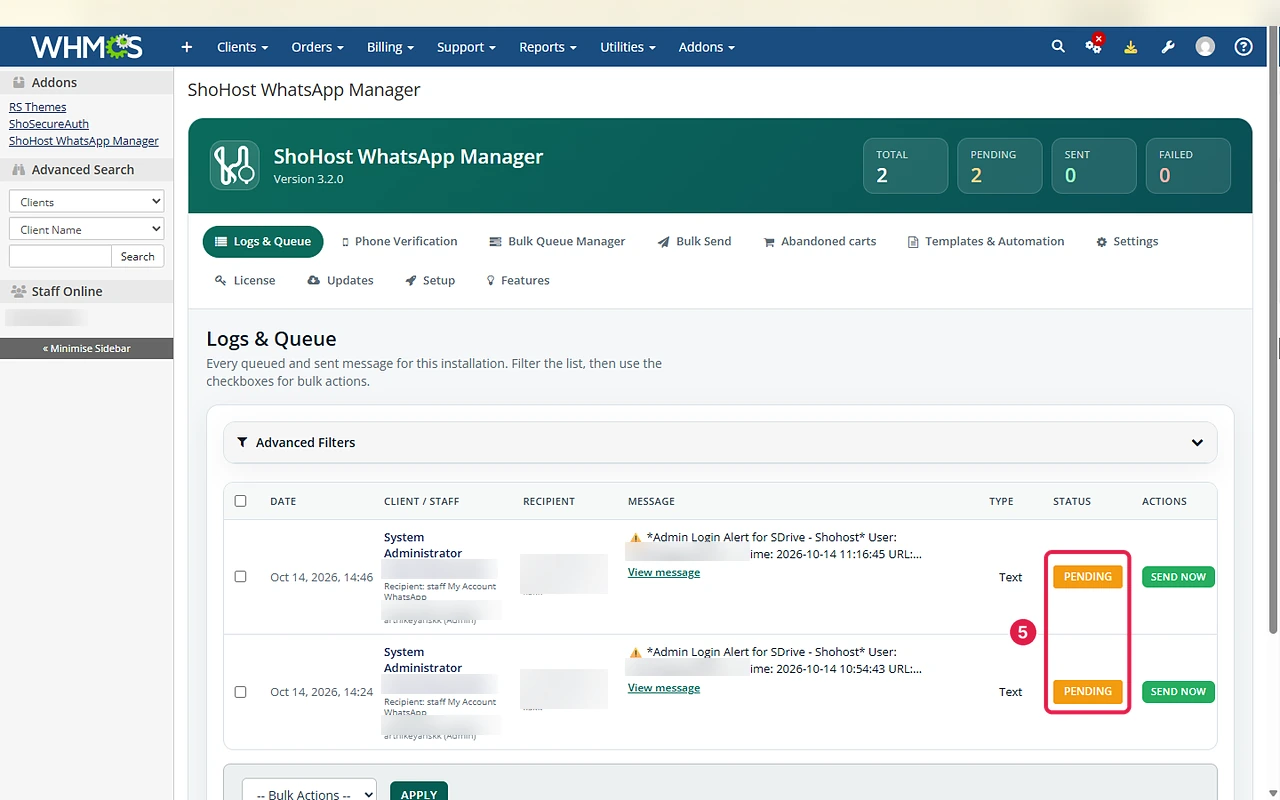
Now the message arrives on your phone and the message first shows Pending in Logs & Queue, and the status changes to Delivered once sent.
Method 2: Upload over SFTP (FileZilla), when File Manager won’t load
Use this when: File Manager times out or the zip is too large to upload in the browser.
Step 1: extract the zip on your computer. Step 2: in FileZilla, connect with your SFTP host, username and password (port 22, or 21 for FTP). Step 3: on the remote side open <whmcs-root>/modules/addons and drag the module folder across. Then continue from Method 1, Step 2.
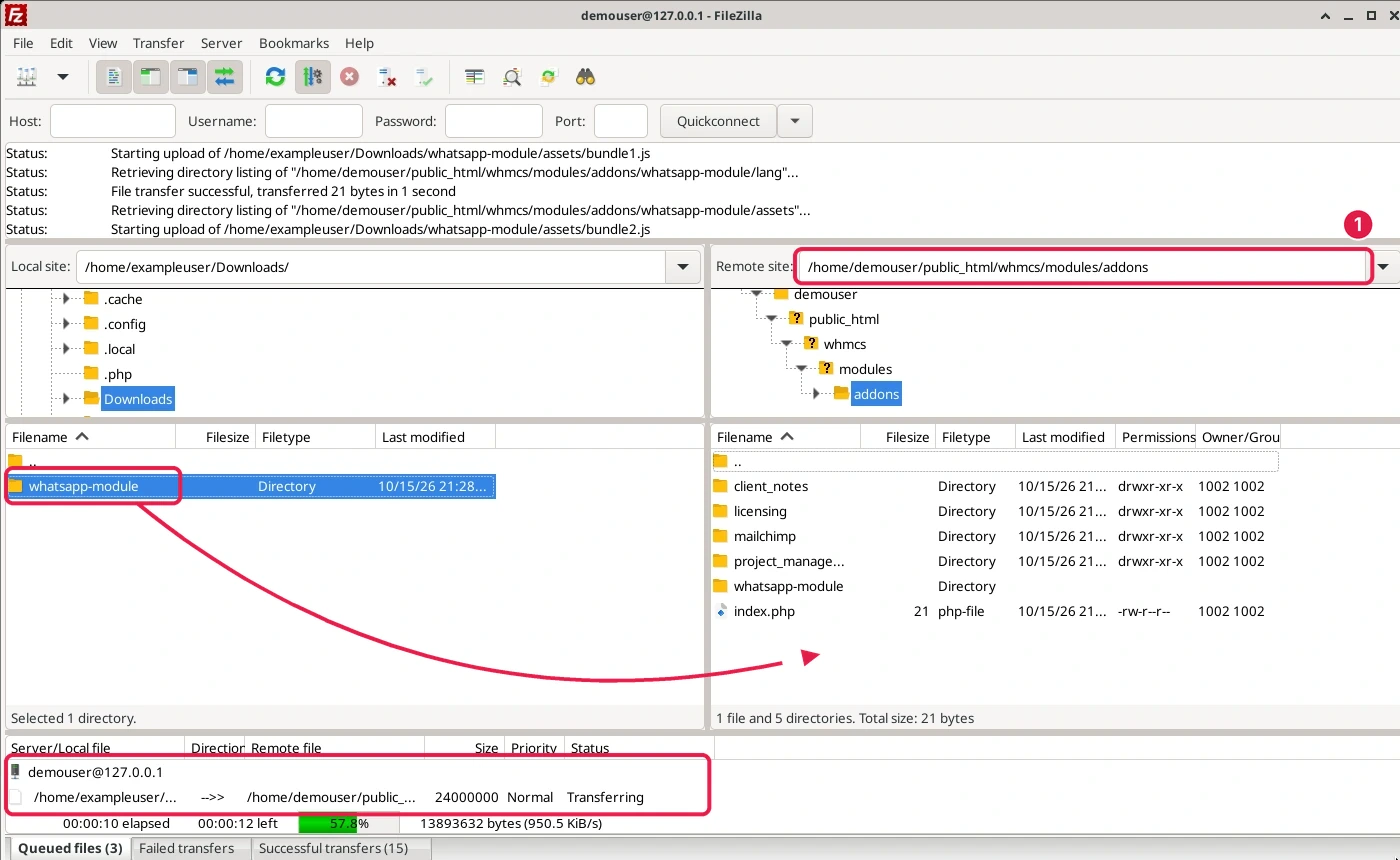
The transfer queue finishes with no failed files.
Method 3: Upload over SSH / cPanel Terminal
Use this when: you prefer the command line or both earlier methods fail. Open cPanel > Advanced > Terminal (or SSH in), upload the zip to your home folder, then run:
cd ~/public_html/billing/modules/addons
unzip ~/whatsapp-module.zip -d .
ls -la
Replace public_html/billing with your WHMCS path and whatsapp-module.zip with your file name. Then continue from Method 1, Step 2.
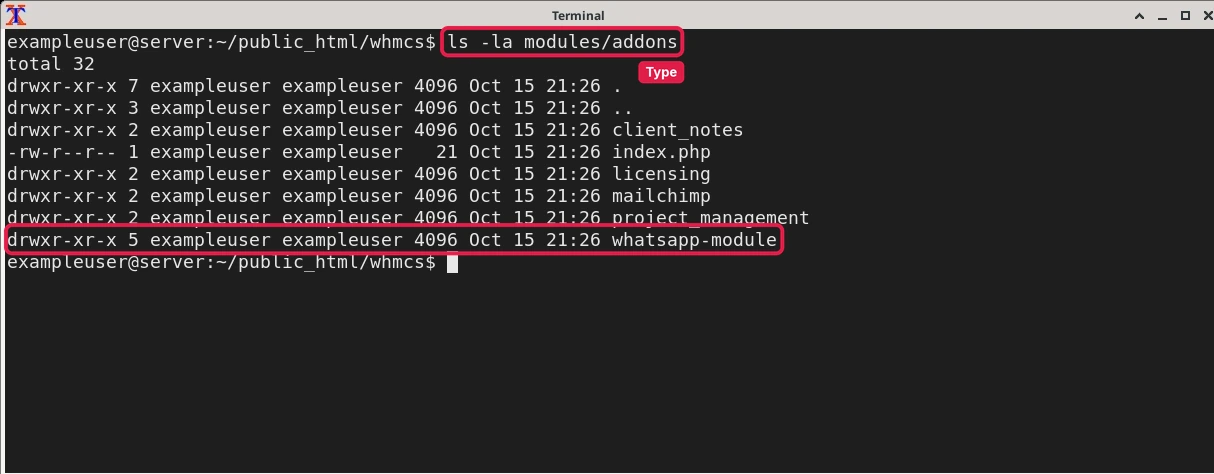
At this point ls -la lists the whatsapp-module folder owned by your cPanel user.
Optional: Turn on WhatsApp OTP for signup and checkout
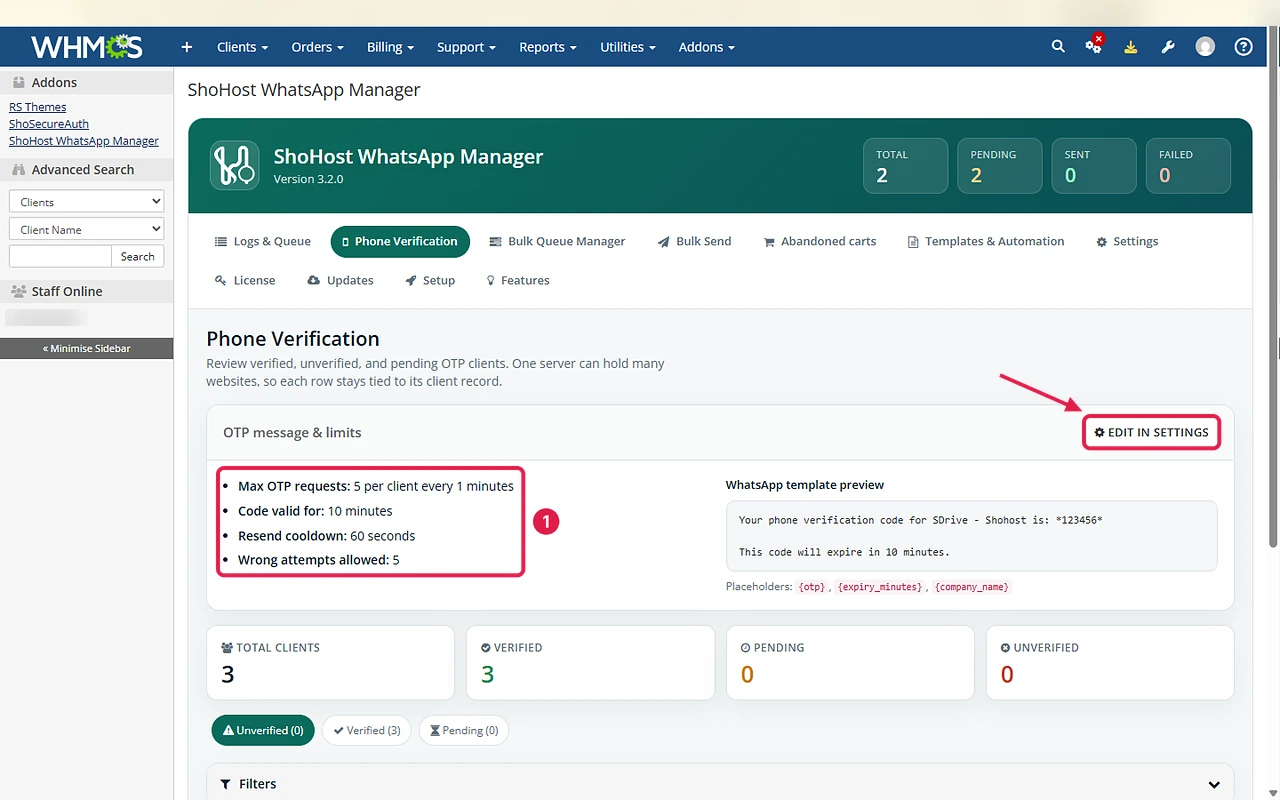
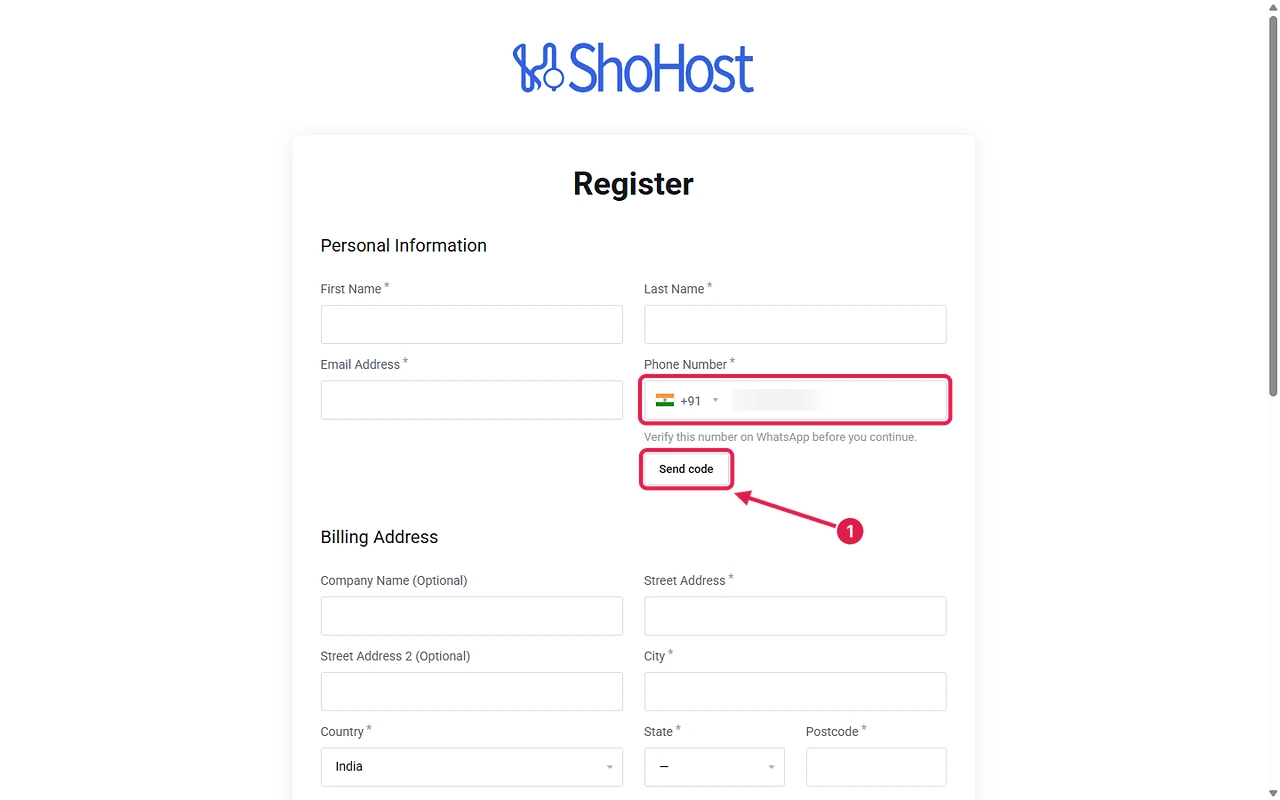
Fake numbers break WhatsApp alerts. In Module > Settings > outbound policy, enforce phone OTP after login, before registration, before checkout, or any combination. Save, then open the client registration form in a private browser window: the phone field should show a WhatsApp Send code button, and the code arrives on WhatsApp.
Optional: Send a bulk campaign with an approved Meta template
Bulk messages go only to clients who opted in, using a Meta-approved template, as the WhatsApp Business Messaging Policy requires. Choose the template, filter opted-in clients and send a small batch first.
Verify it worked
- Create a test invoice: the message arrives on your phone within a minute and the log shows it.
- Reply to a test ticket as admin: the client number gets a ticket-reply message.
- Open the client registration form with OTP on: the phone field shows a WhatsApp Send code button before you can continue.
ls -la ~/public_html/billing/modules/addons | grep -i whatsappYou should see one line showing the module folder. If nothing appears, see the first troubleshooting row.
Troubleshooting
| Symptom / message | Likely cause | Fix |
|---|---|---|
| Module not listed in Addon Modules | Wrong folder level or nested folder | Re-check Method 1 Step 1; the folder must sit directly in modules/addons |
| Test message not sent | Wrong API key or token | Re-paste credentials in Step 3 and save |
| Meta template rejected | Template not approved or wrong category | Use an approved utility template in Meta Business Manager |
| Client gets nothing | Phone number missing country code | Store numbers as +91XXXXXXXXXX in the client profile |
| Still stuck? | WhatsApp support on +91 94880 91432. Send your WHMCS version, the backend you chose and a screenshot of the Message log. |
FAQ
How do I send WHMCS invoice notifications on WhatsApp?
Install the ShoHost WhatsApp module as a WHMCS addon, choose a backend (ShoHost hosted API, Meta WhatsApp Cloud API or your own MPWA gateway), then map the invoice events (created, reminder, overdue, paid) to message templates.
Does it work with the Meta WhatsApp Cloud API?
Yes. Select Meta WhatsApp Cloud API in Settings and add your Cloud API token and phone number ID. Meta Cloud is required for template sync, delivery tracking and two-way replies through webhooks.
Can I verify a client’s phone with WhatsApp OTP?
Yes. In Settings > outbound policy choose after login, before registration, before checkout, or a combination.
Which WHMCS versions are supported?
It supports the latest WHMCS versions, on PHP 7.4+ (PHP 8.x recommended).
Is the module included with reseller or lifetime hosting?
No. WHMCS and the WhatsApp module are not included with reseller, master, alpha or lifetime plans.
What is the refund policy?
It’s a ShoHost in-house module, so it comes with a 7-day refund on eligible orders, as set out in our system policies.
Related guides
- Fix WHMCS cron not running (reminders depend on cron)
- Fix WHMCS invoices not generated
- Set up WHMCS email piping
- Fix WHMCS Razorpay payment not captured
- Browse all ShoHost WHMCS modules
Ready to get paid faster? Get the WhatsApp module for WHMCS and send your first invoice alert today. Questions first? WhatsApp support on +91 94880 91432.