WHMCS Cron Not Running: Fix Automation Status Warnings
Tested on 12 October 2026 in a ShoHost sandbox (PHP 8.4). We did not install WHMCS or use a WHMCS licence. Instead we ran a stand-in cron script the way cron runs it, and checked the PHP command line for ionCube. The Automation Status image is a simulated example; menu names and the cron command format come from the public WHMCS documentation.
WHMCS does its daily work from one cron job: invoices, reminders, suspensions, domain syncs and ticket escalations. If it stops, you see an Automation Status warning in the admin dashboard and invoices stop going out. Most causes are in the cron command itself.
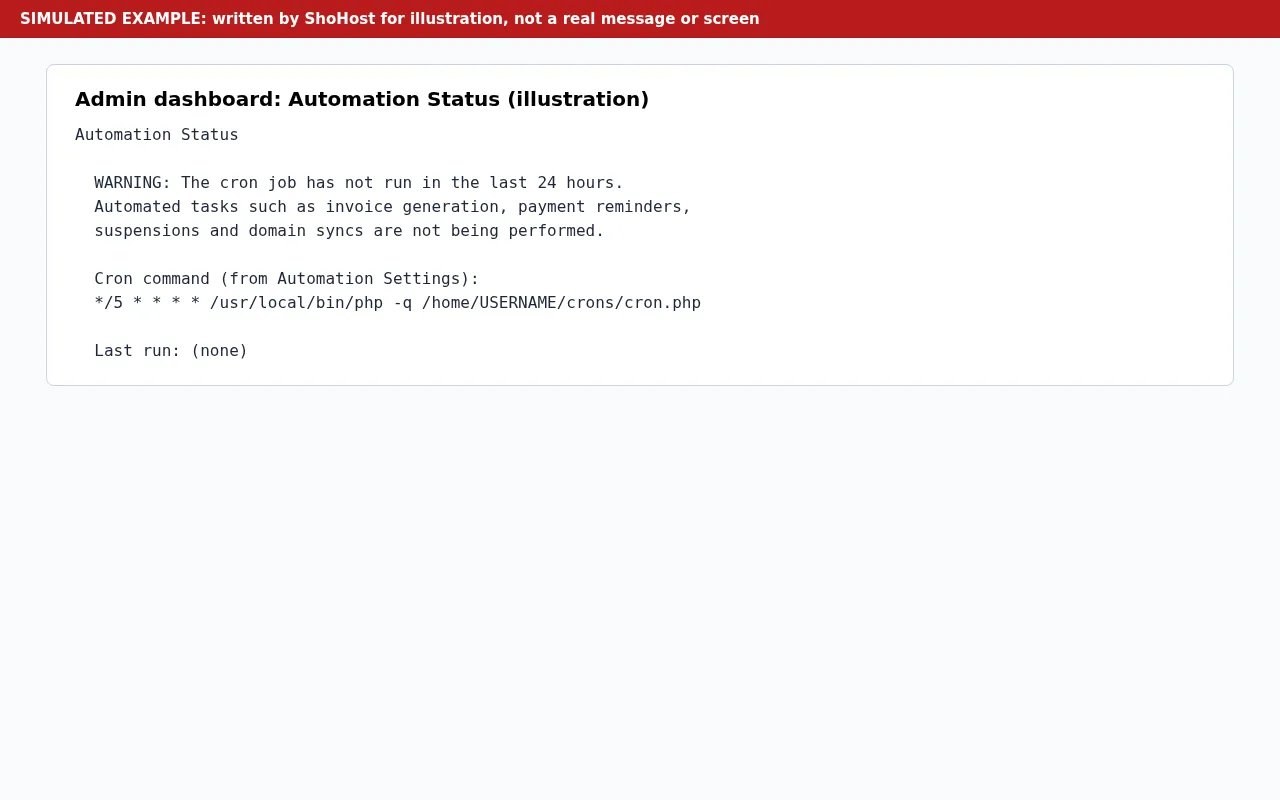
The warning reads along the lines of The cron job has not run in the last 24 hours. Automated tasks such as invoice generation, payment reminders, suspensions and domain syncs are not being performed. It also shows the cron command from Automation Settings and the last run time, which reads (none) if it has never run.
Step 1: Get the right command
In WHMCS admin open Configuration → System Settings → Automation Settings. The page shows the exact cron command for your installation, including the path to crons/cron.php. It looks like this:
*/5 * * * * /usr/local/bin/php -q /home/USERNAME/crons/cron.phpWHMCS recommends running it every 5 minutes. Copy the path from that page rather than typing it; many people move the crons folder outside public_html for security, and the path changes with it.
Step 2: Check the command works
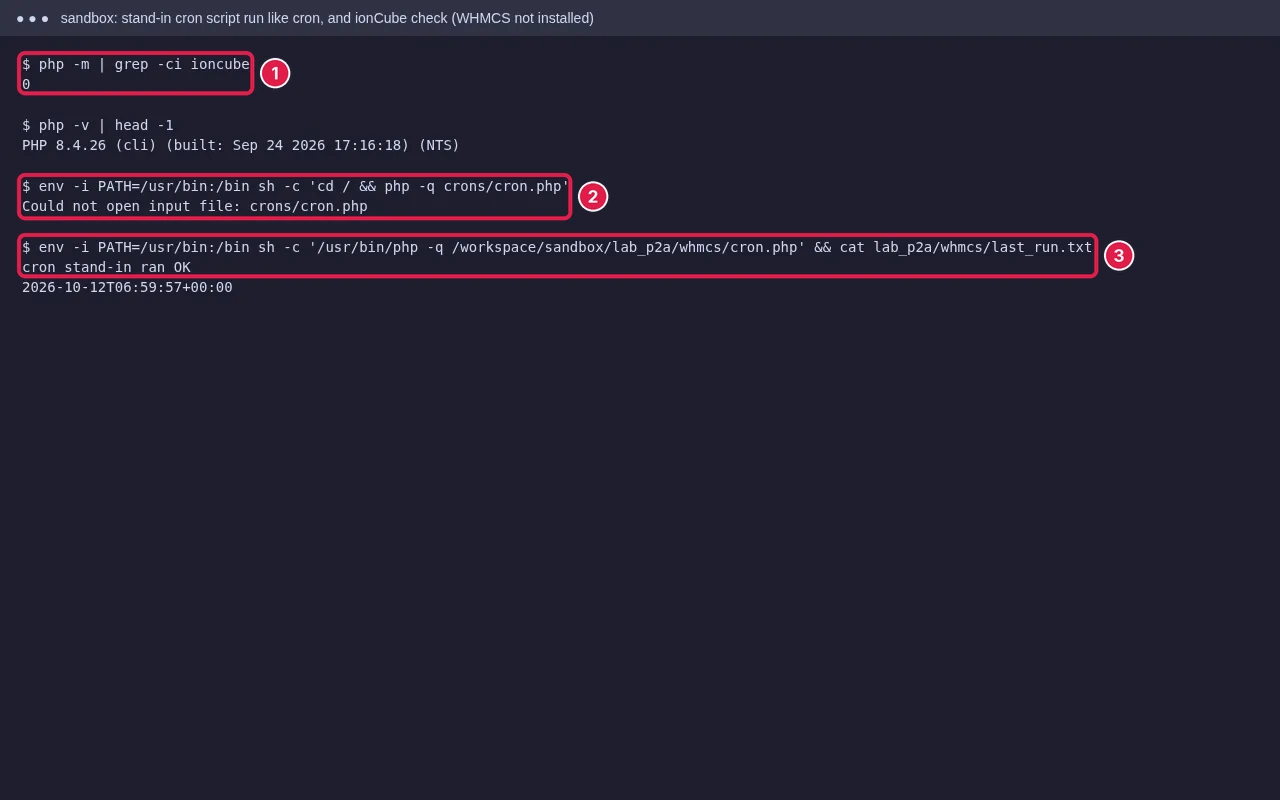
- Full paths: cron doesn’t start in your WHMCS folder. A relative path fails with Could not open input file.
- PHP version: the cron must use a PHP version your WHMCS version supports. If the site uses PHP 8.1 via MultiPHP but
/usr/local/bin/phpis another version, use the versioned binary your host gives (on some servers, a path like/opt/cpanel/ea-php81/root/usr/bin/php). - ionCube Loader: WHMCS is encoded with ionCube, so the PHP used by cron needs the loader too. Our sandbox PHP CLI has none (
php -mshows 0), and WHMCS would refuse to run there. - Moved crons folder: if you moved it, the
config.phpin the crons folder must point to your WHMCS path, as the WHMCS docs describe.
Step 3: See the output
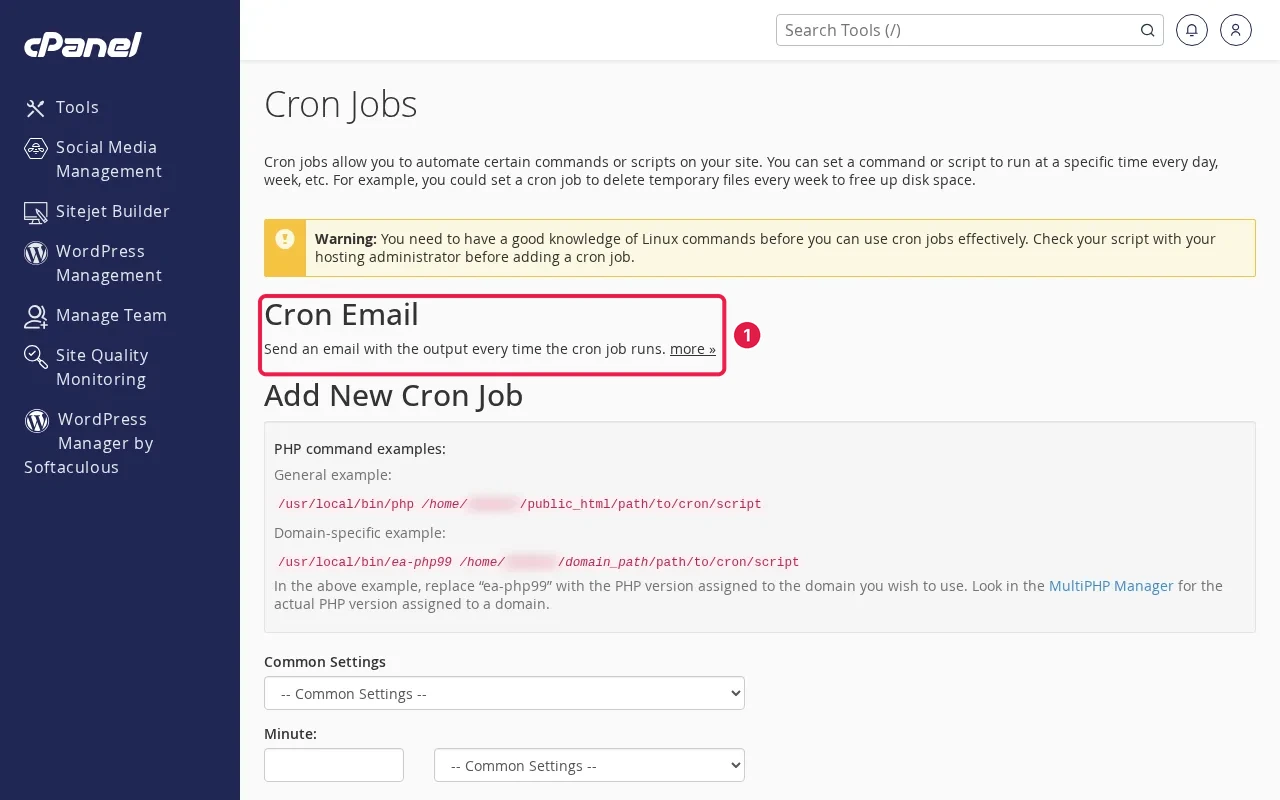
Add your email at the top of cPanel’s Cron Jobs page, or append >> /home/USERNAME/whmcs-cron.log 2>&1 to the command, and wait for the next run. You can also run the command in cPanel Terminal to see errors immediately. WHMCS also logs each run in Configuration → System Logs → Activity Log.
Step 4: Clear the warning
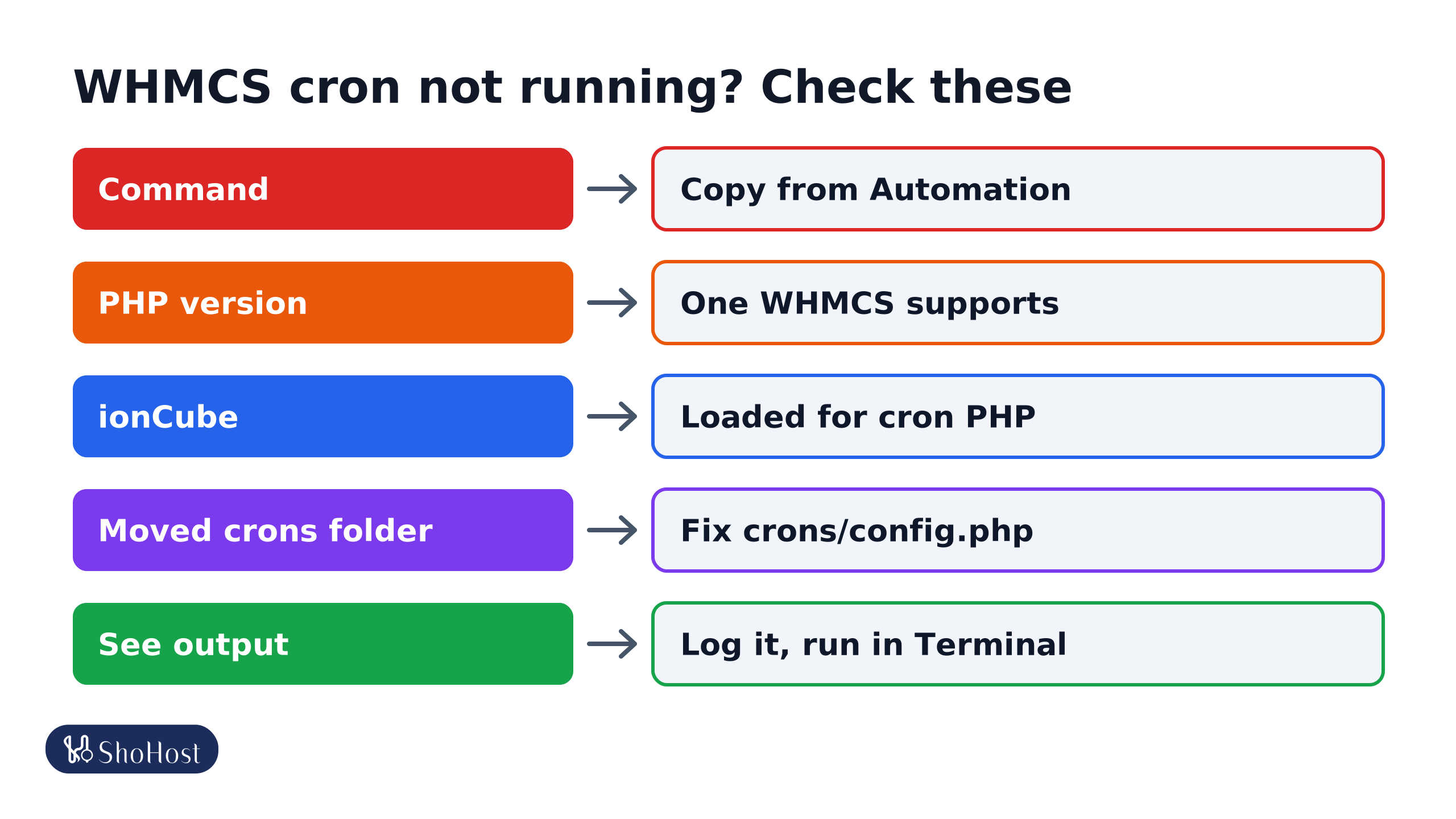
- Command: copy it from Automation Settings, with the full path to php and
crons/cron.php. - PHP version: a version your WHMCS supports. Use the versioned php binary if needed.
- ionCube: the PHP used by cron must load the ionCube Loader.
- Moved crons folder:
crons/config.phpmust point to the WHMCS path. - See the output: use the cron email or
>> ~/whmcs-cron.log 2>&1, and run it in Terminal.
Once the cron runs, the Automation Status page updates after the next run. If invoices were missed while it was down, check Billing → Invoices: the daily run catches up on due invoices, but reminders for past days aren’t sent again.
FAQ
How often should the WHMCS cron run?
Every 5 minutes, as the WHMCS docs recommend. The daily tasks run once a day inside it, at the time set in Automation Settings.
Can I use wget or curl instead of php?
Use the php command line. A web-based cron can time out and is not the documented method.
The cron runs but nothing happens. Why?
Check the Activity Log and the cron output for license, ionCube or database errors, and the daily task time in Automation Settings.
Automation Status still showing a warning? If WHMCS runs on your ShoHost account, WhatsApp the cron command and its output to +91 94880 91432 and we’ll check them with you.