How to Harden Your WHMCS Admin Area with Passkeys and 2FA (2026)
One WHMCS admin login opens your whole hosting business. Whoever holds it can read every client record, change payment gateway settings, issue refunds, reach servers through module links and email your entire client list from your own domain. That makes the admin login page one of the first places attackers look once they spot a WHMCS install.
This post covers the real risks, what good protection looks like in 2026, the few basics every WHMCS owner should keep doing, and how ShoSecureAuth, our in-house WHMCS addon, adds passkeys and two-factor sign-in to both the admin area and the client area. Installing it takes a few minutes, and you can try it free for 15 days.
Note: this is for self-hosted WHMCS. You bring your own WHMCS licence, and neither WHMCS nor ShoSecureAuth is included with ShoHost reseller, master, alpha or lifetime hosting plans.
WHMCS admin security risks that lead to takeovers
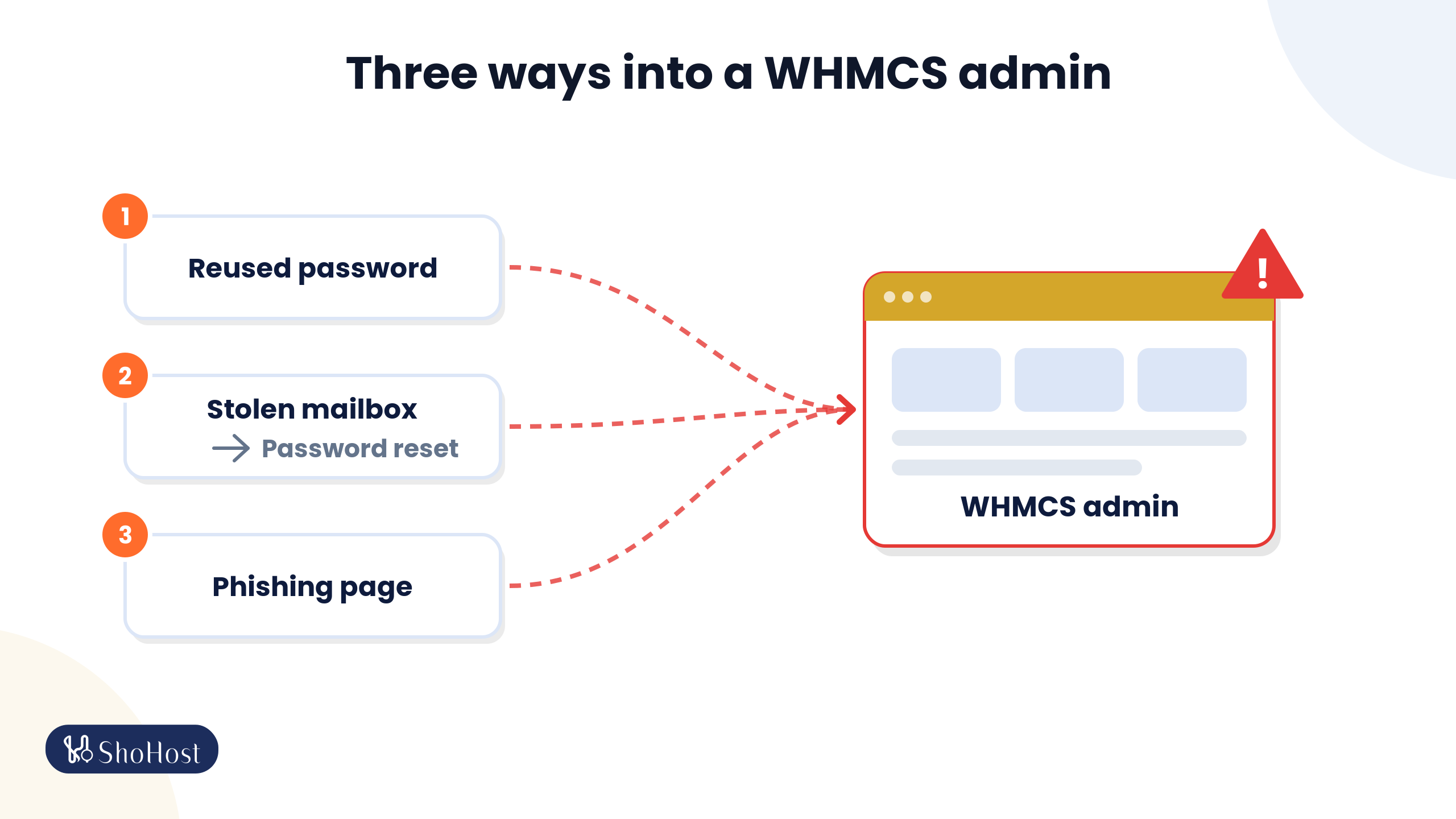
Most WHMCS break-ins don’t need a clever exploit. They need one working password. These are the patterns to plan for:
| Risk | How it happens | What it costs you |
|---|---|---|
| Password reuse | A staff member uses the same password on another site that later leaks. Bots replay leaked email and password pairs against login pages. | Full admin access with a “valid” login, so nothing looks wrong at first. |
| Stolen mailbox | Someone gets into an admin’s or a client’s email and uses password reset. | Account takeover without ever guessing a password. |
| Phishing | A fake “WHMCS login” page captures a password and, often, a one-time code typed straight after it. | The attacker signs in before the code expires. |
| Brute force and guessing | Automated tools try common passwords against the login form. | Locked-out staff, noisy logs and, eventually, a hit. |
| Shared staff logins | Several people use one admin account. | You can’t tell who did what, and you can’t remove one person’s access cleanly. |
ShoSecureAuth’s own product page puts it plainly: password reuse and stolen mailbox access are how WHMCS accounts get taken over. A password alone, however strong, isn’t enough protection for an admin login.
What strong WHMCS login protection looks like
Good protection makes a stolen password useless on its own and still lets your team work fast. When you compare options, look for these:
| Capability | Why it matters |
|---|---|
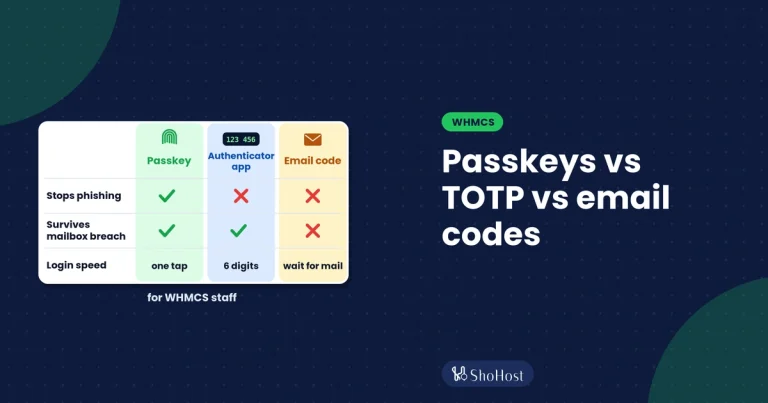
| Phishing-resistant sign-in (passkeys) | A passkey is tied to your real domain, so a look-alike page can’t capture and replay it. |
| A second step after the password | A leaked password stops being enough to get in. |
| Separate rules for staff and clients | You can be strict with admins without making client logins painful. |
| Several ways to get a code, plus a backup | People still get in when a phone is lost, so nobody is tempted to turn security off. |
| Rate limits on login attempts | Slows guessing attacks down. |
| Trusted devices that users can revoke | Fewer prompts on known devices, and a quick fix when a laptop goes missing. |
| Visibility | You can see who has enrolled, which methods are on, and failed logins. |
WHMCS security basics to keep doing
These habits cost nothing and sit underneath any login protection:
- Keep WHMCS, its addons and PHP up to date. Security fixes only help once they are installed.
- Use long, unique passwords for every admin account, kept in a password manager.
- Give each person their own admin account with a role that only covers their job, and remove accounts the day someone leaves.
- Rename the default admin folder. WHMCS supports a custom admin path in
configuration.php. It cuts down automated noise, but it doesn’t replace real login protection. - Keep off-server backups of the WHMCS database and files, and test a restore now and then.
WHMCS also has its own two-factor options under Configuration > System Settings > Two-Factor Authentication (time-based tokens, Duo Security and YubiKey), plus failed-login bans on the Security tab. Those are worth knowing about. What they don’t give you is passkey sign-in, or codes sent by email or WhatsApp. That’s the gap ShoSecureAuth fills.
ShoSecureAuth: passkeys and 2FA for WHMCS admin and client logins
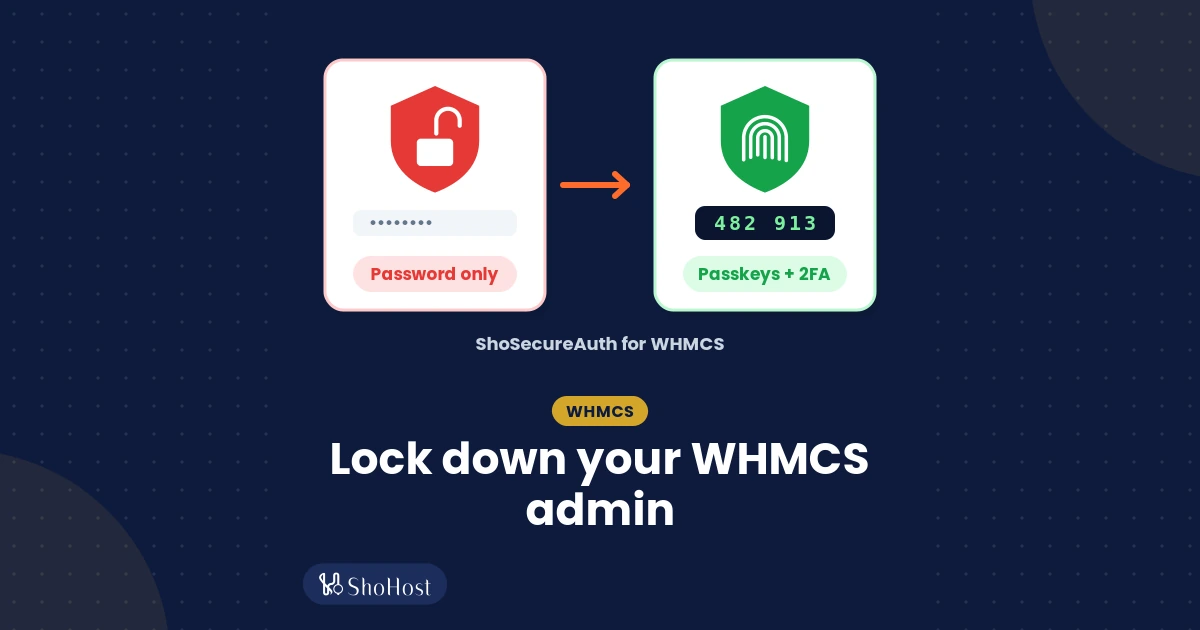
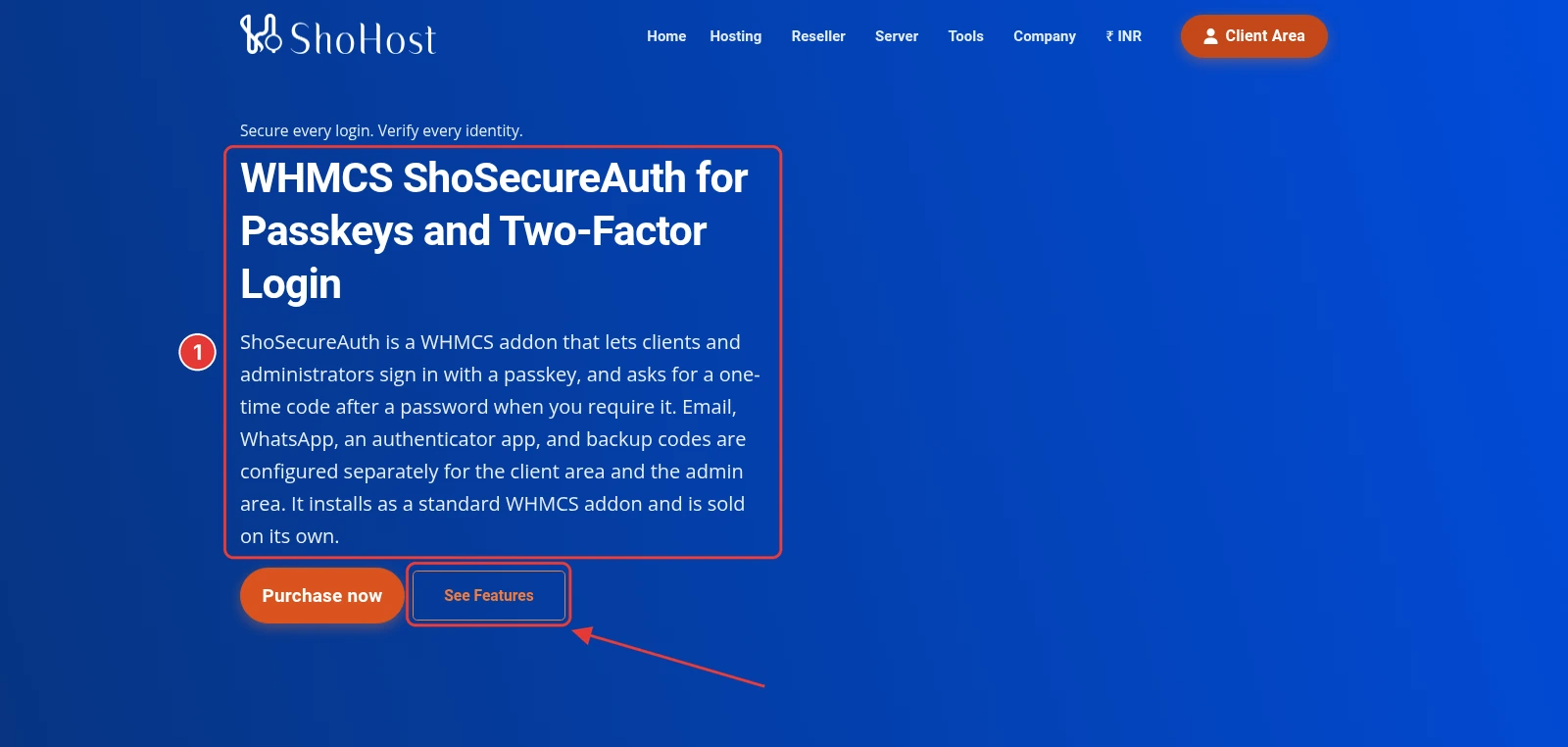
ShoSecureAuth is a WHMCS addon built by ShoHost. Clients and administrators can sign in with a passkey, and you can ask for a one-time code after the password when you want one. Email, WhatsApp, authenticator app and backup codes are set up separately for the client area and the admin area. It installs like any other WHMCS addon and is sold on its own.
How each risk is handled
| Risk | ShoSecureAuth feature |
|---|---|
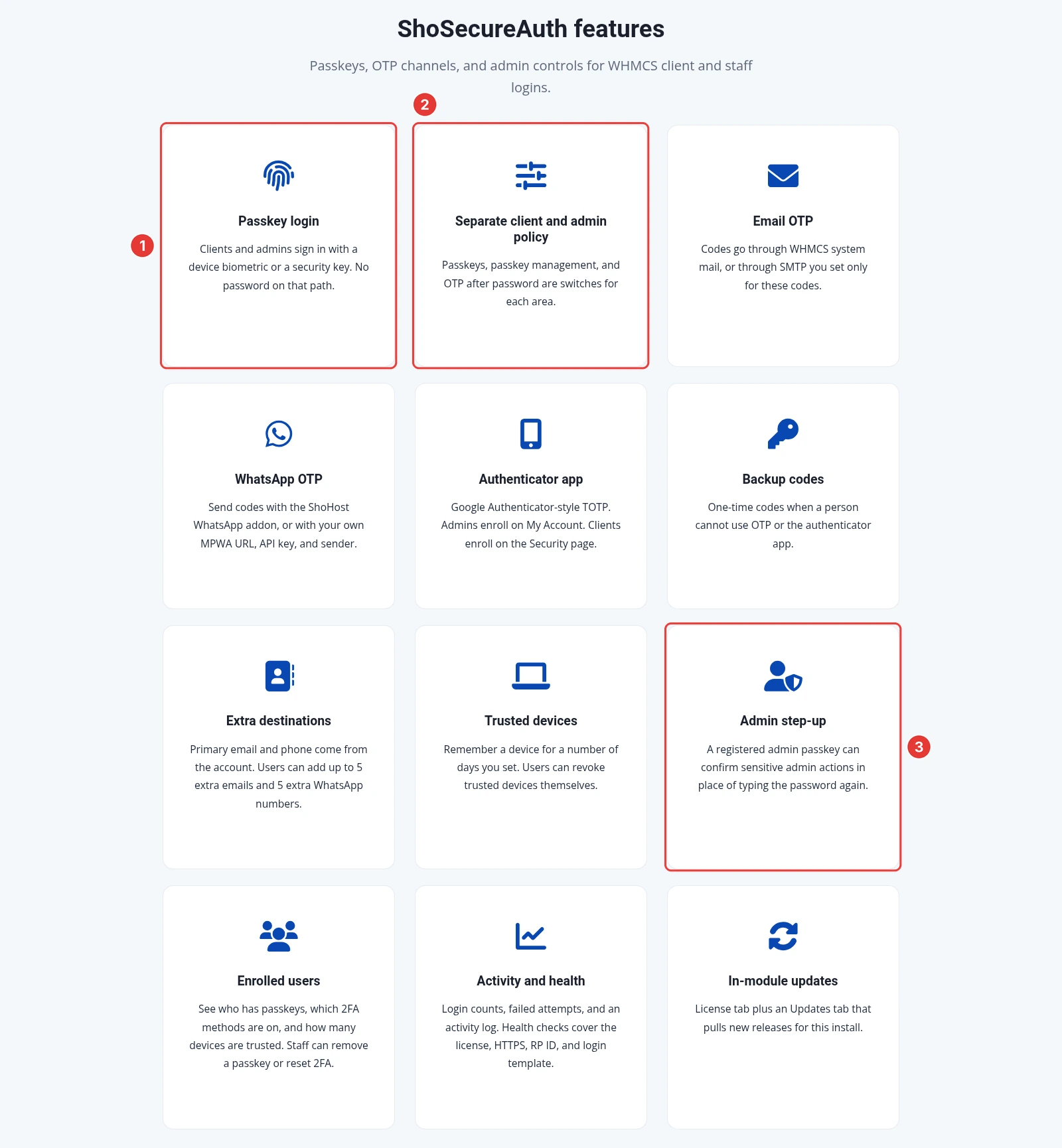
| Password reuse and phishing | Passkey login with a device biometric or a security key, for clients and admins. No password on that path. |
| Leaked password | OTP after password, by email, WhatsApp, authenticator app (Google Authenticator-style TOTP) or backup codes. |
| Risky admin actions | Admin step-up: a registered admin passkey can confirm sensitive admin actions instead of typing the password again. |
| Guessing attacks | Login attempts can be rate-limited per IP and per account. An in-progress OTP login can be dropped if the IP changes mid-flow. |
| Lost phone or laptop | Backup codes, up to 5 extra emails and 5 extra WhatsApp numbers per user, and trusted devices that users can revoke themselves. |
| No visibility | Enrolled users view (passkeys, 2FA methods, trusted devices) and an activity log with login counts and failed attempts. Staff can remove a passkey or reset 2FA. |
Controls for hosting providers
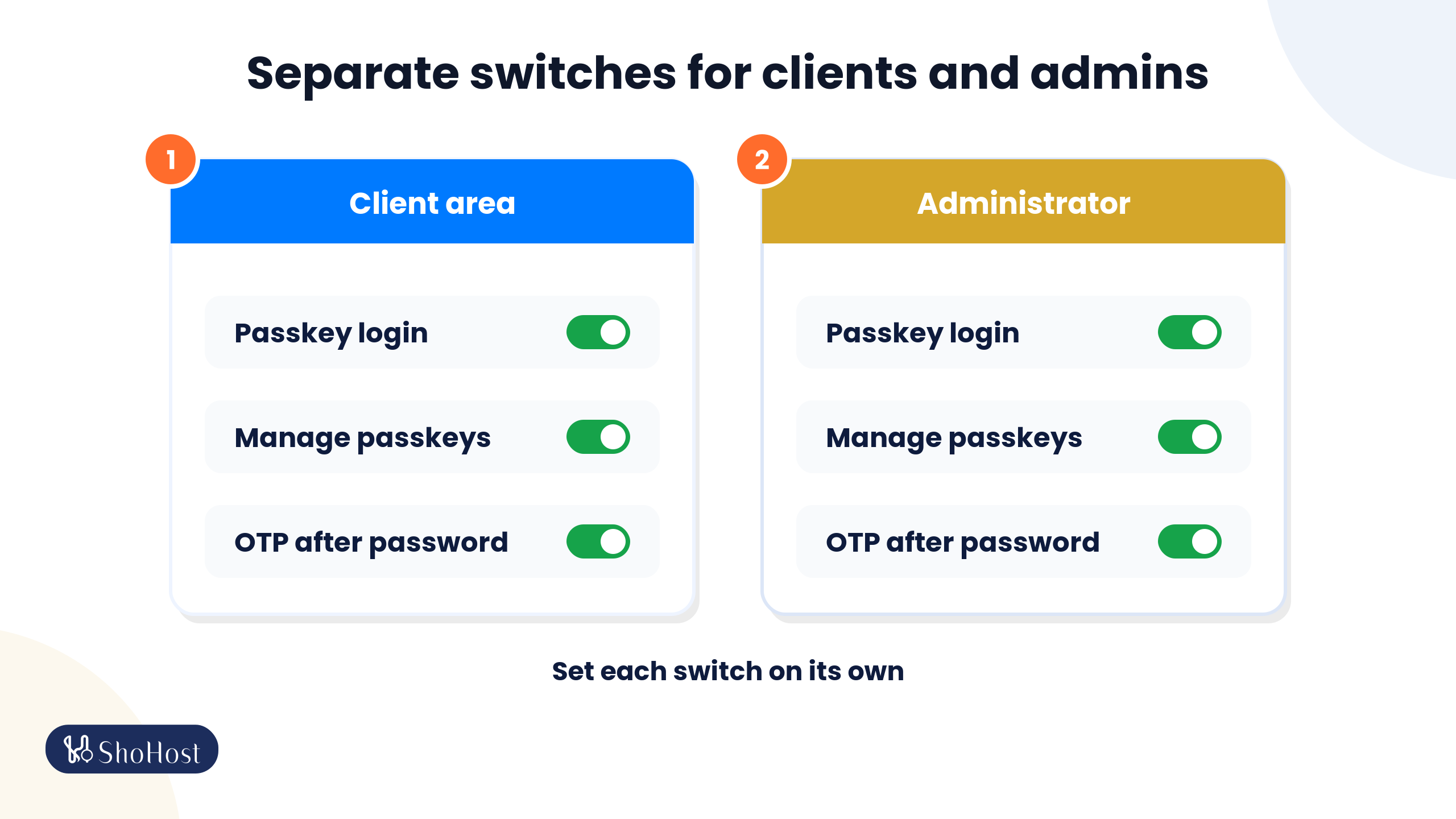
- Separate client and admin policy: passkey login, passkey management and OTP after password are separate switches for each area. You can protect only admins, only clients, or both.
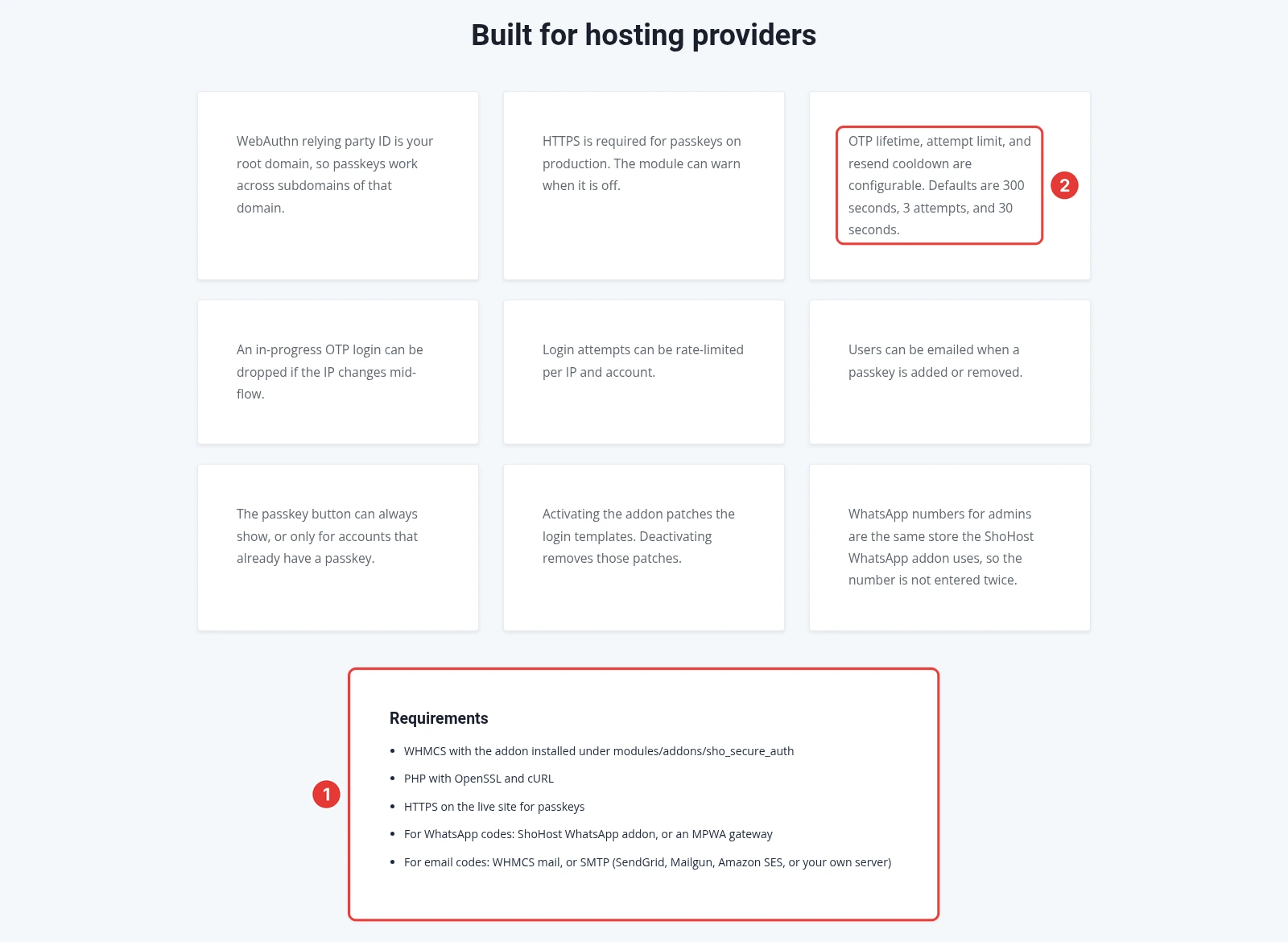
- Configurable codes: OTP lifetime, attempt limit and resend cooldown can be changed. The defaults are 300 seconds, 3 attempts and 30 seconds.
- Passkeys across subdomains: the WebAuthn relying party ID is your root domain, so passkeys work across its subdomains.
- Alerts: users can be emailed when a passkey is added or removed.
- Health checks cover the licence, HTTPS, the RP ID and the login template, and the module can warn when HTTPS is off.
- Updates inside WHMCS: a License tab and an Updates tab that pulls new releases for your install.
- Email codes go through WHMCS system mail, or through SMTP you set only for these codes (SendGrid, Mailgun, Amazon SES or your own server).
- WhatsApp codes go through our WHMCS WhatsApp module or your own MPWA gateway. Admin WhatsApp numbers use the same store as the WhatsApp addon, so nobody types them twice.
ShoSecureAuth vs WHMCS built-in two-factor
| WHMCS built-in 2FA | ShoSecureAuth | |
|---|---|---|
| Passkey sign-in | No | Yes, for clients and admins |
| Code channels | Time-based tokens, Duo Security, YubiKey | Email, WhatsApp, authenticator app, backup codes |
| Admin step-up with a passkey | No | Yes |
| Email and WhatsApp codes | No | Yes |
| Cost | Included with WHMCS | Separate licence, 15-day free trial |
You don’t have to choose one forever. A practical way to start is to run the trial on the admin area only, then switch it on for clients once your staff are comfortable with it.
ShoSecureAuth requirements
- A self-hosted WHMCS install, with the addon under
modules/addons/sho_secure_auth. The product page says it supports the latest WHMCS versions and is updated when new releases come out. - PHP with the OpenSSL and cURL extensions.
- HTTPS on the live site for passkeys. See our guide to fixing AutoSSL in cPanel if your certificate isn’t issuing.
- For WhatsApp codes: the ShoHost WhatsApp addon or an MPWA gateway. Email and authenticator codes don’t need it.
- A licence for one domain-bound WHMCS install, or the 15-day trial from the addon’s License tab.
How to install ShoSecureAuth on WHMCS
Take a backup of your WHMCS files and database first. Installing takes a few minutes and works like any other WHMCS addon.
Get the addon
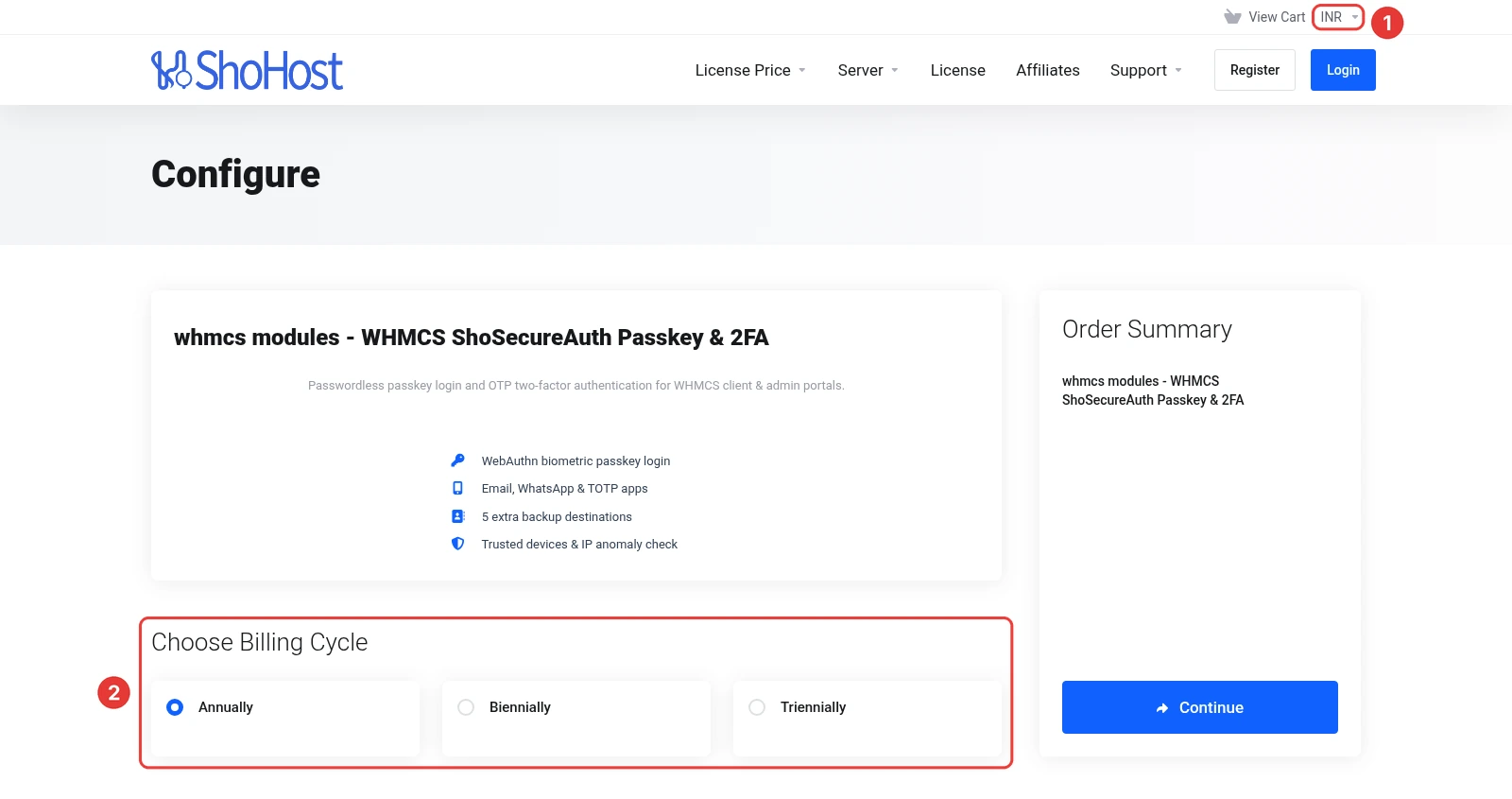
- Open the ShoSecureAuth order page in the ShoHost store, pick your currency (INR is available) and billing cycle, and complete the order. You can also start with the 15-day trial from the addon’s License tab.
- Download the addon files from your ShoHost client area.
Method 1: upload with cPanel File Manager
- In cPanel > Files > File Manager, open your WHMCS folder, then
modules/addons. - Click Upload, choose the zip, then go back, right-click the zip and choose Extract.
- Check that the files sit directly in
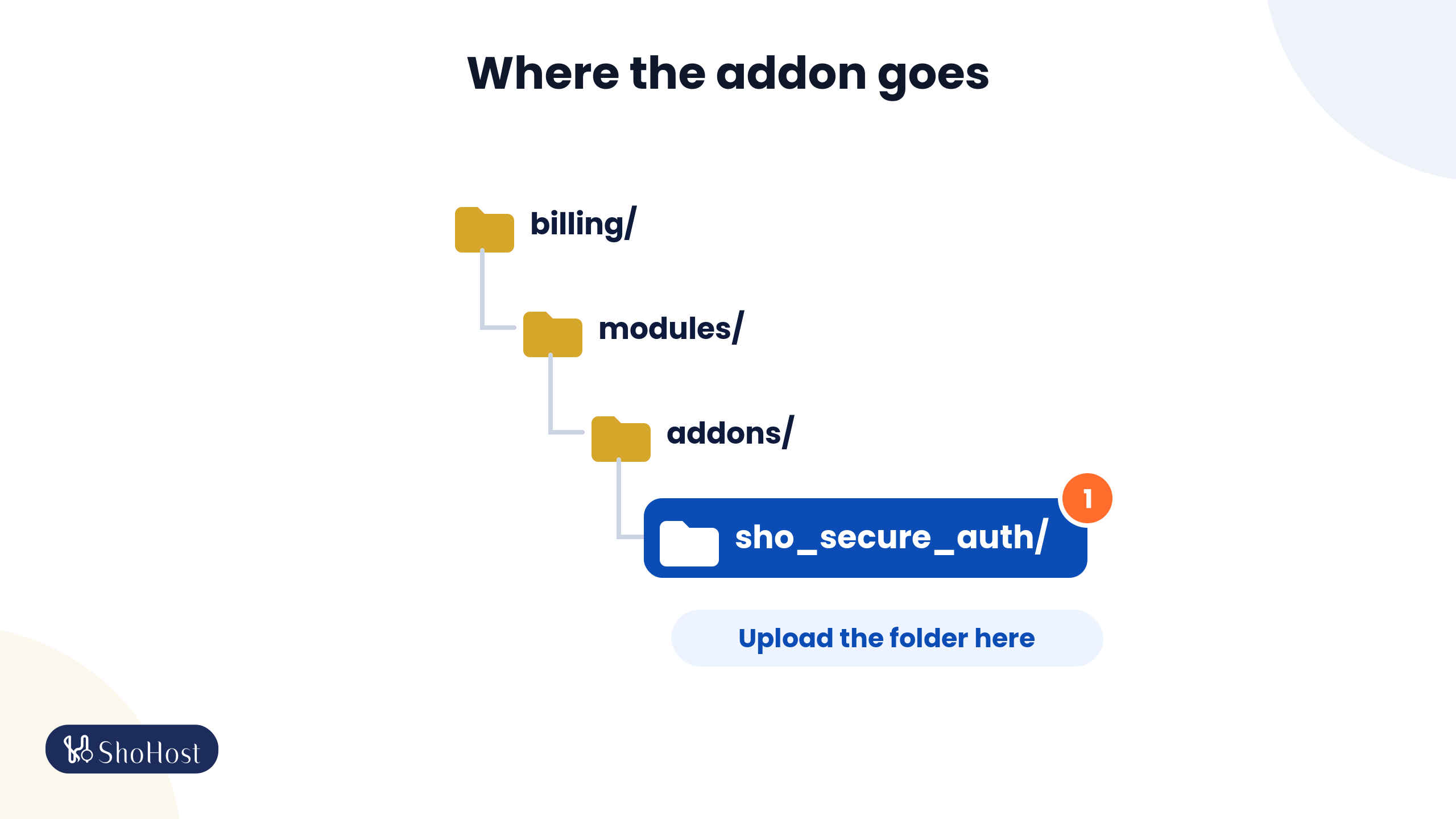
modules/addons/sho_secure_auth, not in a nested folder. Delete the zip.
Method 2: upload over SFTP
If File Manager uploads time out, unzip the file on your computer and use an SFTP client such as FileZilla to upload the sho_secure_auth folder into modules/addons on the server.
Method 3: SSH or cPanel Terminal
Upload the zip to your home folder, then run this, changing the WHMCS path and zip name to yours:
cd ~/public_html/billing/modules/addons
unzip ~/sho_secure_auth.zip
ls sho_secure_auth
The last command should list the addon files. If it says “No such file or directory”, the zip extracted into a differently named folder. Move its contents into sho_secure_auth.
Activate the addon in WHMCS
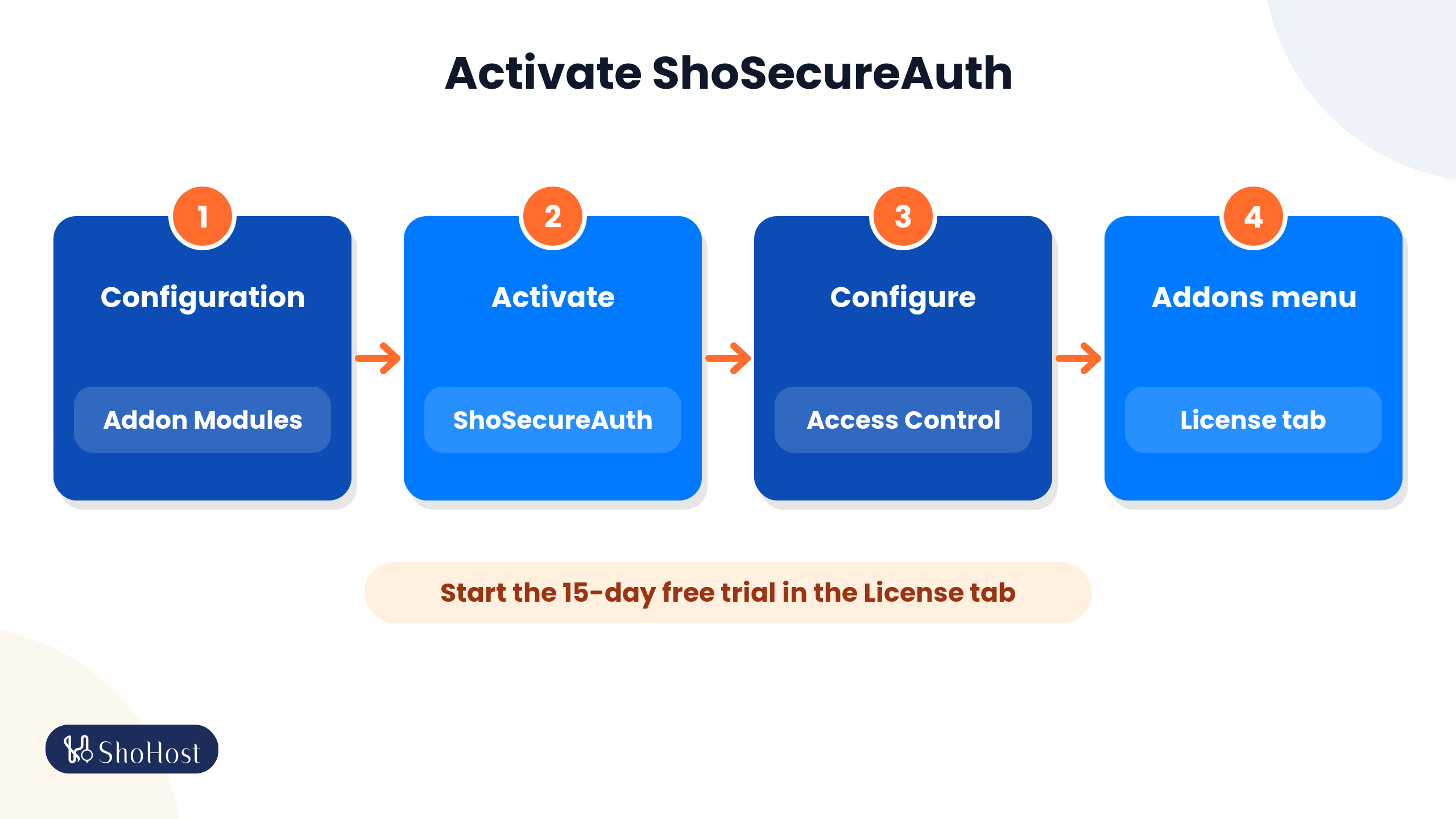
- In the WHMCS admin area, go to Configuration > System Settings > Addon Modules.
- Find ShoSecureAuth and click Activate.
- Click Configure, tick the administrator roles that may manage it under Access Control, and save.
- Open the addon from the Addons menu and use the License tab to start the 15-day trial or activate your licence.
Note: activating ShoSecureAuth patches the WHMCS login templates, and deactivating it removes those patches. If you use a heavily customised login template, test the login pages straight after activating.
Set up ShoSecureAuth for admins and clients
Once it’s active, everything is configured from the addon’s own settings screens. A sensible first setup:
- Run the health checks and fix anything flagged (licence, HTTPS, RP ID, login template).
- Login channels: turn on passkey login, passkey management and OTP after password for the administrator area first.
- Two-factor settings: choose which channels admins may use (email, WhatsApp, authenticator app, backup codes), then do the same for clients when you’re ready.
- WebAuthn: confirm the RP ID is your root domain and set the display name your users will see.
- Security limits: set the remember-device days, the login rate limit and the maximum passkeys per user.
- OTP templates: adjust the email subject and body, and the WhatsApp message, to match your brand.
- Test it: register a passkey on your own admin account, log out and sign in with the passkey button. Then try a test client account on the client Security page.
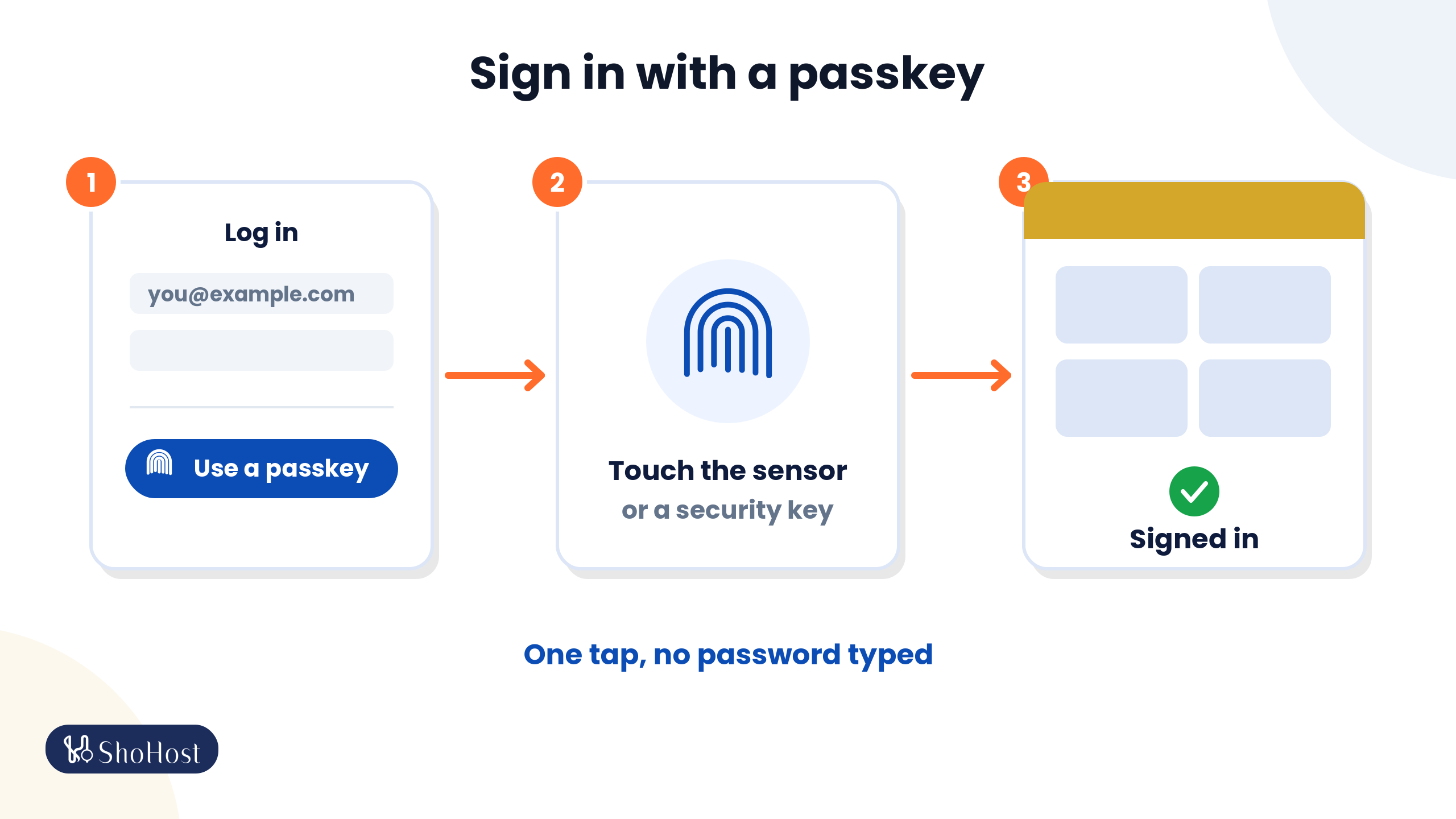
- On the login page, enter the email address and choose Sign in with a passkey.
- Touch the sensor or insert your security key.
- You’re signed in to the dashboard. One tap, and no password typed.
Tip: keep one administrator session open while you switch on admin OTP, and make sure each admin saves their backup codes. That way nobody gets locked out on day one.
Stuck at any point? Message ShoHost WhatsApp support on +91 94880 91432 for help with any step.
Trial, refund and pricing for ShoSecureAuth
| Details | |
|---|---|
| Free trial | 15 days, started from the addon’s License tab |
| Refund | 7-day refund on eligible module orders, per our system policies |
| Licence | One domain-bound WHMCS install, with module updates |
| Not included | Not bundled with reseller, master, alpha or lifetime hosting |
| WHMCS itself | Your WHMCS licence is separate, and third-party licences are non-refundable |
| Support | WhatsApp support on +91 94880 91432 |
Current prices are on the ShoSecureAuth page and the store’s order page.
WHMCS admin security FAQs
What is the biggest security risk for a WHMCS admin area?
A stolen or reused password. Most takeovers use a valid login rather than a software bug, so a second factor or passkey for every admin matters more than any other single change.
Does WHMCS have built-in two-factor authentication?
Yes. Configuration > System Settings > Two-Factor Authentication offers time-based tokens, Duo Security and YubiKey. It doesn’t offer passkey sign-in.
Can WHMCS admins and clients log in with passkeys?
Yes, with the ShoSecureAuth addon. Clients and admins sign in with a device biometric or a security key. Passkeys need HTTPS on a live site.
Can I protect only the admin area?
Yes. Passkey login, passkey management and OTP after password are separate switches for the client area and the administrator area.
Do I need the ShoHost WhatsApp module for ShoSecureAuth?
Only if you want WhatsApp codes and don’t already have an MPWA gateway. Email and authenticator codes work without it.
Is there a free trial or refund?
There’s a 15-day free trial from the addon’s License tab and a 7-day refund on eligible module orders. Your WHMCS licence is a third-party licence and is non-refundable.
Related WHMCS guides
- Send WHMCS invoice and ticket notifications on WhatsApp
- Fix AutoSSL failed errors in cPanel
- Change the PHP version in cPanel
- All ShoHost WHMCS modules
Source: ShoSecureAuth product page and WHMCS documentation, checked 19 October 2026.