Fix “Allowed Memory Size Exhausted” Error in WordPress
Tested in the ShoHost fix lab on 12 October 2026: WordPress 7.1.3, PHP 8.4, Apache with MariaDB 11.8. Every screenshot below is from that lab, not from a customer site.
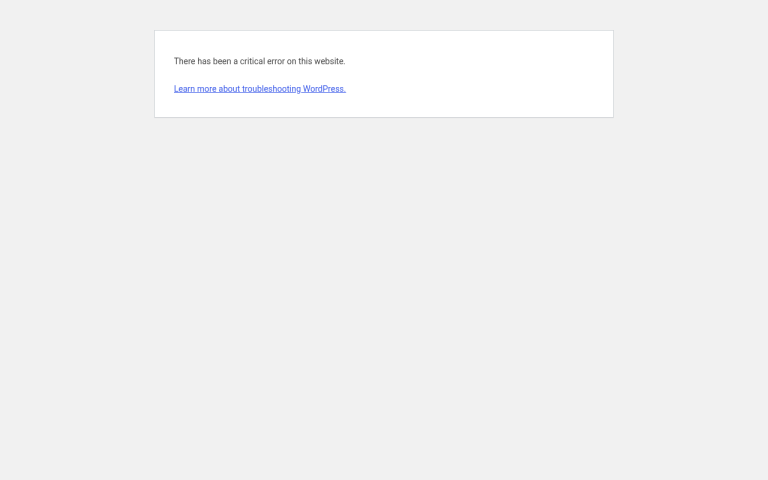
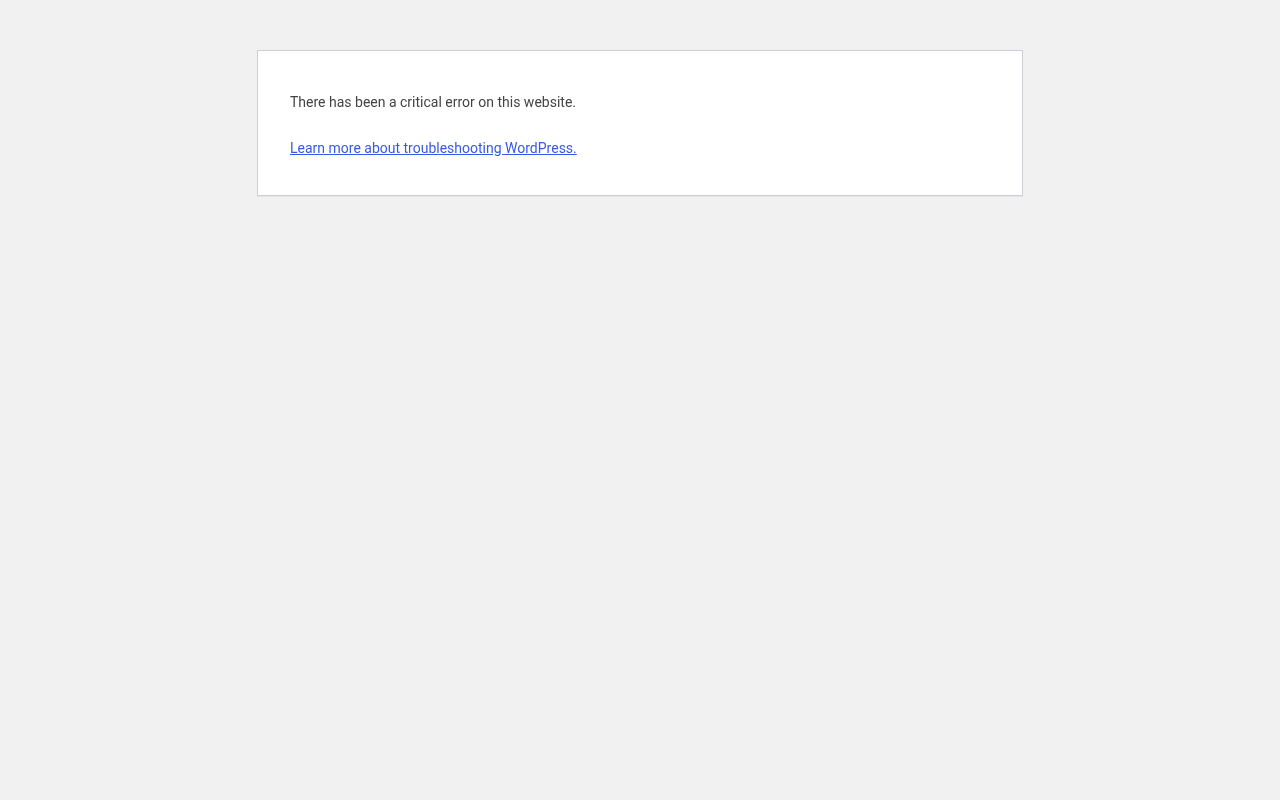
Fatal error: Allowed memory size of 134217728 bytes exhausted means PHP hit its memory limit (134217728 bytes is 128 MB) while building a page. Visitors usually just see the critical error screen. Page builders, WooCommerce reports, imports and image-heavy plugins are the usual triggers.

Step 1: Confirm it’s memory
Turn on the debug log in wp-config.php (WP_DEBUG, WP_DEBUG_LOG, WP_DEBUG_DISPLAY false), reload the page, and look for Allowed memory size in wp-content/debug.log. The file path in that line tells you which plugin needed the memory.
Step 2: Raise WP_MEMORY_LIMIT
In cPanel File Manager, edit wp-config.php and add this line above That’s all, stop editing!:
define( 'WP_MEMORY_LIMIT', '256M' );
Step 3: If that didn’t help, raise PHP’s own limit
WordPress can only raise memory up to what the server allows. On cPanel, go to Software → MultiPHP INI Editor, choose your domain, and set memory_limit to 256M. Some hosts also cap memory per account; if yours does, ask support.
Fix the cause, not just the limit
More memory buys time. If one plugin needs huge amounts of it (in our lab, one built a 150 MB report on every page load), update it, change its settings, or replace it. Check Tools → Site Health → Info → Server to see the PHP memory limit that actually applies.
Need a hand?
Want someone to do this for you? If your site is on ShoHost, message our support team on WhatsApp at +91 94880 91432 or email [email protected] and we’ll look at the error log with you. Hosting somewhere else and tired of errors like this one? ShoHost WordPress hosting runs on LiteSpeed servers with NVMe storage and free SSL, and includes free migration.