Plugin Update Broke Your WordPress Site? How to Find and Fix Plugin Conflicts
Tested in the ShoHost fix lab on 12 October 2026: WordPress 7.1.3, PHP 8.4, Apache with MariaDB 11.8. Every screenshot below is from that lab, not from a customer site.
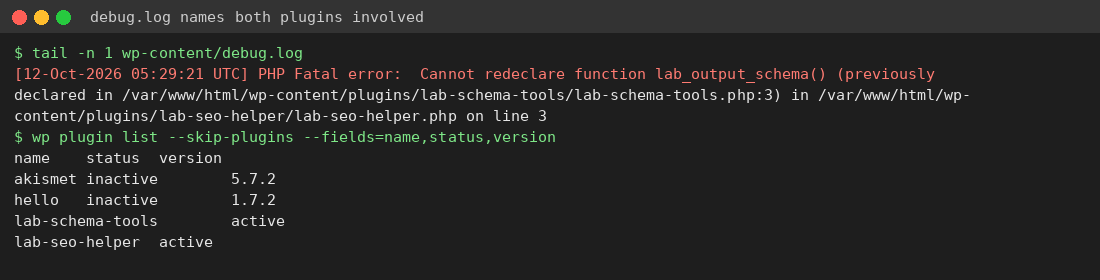
Everything worked until you clicked Update. Now you get a critical error. Two plugins that were fine separately clash after one of them changed. In our lab, a “1.1” update declared a function with the same name as one in another plugin, and PHP refused to load the page.

Step 1: Read the error
Turn on WP_DEBUG_LOG in wp-config.php, reload, and open wp-content/debug.log. Conflict errors such as Cannot redeclare function or Cannot declare class name both plugin files.
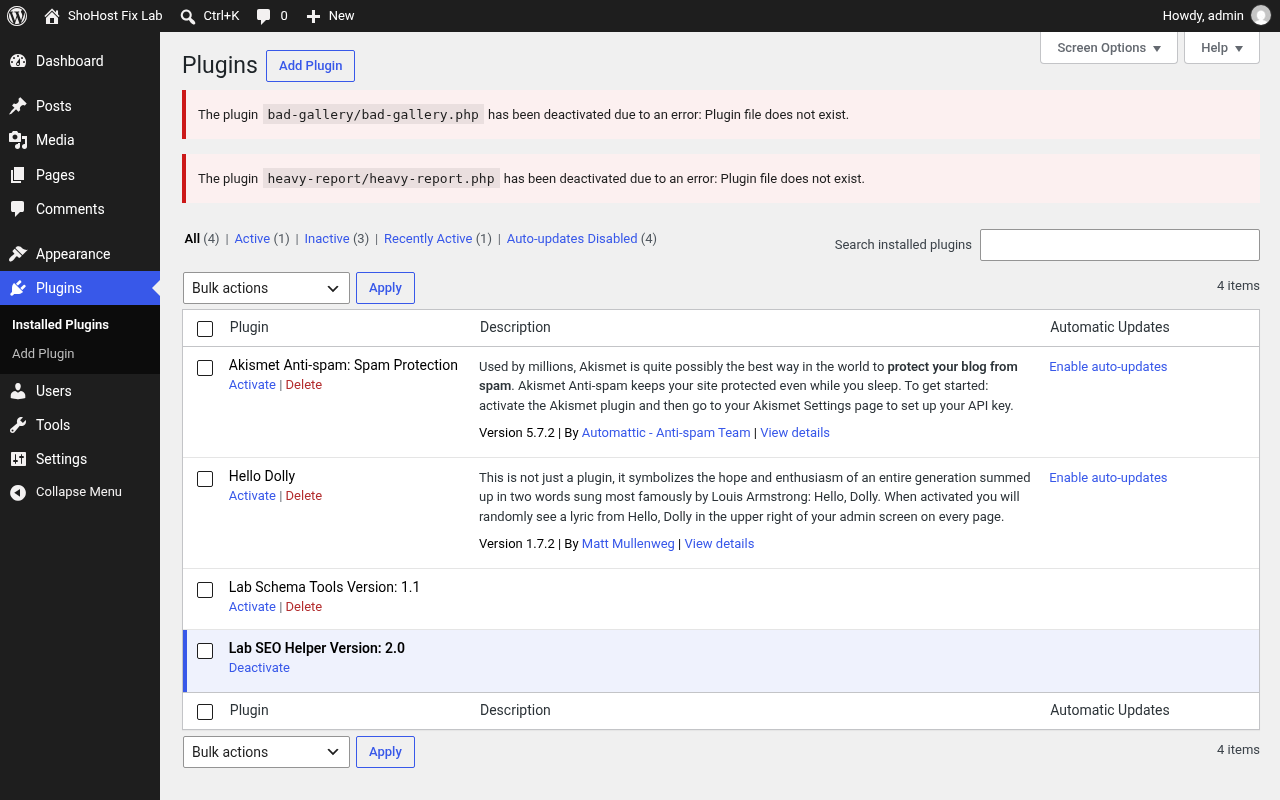
Step 2: Deactivate the plugin you just updated
Without wp-admin, rename its folder in cPanel File Manager (wp-content/plugins/plugin-name → plugin-name.disabled), or use WP-CLI with --skip-plugins so the broken code isn’t loaded:
wp plugin list --skip-plugins
wp plugin deactivate plugin-name --skip-plugins
Step 3: Roll back, then report
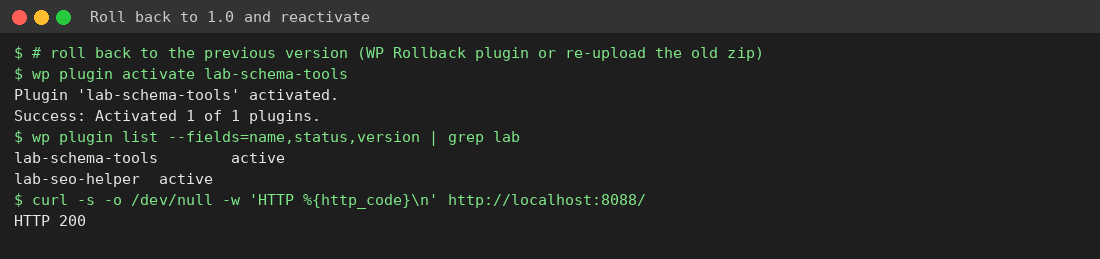
Install the previous version (the WP Rollback plugin, or re-upload the older zip from the plugin’s Advanced page on wordpress.org) and reactivate it. Then report the conflict to both plugin authors and include the debug.log line.
No clear error? Test one plugin at a time
Deactivate all plugins (rename the plugins folder to plugins.off, then back again), and reactivate them one by one until the problem returns. The Health Check & Troubleshooting plugin can do this only for your own login while visitors see the normal site.
Prevent it next time
- Take a backup before updates and update plugins one at a time.
- Test big updates on a staging copy first.
- Keep the number of plugins low. Every plugin you add is another chance of a conflict.
Need a hand?
Want someone to do this for you? If your site is on ShoHost, message our support team on WhatsApp at +91 94880 91432 or email [email protected] and we’ll look at the error log with you. Hosting somewhere else and tired of errors like this one? ShoHost WordPress hosting runs on LiteSpeed servers with NVMe storage and free SSL, and includes free migration.