Change PHP Version and Enable Extensions in cPanel
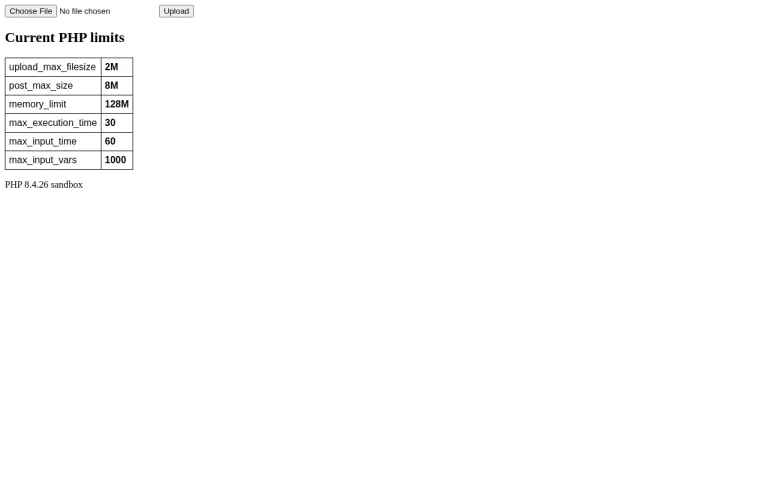
Tested in a ShoHost sandbox on 12 October 2026: Apache 2.4.68 and PHP 8.4.26 (mod_php) on Debian, captured with headless Chrome. The sandbox PHP has no intl extension, which let us show the real error an app gives when an extension is missing. cPanel’s MultiPHP Manager and CloudLinux Select PHP Version screens aren’t shown because the sandbox has no cPanel. Every screenshot below is from that sandbox or from a public DNS lookup, not from a customer site.
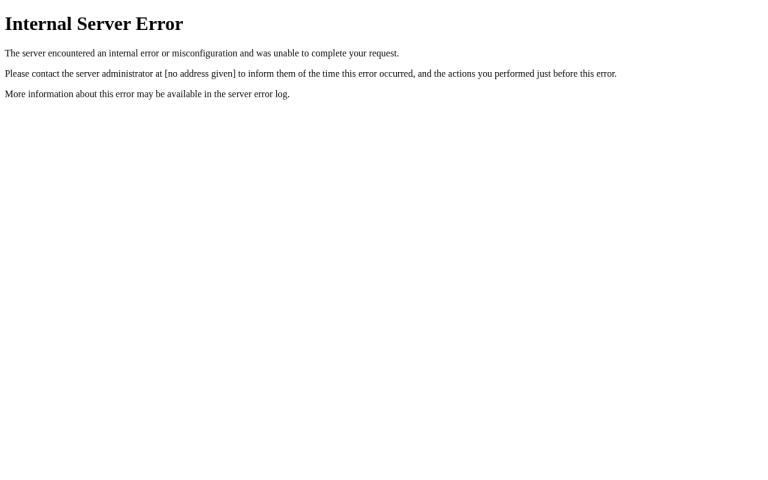
Apps tell you which PHP version and extensions they need. When the server’s PHP doesn’t match, you get fatal errors like Class “NumberFormatter” not found or Call to undefined function, or a plugin refuses to activate. In cPanel you can usually fix both yourself.
Step 1: Check what you’re running now
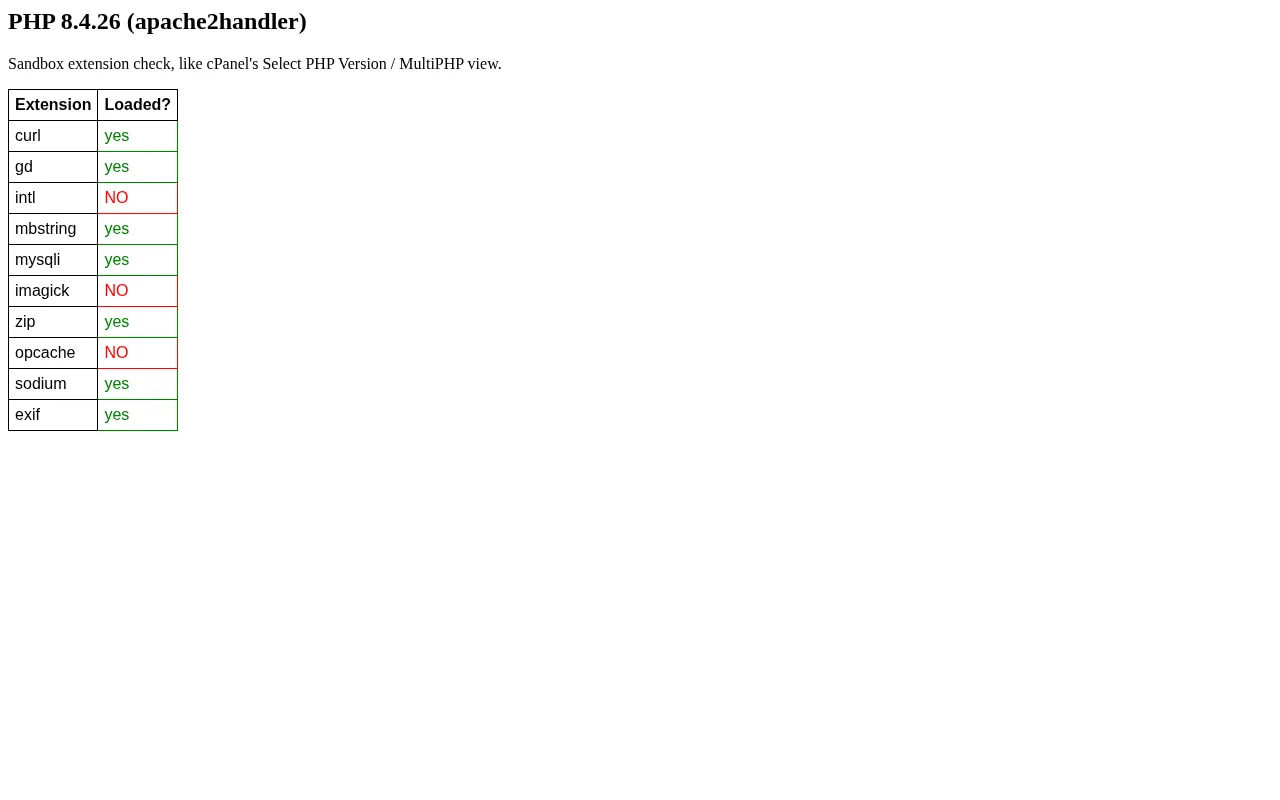
Create a file called info.php in the site folder containing <?php phpinfo();, open it in the browser, and look at the version and the list of loaded extensions. Delete the file afterwards, because it shows server details to anyone.
Step 2: Change the PHP version
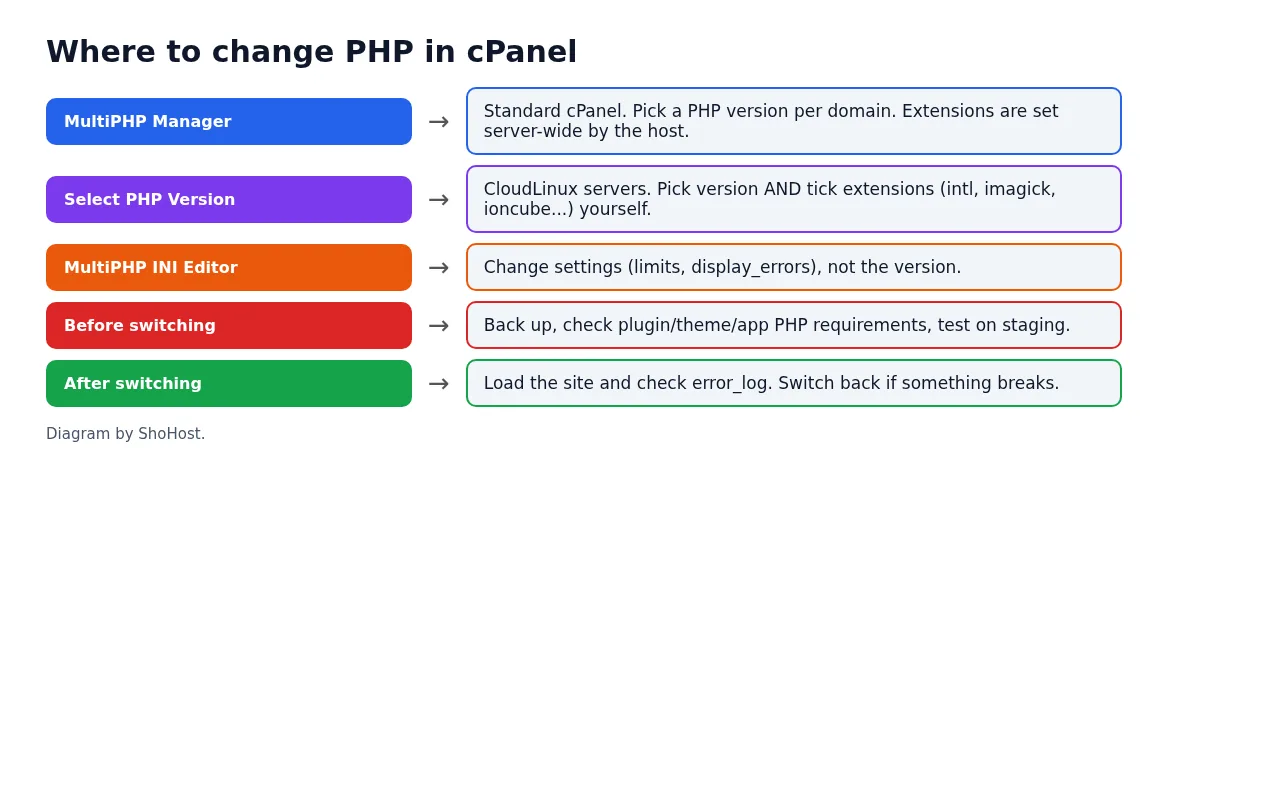
MultiPHP Manager (standard cPanel)
- Open cPanel → Software → MultiPHP Manager.
- Tick the domain, choose the version from the drop-down, and click Apply.
- Load the site and check
error_log.
Select PHP Version (CloudLinux servers)
If your host uses CloudLinux, you’ll see Select PHP Version instead. Pick the version under Current PHP version and click Set as current. If MultiPHP Manager is also shown, its setting for the domain may need to be the alt-php or ea-phpXX option your host recommends; ask them if the change doesn’t take effect.
Step 3: Turn on missing extensions
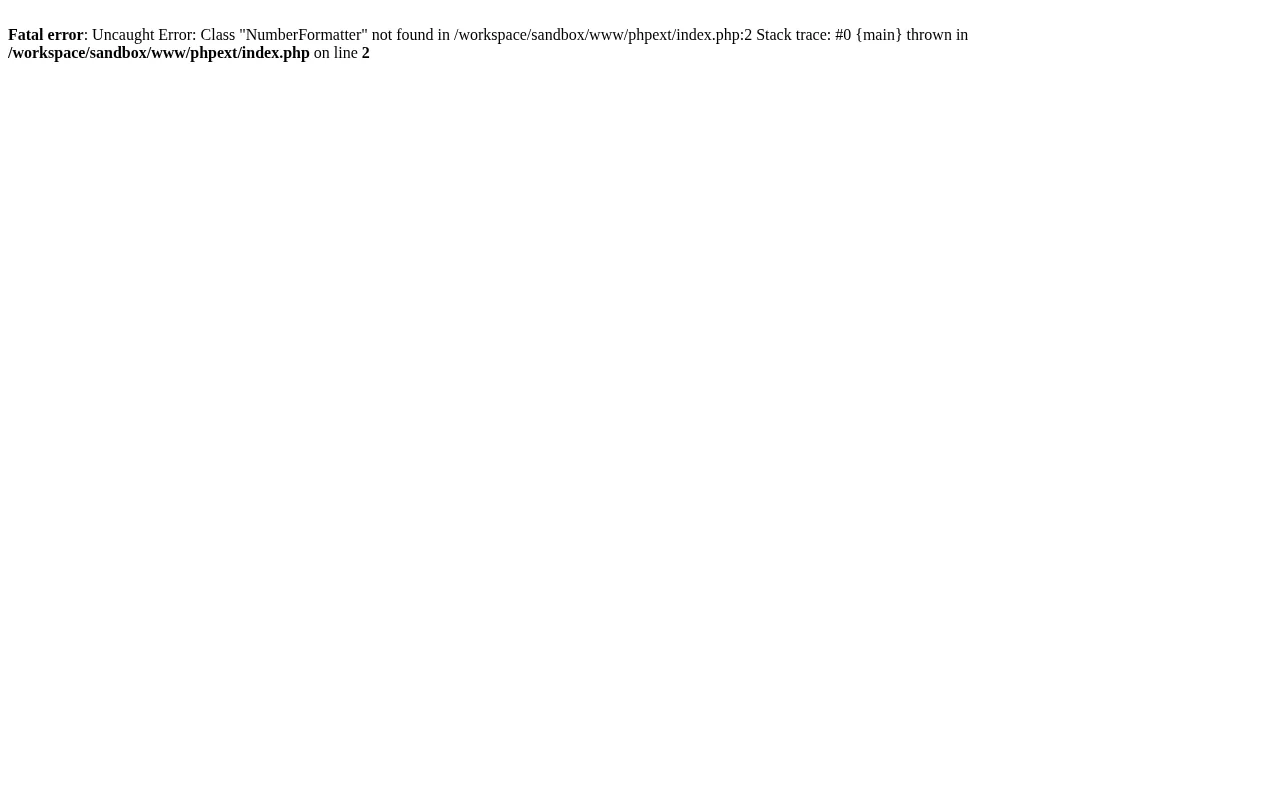
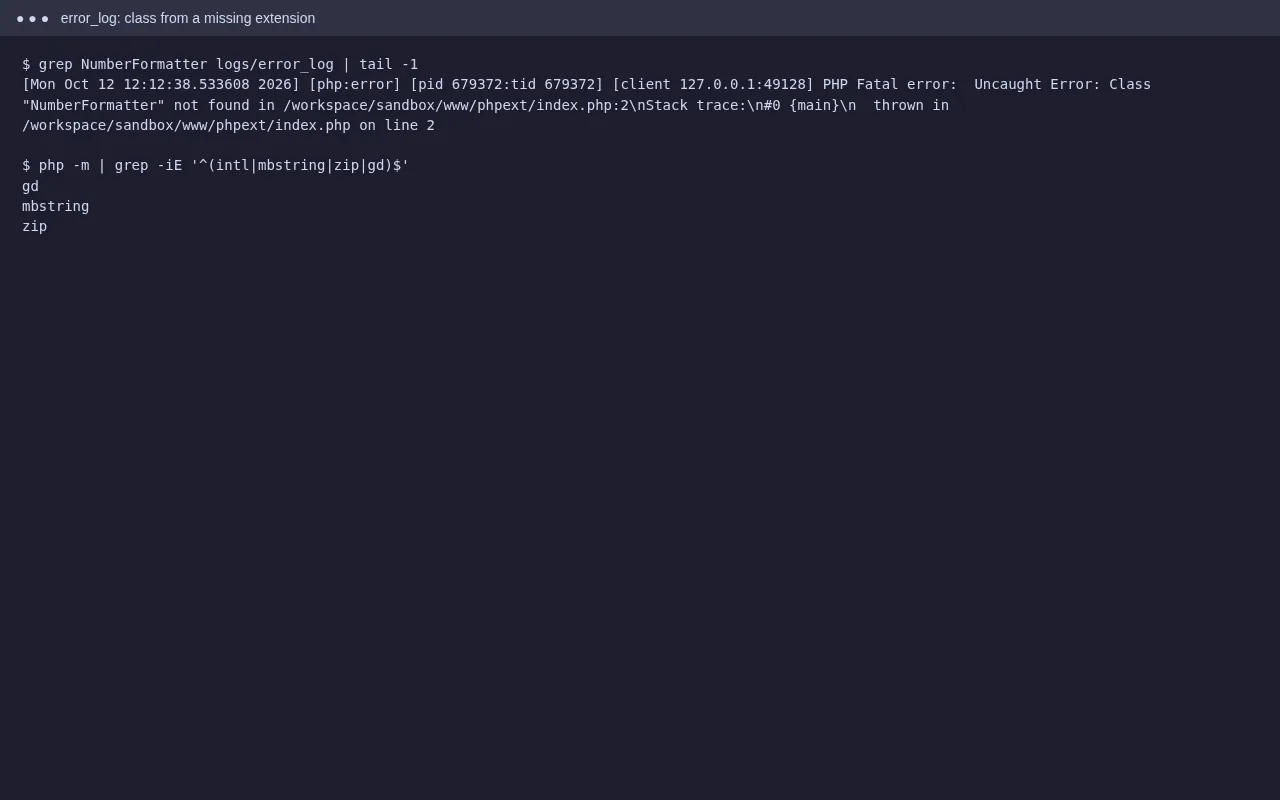
The error names a class or function. Find out which extension provides it: NumberFormatter and Collator are intl, ZipArchive is zip, Imagick is imagick, mb_strlen is mbstring, and encoded files asking for a “loader” need ionCube.
- CloudLinux Select PHP Version: open the Extensions tab, tick the extension, and it saves automatically.
- MultiPHP only: extensions are installed server-wide by the host. Ask support to add it for your PHP version, or switch to a version that already has it.
Before and after switching
- Take a backup first, and check the PHP versions your theme, plugins or app support.
- Going up several versions at once (for example 7.4 to 8.3) can break old plugins. Try it on a staging copy first.
- If the site breaks, switch back. The change is instant both ways.
FAQ
Will changing PHP version delete anything?
No. It changes which PHP runs your files. Files and databases stay as they are.
Can different domains use different PHP versions?
Yes. MultiPHP Manager sets the version per domain.
I changed the version but phpinfo still shows the old one. Why?
A php_value or AddHandler line in .htaccess can override it, or the page is cached. Check .htaccess for AddHandler lines left from an old host, and clear any cache.
Need a hand?
Want someone to do this for you? If your site is on ShoHost, message our support team on WhatsApp at +91 94880 91432 or email [email protected] and we’ll change the PHP settings with you. Hosting somewhere else and running into PHP version problems often? ShoHost WordPress hosting runs on LiteSpeed servers with NVMe storage and free SSL, and includes free migration.