Why WordPress Emails Go to Spam: Fix SPF, DKIM and DMARC on cPanel
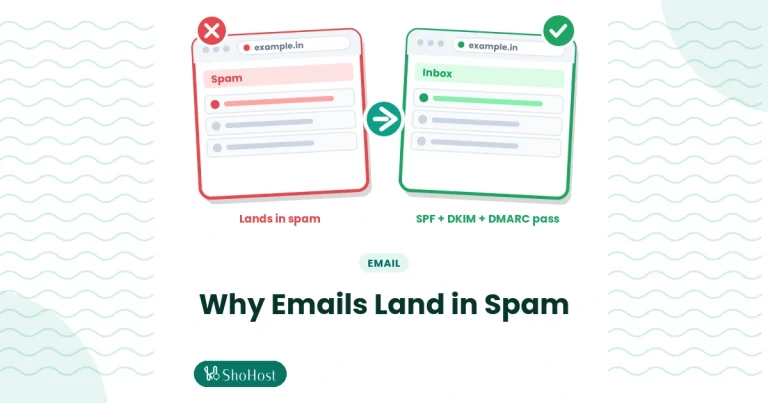
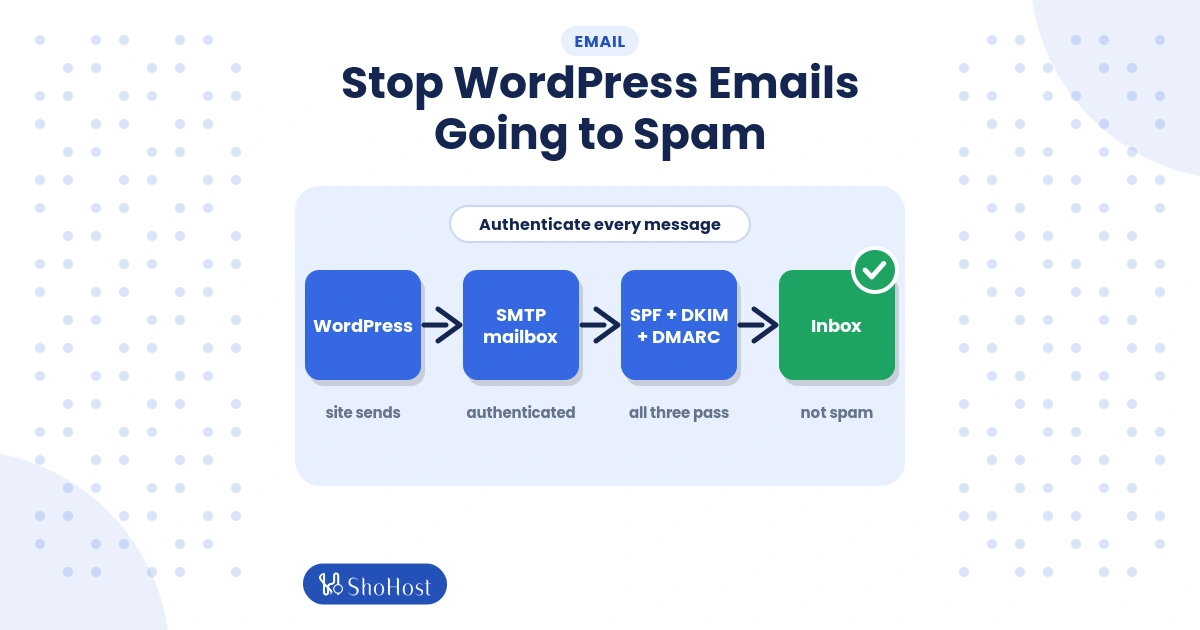
Your contact form says “Thank you, your message was sent”, WooCommerce says the order email went out, yet customers find nothing in their inbox, or they find it in Spam. If your WordPress emails are going to spam, the cause is rarely the words in the email. It is usually how WordPress sends the mail: from an address like wordpress@yourdomain.com, through PHP’s mail() function, with no DKIM signature that matches your domain.
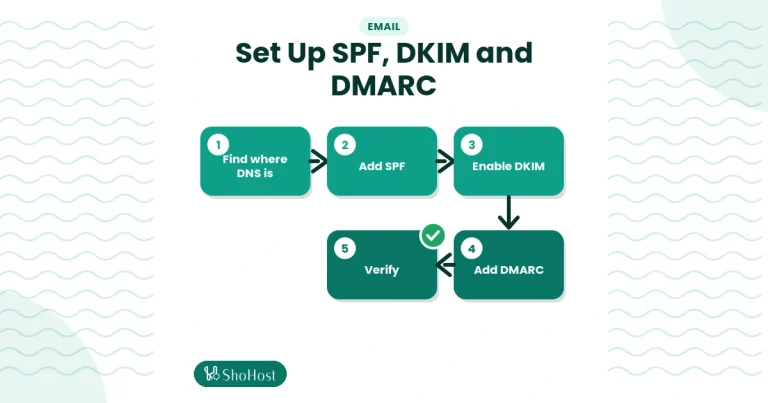
In this guide you will fix that on cPanel hosting. You will check and repair SPF and DKIM in Email Deliverability, add a starter DMARC record, create a real mailbox, send WordPress mail through authenticated SMTP and correct the contact form “From” address. Then you will confirm everything passes in Gmail.
This guide is for WordPress and WooCommerce site owners on cPanel and covers mail that WordPress itself sends. It doesn’t cover mail you send from Outlook or Gmail yourself landing in spam (see our emails going to Gmail spam guide) or a full DNS walk-through for SPF/DKIM/DMARC on any domain (see SPF, DKIM and DMARC setup in cPanel).
Why WordPress emails land in spam
- Generic From address. WordPress defaults to
wordpress@yourdomain.com, a mailbox that often does not exist. - PHP mail() with no login. The message leaves the server without SMTP authentication, so it may not carry a DKIM signature for your domain.
- Contact forms that “spoof” the visitor. Many forms put the visitor’s Gmail address in the From field. Gmail sees mail claiming to be from gmail.com, sent by your server, and fails it.
- Missing or broken DNS records. No SPF, no DKIM or no DMARC record, or your domain’s DNS is hosted somewhere other than cPanel, so cPanel’s records are not live.
- Stricter inbox rules. Since 2024, Gmail and Yahoo require senders to authenticate mail, and bulk senders must have SPF, DKIM and DMARC.
SPF, DKIM and DMARC in plain English
| Record | What it says | Where it lives |
|---|---|---|
| SPF | Which servers may send mail for my domain | One TXT record on the domain |
| DKIM | A digital signature proving the mail was not changed and comes from my domain | TXT record at default._domainkey |
| DMARC | What inboxes should do when SPF or DKIM fails, and where to send reports | TXT record at _dmarc |
Alignment: why SPF passes but DMARC fails
DMARC does not just ask “did SPF pass?”. It asks whether SPF or DKIM passed for the same domain that appears in the From line. If WordPress sends as wordpress@yourdomain.com but the server’s envelope uses the cPanel username’s hostname, SPF can pass for the server and still not align. A DKIM signature for yourdomain.com plus a From address on yourdomain.com fixes alignment. That is exactly what the steps below set up.
Before you start (prerequisites)
- cPanel login for the hosting account.
- WordPress admin access to install an SMTP plugin.
- Know where your DNS is hosted. If your nameservers point to your hosting, cPanel can edit records. If they point to Cloudflare or a registrar, you add the same records there.
- A mailbox you can read on Gmail for testing.
- Optional: a backup of your DNS zone. Changing DNS can affect all mail, so note existing TXT records first.
Time and difficulty
| Time | Difficulty | Risk | Downtime |
|---|---|---|---|
| 20–40 min plus DNS propagation | Beginner to intermediate | Medium (DNS changes) | None |
Short answer
In cPanel > Email > Email Deliverability, click Repair for SPF and DKIM. Add a DMARC TXT record v=DMARC1; p=none; at _dmarc. Create a mailbox such as noreply@yourdomain.com, then use an SMTP plugin to send all WordPress mail through that mailbox with SMTP authentication.
Method 1: Fix SPF, DKIM and DMARC in cPanel, then send via SMTP (recommended)
Step 1: Repair SPF and DKIM in Email Deliverability
In cPanel > Email > Email Deliverability, find your domain. If the status shows Problems Exist, click Manage and then Repair next to SPF and DKIM. cPanel writes the recommended records into your zone.
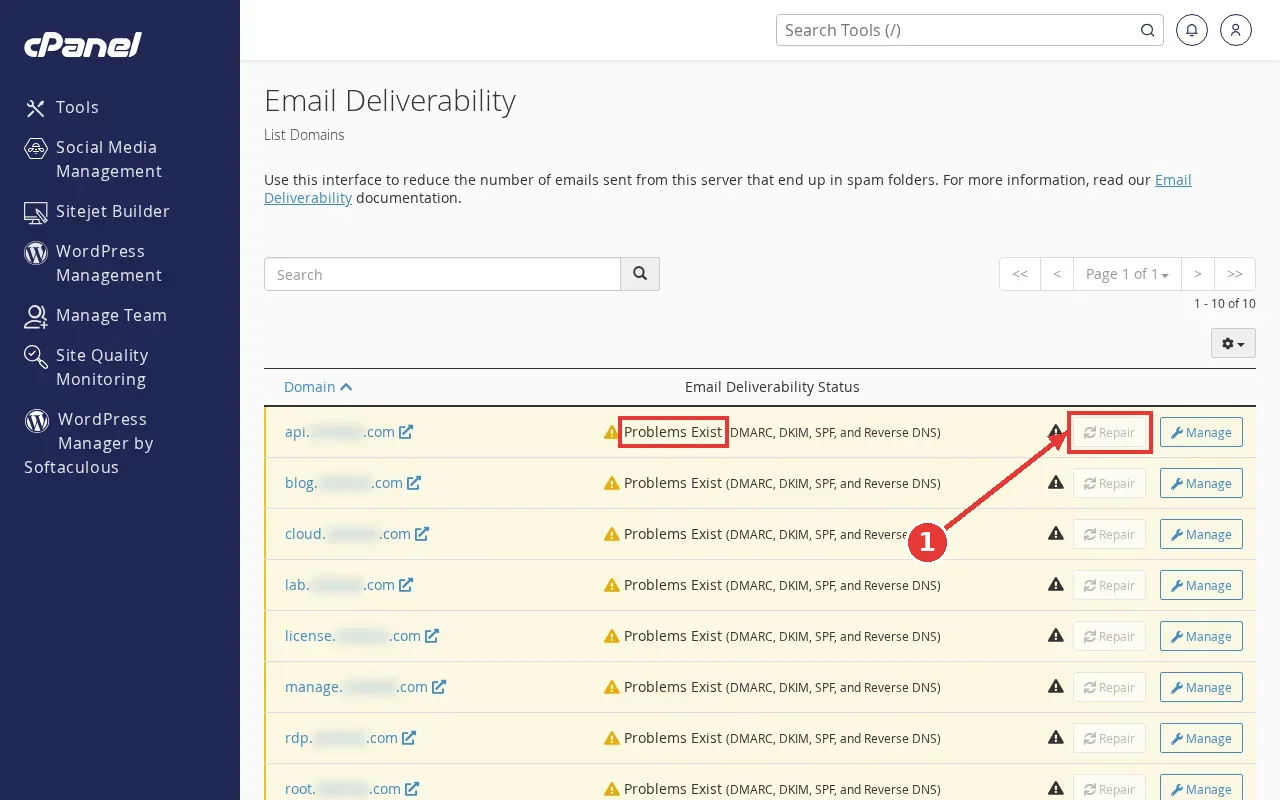
If your DNS is hosted elsewhere, Repair will not help. Instead click Copy beside the suggested SPF and DKIM values and add them as TXT records at your DNS provider.
At this point both DKIM and SPF rows show a green Valid status. DNS changes can take a few minutes to a few hours to show everywhere.
Step 2: Add a DMARC record in Zone Editor
Warning: edit only your own domain’s TXT records, and never create a second SPF record. Two SPF records make SPF fail completely.
In cPanel > Domains > Zone Editor, click Manage beside your domain, then + Add Record > Add TXT Record. Set the name to _dmarc and paste this value (replace the email address with one you read):
v=DMARC1; p=none; rua=mailto:dmarc@yourdomain.com; fo=1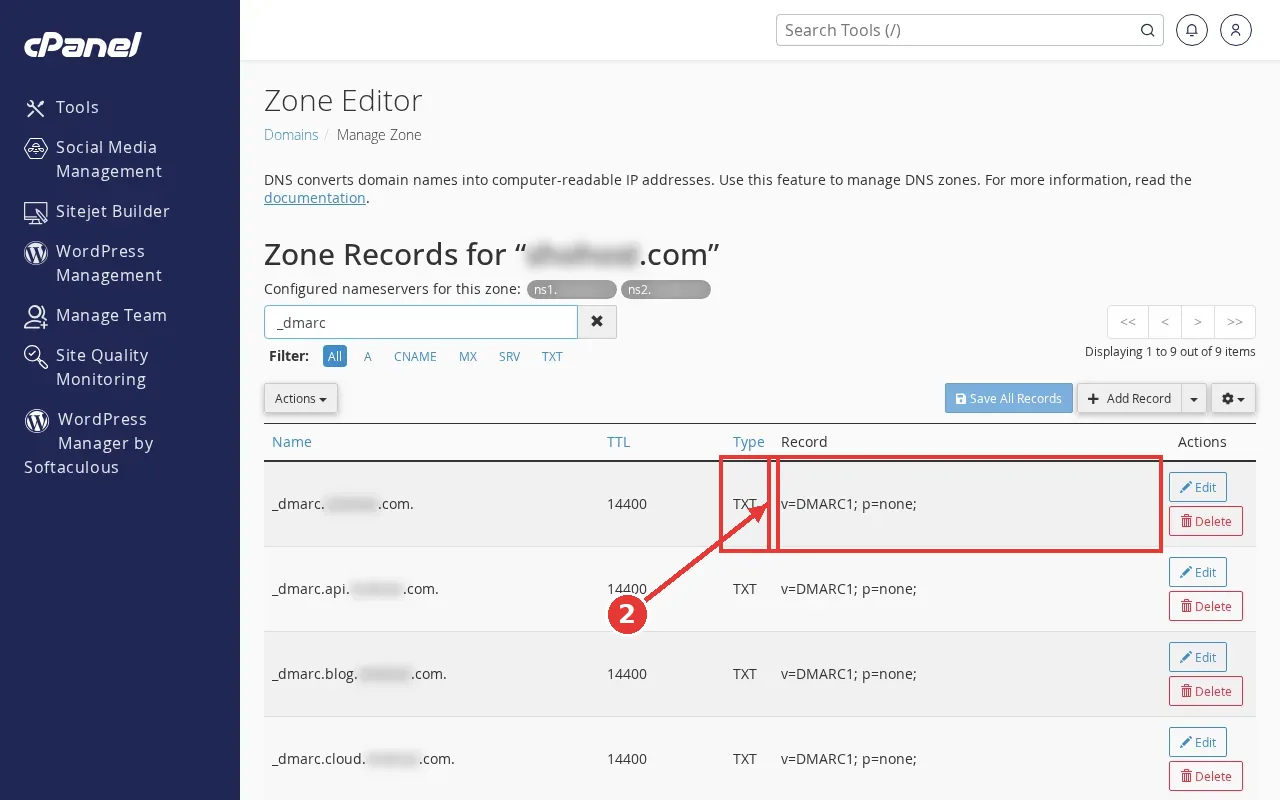
Start with p=none. It only monitors, so a mistake cannot block your mail. After two to four weeks of clean reports, move to p=quarantine.
To confirm it, check the record from any terminal:
dig +short TXT _dmarc.yourdomain.com
dig +short TXT yourdomain.com | grep spf1
dig +short TXT default._domainkey.yourdomain.com
"v=DMARC1; p=none; rua=mailto:dmarc@yourdomain.com; fo=1"
"v=spf1 +a +mx +ip4:... ~all"
"v=DKIM1; k=rsa; p=MIIBIjANBgkq..."Step 3: Create a real mailbox for WordPress
In cPanel > Email > Email Accounts, click + Create. Enter a username such as noreply, set a strong password, and click Create. Write the password down; the SMTP plugin needs it.
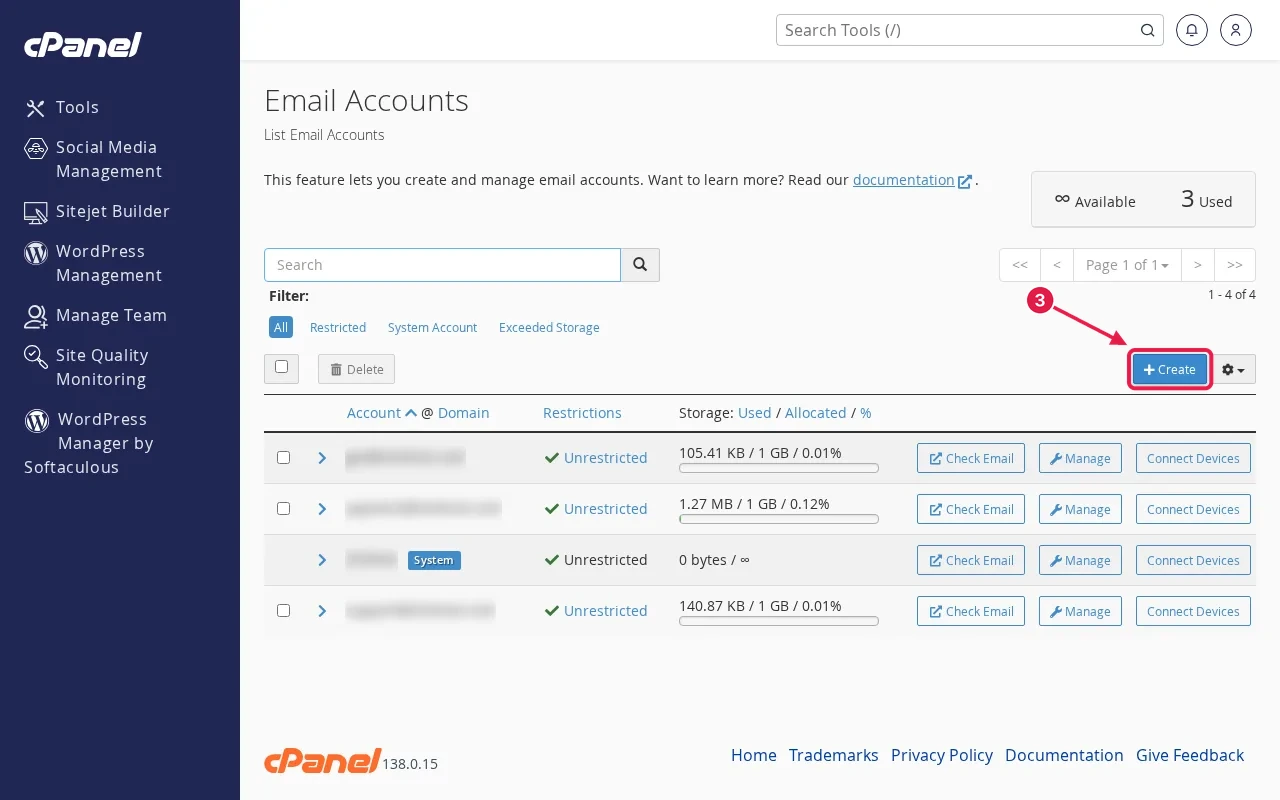
The new address appears in the Email Accounts list.
Step 4: Copy your SMTP settings
In Email Accounts, click Connect Devices next to the mailbox. The Set Up Mail Client page opens with a list of mail client configuration scripts at the top; you do not need those. Scroll down to Mail Client Manual Settings and, under Secure SSL/TLS Settings, copy the Outgoing Server name and the SMTP port (usually 465).
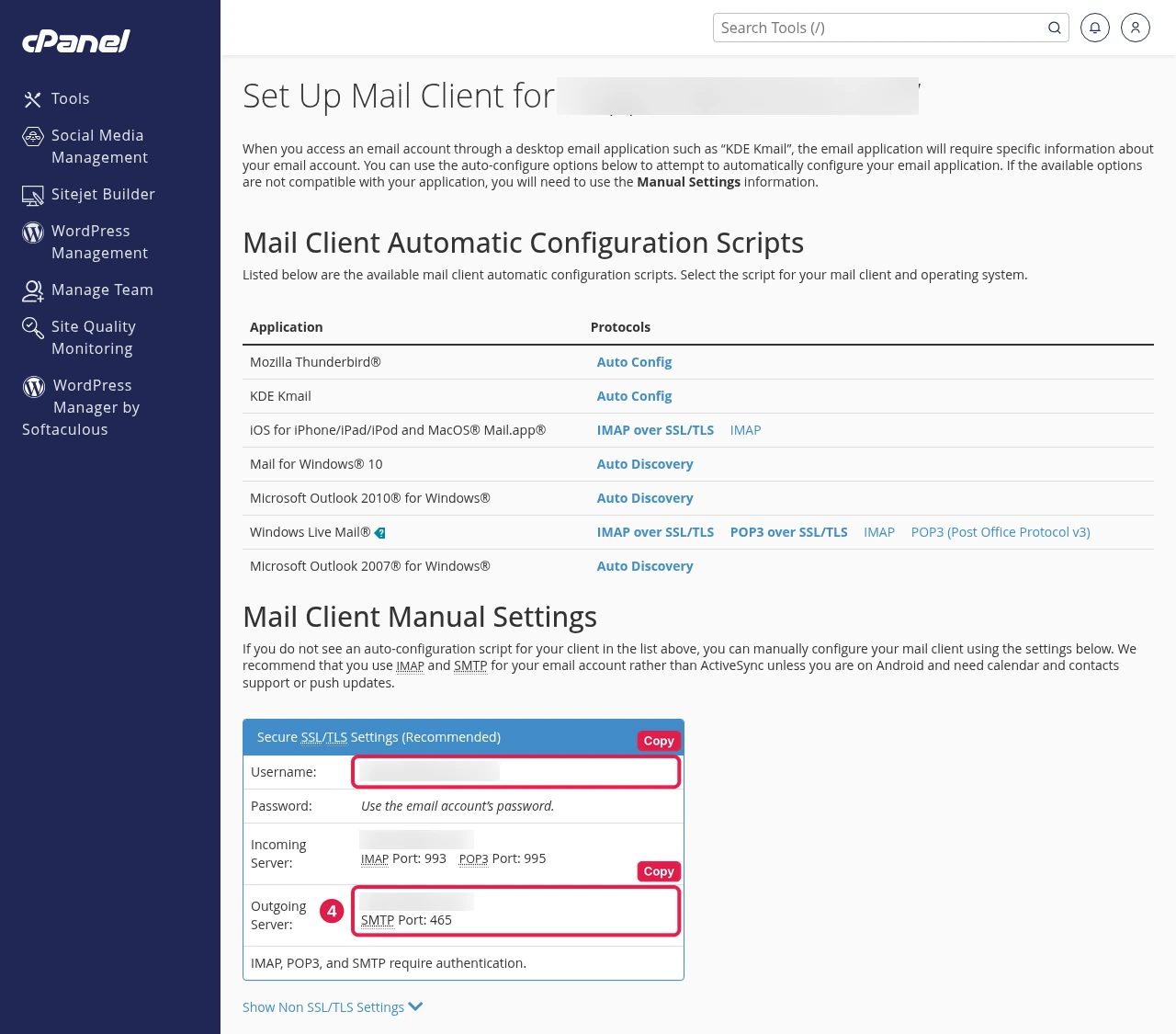
Step 5: Send WordPress mail through authenticated SMTP
In wp-admin, go to Plugins > Add New, install and activate WP Mail SMTP (or a similar SMTP plugin). Open WP Mail SMTP > Settings, choose Other SMTP as the mailer and fill in:
SMTP Host:       mail.yourdomain.com
Encryption:      SSL
SMTP Port:       465
Authentication:  On
SMTP Username:   noreply@yourdomain.com
SMTP Password:   (the mailbox password)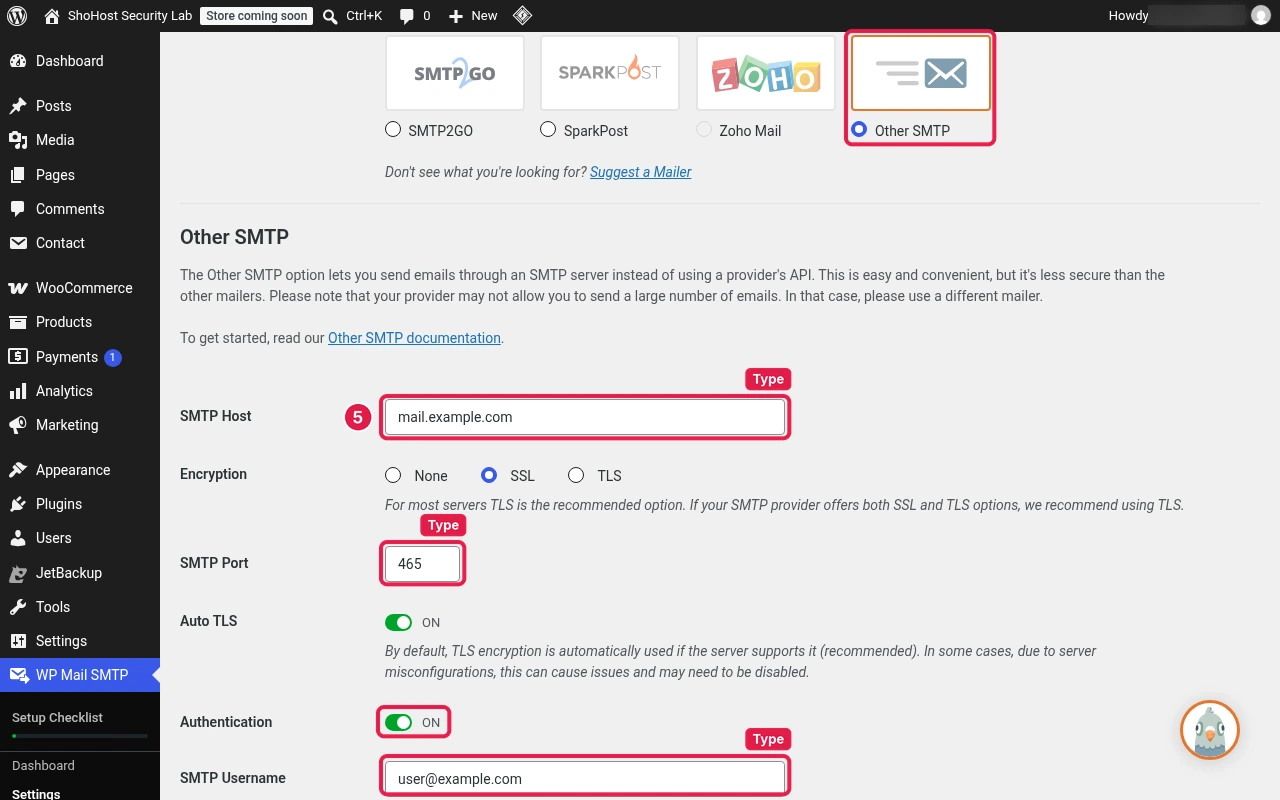
Step 6: Set the From email and force it
On the same screen, set From Email to noreply@yourdomain.com, turn on Force From Email, set a friendly From Name and click Save Settings. Forcing stops other plugins from changing the address back to wordpress@.
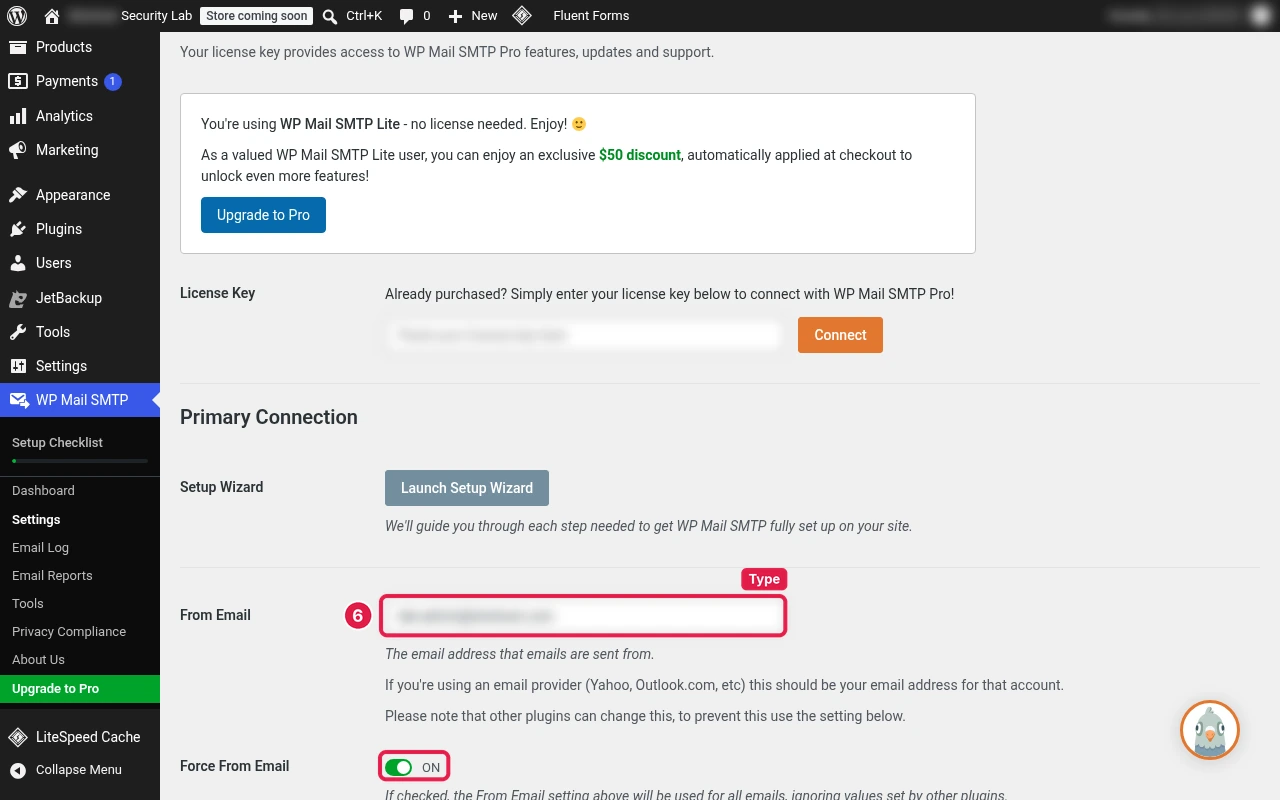
Send a test from the plugin’s Email Test tab; it should show a success notice.
Step 7: Fix the contact form “From” address
In your form plugin’s mail settings (for Contact Form 7: Contact > Contact Forms > Edit > Mail), set From to your own domain and put the visitor’s address in Reply-To instead:
From:            Your Site <noreply@yourdomain.com>
Additional headers:
Reply-To: [your-email]![Contact Form 7 Mail tab with the From field set to the site title and a wordpress@ address, and Reply-To: [your-email] in Additional headers, both boxed](https://blog.shohost.com/wp-content/uploads/2026/10/emails-spam-07-contact-form-mail-tab.webp)
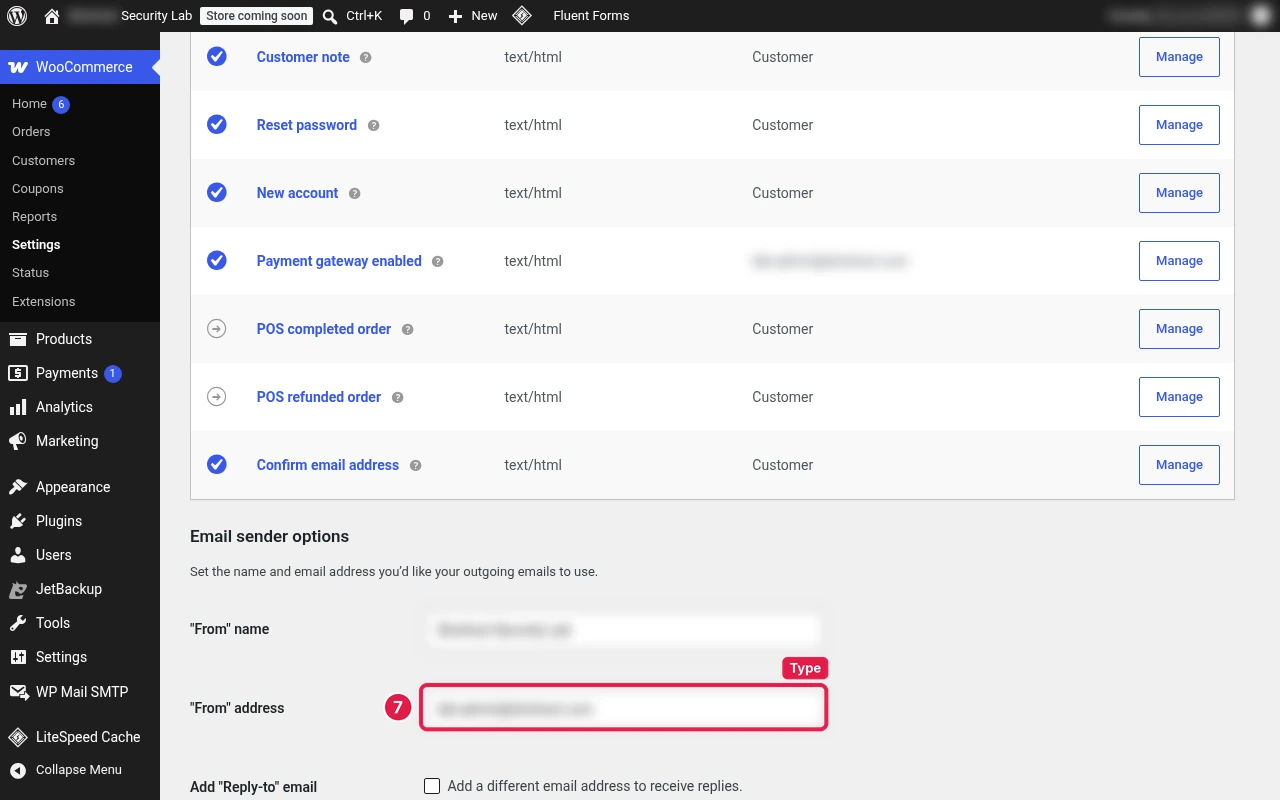
For WooCommerce, check WooCommerce > Settings > Emails and set the “From” address to the same mailbox.
Method 2: Add or check the records in cPanel Zone Editor
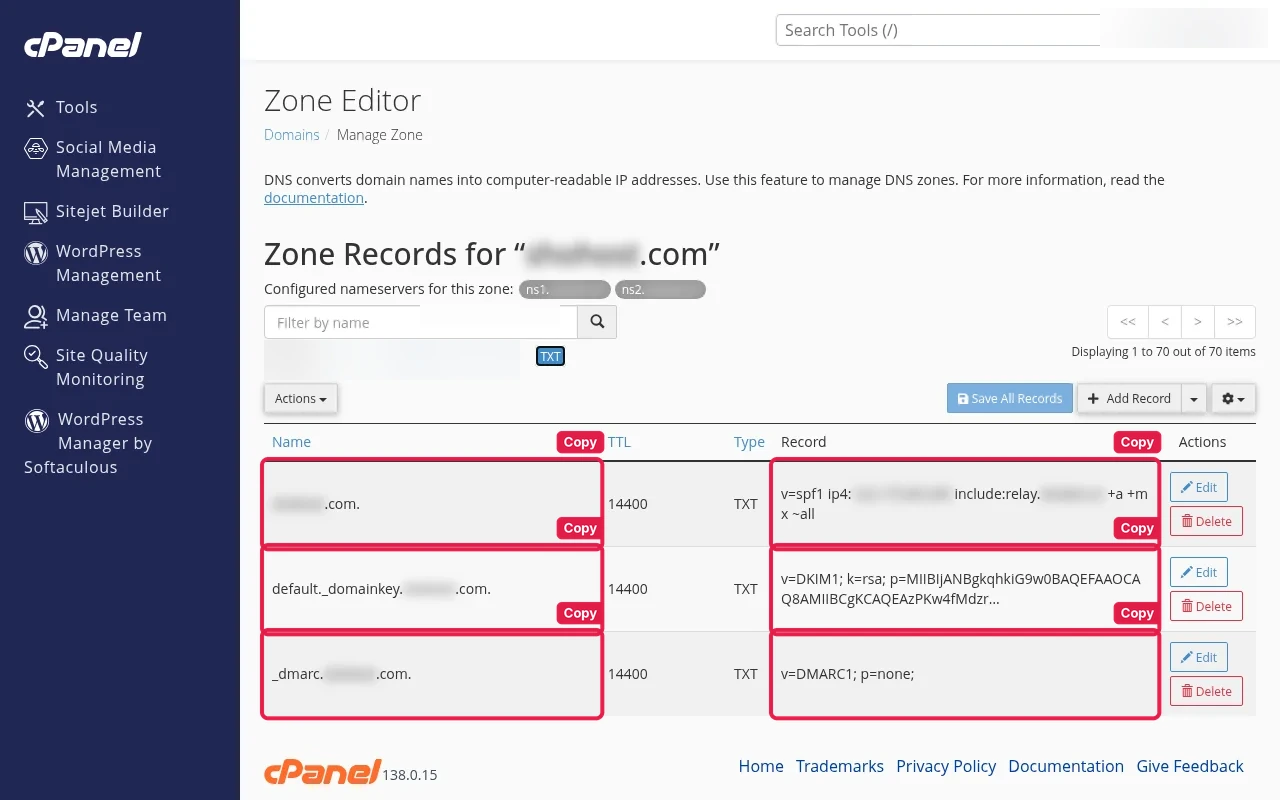
Use this when Email Deliverability cannot repair a record, or you want to add or check the three TXT records by hand.
- In cPanel > Email Deliverability > Manage, click Copy beside the suggested SPF and DKIM values.
- In cPanel > Domains > Zone Editor, click Manage next to your domain and filter by TXT.
- Check for a TXT record on the domain itself for SPF (edit the existing SPF record instead of adding a second one), one at
default._domainkeyfor DKIM, and one at_dmarcfor DMARC. Add any that are missing with + Add Record > Add TXT Record, pasting the copied value, and click Save Record. - Wait for propagation, then check with the
digcommands above.
Note: if your domain’s nameservers are at Cloudflare or your registrar (Email Deliverability says the records are not live, or Zone Editor changes do nothing), add the same three TXT names and values in that provider’s DNS panel instead. Zone Editor changes only go live when your nameservers point to your hosting.
Method 3: Check mail delivery from cPanel when tests still fail
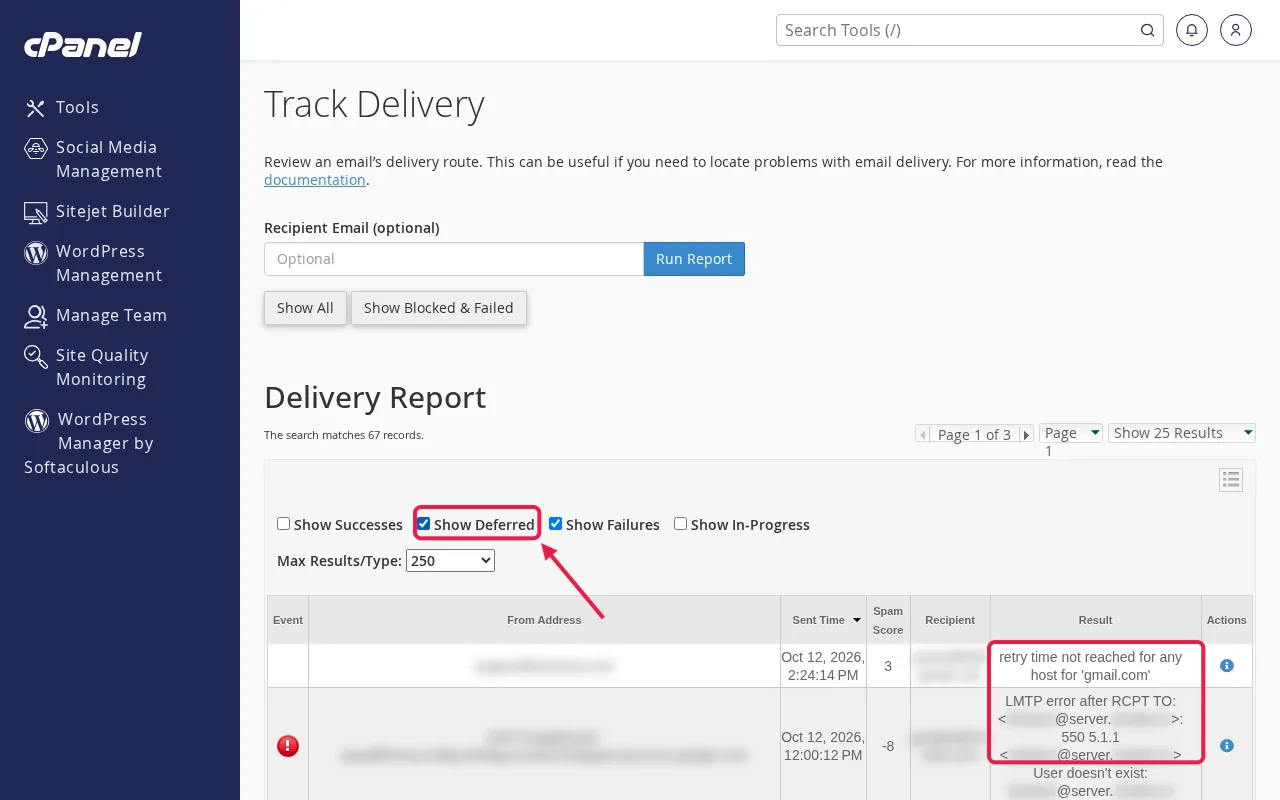
Use this when the plugin test says “sent” but nothing arrives. In cPanel > Email > Track Delivery, search for the recipient address. The event shows whether Gmail accepted, deferred or rejected the message and why.
If you prefer the command line, send a test from cPanel > Advanced > Terminal with WP-CLI:
cd ~/public_html
wp eval 'var_dump( wp_mail( "you@gmail.com", "SMTP test", "Hello from WordPress" ) );'
Now the command prints bool(true) and the mail arrives in Gmail.
bool(true)
Verify: test your WordPress emails in Gmail
Send a test from your form, open it in Gmail, click the three dots and choose Show original. You should see:
SPF:   PASS with IP ...
DKIM:  'PASS' with domain yourdomain.com
DMARC: 'PASS'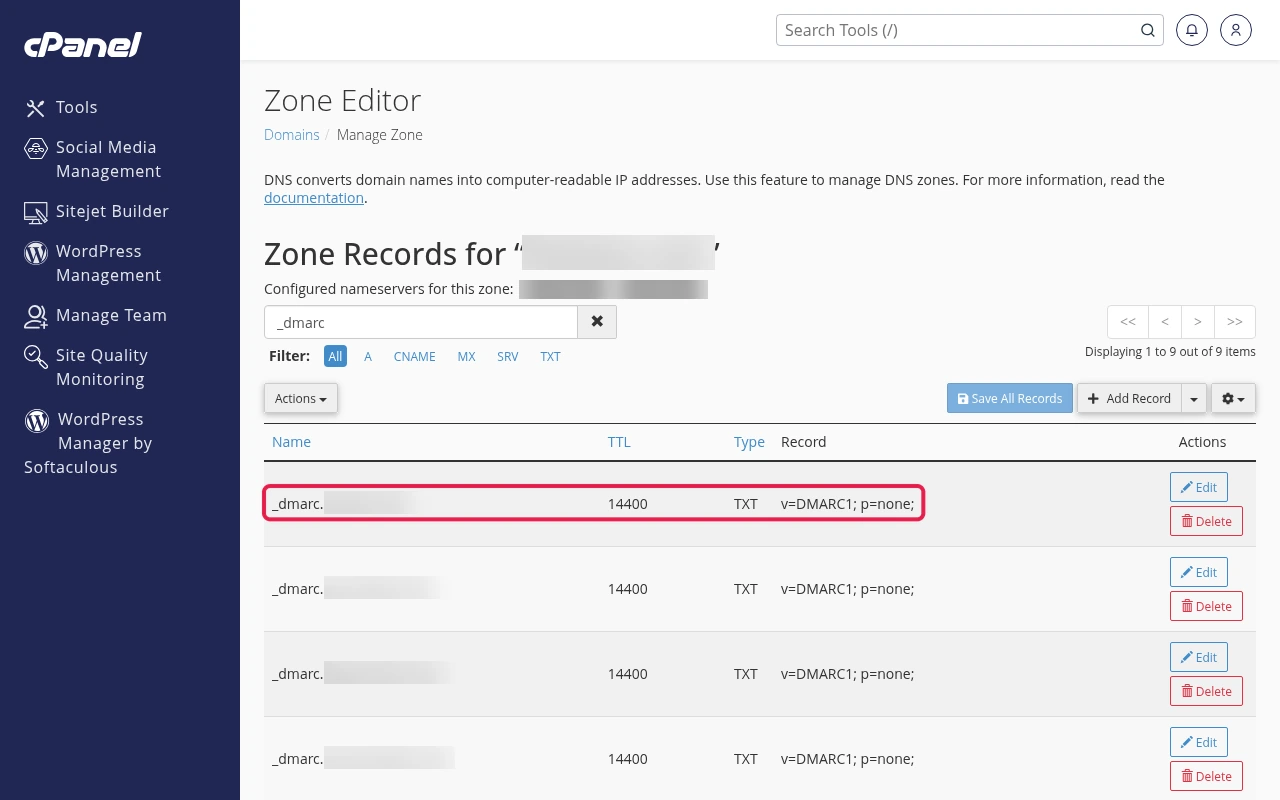
If DMARC fails but SPF passes, see the alignment section above and the troubleshooting table below.
Troubleshooting WordPress emails going to spam
| Symptom | Likely cause | Fix |
|---|---|---|
| DMARC fail, SPF pass | From domain not aligned | Force From Email to your domain (Step 6) and confirm DKIM signs as your domain |
| DKIM: none | DKIM not published or DNS hosted elsewhere | Repair in Email Deliverability or add the TXT at your DNS host (Method 2) |
| SPF permerror | Two SPF records | Merge them into one v=spf1 record |
| SMTP plugin: authentication failed | Wrong password or username | Use the full email address as username; reset the mailbox password |
| Could not connect to SMTP host | Wrong port or encryption | Use SSL with 465, or TLS with 587 |
| Mail still in spam after all PASS | New domain or low reputation | Ask recipients to mark “Not spam”, avoid link-heavy test mails, keep volume low at first |
| Still stuck? | — | WhatsApp support on +91 94880 91432. Send the Gmail “Show original” header and your domain. |
Hosting that helps your WordPress mail reach the inbox
Every ShoHost WordPress hosting plan includes cPanel email accounts, Email Deliverability and Zone Editor, so you can set up SPF, DKIM, DMARC and SMTP in one place. You also get 98.5% uptime, a 7-day refund and WhatsApp support on +91 94880 91432. Switching is simple: Unlimited free website migration, within your plan’s limits.
WordPress emails going to spam FAQ
Why do my emails go to spam even when SPF passes?
SPF alone is not enough. DMARC needs SPF or DKIM to pass for the same domain as your From address, and reputation still matters. Add DKIM, force your From address and send via SMTP.
Which DMARC policy should I start with?
Start with p=none to monitor without blocking. Move to p=quarantine once reports show your real mail passes.
Can I use my cPanel mailbox for SMTP?
Yes. Use the outgoing server and port from Connect Devices, the full email address as the username and the mailbox password.
Do I need a paid email service?
Not for normal contact form and order mail. Authenticated SMTP through your cPanel mailbox is enough for most small sites.
Can ShoHost support help?
Yes. WhatsApp support on +91 94880 91432.