Passkeys vs TOTP vs Email Codes for WHMCS Staff: Which Should You Use?
Every WHMCS staff login needs a second check after the password. That part’s settled. What’s left to decide is which check: a passkey, a 6-digit code from an authenticator app (TOTP), or a code sent by email. They aren’t equal. One of them stops phishing outright, one of them is a solid everyday choice, and one of them is only as safe as the mailbox behind it.
This guide compares the three for WHMCS staff accounts, explains where each one fits, and gives you a simple policy you can copy for your own team. If you want the bigger picture on protecting the admin area first, start with our pillar guide, how to harden your WHMCS admin area.
Note: this is for self-hosted WHMCS. You bring your own WHMCS licence. WHMCS and ShoSecureAuth aren’t included with ShoHost reseller, master, alpha or lifetime hosting plans.
How passkeys, TOTP and email codes work at a WHMCS login
All three add something on top of the password, but they prove different things.
| Method | What your staff member does | What it proves |
|---|---|---|
| Passkey | Uses a fingerprint or face unlock, or taps a security key, when the browser asks | They hold a private key that only works for your real domain |
| Authenticator app (TOTP) | Opens an app and types the 6-digit code shown (it changes every 30 seconds) | They have the phone or app that holds the shared secret |
| Email code | Opens their inbox and types the code that arrived | They can read that mailbox right now |
WHMCS itself ships with Time-Based Tokens (the TOTP option), Duo Security and YubiKey under Configuration > System Settings > Two Factor Authentication. The WHMCS docs describe its YubiKey option as a USB device that types a one-time password, so it still works as a code. There’s no passkey sign-in and no email code option in the built-in list.
Phishing resistance: why passkeys beat one-time codes
Here’s the attack that matters most for hosting businesses. A staff member gets a convincing email about an urgent invoice dispute, clicks through to a page that looks exactly like your WHMCS login, and types their password and their 6-digit code. The fake page passes both to your real login straight away. The attacker is in before the code expires.
This isn’t a theory. OWASP describes ready-made phishing kits that sit between the user and the real site and relay logins in real time. The US standards body NIST says in SP 800-63B that authenticators which involve typing in a code, including OTP apps and codes sent to a device, are not phishing-resistant, because the code isn’t tied to the session it’s typed into. The same document names WebAuthn, the standard behind passkeys, as phishing-resistant: the browser only uses a passkey with the domain it was created for.
So a look-alike domain gets nothing it can replay. Your staff member doesn’t need to spot the fake. The browser simply won’t offer the passkey there.
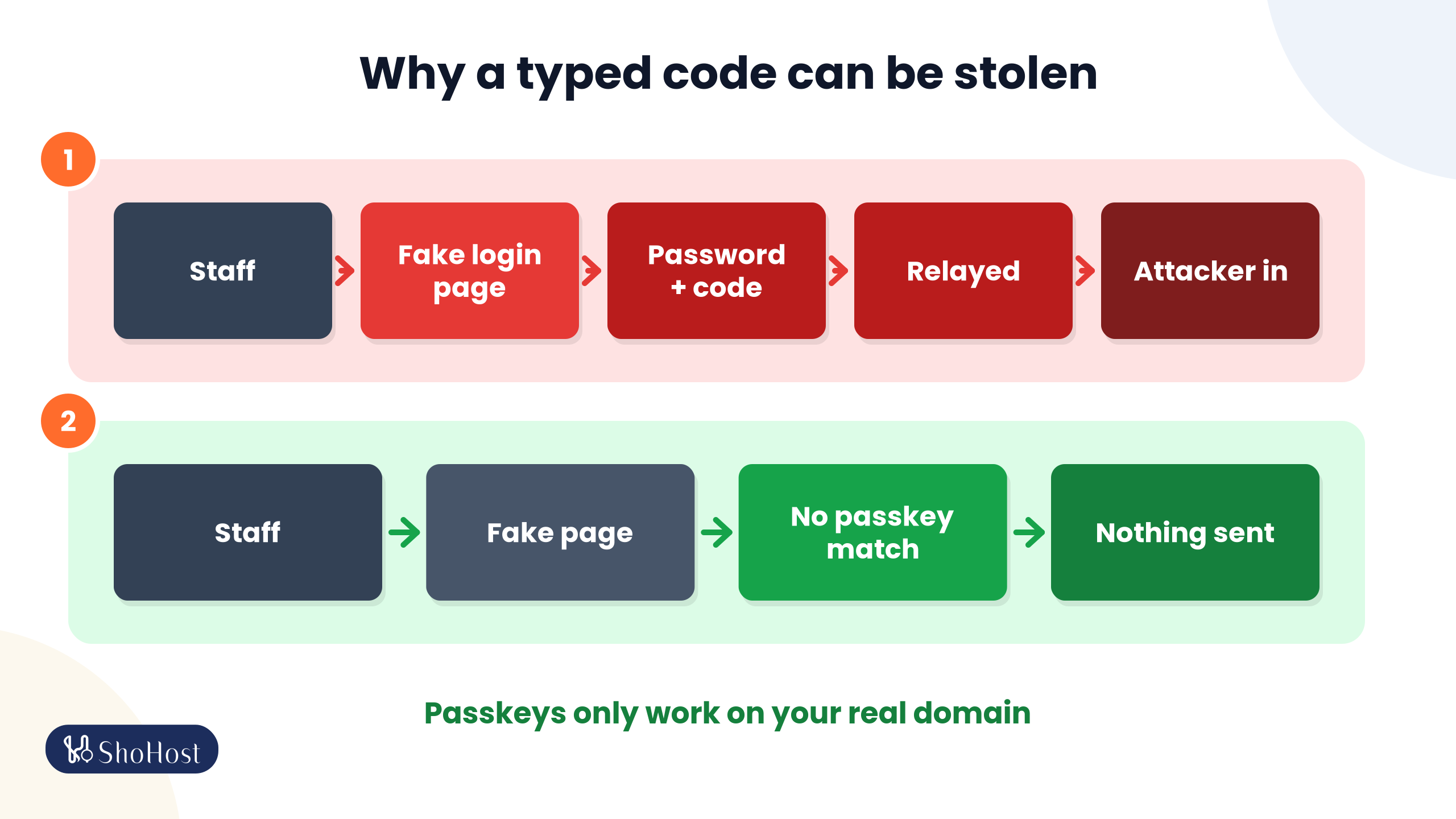
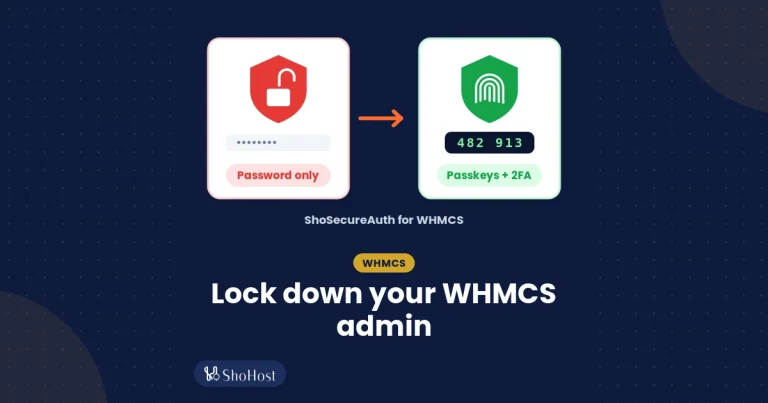
- Why a typed code can be stolen: staff member → fake WHMCS login on a look-alike domain → password + 6-digit code → relayed to the real login → attacker signed in.
- Why a passkey can’t be: staff member → fake page on a look-alike domain → browser has no passkey for this domain → nothing sent. Passkeys only work on your real domain.
Email codes for WHMCS staff: easy, but tied to the mailbox
Email codes feel friendly because everyone already has email. For clients that convenience counts for a lot. For staff with admin rights, it’s the weakest of the three.
- One breach, two keys. If someone gets into a staff mailbox, they can usually reset the WHMCS password and read the login code. That’s the stolen-mailbox path from our pillar guide.
- Shared inboxes. If a code lands in a shared or forwarded mailbox such as support@, everyone who reads that mailbox can use it.
- Standards are clear. NIST SP 800-63B says email shall not be used for out-of-band authentication, because a mailbox is often protected only by a password and mail can be intercepted or rerouted. OWASP adds that email codes are susceptible to phishing and give no protection once the mailbox is compromised.
Email codes still have a place. They’re a reasonable extra factor for clients who won’t install an app, and a sensible backup channel. They shouldn’t be the only second factor on a Full Administrator account.
Authenticator apps (TOTP) for WHMCS admins
TOTP is the method most WHMCS owners already know. The WHMCS docs describe it as a 6-digit code that regenerates every 30 seconds, generated by a device that holds your secret key, and it’s the option WHMCS recommends and turns on by default in its own 2FA settings.
| Good | Watch out for |
|---|---|
| The code is made on the device, so there’s no SMS or email to wait for. | Codes can be phished and relayed in real time. OWASP lists TOTP as susceptible to phishing. |
| Widely used. Many staff already have an authenticator app, and any standard TOTP app works. | A lost, stolen or flat phone means a recovery process, so backup codes matter. |
| Built into WHMCS, and also offered by ShoSecureAuth. | The server clock has to match the phone. WHMCS docs warn that a time mismatch makes codes fail. |
For most support and billing staff, TOTP is a big step up from a password alone. It just isn’t the strongest option you have.
Passkeys for WHMCS staff logins
A passkey replaces the typed secret with a key pair stored on the person’s phone, laptop or security key. Signing in is one prompt: the same fingerprint, face unlock or device PIN they use to unlock the device, or a tap on a security key. The FIDO Alliance notes passkeys can be synced across a person’s devices or kept on one device, such as a security key. Nothing is typed, so there’s no code for a fake page to collect.
Passkeys need HTTPS on the live site. OWASP recommends giving people more than one way back in, so have each person register a second passkey (say, a laptop and a phone) and keep backup codes. In ShoSecureAuth, set Maximum passkeys per user to 2 or more for that; the setting’s own hint says the default is 1. ShoSecureAuth sets the WebAuthn relying party ID to your root domain, which means a passkey works across that domain’s subdomains.
Passkeys vs TOTP vs email codes: side-by-side
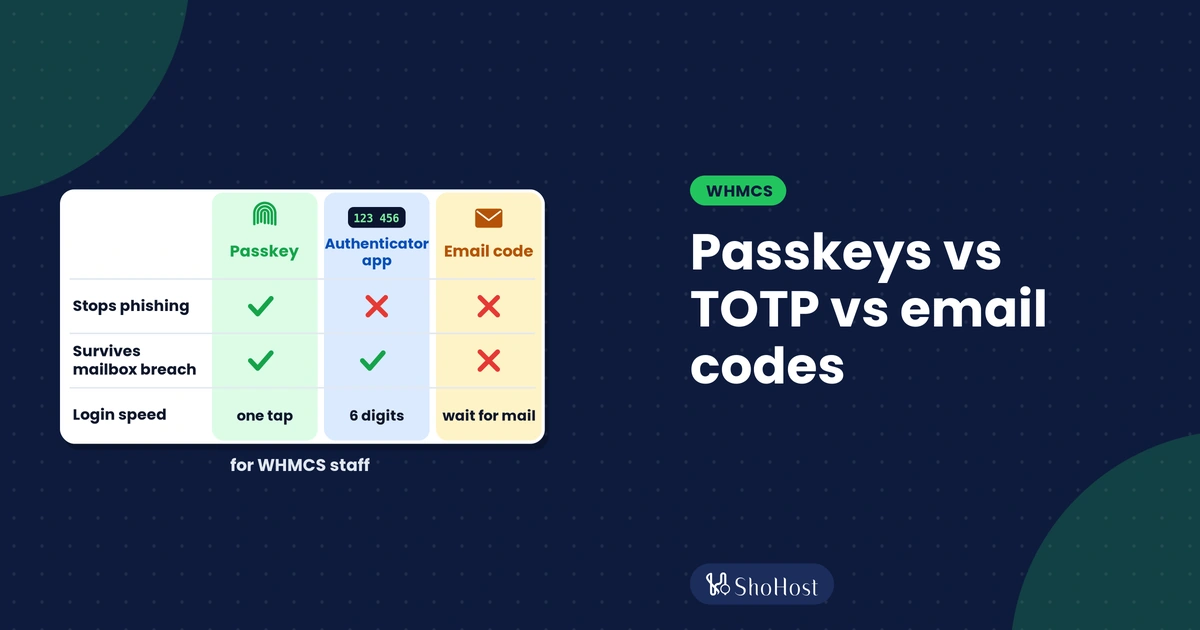
| Passkey | Authenticator app (TOTP) | Email code | |
|---|---|---|---|
| Stops phishing pages | Yes | No, codes can be relayed | No, codes can be relayed |
| Survives a mailbox breach | Yes | Yes | No |
| Speed at login | One tap or fingerprint | Open app, type 6 digits | Wait for mail, type code |
| Needs a phone | No, a laptop or security key works | Usually | No |
| In WHMCS without an addon | No | Yes (Time-Based Tokens) | No |
| In ShoSecureAuth | Yes, clients and admins | Yes | Yes, plus WhatsApp codes |
Which login method should WHMCS staff use?
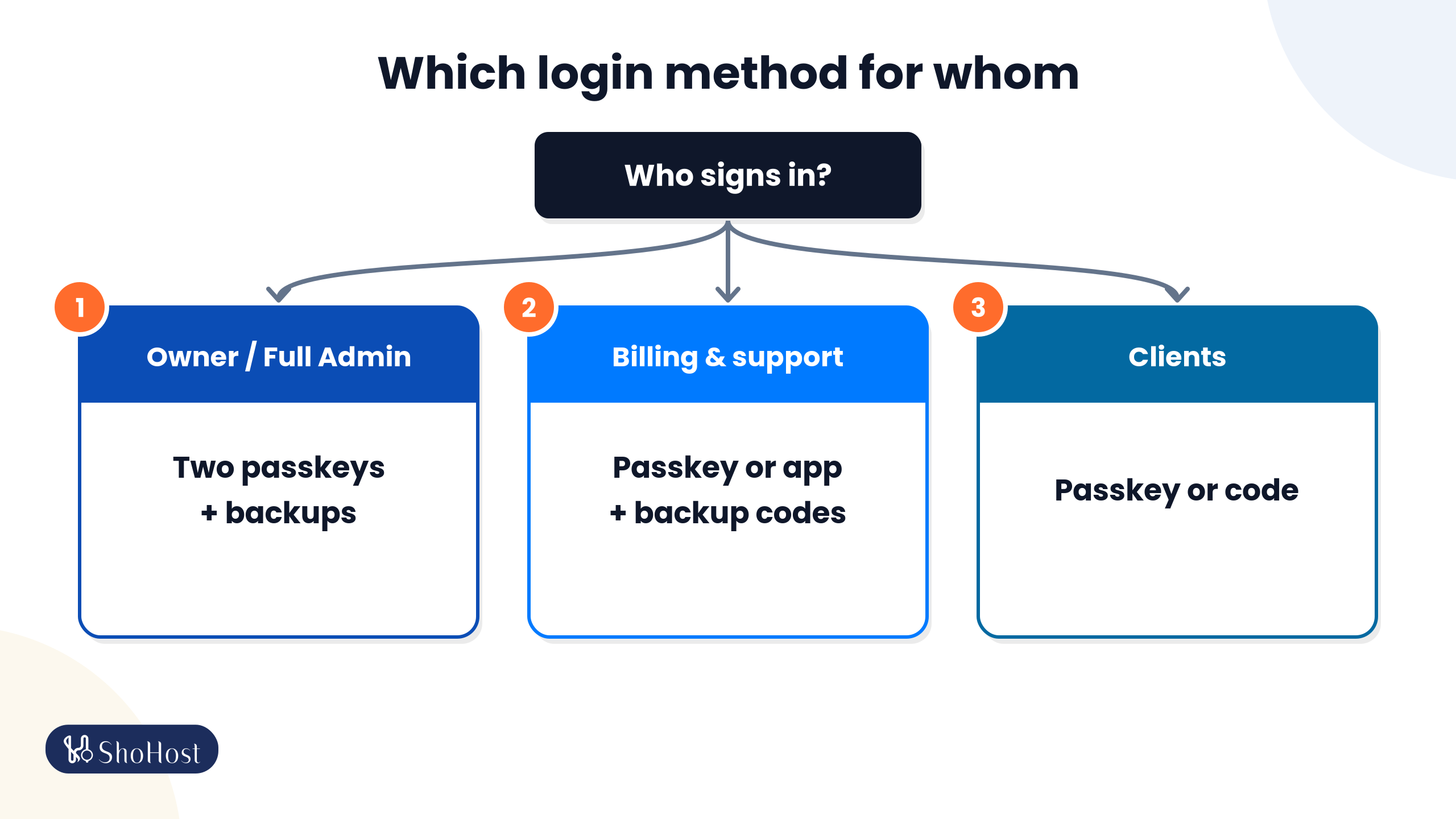
Use the strongest option for the accounts that can do the most damage, and keep a backup for everyone. A policy that works for most small hosting teams:
| Account | Main method | Backup |
|---|---|---|
| Owner and Full Administrators | Passkey on two devices | Authenticator app plus saved backup codes |
| Billing and support staff | Passkey, or an authenticator app | Backup codes |
| Freelancers and short-term access | Authenticator app at minimum | Backup codes, and remove the account when the job ends |
| Clients | Passkey if they want it | Email or WhatsApp code after the password |
Say you run a hosting business in Coimbatore with yourself, two support staff and a part-time billing assistant. You’d put passkeys on your own account and both support logins in week one, give the billing assistant an authenticator app plus backup codes, and offer passkeys to clients later as an option rather than forcing them.
Whatever you choose, give each person their own login with a role that fits their job. Our guide to WHMCS staff accounts and admin roles covers that side.
ShoSecureAuth: passkeys, TOTP, email and WhatsApp codes in one WHMCS addon
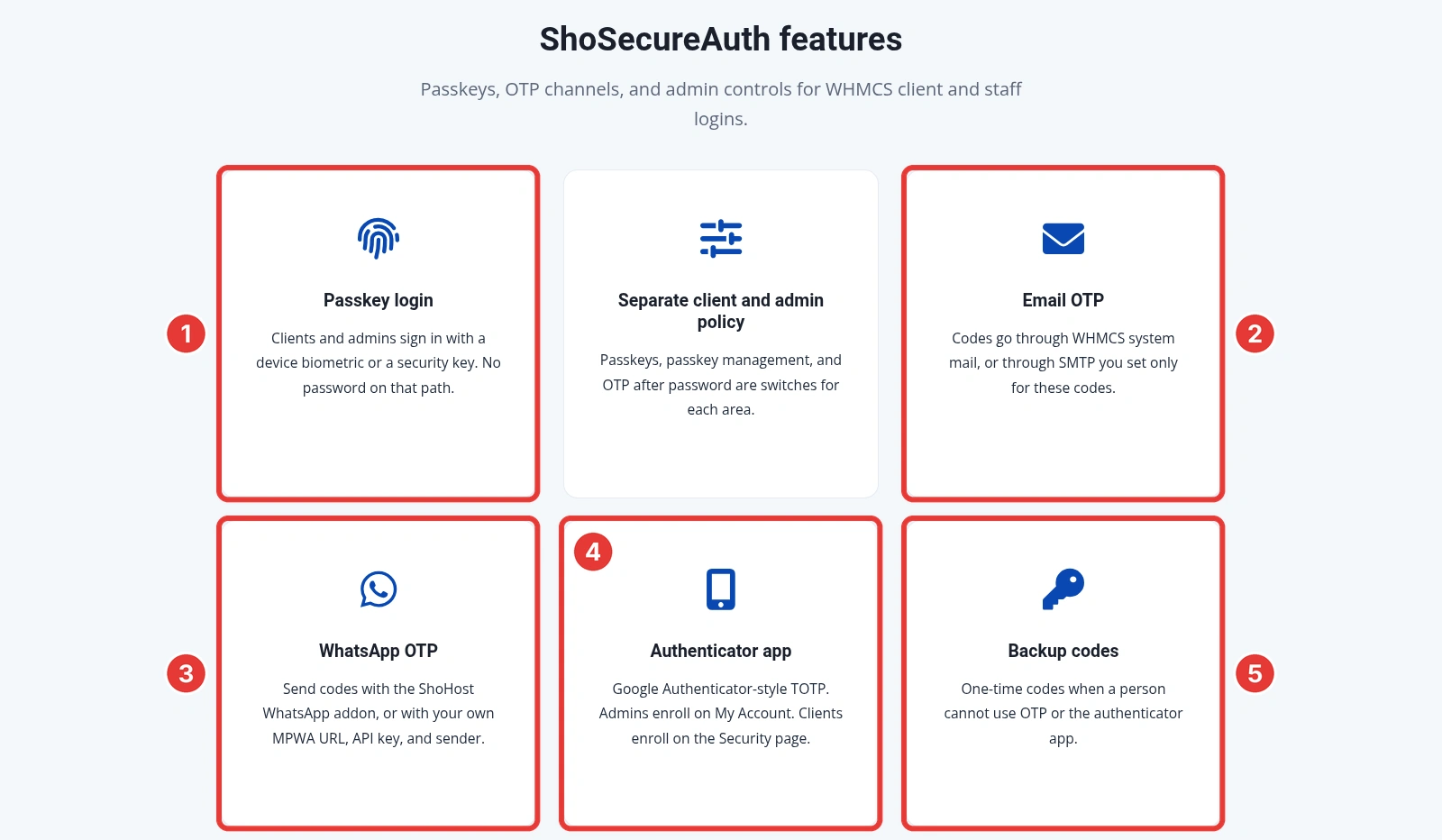
ShoSecureAuth is our in-house WHMCS addon, and it gives you all of the methods above in one place, so you don’t have to pick one for everybody. Clients and administrators can sign in with a passkey, and you can ask for a one-time code after the password when you want one.
- Passkey login with a device biometric or a security key, for clients and admins. No password on that path.
- OTP after password by email (WHMCS system mail or SMTP set only for these codes), WhatsApp (the ShoHost WhatsApp addon or your own MPWA gateway), a Google Authenticator-style app, or backup codes.
- Separate client and admin policy: passkey login, passkey management and OTP after password are separate switches for each area, and code channels are split into Administrator 2FA and Client 2FA.
- Admin step-up: a registered admin passkey can confirm sensitive admin actions instead of typing the password again.
- Recovery that doesn’t need you: backup codes, up to 5 extra emails and 5 extra WhatsApp numbers per user, and trusted devices users can revoke themselves.
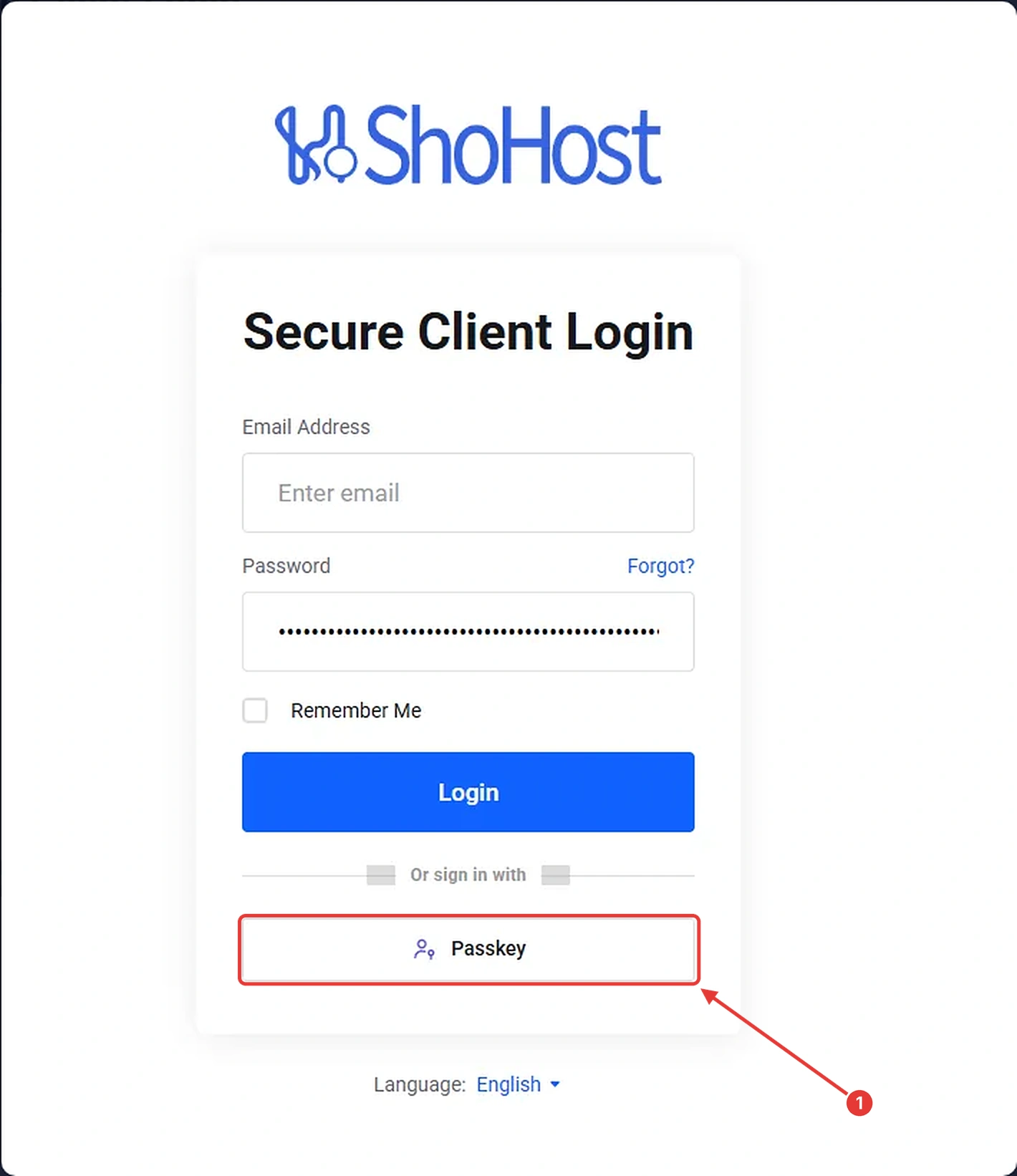
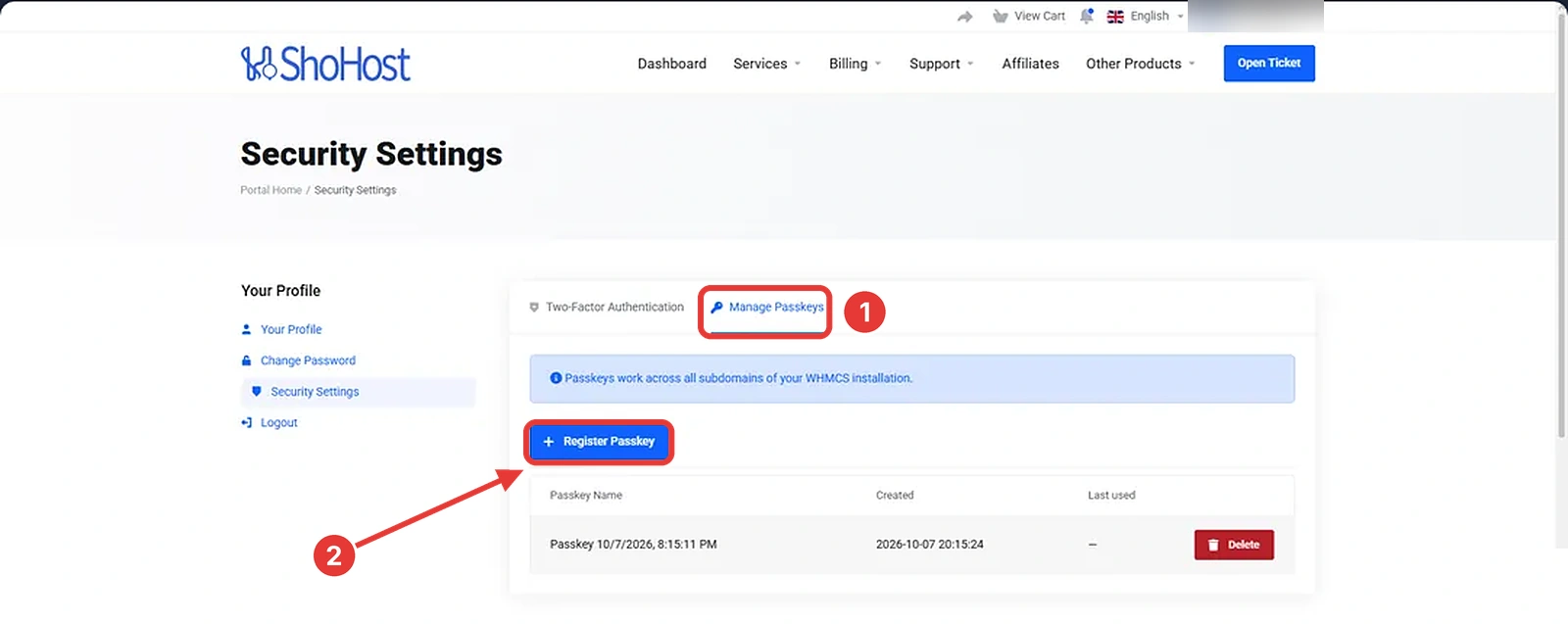
Signing in with a passkey is a single button on the WHMCS login page, and clients manage their own passkeys, authenticator app and backup codes from their Security page.
Rolling out passkeys during the 15-day trial
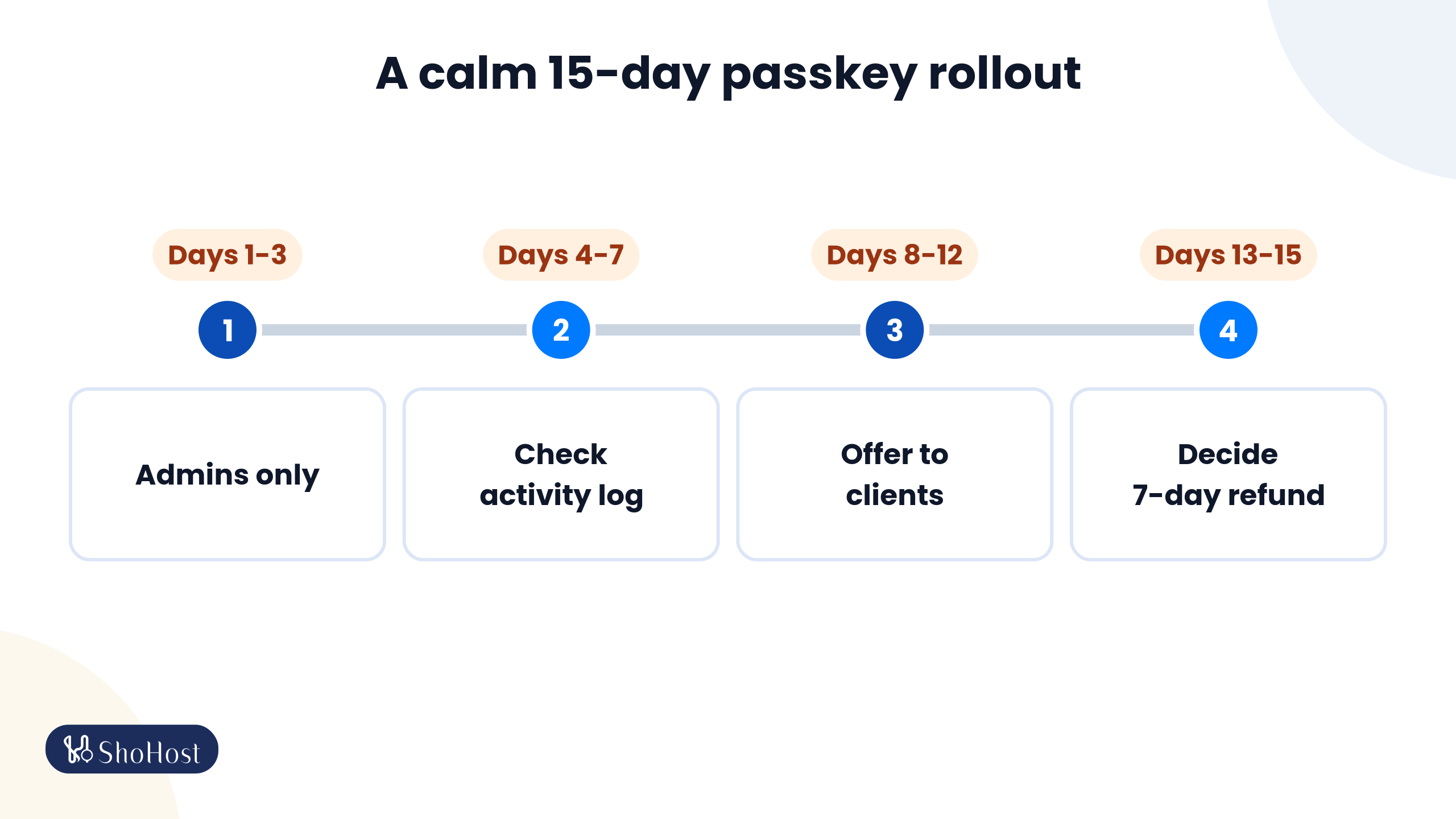
The free trial gives you enough time to move staff over in stages, with nobody locked out on day one:
| When | What to do |
|---|---|
| Days 1 to 3 | Turn on passkeys and OTP after password for the administrator area only, with Maximum passkeys per user set to 2 or more. Each admin registers two passkeys and saves backup codes. |
| Days 4 to 7 | Watch the activity log for failed logins and sort out any device problems while it’s only your team. |
| Days 8 to 12 | Offer passkeys to clients and choose their code channels, such as email and WhatsApp. |
| Days 13 to 15 | Decide whether to keep it. If you buy, there’s a 7-day refund on eligible module orders. |
Tip: keep one admin session open in another browser while you switch on admin OTP, so you can roll back a setting if something doesn’t behave.
ShoSecureAuth trial, refund and support
| Details | |
|---|---|
| Free trial | 15 days, started from the addon’s License tab |
| Refund | 7-day refund on eligible module orders, see our system policies |
| Licence | One domain-bound WHMCS install, with updates through the module |
| WHMCS licence | Bought separately. Third-party licences, including WHMCS, are non-refundable |
| Help | WhatsApp support on +91 94880 91432 |
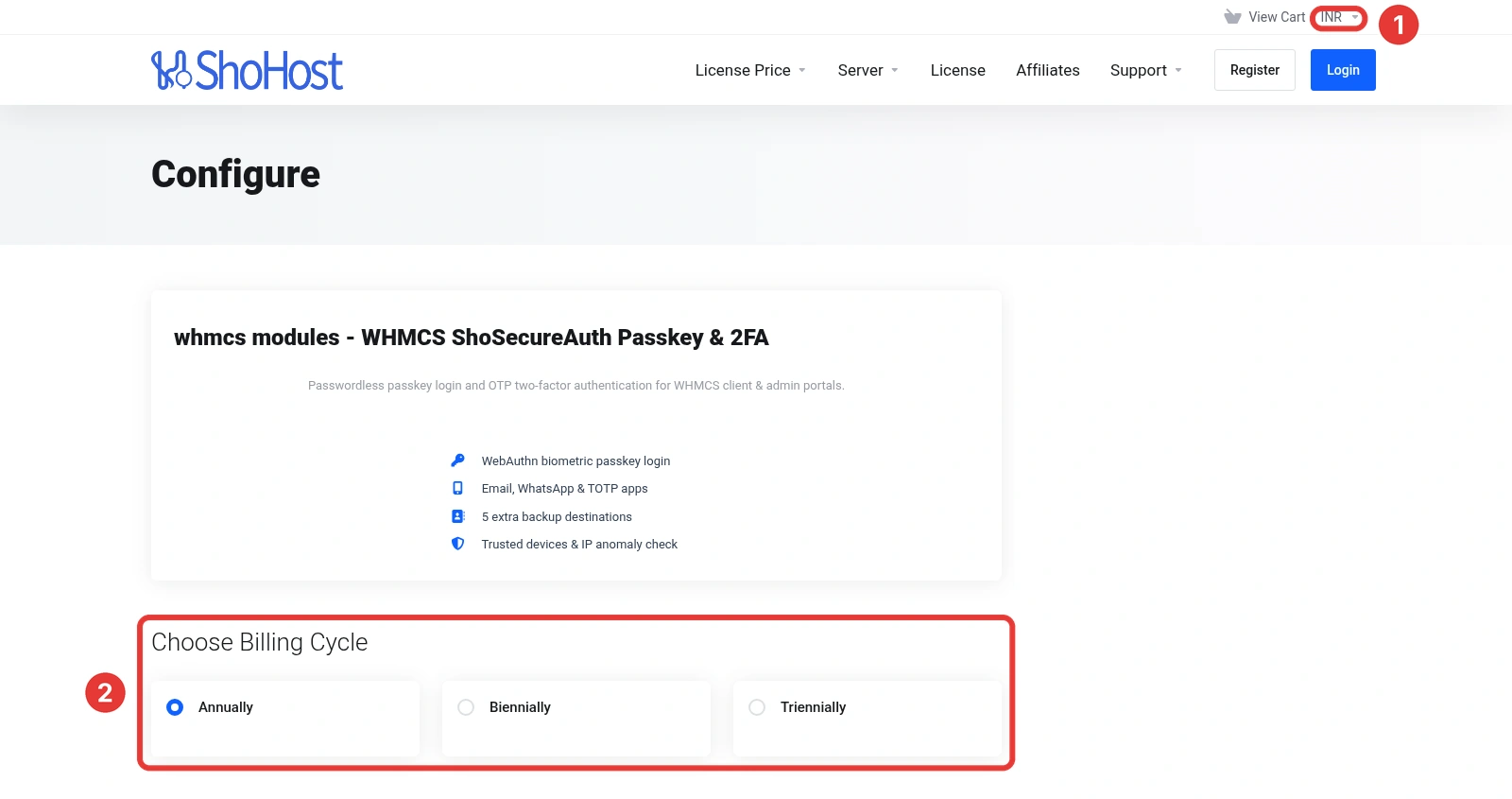
You can pay in INR on the ShoSecureAuth order page. Current prices are shown there and on the product page.
Passkeys vs TOTP vs email codes: FAQs
Are passkeys safer than an authenticator app for WHMCS admins?
Yes, against phishing. NIST SP 800-63B treats one-time codes you type in as not phishing-resistant, because a fake page can pass them on. A passkey is bound to your real domain, so a look-alike page gets nothing it can reuse.
Should WHMCS staff use email codes for two-factor login?
Only as a backup. Whoever gets into the mailbox gets the code, and often the password reset link too. NIST SP 800-63B says email should not be used for out-of-band authentication.
Does WHMCS support passkeys without an addon?
No. The built-in Two-Factor Authentication page offers Time-Based Tokens, Duo Security and YubiKey. Passkey sign-in for admins and clients comes from an addon such as ShoSecureAuth.
What happens if a staff member loses the phone with their passkey or authenticator app?
Plan for it before it happens. Give every admin backup codes and a second method. ShoSecureAuth also lets staff remove a passkey or reset 2FA for an account, and users can revoke trusted devices themselves.
Can I use passkeys for admins and email codes for clients?
Yes. In ShoSecureAuth, passkey login, passkey management and OTP after password are separate switches for the client area and the admin area, and the code channels are chosen separately for each.
Related WHMCS security guides
- How to harden your WHMCS admin area with passkeys and 2FA
- Secure WHMCS staff accounts: admin roles and offboarding
- Stop WHMCS brute-force login attacks
- Restrict access to the WHMCS admin area
- Protect WHMCS client logins from fraud
Sources: NIST SP 800-63B, OWASP, the FIDO Alliance, WHMCS 9.0 documentation and the ShoSecureAuth product page, checked 19 October 2026.