Locked Out of WordPress Admin? Reset Your Password via phpMyAdmin or WP-CLI
Tested in the ShoHost fix lab on 12 October 2026: WordPress 7.1.3, PHP 8.4, Apache with MariaDB 11.8. Every screenshot below is from that lab, not from a customer site.
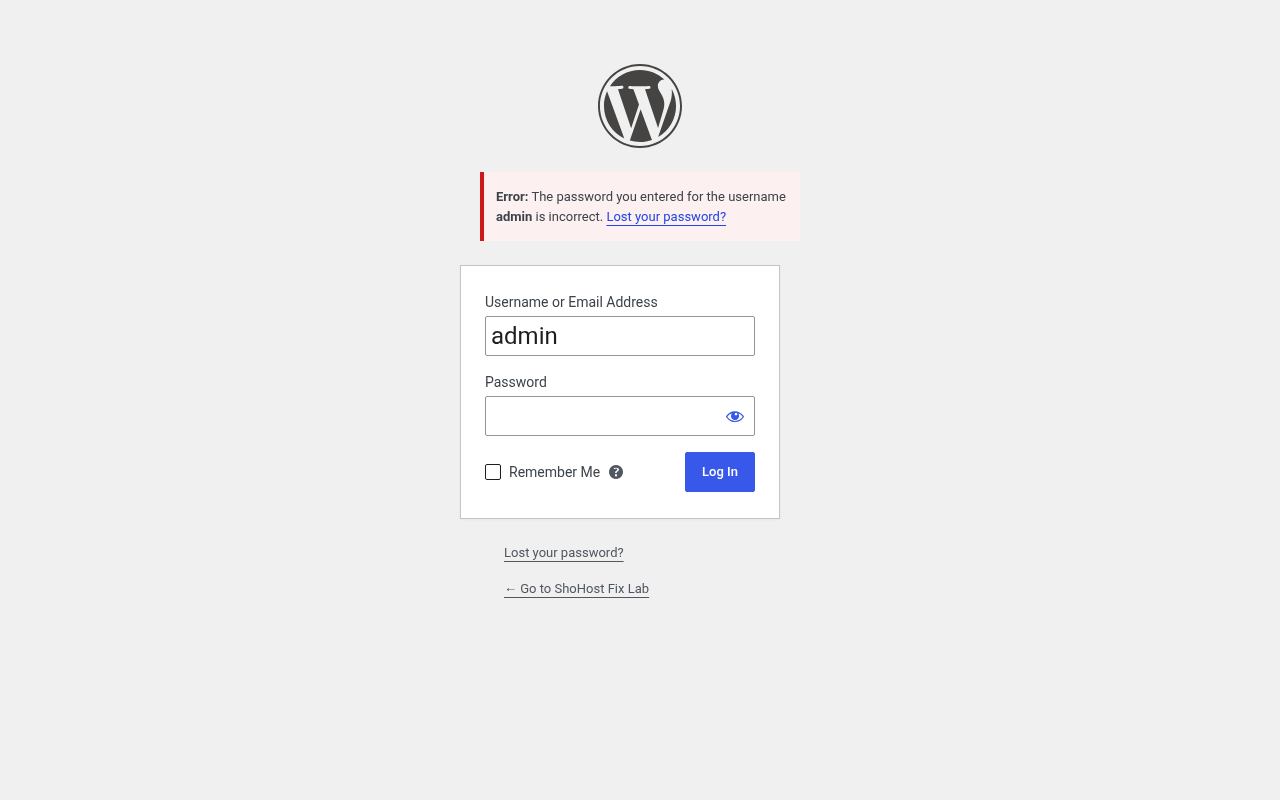
Wrong password, and the “Lost your password?” email never shows up? WordPress sites often can’t send mail until SMTP is set up. You can still get back in from your hosting account.
Method 1: phpMyAdmin (no command line needed)
- cPanel → Databases → phpMyAdmin. Pick your WordPress database (its name is
DB_NAMEin wp-config.php). - Open the
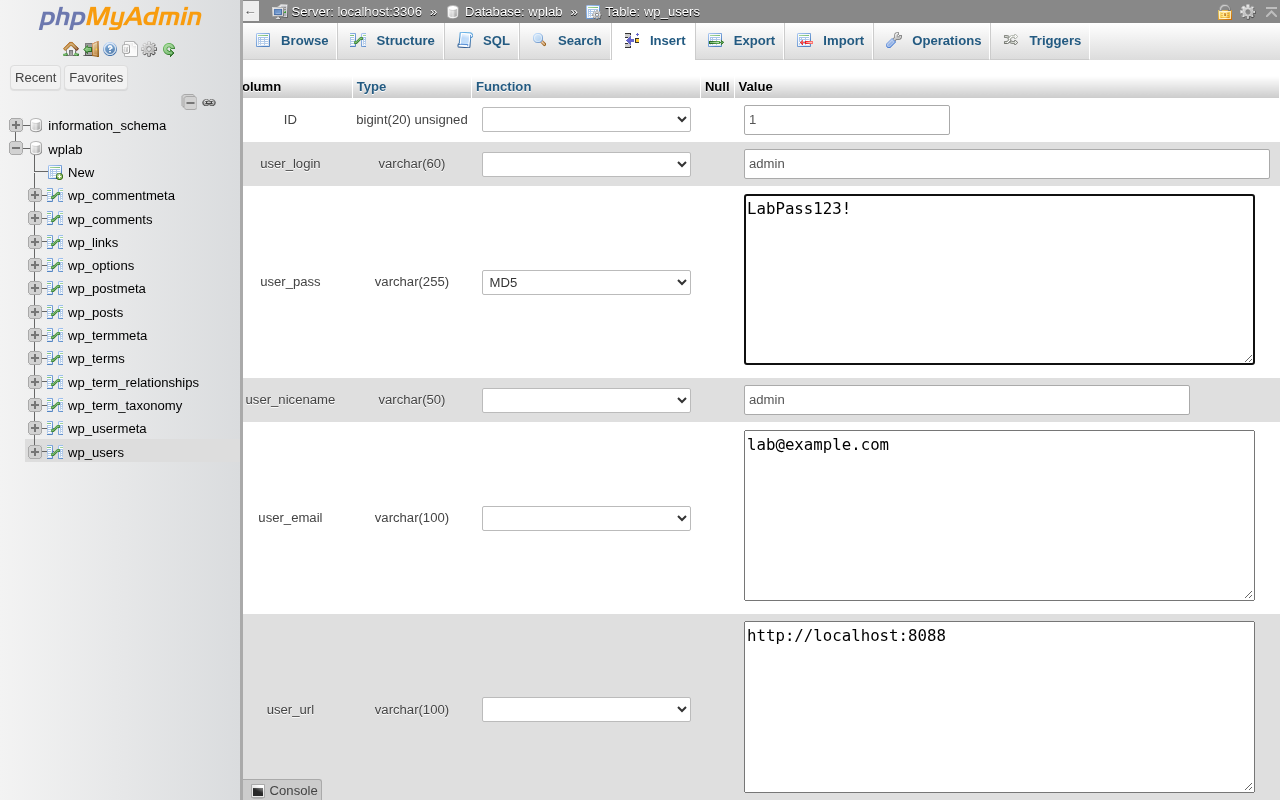
wp_userstable (your prefix may differ) and click Edit on your user’s row. - In the
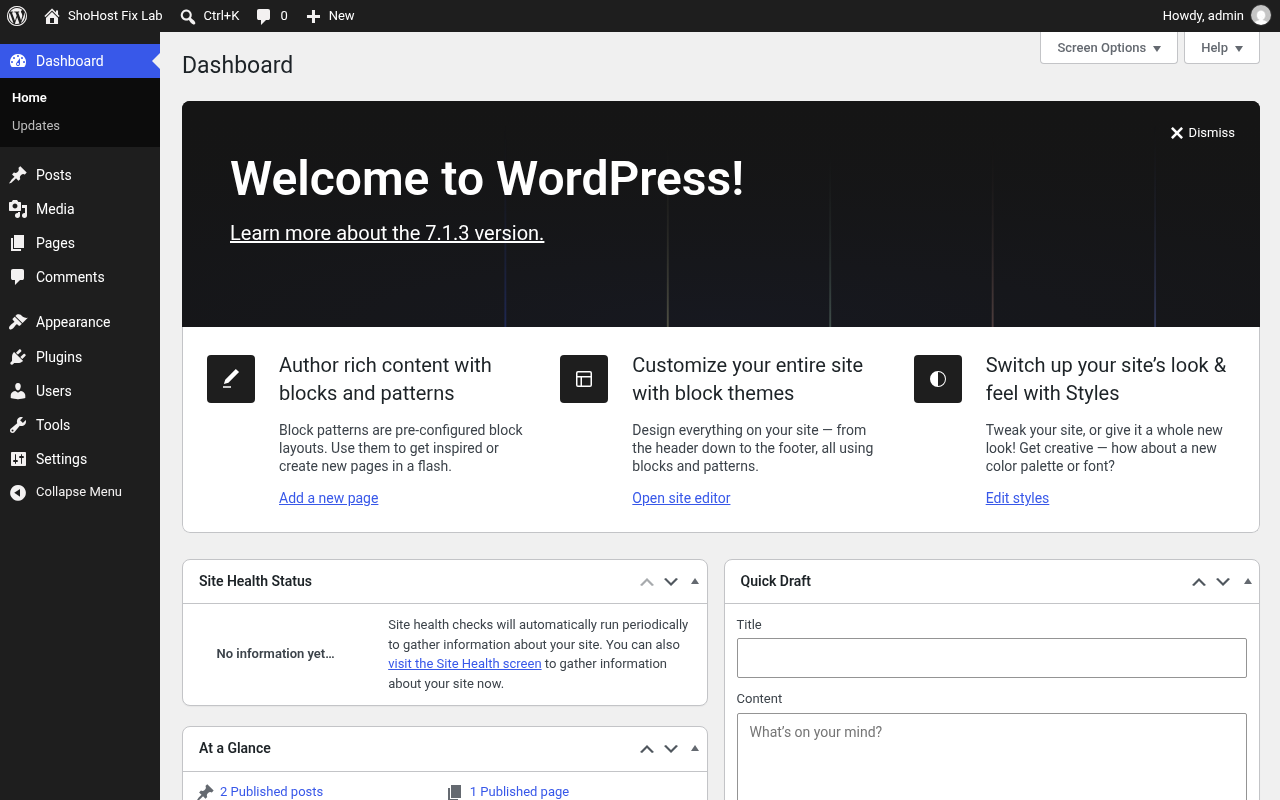
user_passrow, set the Function drop-down to MD5 and type a new strong password in Value. - Click Go, then log in with the new password.
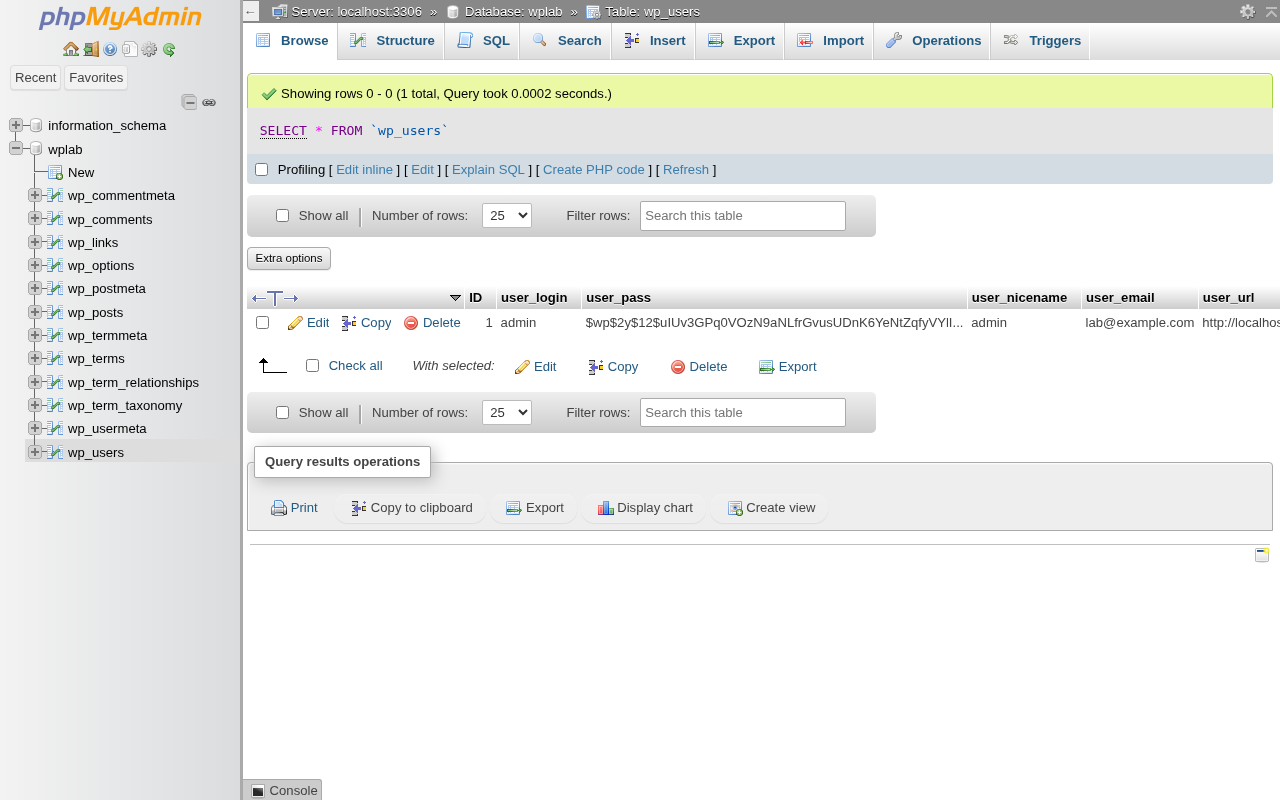
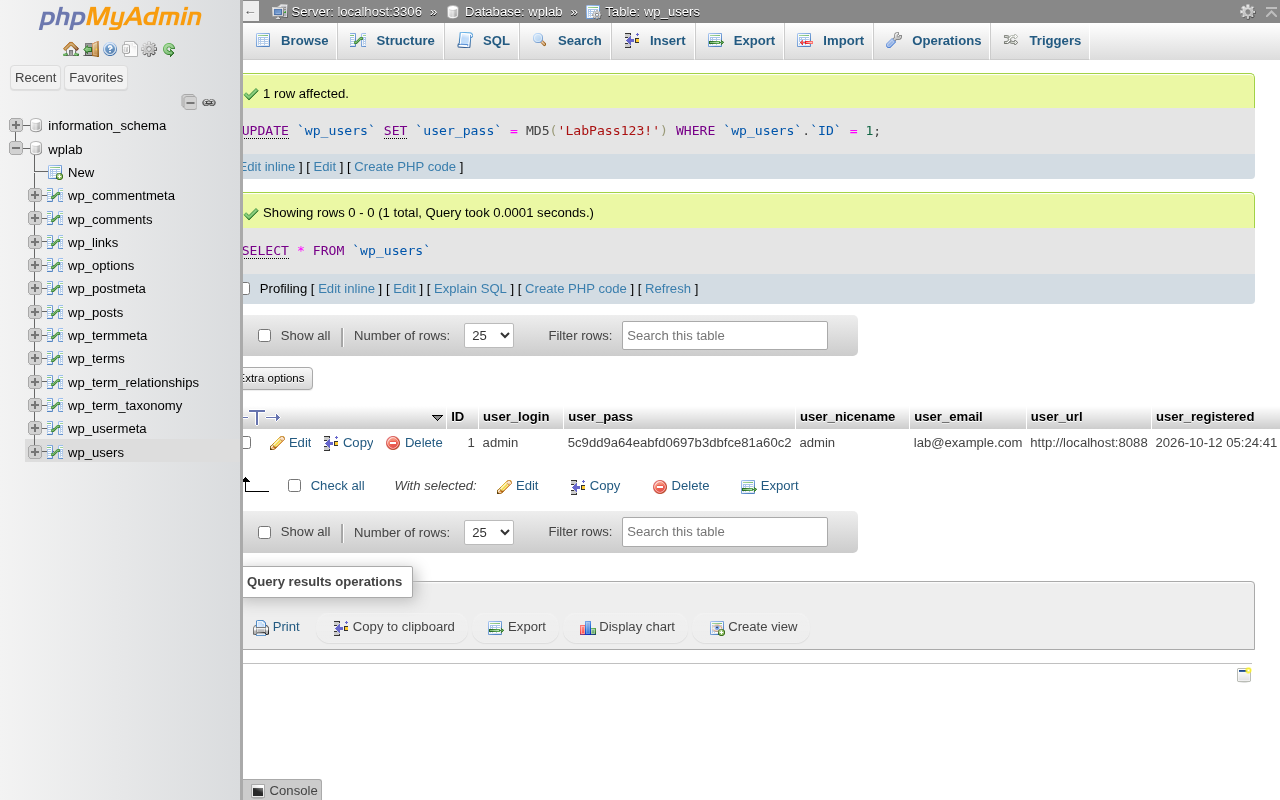
Is MD5 safe here? WordPress accepts the MD5 hash once and automatically re-hashes the password with its modern algorithm the first time you log in. We confirmed this in the lab on WordPress 7.1.3.
Method 2: WP-CLI (cPanel Terminal or SSH)
wp user list --fields=ID,user_login,user_email,roles
wp user update admin --user_pass='New-Strong-Pass!' --skip-email
After you’re back in
- Set up SMTP (for example with WP Mail SMTP and a cPanel email account) so future reset emails actually arrive.
- Turn on two-factor login for administrators.
- If you didn’t change the password yourself and still got locked out, treat it as a possible break-in and follow our hacked site checklist.
Need a hand?
Want someone to do this for you? If your site is on ShoHost, message our support team on WhatsApp at +91 94880 91432 or email [email protected] and we’ll look at the error log with you. Hosting somewhere else and tired of errors like this one? ShoHost WordPress hosting runs on LiteSpeed servers with NVMe storage and free SSL, and includes free migration.