500 Internal Server Error on cPanel: Read error_log and Fix It
Tested in a ShoHost sandbox on 12 October 2026: Apache 2.4.68 and PHP 8.4 on Debian, captured with headless Chrome. We broke a test folder on purpose in two ways: a bad .htaccess directive, and a PHP file that requires a missing file. Every screenshot below is from that sandbox, not from a customer site.
A 500 Internal Server Error means the server hit a problem it couldn’t handle, so it gave up on the request. The browser page never tells you why. The reason is written in a log, and on cPanel hosting reading that log is usually the fastest fix.
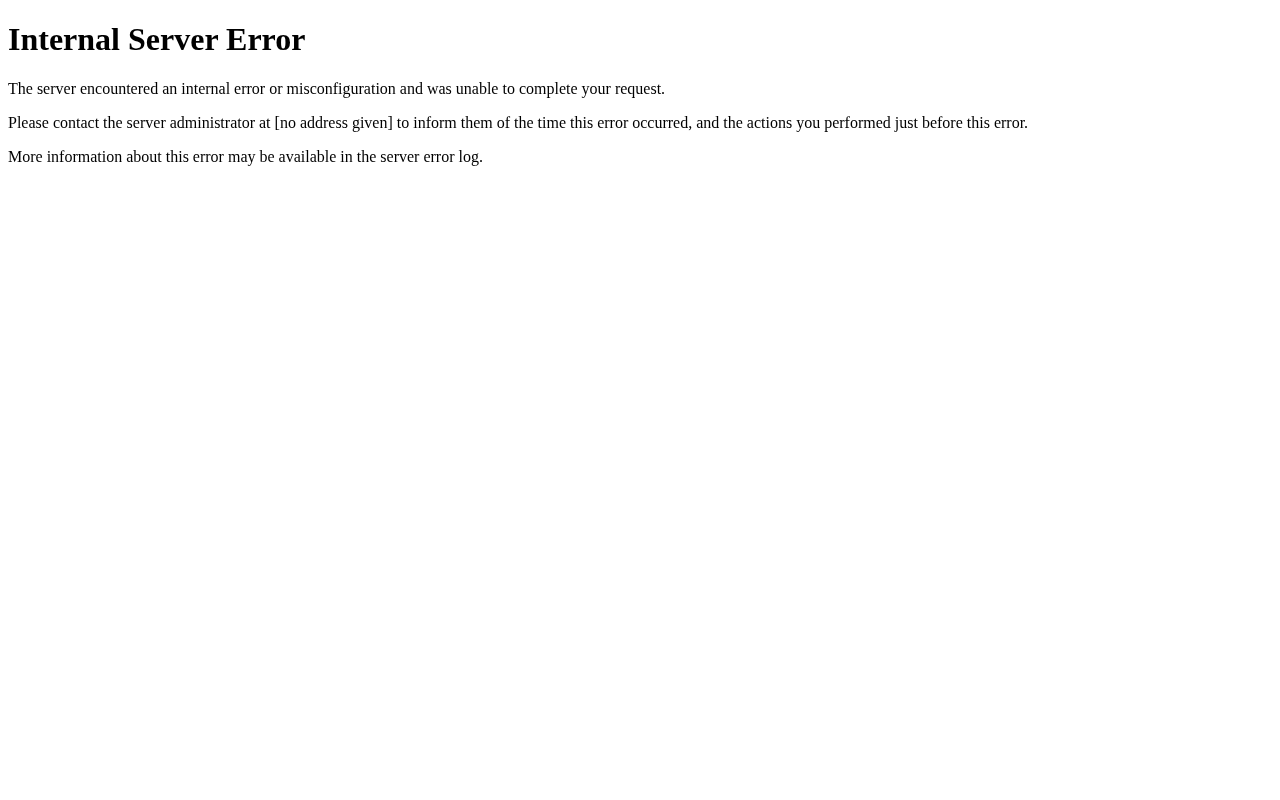
What it looks like
Step 1: Open the error log
In cPanel, go to Metrics → Errors. It shows the latest Apache error log entries for your account. PHP errors also go to a file called error_log in the folder of the script that failed (for example public_html/error_log). You can open it in Files → File Manager. Reload the broken page once, then look at the newest entry.
Step 2: Match the log line to the cause
“Invalid command” or “not allowed here”: an .htaccess problem
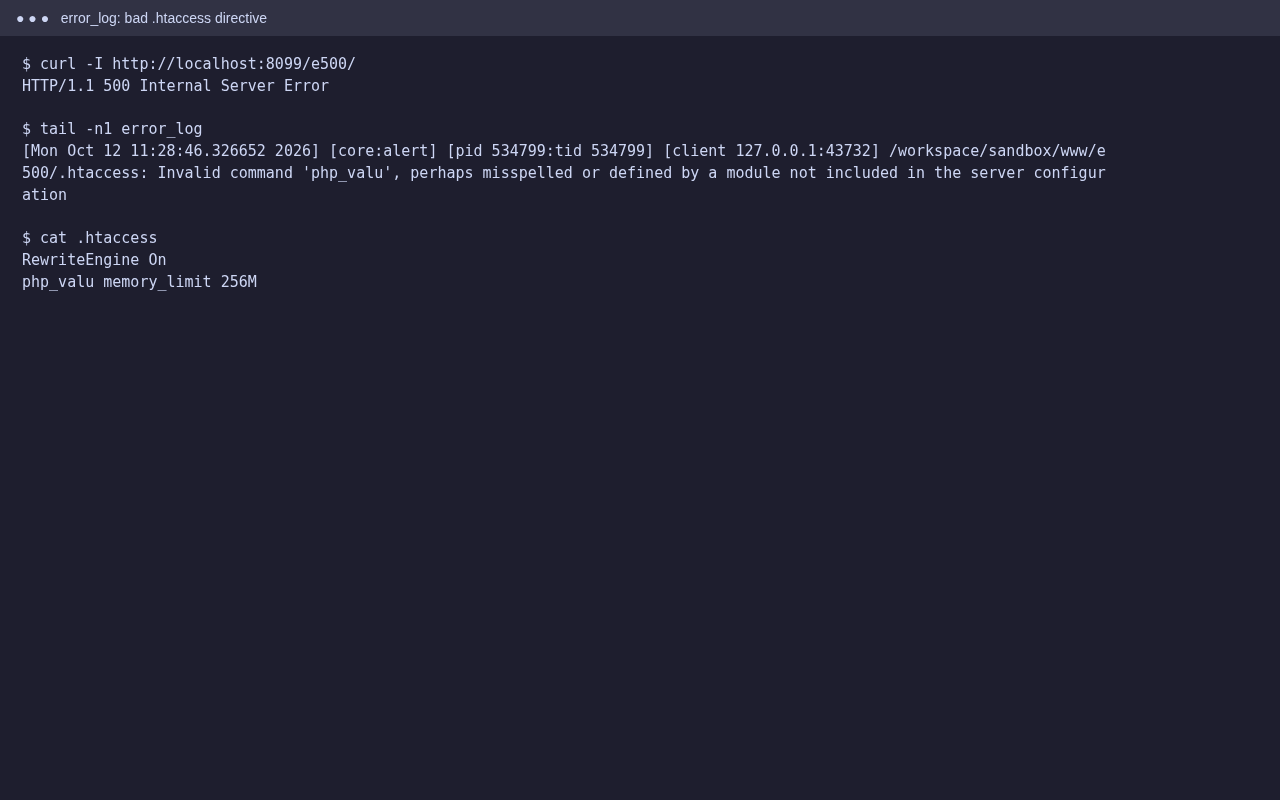
Apache reads .htaccess on every request, and a single bad line breaks everything in that folder. Turn on Show Hidden Files in File Manager settings, edit .htaccess, and fix or comment out (#) the line the log names. Two common causes:
php_value/php_flaglines on servers where PHP doesn’t run as an Apache module. Move those settings to MultiPHP INI Editor instead.- Lines copied from a tutorial for a module your server doesn’t have.
Not sure which line is the problem? Rename .htaccess to .htaccess.bak and reload. If the page loads, the problem is in that file. On WordPress you can rebuild a clean one with Settings → Permalinks → Save.
“PHP Fatal error”: a code problem
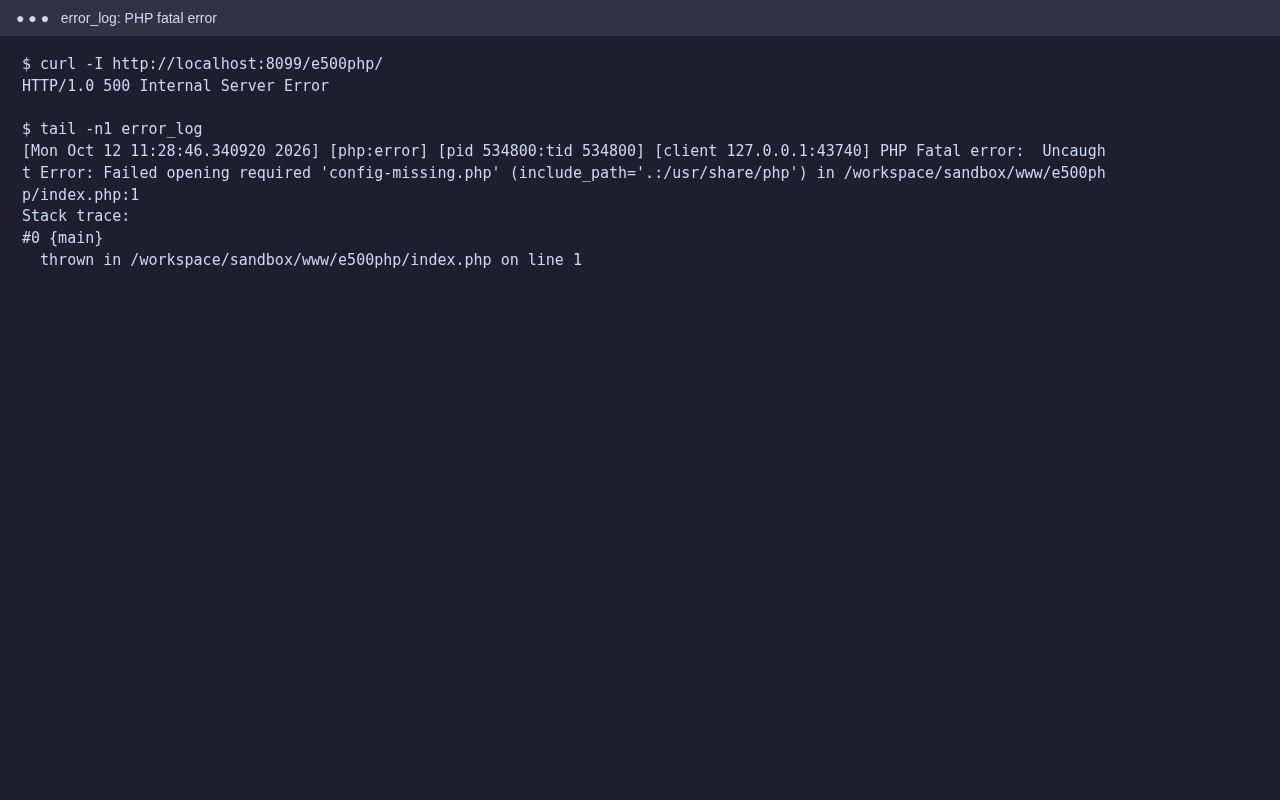
The log gives the file and line number. If the path is inside wp-content/plugins/ or themes/, rename that folder to turn the plugin or theme off (our white screen guide walks through this). If it’s a missing file, restore it from a backup or upload it again.
Other common lines
Allowed memory size ... exhausted: raisememory_limitin MultiPHP INI Editor, or find the plugin using the memory.Premature end of script headers/End of script output before headers: a CGI or PHP process crashed or was killed. Check for resource-limit faults.SoftException ... is writeable by group: on suPHP or suEXEC setups, a file or folder with 777 or 775 permissions is refused. Set folders to 755 and files to 644.
Step 3: Confirm the fix

Reload the page, preferably in a private window. If it still fails, look at the newest log entry. One fix sometimes uncovers a second error behind it.
FAQ
Why don’t I see anything in error_log?
Not every problem reaches the PHP log. .htaccess and permission errors show up only in Metrics → Errors. Make sure you reloaded the broken page after opening the log.
Can a plugin update cause a 500?
Yes. A plugin that needs a newer PHP version, or a half-finished update, often causes a fatal error. Check the PHP version in MultiPHP Manager.
Is it safe to delete .htaccess?
Rename it rather than deleting it, so you keep any redirects or security rules in it. Copy them back one block at a time.
Need a hand?
Want someone to do this for you? If your site is on ShoHost, message our support team on WhatsApp at +91 94880 91432 or email [email protected] and we’ll look at the logs with you. Hosting somewhere else and running into server errors often? ShoHost WordPress hosting runs on LiteSpeed servers with NVMe storage and free SSL, and includes free migration.