Hacked WordPress Site? A Step-by-Step Cleanup Checklist
Tested in the ShoHost fix lab on 12 October 2026: WordPress 7.1.3, PHP 8.4, Apache with MariaDB 11.8. Every screenshot below is from that lab, not from a customer site.
Safety note: Every “attack” in this guide was a harmless marker (text strings and example.com links) planted on a throwaway local WordPress install. Nothing here is real malware. Don’t experiment on your live site.
Signs your site may be hacked
- Unknown files, especially
.phpfiles insidewp-content/uploads - Admin users you didn’t create
- Spam emails sent from your account, or a suspension notice from your host
- Antivirus or Google warnings, a sudden drop in traffic, or a slow site
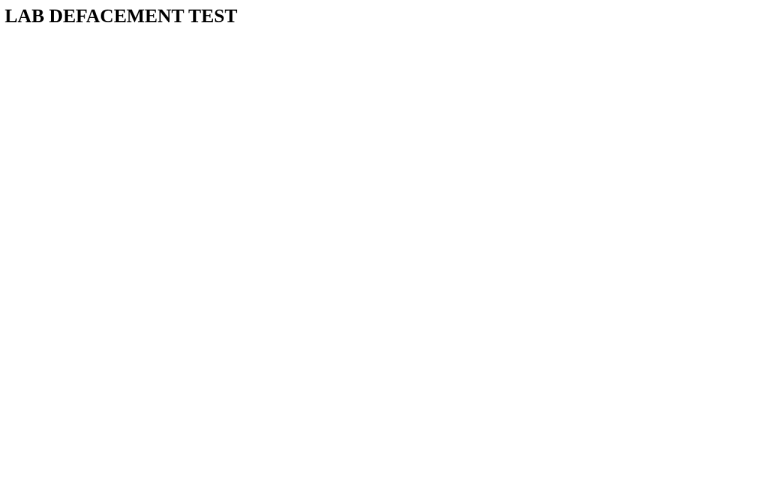
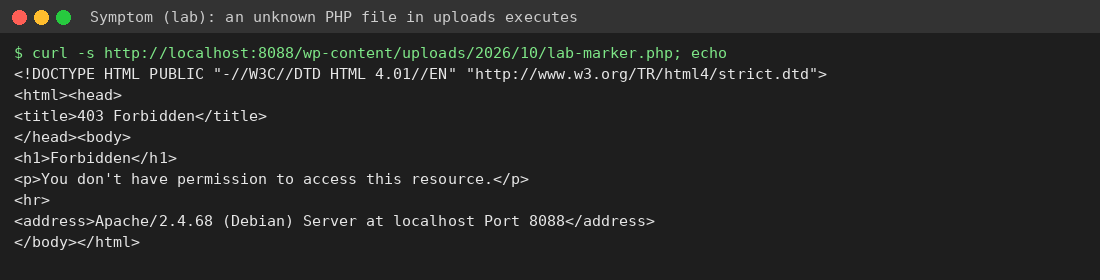
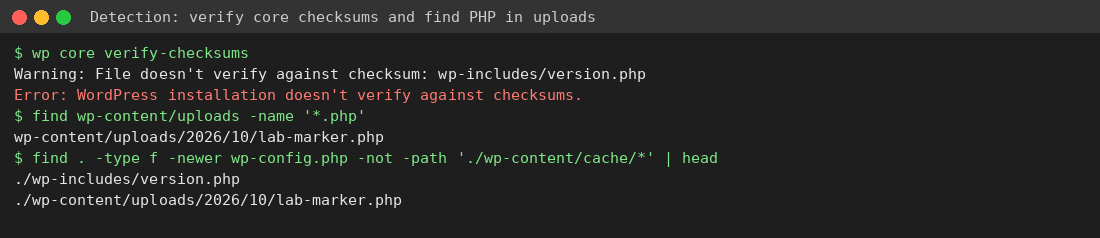
In the lab we planted a dummy PHP file in uploads and added a harmless line to a core file. Real attacks leave similar traces.
Step 1: Detect
wp core verify-checksumscompares your core files with the official copies on WordPress.org.find wp-content/uploads -name "*.php"should return nothing.- In cPanel File Manager, sort by Last Modified to see the newest files first.
- Run your host’s malware scanner, if it has one, plus Wordfence or Sucuri. Check Google Search Console → Security issues.
Step 2: Clean up
- Before you change anything, take a full backup in cPanel (Files → Backup, or your host’s backup tool): home directory plus database. Keep it as evidence. Don’t restore it as if it were clean.
- Put the site in maintenance mode and change every password: cPanel, FTP, the database user (then update
DB_PASSWORD), all WordPress admins, and email. - Delete unknown files. Replace WordPress core with a fresh copy:
wp core download --force --skip-content, or upload a fresh wordpress.org zip and overwritewp-adminandwp-includes. - Reinstall every plugin and theme from a fresh copy, and delete the ones you don’t use.
- Run
wp config shuffle-saltsto log everyone out, then check users, cron jobs and.htaccess.
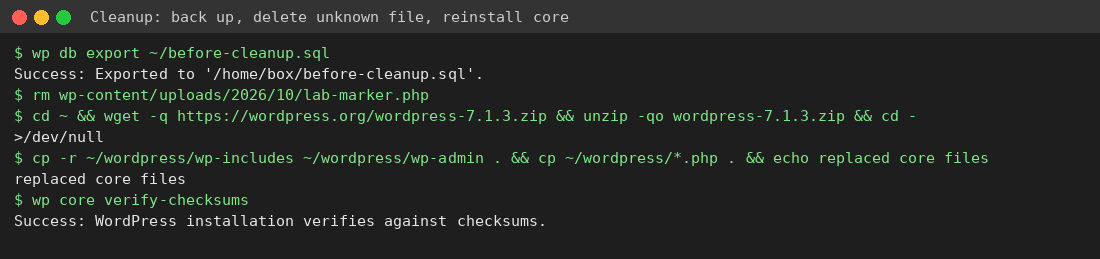
Lab note: in our test,
wp core download --forceon WordPress 7.1.3 left some files with truncated names. Copying from the official zip fixed it. Always run verify-checksums again after reinstalling.
Step 3: Harden so it doesn’t happen again
Block PHP from running in uploads. Create wp-content/uploads/.htaccess containing:
<FilesMatch "\.(php|phtml|php[0-9]|phar)$">
  Require all denied
</FilesMatch>
- Keep core, plugins, themes and your PHP version up to date.
- Turn on two-factor login for every administrator.
- Add
define('DISALLOW_FILE_EDIT', true);to wp-config.php. - Keep daily offsite backups and test that you can restore them.
Need a hand?
Not sure your cleanup is complete? If you host with ShoHost, contact support on WhatsApp (+91 94880 91432) or at [email protected] before you change anything else. Moving a site you’ve just cleaned? ShoHost WordPress hosting includes free SSL and free migration.