How to Change Nameservers for a .in Domain (and How Long It Takes)
Written and checked on 12 October 2026. The NS lookups are real answers from Google Public DNS. Registrar control panels differ and we don’t have a registrar test account, so the panel steps are described in words rather than screenshots. Every screenshot below is from that sandbox or from a public DNS lookup, not from a customer site.
Changing nameservers tells the .in registry which DNS servers are in charge of your domain. You do it at the registrar (the company you pay for the domain), not in cPanel. It takes a minute to submit. How long it takes to show up everywhere depends on DNS caches, covered below.
Step 1: Get the new nameservers and prepare DNS
Your new host gives you a pair like ns1.yourhost.com and ns2.yourhost.com. Before switching, add the domain to the new cPanel account and make sure the zone there has everything you need: A records for the site, MX records for email, and TXT records for SPF, DKIM, DMARC and any verification codes. If you skip this, email is usually what breaks.
Step 2: Check the current nameservers

curl -s "https://dns.google/resolve?name=example.in&type=NS"Note the TTL on the answer. That is roughly how long resolvers may keep the old nameservers cached.
Step 3: Change them at the registrar
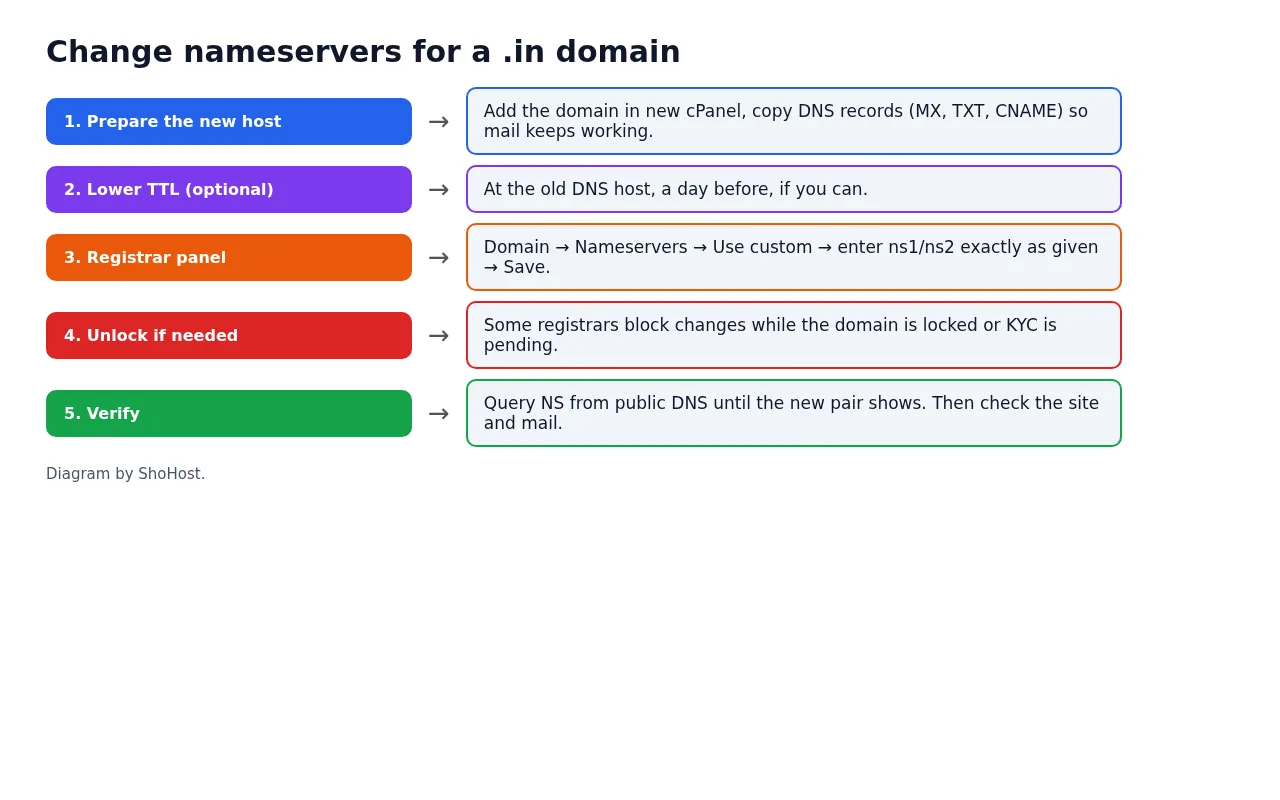
- Log in to the registrar where you bought the .in domain.
- Open the domain → Nameservers (sometimes DNS Management or Manage DNS).
- Choose custom nameservers instead of the registrar’s default ones.
- Enter the new nameservers exactly, one per field, with no
http://and no trailing dot unless the panel asks for one. Remove any old extras. - Save. Some registrars send a confirmation email or ask for an OTP.
If the save fails, check that the domain isn’t locked for changes, isn’t expired, and that the registrant’s contact details have been verified. .in domains with unverified contacts can be put on hold.
Step 4: How long it takes, and how to check
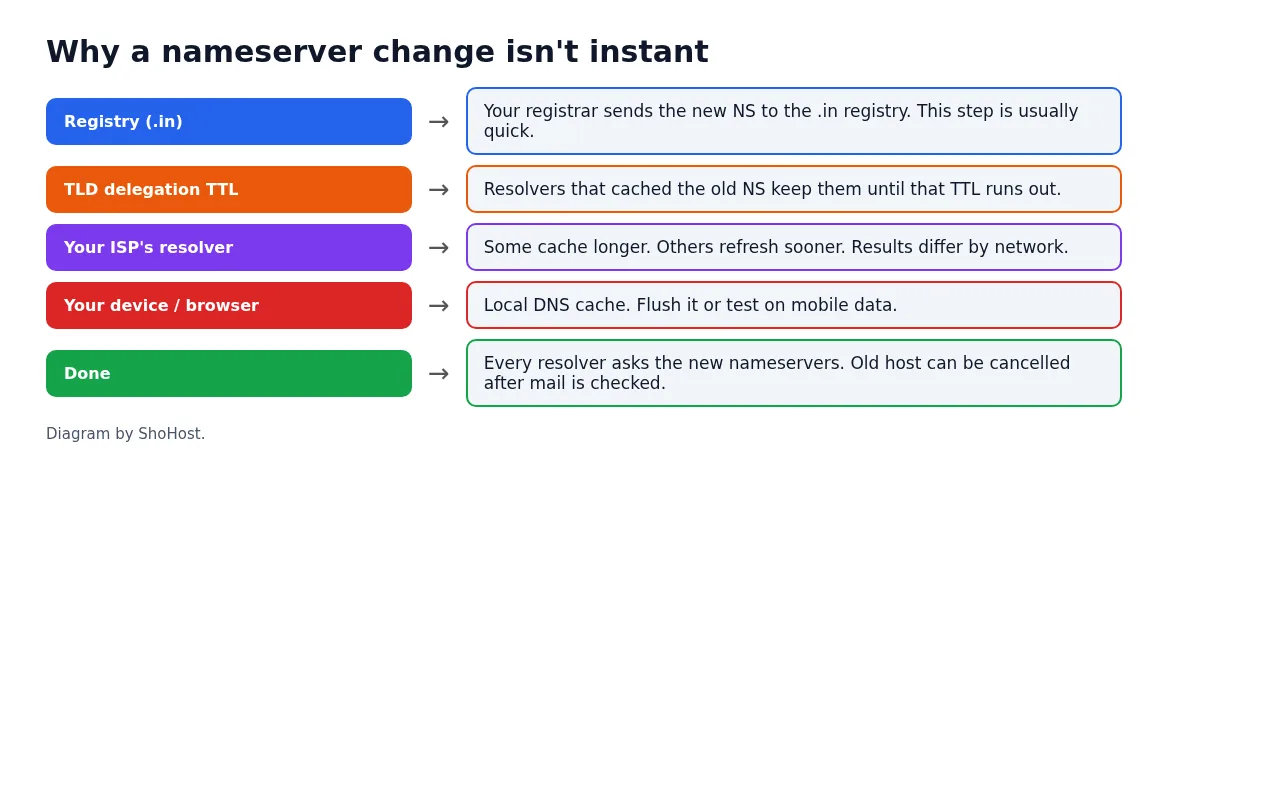
The registrar passes the change to the .in registry, which is usually quick. After that, resolvers that cached the old nameservers keep using them until their cache expires. Expect anything from minutes to about a day, and plan for up to 48 hours. Check with the lookup above every so often, and test on mobile data as well as your office network. Our DNS propagation guide explains the caching in more detail.
Keep the old hosting account running until the new nameservers show everywhere and you’ve checked that mail arrives at the new server.
FAQ
Should I change nameservers or just the A record?
Change nameservers when you want the new host to manage all DNS, including email. Change only the A record when DNS should stay where it is, for example at Cloudflare, and only the website is moving.
Can I use the registrar’s DNS and still host with cPanel?
Yes. Keep the registrar’s nameservers and add A, MX and TXT records there that point to your cPanel server.
Why does the site show the new host for me but the old one for my colleague?
Different networks have different cached answers. It settles once the caches expire.
Need a hand?
Want someone to do this for you? If your site is on ShoHost, message our support team on WhatsApp at +91 94880 91432 or email [email protected] and we’ll check your nameservers and records with you. Hosting somewhere else and running into DNS changes often? ShoHost WordPress hosting runs on LiteSpeed servers with NVMe storage and free SSL, and includes free migration.