How to Fix the WordPress White Screen of Death (Tested Step by Step)
Tested in the ShoHost fix lab on 12 October 2026: WordPress 7.1.3, PHP 8.4, Apache with MariaDB 11.8. Every screenshot below is from that lab, not from a customer site.
The “white screen of death” (WSOD) is a WordPress page with nothing on it: no error message and no content. Recent WordPress versions usually show “There has been a critical error on this website” instead, but the cause is the same. A PHP fatal error stopped the page from loading, and most of the time a plugin or theme caused it.
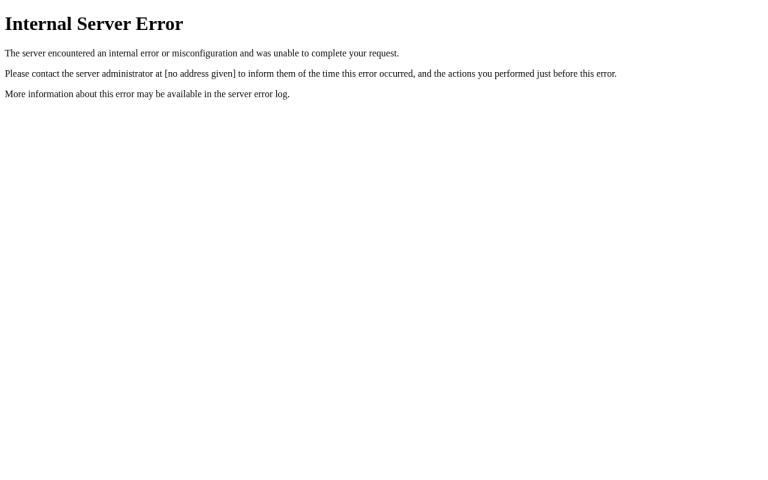
What it looks like


In our lab, a test plugin called a function that doesn’t exist. That one mistake took down both the front end and wp-admin.
Step 1: Turn on the debug log
In cPanel, open Files → File Manager, go to your WordPress folder (usually public_html), and turn on Settings → Show Hidden Files so you can see files like .htaccess and .maintenance. Edit wp-config.php and add these lines above /* That's all, stop editing! */. If WP_DEBUG is already there, change it instead of adding a second copy:
define( 'WP_DEBUG', true );
define( 'WP_DEBUG_LOG', true );      // writes to wp-content/debug.log
define( 'WP_DEBUG_DISPLAY', false ); // keeps errors hidden from visitors
Reload the broken page once. WordPress now writes the error to wp-content/debug.log.
Step 2: Find the culprit in debug.log
Open wp-content/debug.log and read the last line. It gives the file path, and the folder name after wp-content/plugins/ (or themes/) tells you which plugin or theme broke the site.
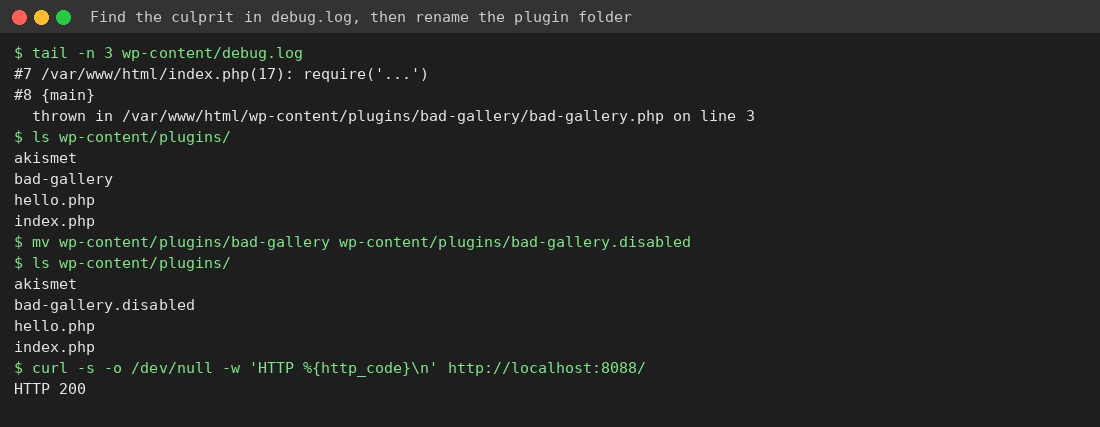
Step 3: Disable the plugin by renaming its folder
You can’t reach wp-admin, so work in File Manager: right-click the plugin’s folder in wp-content/plugins/ → Rename → add .disabled to the end. WordPress deactivates a plugin when its folder disappears. If you have SSH or cPanel Terminal, WP-CLI does the same thing:
wp plugin deactivate bad-gallery --skip-pluginsIf the log names your theme instead, rename the theme’s folder in wp-content/themes/. WordPress then switches to a default theme, as long as one (for example Twenty Twenty-Five) is installed.
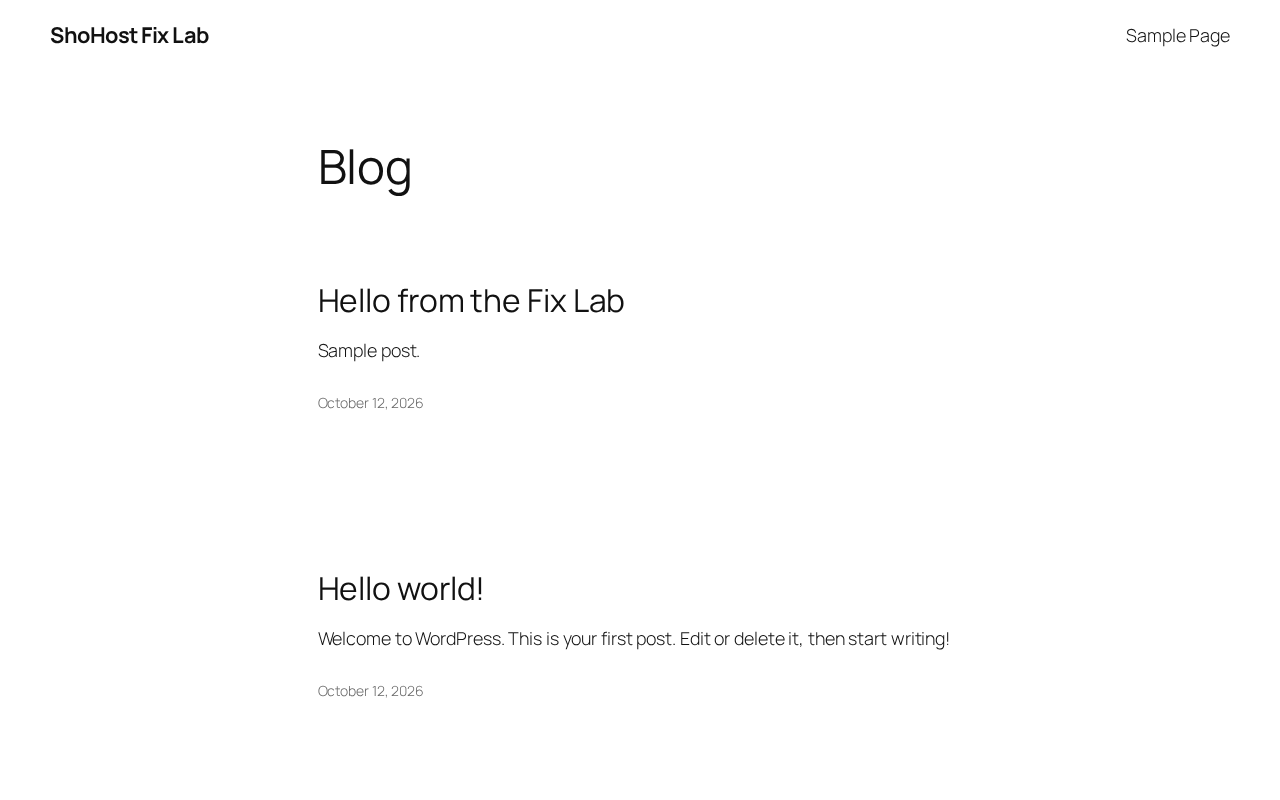
Step 4: Clean up
- Set
WP_DEBUGback tofalseand deletedebug.log. Left in place, it can expose file paths. - Update the faulty plugin, or replace it with something else, before you turn it back on.
- If WordPress emailed you a recovery mode link, you can use it to log in and deactivate the plugin from wp-admin instead.
Still white after disabling plugins?
Check cPanel → Metrics → Errors for server-level messages. Make sure your PHP version in MultiPHP Manager is one your plugins support. If the log mentions Allowed memory size exhausted, follow our memory limit guide.
Need a hand?
Want someone to do this for you? If your site is on ShoHost, message our support team on WhatsApp at +91 94880 91432 or email [email protected] and we’ll look at the error log with you. Hosting somewhere else and tired of errors like this one? ShoHost WordPress hosting runs on LiteSpeed servers with NVMe storage and free SSL, and includes free migration.