Increase upload_max_filesize, memory_limit and max_execution_time in cPanel
Tested in a ShoHost sandbox on 12 October 2026: Apache 2.4.68 and PHP 8.4.26 (mod_php) on Debian, captured with headless Chrome. We uploaded a 3 MB and a 9 MB test file against the default limits, then raised the limits. The sandbox runs PHP as an Apache module, so we raised them with php_value lines; on cPanel you’d normally use MultiPHP INI Editor, whose screen isn’t shown because the sandbox has no cPanel. Every screenshot below is from that sandbox or from a public DNS lookup, not from a customer site.
Uploads that fail with “The uploaded file exceeds the upload_max_filesize directive in php.ini”, imports that stop halfway, and Allowed memory size exhausted errors all come from PHP limits. On cPanel hosting you can raise them yourself, up to whatever maximum your host allows.
The settings that matter
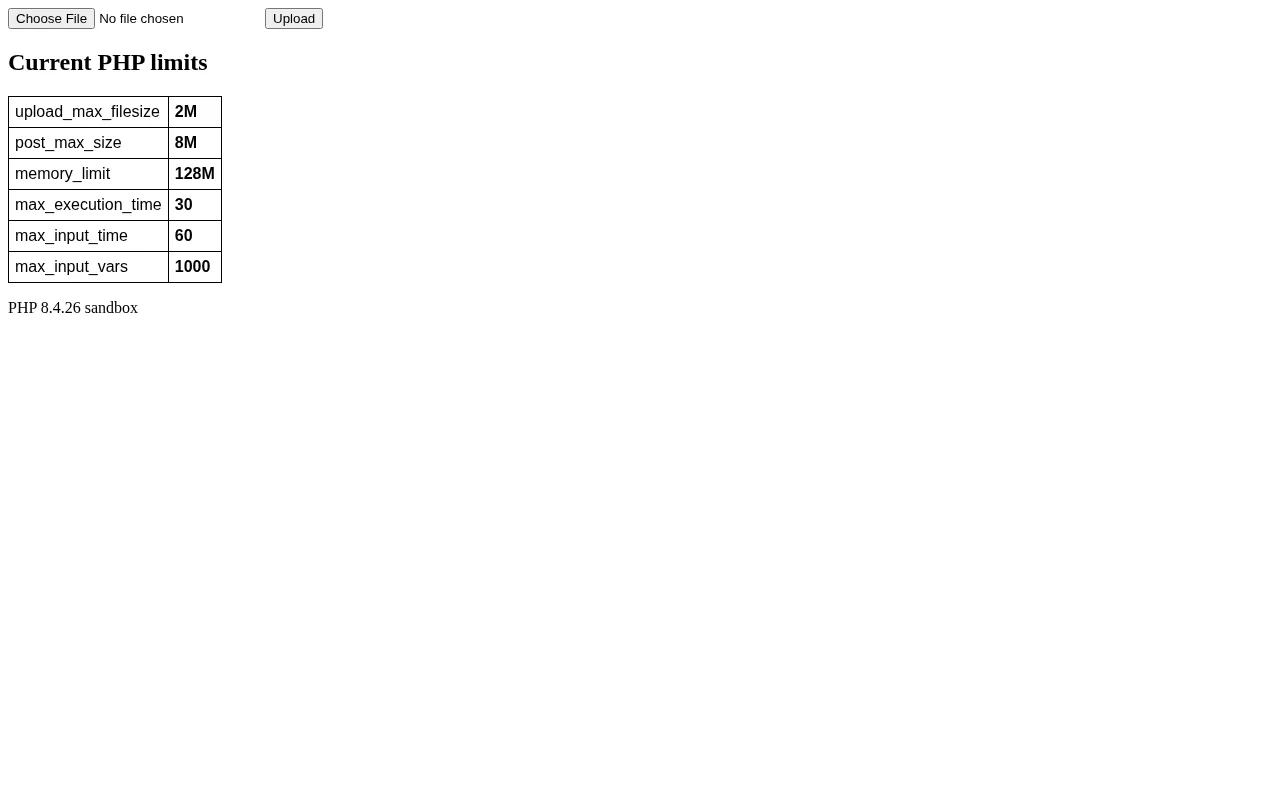
upload_max_filesize: the largest single file PHP will accept.post_max_size: the largest whole form submission. Keep it equal to or larger thanupload_max_filesize.memory_limit: RAM one PHP request may use.max_execution_time: seconds a script may run before PHP stops it.max_input_timeandmax_input_vars: time to receive input, and the number of form fields (big menus and settings pages hit this one).
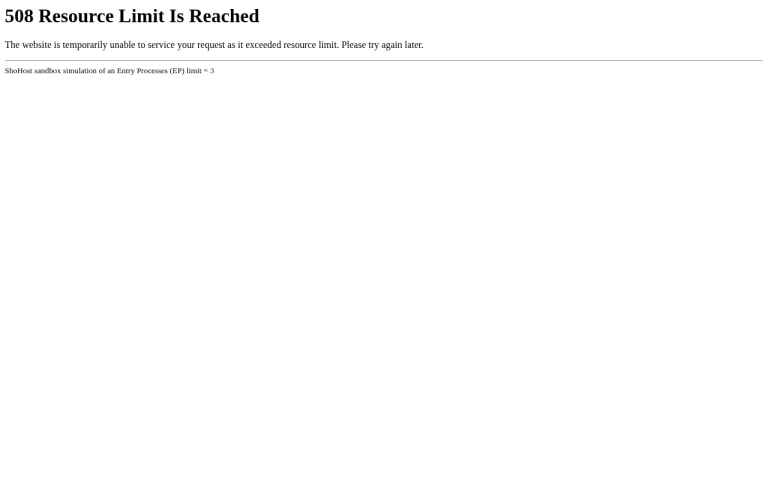
What hitting the limit looks like
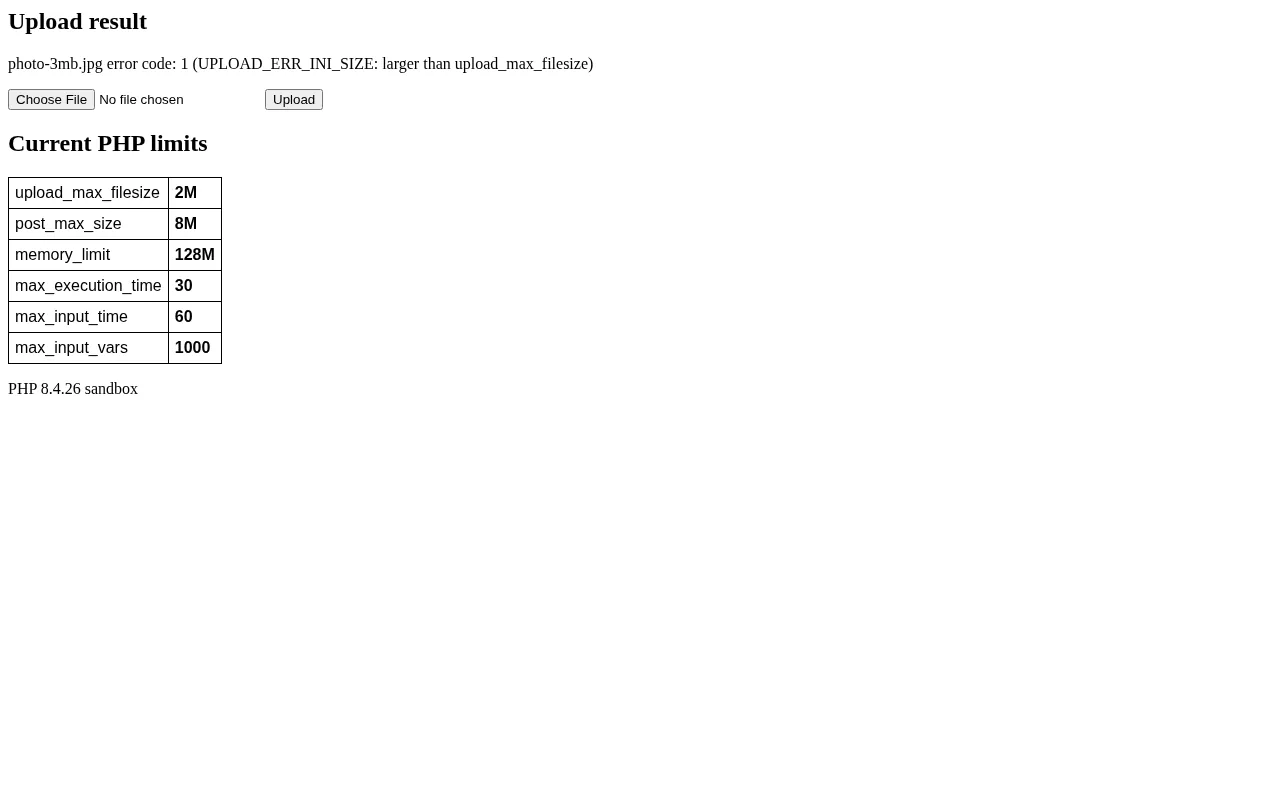
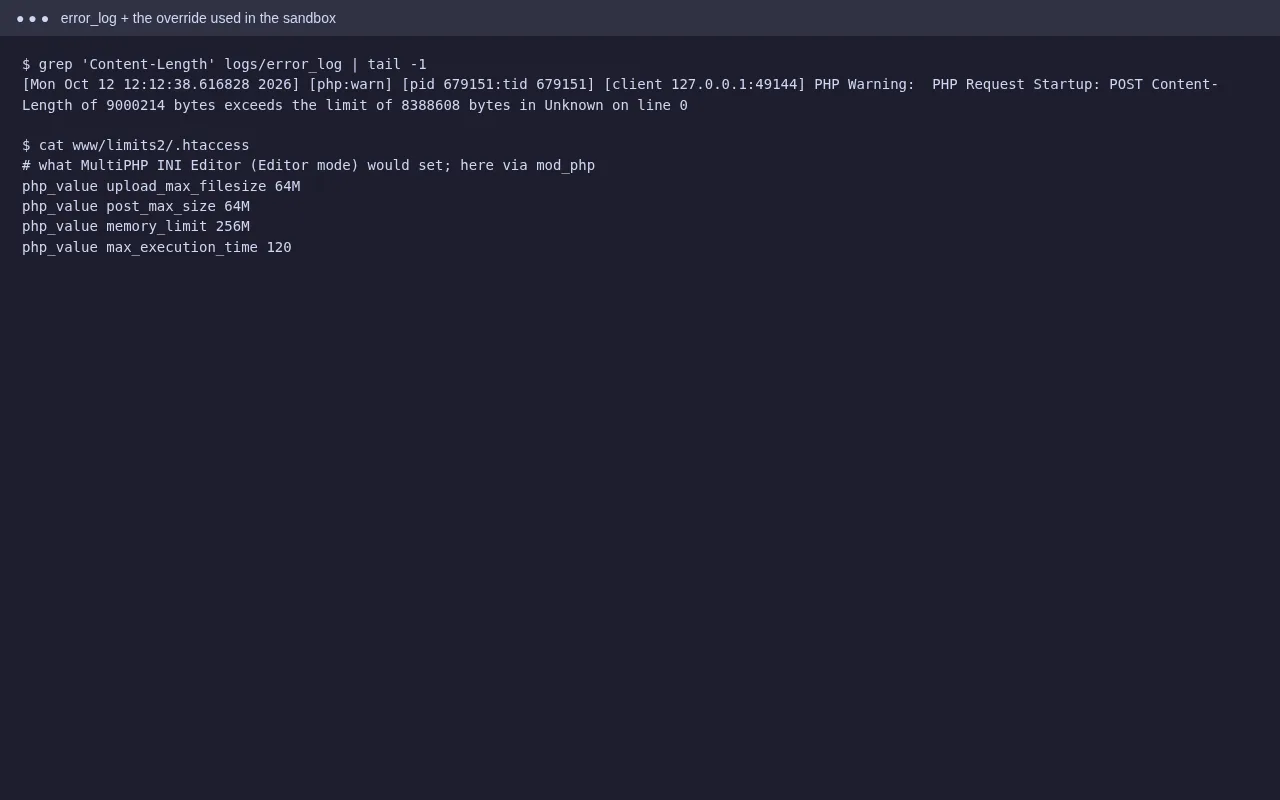
Note the difference. A file over upload_max_filesize arrives with an error code your app can report. A request over post_max_size is dropped completely, so the app sees an empty form and often shows a confusing or blank error. That’s why both values need raising together.
Step 1: Raise them in MultiPHP INI Editor
- Open cPanel → Software → MultiPHP INI Editor.
- In Basic Mode, choose your domain from the drop-down.
- Set
upload_max_filesize,post_max_size,memory_limitandmax_execution_time. Example: 64M, 64M, 256M, 120. - Click Apply.
On CloudLinux servers, Select PHP Version → Options holds the same settings. Use that one if it exists, since it takes priority.
Step 2: Other ways, if the editor isn’t available
cPanel writes these into a .user.ini or php.ini file in the site folder (for PHP-FPM, CGI or LSAPI). On servers that run PHP as an Apache module, which is what our sandbox does, .htaccess lines work instead:
php_value upload_max_filesize 64M
php_value post_max_size 64M
php_value memory_limit 256M
php_value max_execution_time 120
Don’t put php_value lines in .htaccess on PHP-FPM or LSAPI servers; Apache doesn’t know them there and returns a 500 error. If that happens, remove the lines and use MultiPHP INI Editor.
Step 3: Confirm
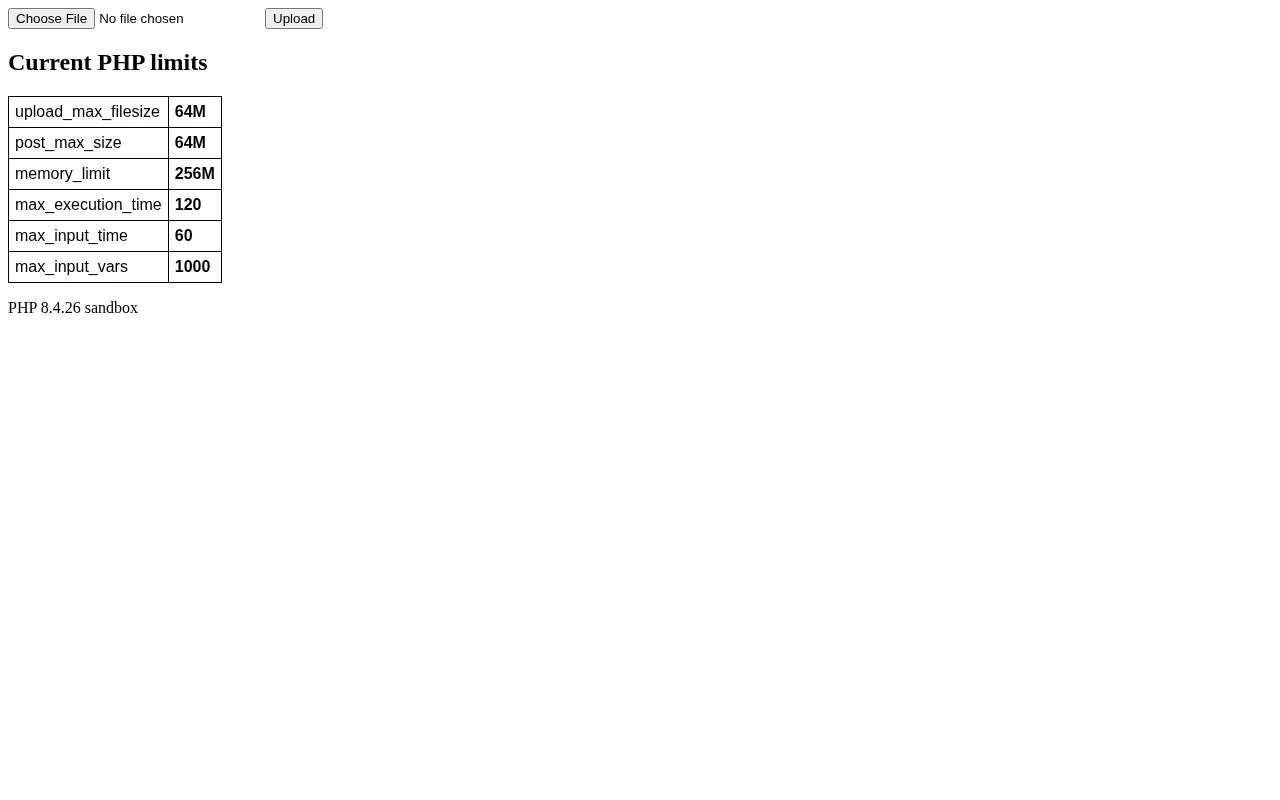
Check the values with a phpinfo() page (delete it afterwards), or in WordPress under Tools → Site Health → Info → Server. If a value won’t go above a certain number, that’s your host’s ceiling.
FAQ
Why didn’t my change take effect?
A different file may be winning: a .user.ini in a subfolder, a php.ini from an old host, or CloudLinux’s Select PHP Version options. Check phpinfo’s ‘Loaded Configuration File’ and ‘Additional .ini files’ lines.
How high should I set memory_limit?
Only as high as the app needs. 256M is plenty for most WordPress sites. A very high limit can hide a plugin with a memory leak.
Will a higher max_execution_time fix a 504?
Not if a proxy or CDN in front times out first. See our 504 Gateway Timeout guide.
Need a hand?
Want someone to do this for you? If your site is on ShoHost, message our support team on WhatsApp at +91 94880 91432 or email [email protected] and we’ll adjust the PHP limits with you. Hosting somewhere else and running into PHP limits often? ShoHost WordPress hosting runs on LiteSpeed servers with NVMe storage and free SSL, and includes free migration.