cPanel File Manager: Upload, Extract, Permissions, Editor
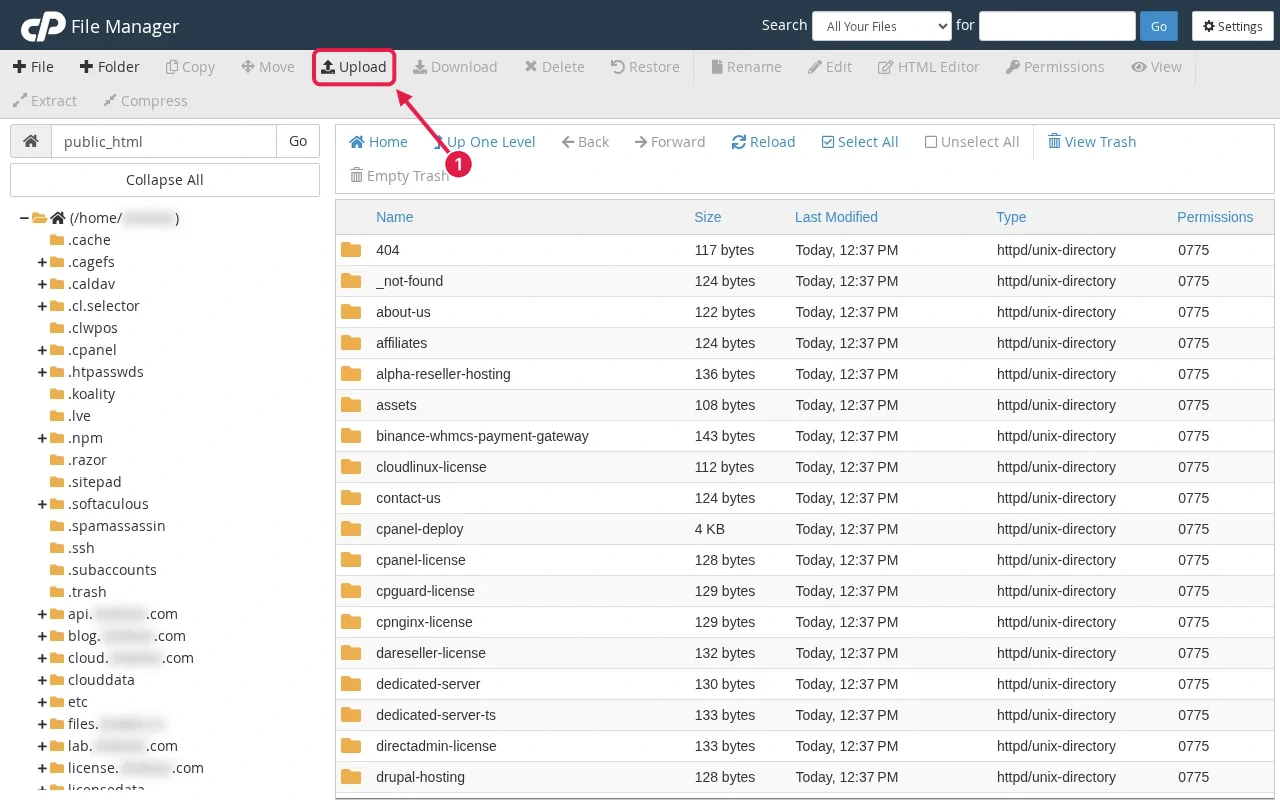
Tested on 12 October 2026 in a ShoHost sandbox (Debian, PHP 8.4): we extracted a zip and changed permissions from the command line, which is what File Manager does for you. cPanel itself isn’t installed in the sandbox, so the toolbar image is simulated; the button names come from cPanel’s public documentation.
cPanel’s File Manager (under Files) lets you upload, edit and organise your site’s files in the browser, without FTP. Your website lives in public_html (addon domains have their own folders).
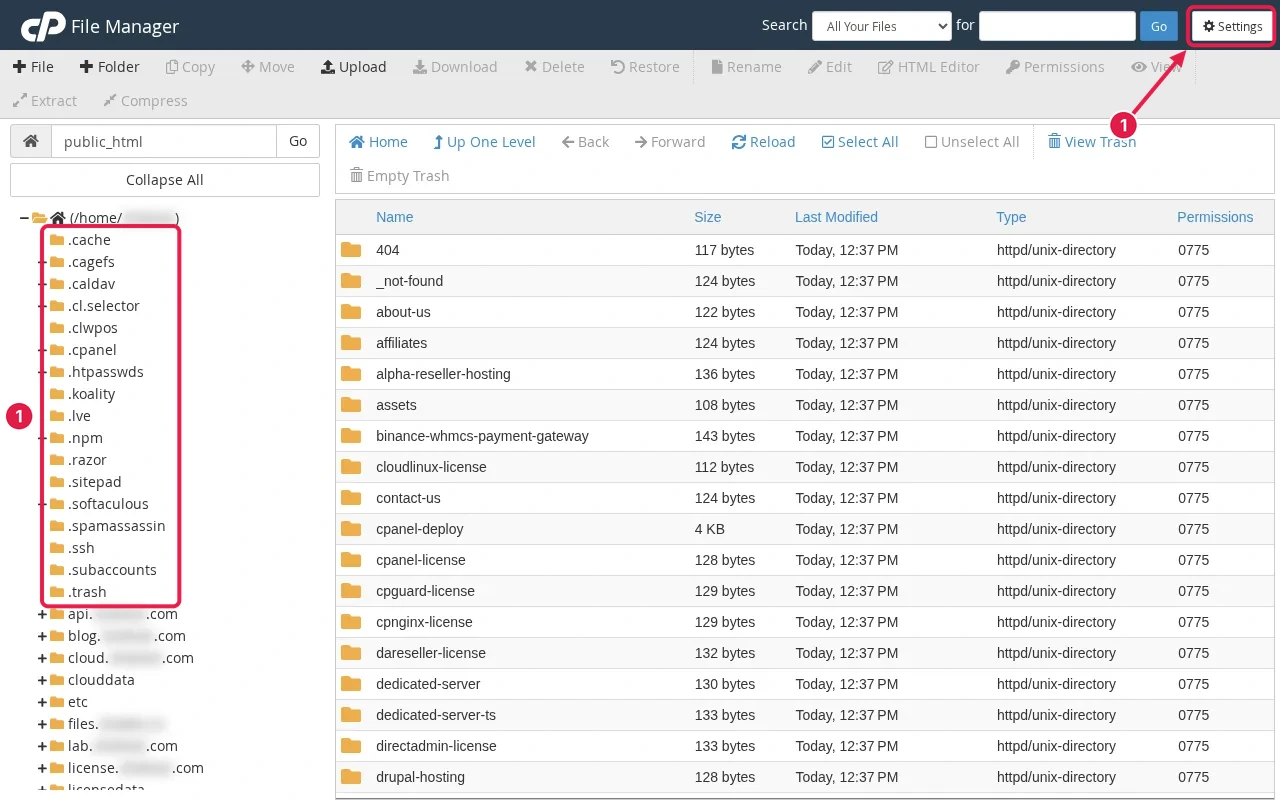
Show hidden files first
Click Settings (top right) and tick Show Hidden Files (dotfiles). Without it you can’t see .htaccess, .env or .user.ini, which you often need when fixing errors.
Upload and extract
- Open the target folder (for example
public_html) and click Upload. - For a whole site, upload one
.zipfile. It is much faster than many small files. - Back in File Manager, right-click the zip and choose Extract. Check the folder it extracts into: a zip that contains a top folder creates
public_html/site/, not files inpublic_htmlitself. - If files ended up in a subfolder, select them all and use Move to put them in the right place.
- Delete the zip afterwards so it isn’t downloadable.
Set permissions
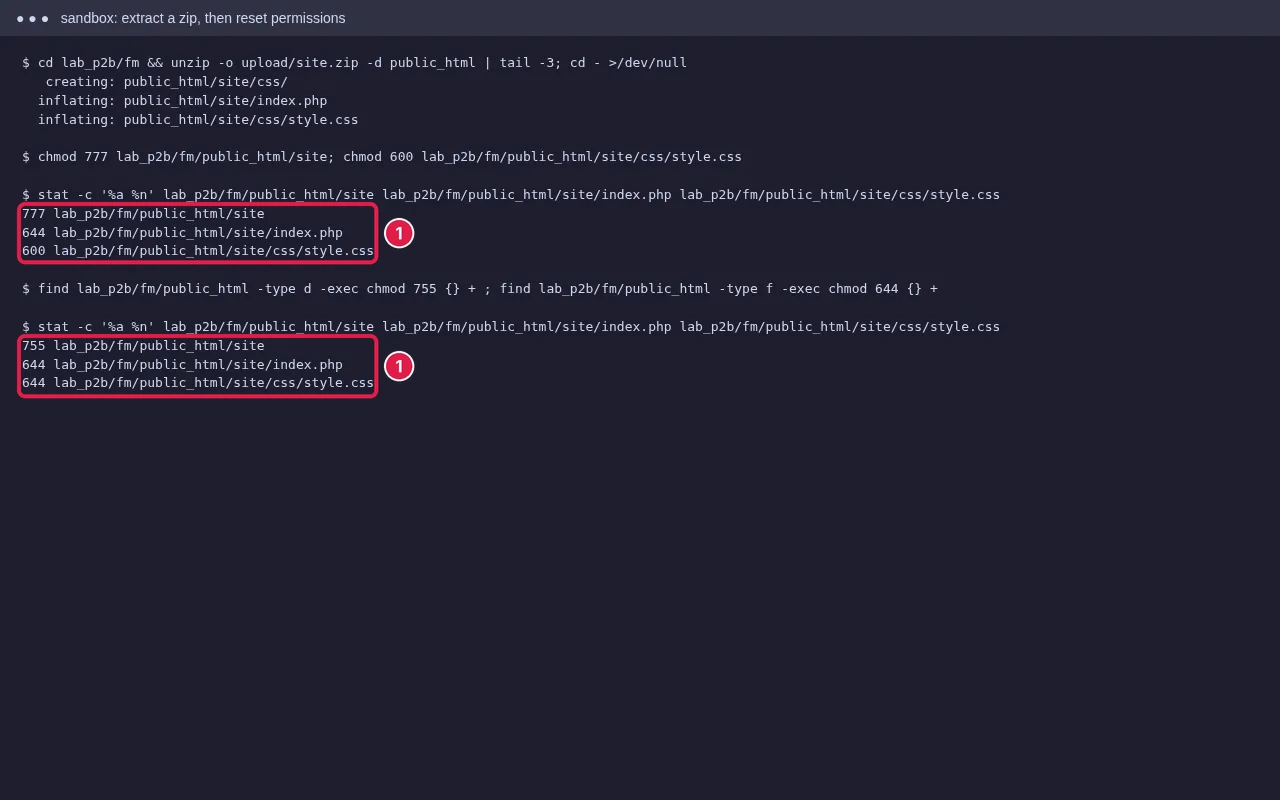
Select a file or folder and click Permissions. On cPanel servers the usual values are:
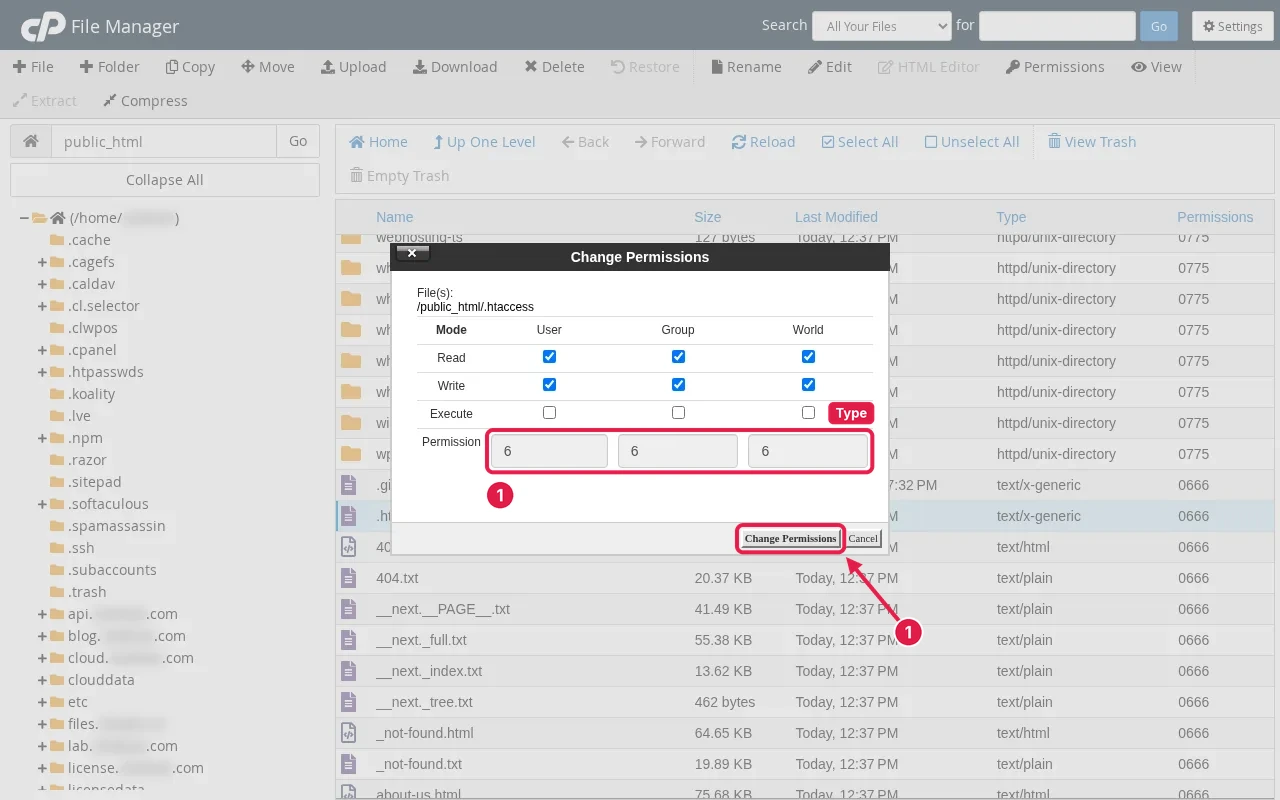
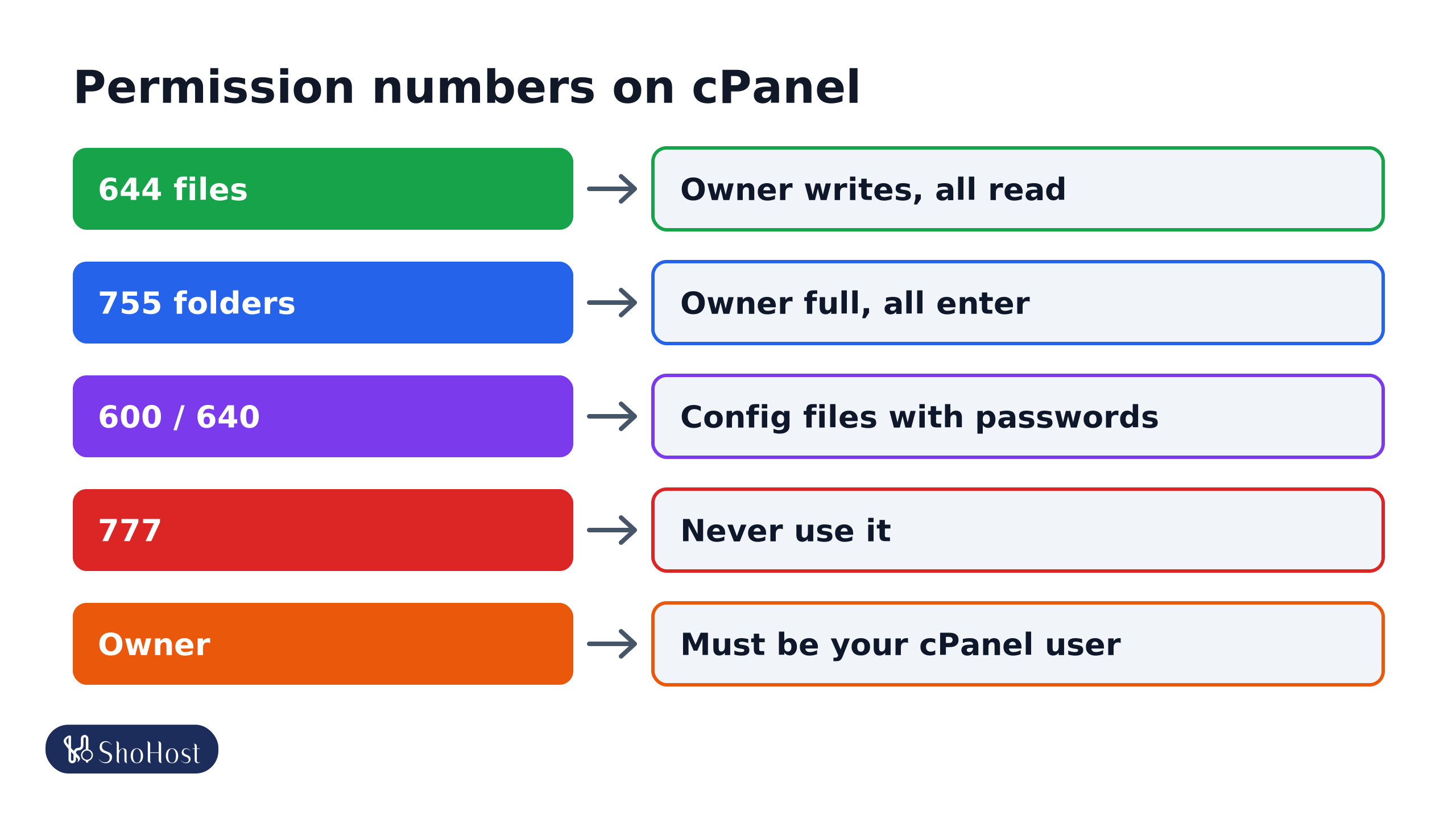
- 644 for files: you can write, everyone can read. Web pages and PHP files work with this.
- 755 for folders: you have full access, everyone else can read and enter.
- 600 or 640 for config files with passwords, such as
wp-config.php, if your host supports it. - Never 777. Anyone on the server could write to it, and many servers refuse to run PHP from a world-writable folder, which gives a 500 error. See our 403 Forbidden guide for permission errors.
- Owner: files must be owned by your cPanel user. If they aren’t, ask your host to fix the ownership.
Edit a file safely
- Right-click the file and choose Edit. Before changing it, use Copy to make a backup such as
.htaccess.bak. - Save, then reload your site in a private window. If it breaks, restore the copy.
- Avoid editing big files or binary files in the browser editor. Download them instead.
- If a character-set question appears, keep UTF-8.
Other useful tools
- Compress: zip a folder to download a quick backup.
- Restore from Trash: deleted files go to
.trashunless you tick Skip the trash. - Search: find a file by name across the account.
- Change Permissions can’t change the owner. If files are owned by another user (for example after a migration), ask your host.
FAQ
What is the maximum upload size in File Manager?
It depends on the server’s settings. For large files, upload a zip in parts or use FTP, or ask your host.
Why can’t I see .htaccess?
Hidden files are off. Turn on Show Hidden Files in File Manager’s Settings.
Should I set permissions to 777 to fix an upload error?
No. Use 755 for folders and 644 for files; 777 can cause 500 errors and is unsafe.
Stuck on an upload or a permissions error? If your site is on ShoHost, WhatsApp +91 94880 91432 and we’ll go through the files and permissions together.