Set Up Business Email on Gmail App, Outlook and iPhone
Written on 12 October 2026. There is no cPanel mail server in our sandbox, so the settings card is a simulated example. The ports are the standard ones cPanel uses for secure mail. App menu paths can move between app versions.
You can read your cPanel business email (like info@yourdomain.in) in the Gmail app, Outlook or iPhone Mail. You need four things: the full email address, its password, the incoming server and the outgoing server, with the right ports.
Step 1: Get the exact settings from cPanel
In cPanel open Email → Email Accounts, click Connect Devices next to the address. It shows the secure settings for that mailbox, and can generate auto-configuration files for some apps.
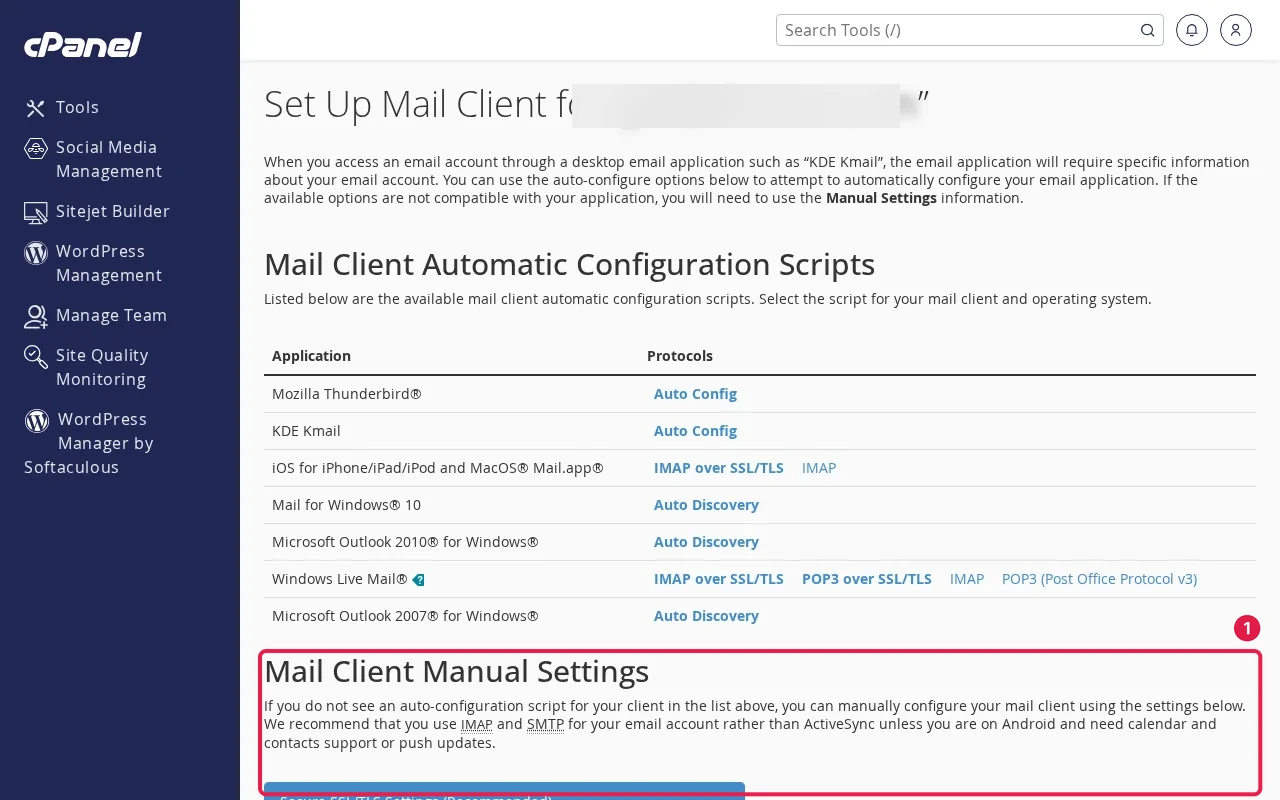
- Username: the full email address.
- Incoming: IMAP on port 993 with SSL/TLS (or POP3 on 995).
- Outgoing: SMTP on port 465 with SSL/TLS, or 587 with STARTTLS, with authentication turned on.
- Server name: use the one shown under Secure SSL/TLS Settings. If it’s the server’s hostname rather than
mail.yourdomain, use it to avoid certificate warnings.
Step 2: Choose IMAP
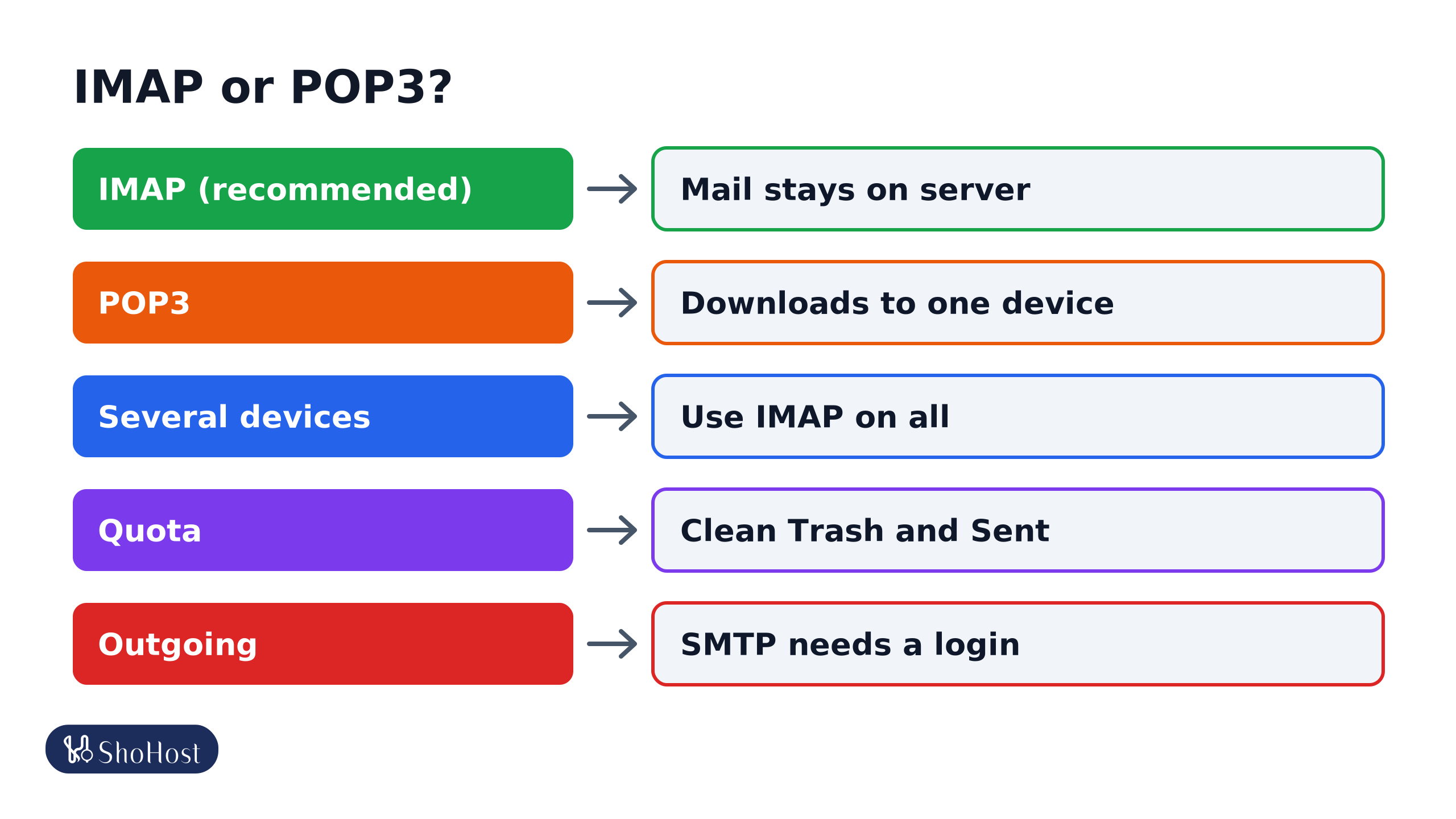
- IMAP (recommended): mail stays on the server. Your phone, laptop and webmail all show the same folders.
- POP3: downloads mail to one device and usually deletes it from the server, so it’s easy to lose mail.
- Several devices: use IMAP on all of them. Don’t mix POP3 and IMAP on the same mailbox.
- Quota: IMAP keeps mail on the server, so clean out Trash and Sent now and then.
- Outgoing: SMTP always needs authentication, on 465 (SSL) or 587 (STARTTLS).
Step 3: Add the account in your app
Gmail app on Android
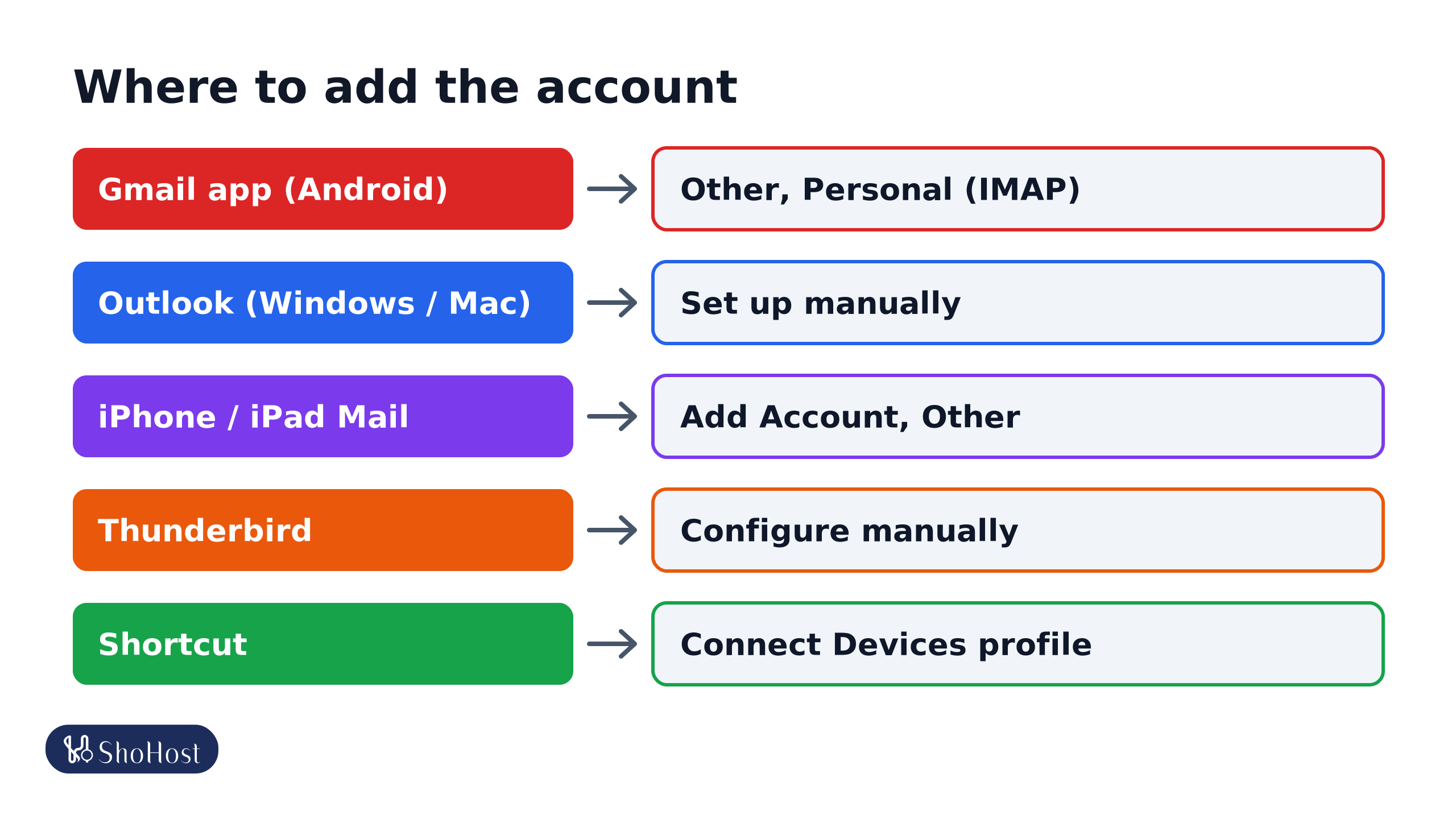
Open the Gmail app → profile picture → Add another account → Other. Enter the address, choose Personal (IMAP), enter the password, then the incoming and outgoing servers and ports from Step 1.
Outlook
File → Add account, enter the address, open Advanced options and tick Let me set up my account manually, choose IMAP, then enter the servers and ports. In the new Outlook for Windows, choose IMAP when it asks for the provider.
iPhone and iPad
Open Settings, go to Mail’s accounts (Settings → Apps → Mail → Mail Accounts on recent iOS) → Add Account → Other → Add Mail Account. Choose IMAP, and fill in both the incoming and outgoing server with the full email address as username.
Thunderbird
Open Account setup, enter your details, then choose Configure manually.
If it doesn’t connect
- Password error: reset the mailbox password in cPanel, and make sure the username is the full address.
- Certificate warning: you used a server name the certificate doesn’t cover. Use the one Connect Devices shows.
- Can receive but not send: outgoing authentication is off, or the port is wrong. Turn on My outgoing server requires authentication and try 465 SSL.
- Works on mobile data, not Wi-Fi: the network blocks mail ports, or your IP got blocked after failed logins.
FAQ
Can I use the Gmail app without moving my email to Google?
Yes. The Gmail app connects to your cPanel mailbox by IMAP; your mail stays on your hosting.
Should I use POP3 to save server space?
Only if one device reads the mail and you back it up. POP3 often deletes mail from the server, so it isn’t available on other devices or webmail.
Why do I get asked for the password again and again?
The password saved in the app is wrong or was changed in cPanel. Update it in the app; repeated failures can also block your IP.
Phone or laptop still not picking up your mail? If your email is on ShoHost, WhatsApp +91 94880 91432 and we’ll send you the right settings for your mailbox.