Mixed Content and “Not Secure” After Installing SSL
Tested on 12 October 2026 in a ShoHost sandbox with WordPress 7.1.3, PHP 8.4 and MariaDB 11.8, using a test page and a test post with http:// links.
You installed SSL, the site opens with https://, but the browser still says Not Secure or the padlock has a warning. Usually this is mixed content: the HTTPS page loads some images, stylesheets or scripts over plain http://.
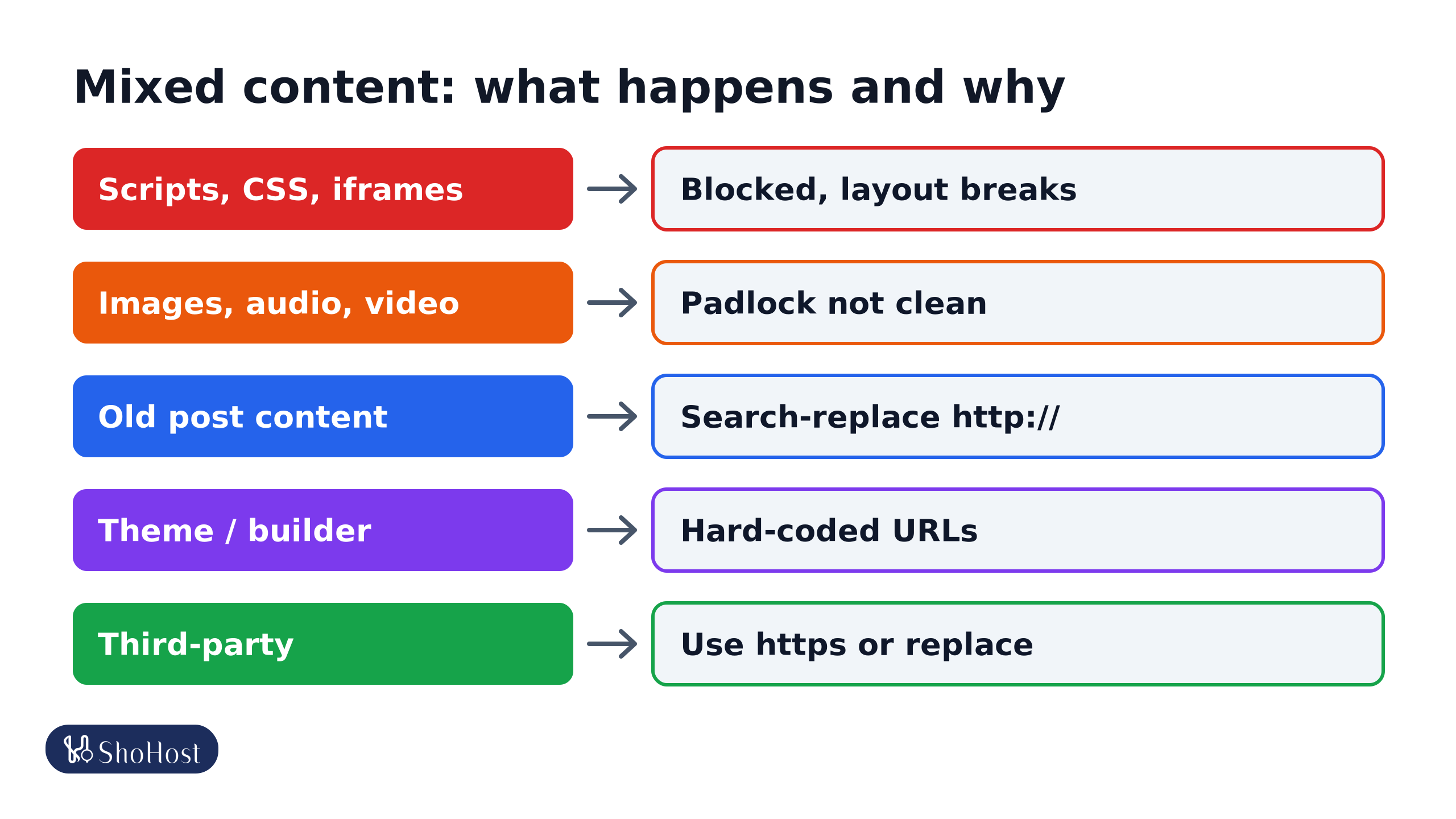
- Scripts, CSS, iframes: active content over
http://is blocked, so the layout or features break. - Images, audio, video: upgraded to
https://or loaded with a warning, so the padlock isn’t clean. - Old post content:
http://links saved before SSL. Fix them with a search-replace. - Theme or builder: hard-coded logos, backgrounds and fonts.
- Third-party: widgets or scripts with
http://URLs. Use https or replace them.
First, check the certificate
If the address bar says the connection is not private, or you see an error such as NET::ERR_CERT_COMMON_NAME_INVALID, that is a certificate problem, not mixed content. See our SSL errors guide and AutoSSL guide.
Find the http:// resources
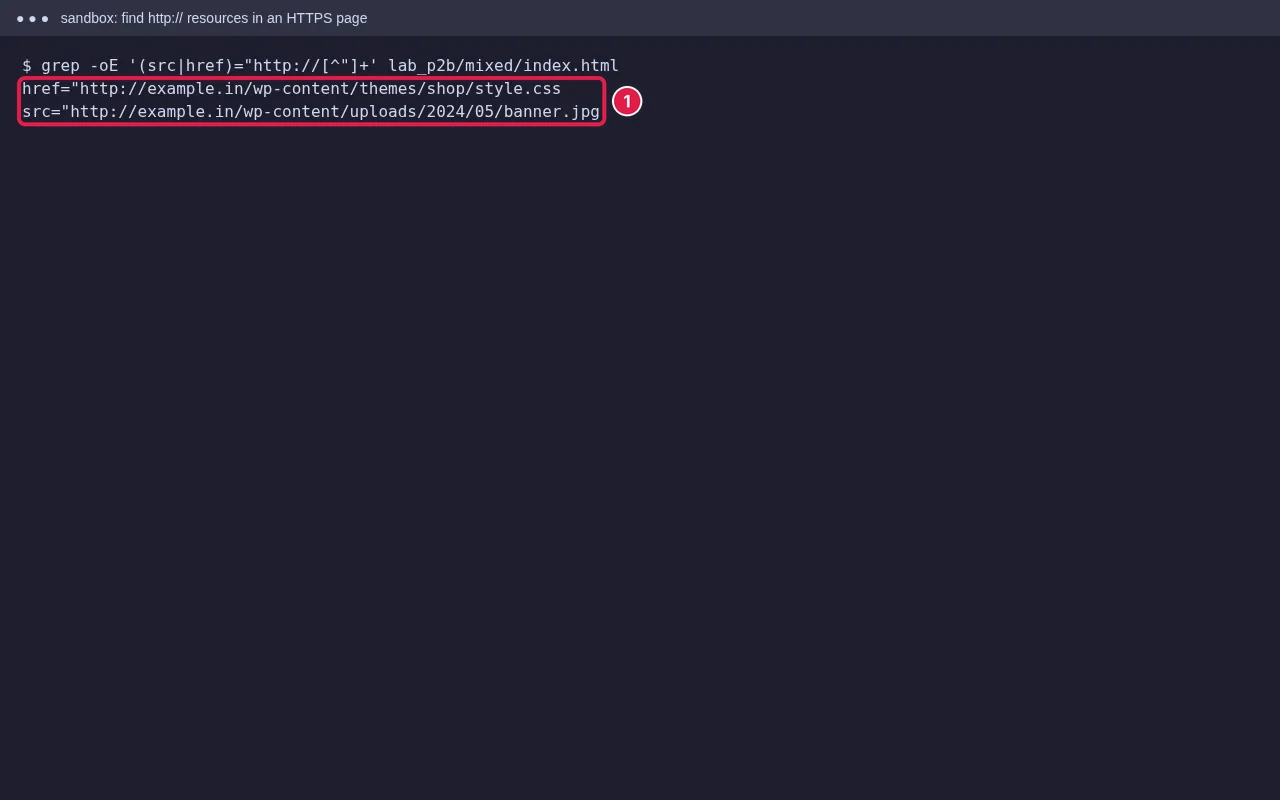
- In Chrome or Edge, press F12, open Console, and reload. Each Mixed Content message names the http:// URL.
- Or view the page source (Ctrl+U) and search for
http://. - Check several pages: a single old image in one post only affects that post.
Fix it on WordPress
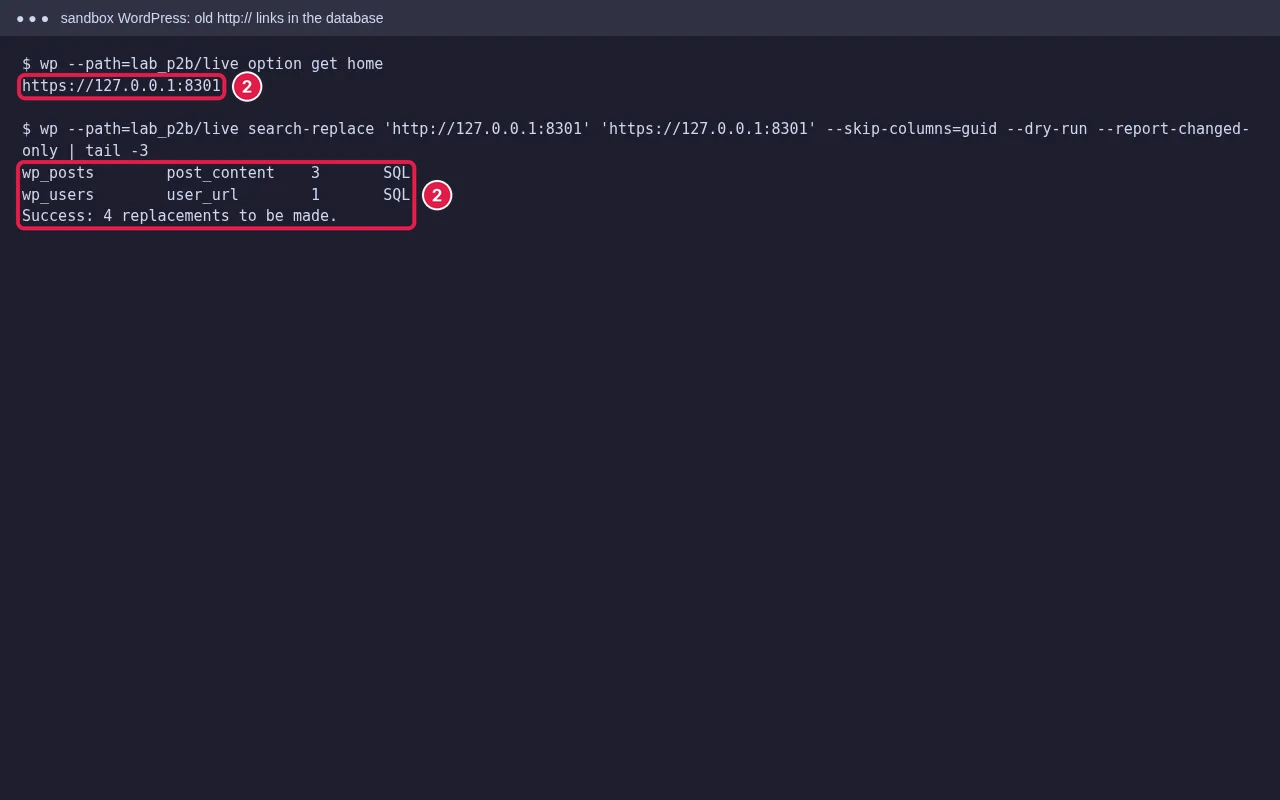
- In Settings → General, both addresses must start with
https://. - Replace old links in the database. With WP-CLI:
wp search-replace 'http://example.in' 'https://example.in' --skip-columns=guid --dry-run, then run it again without--dry-run. Without WP-CLI, a search-and-replace plugin does the same. Take a backup first. - Check the theme and Customizer for hard-coded http:// logos or background images, and the page builder’s own settings.
- Clear all caches (plugin, LiteSpeed, CDN) and check again.
Our WordPress-specific guide covers more cases: WordPress mixed content after SSL.
Fix it on other sites
- Search your templates for
http://and change your own links tohttps://, or to relative paths starting with/. - For third-party scripts, use the provider’s https:// URL. If it has none, replace the script.
- As a safety net, add this header in
.htaccessto make browsers request http:// resources over https:Header always set Content-Security-Policy "upgrade-insecure-requests". It only works if those resources are actually available over https.
Redirect HTTP to HTTPS
Once mixed content is gone, send all visitors to https://. In cPanel, Domains has a Force HTTPS Redirect switch per domain. Use only one redirect method, or you may get a loop (see too many redirects).
FAQ
Does mixed content hurt SEO?
It hurts trust more than rankings: browsers show warnings and may block scripts and styles, which can break the page layout.
Why is the padlock fine on the home page but not on a post?
That post has an http:// image or embed. Fix the link in that post.
Will a plugin fix mixed content automatically?
Some rewrite links on the fly, but fixing the links in the database is cleaner and faster.
Padlock still missing? If your site is on ShoHost, WhatsApp +91 94880 91432 and we’ll find and fix the remaining http:// links with you.