Disk Quota or Inode Limit Exceeded in cPanel: Find and Clean

Tested on 12 October 2026 in a ShoHost sandbox (Debian, GNU coreutils). We built an account folder with an old backup archive, a page cache of 6,000 files, 2,500 PHP session files and a mailbox, then measured it the way you can over SSH or cPanel Terminal. cPanel’s Disk Usage screen isn’t shown because the sandbox has no cPanel.
Hosting plans limit two things: disk space (how many MB or GB you use) and inodes (how many files and folders you have). Hit either one and things break: uploads fail, email stops arriving, WordPress can’t update, and you may see Disk quota exceeded in error logs. The fix is to find what is using it and clean it safely.
Disk space vs inodes
Every file and folder uses one inode, whatever its size. A 2 GB backup is one inode; 50,000 cache files of 2 KB each are 50,000 inodes. So you can run out of inodes with plenty of disk left. cPanel shows both in the left-hand Statistics panel (Disk Usage and File Usage).
Step 1: Find what uses the disk
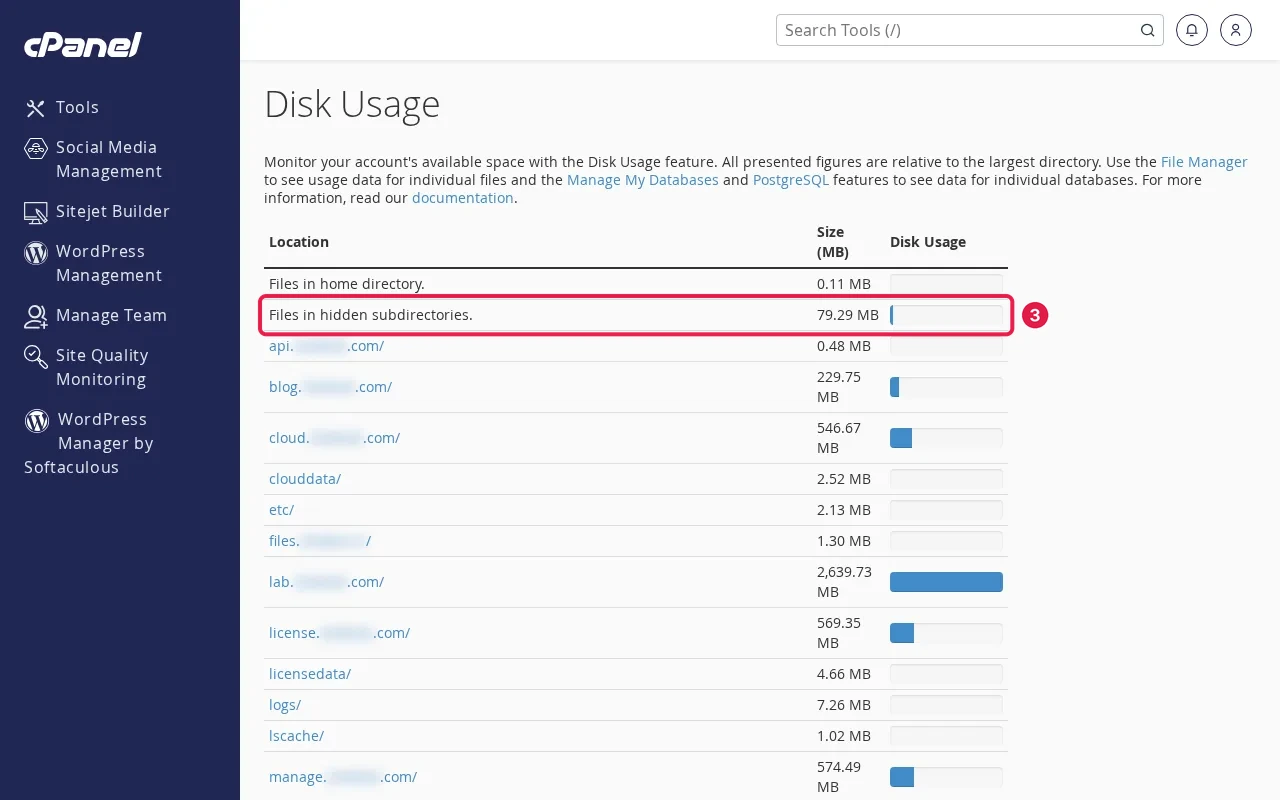
In cPanel open Files → Disk Usage. It lists folders by size and lets you drill down. Over SSH or Terminal, this shows the same:
du -sh ~/* ~/.[!.]* 2>/dev/null | sort -h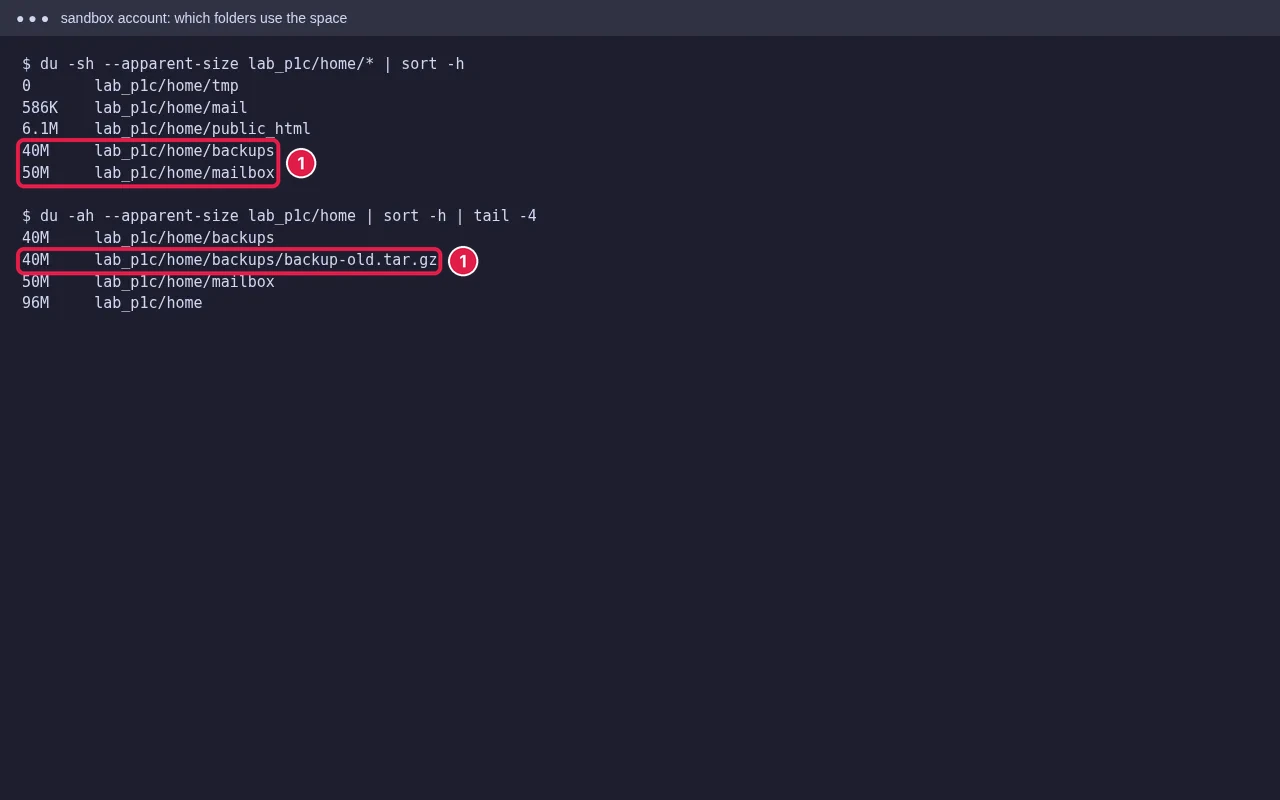
Step 2: Find what uses the inodes
Disk Usage doesn’t count files, so use Terminal:
for d in ~/* ~/.[!.]*; do printf '%7d %s\n' $(find "$d" 2>/dev/null | wc -l) "$d"; done | sort -n | tail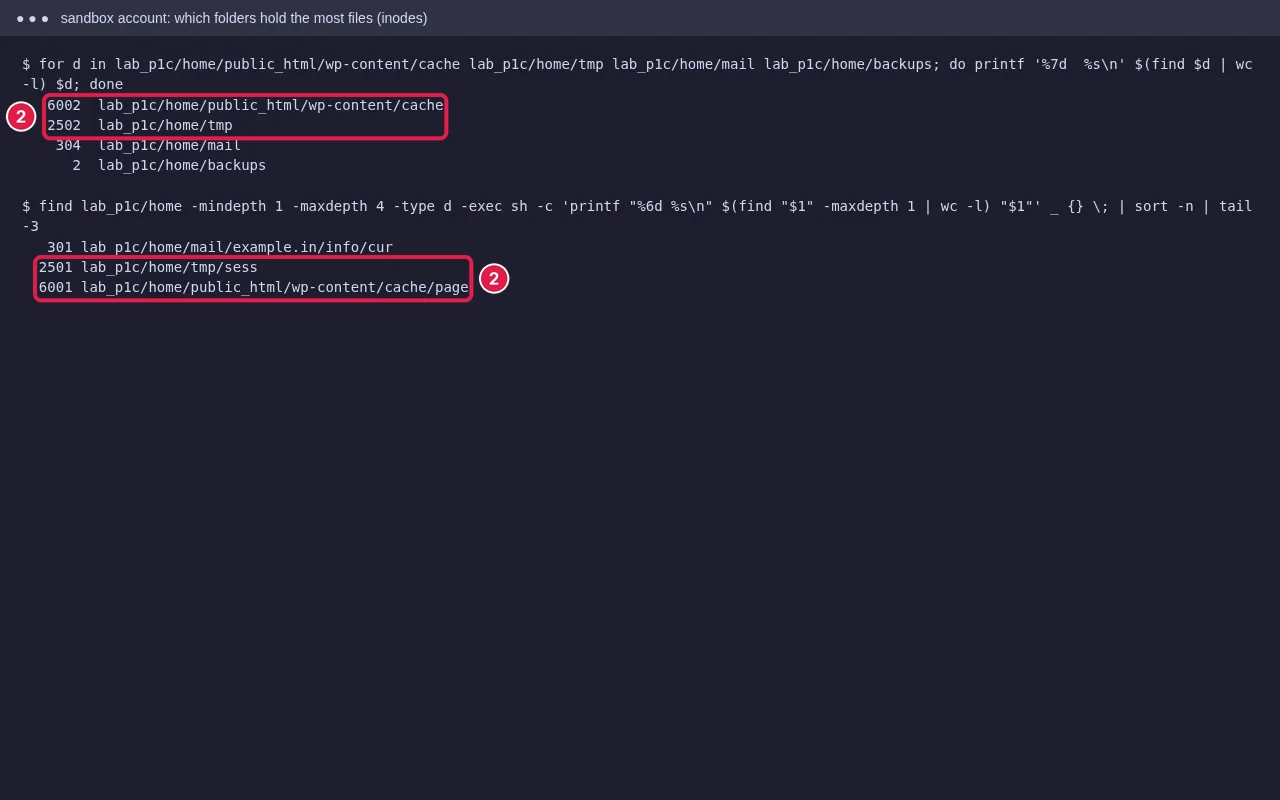
Run it again inside the biggest folder until you reach the one with thousands of files. Usual results: a cache plugin folder, PHP session files, mail in a mailbox nobody reads, or an app’s log or thumbnail folder.
Step 3: Clean up safely
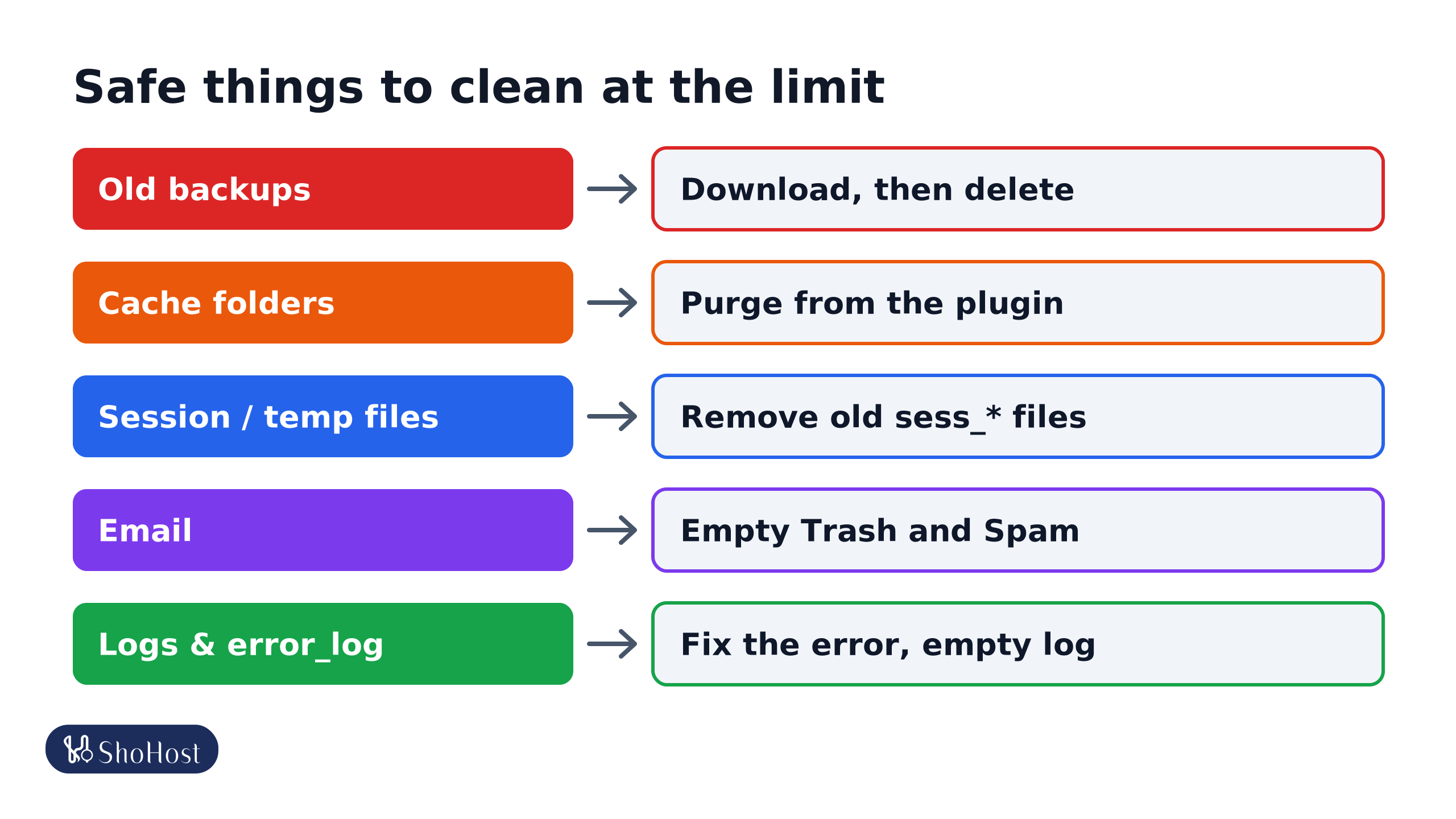
- Old backups such as
backup-*.tar.gzin your home folder, or plugin backup folders (UpdraftPlusupdraft, All-in-One WP Migrationai1wm-backups). Download what you want to keep, then delete them from the server. - Cache folders such as
wp-content/cacheor the LiteSpeed cache: purge it from the cache plugin so it rebuilds cleanly, instead of deleting folders by hand while the site is running. - Sessions and temp files in
~/tmp, includingsess_*files from PHP apps: old ones are safe to remove. If they come back fast, the app’s session cleanup isn’t working. - Email: mail counts toward your disk. Empty Trash and Spam, and delete large old attachments, including in Sent. See our mailbox full guide.
- error_log files that are hundreds of MB, often one in every folder. Fix the error that fills them, then empty them.
Never delete things you don’t recognise in public_html, mail or etc without a backup. Some of those files keep your site and mailboxes working.
Step 4: Stop it filling up again
Set the cache plugin to expire old pages, keep backups off the server (remote storage or the host’s backup system), and turn off debug logging you no longer need. If you’ve cleaned up and still genuinely need more, a bigger plan is the right fix.
FAQ
Why does cPanel show more disk use than my files?
Disk use includes email, databases, logs and hidden folders such as .trash and .cache, not just public_html.
What happens when the inode limit is reached?
New files can’t be created, so uploads, cache writes, sessions and incoming email can fail even though disk space remains.
Does deleting files in File Manager free space straight away?
Files may go to File Manager’s .trash folder first. Empty it, or tick ‘Skip the trash’ when deleting.
Still up against your disk or inode limit? Message ShoHost support on WhatsApp at +91 94880 91432 and we’ll find what is using the space with you.