How to Access TallyPrime from a Mac, Android or iPhone (2026 Guide)
TallyPrime is Windows software. Tally Solutions says so plainly in its own help pages: you can’t install TallyPrime on a Mac, and there’s no TallyPrime app for Android or iPhone. That’s a problem when you work on a MacBook, or want to post a voucher from your phone while you’re out.
The fix is simple. Keep TallyPrime running on a Windows machine, either your office PC or a Tally cloud server, and open it from any device with Microsoft’s free Windows App. You get the full TallyPrime screen, not a cut-down report viewer. This guide shows the setup on a Mac, an Android phone and an iPhone or iPad, step by step.
Who it’s for: business owners, accountants and CAs in India, and Tally users abroad, who work on a Mac, Android or iPhone. Not for: installing TallyPrime itself; that part runs on Windows.
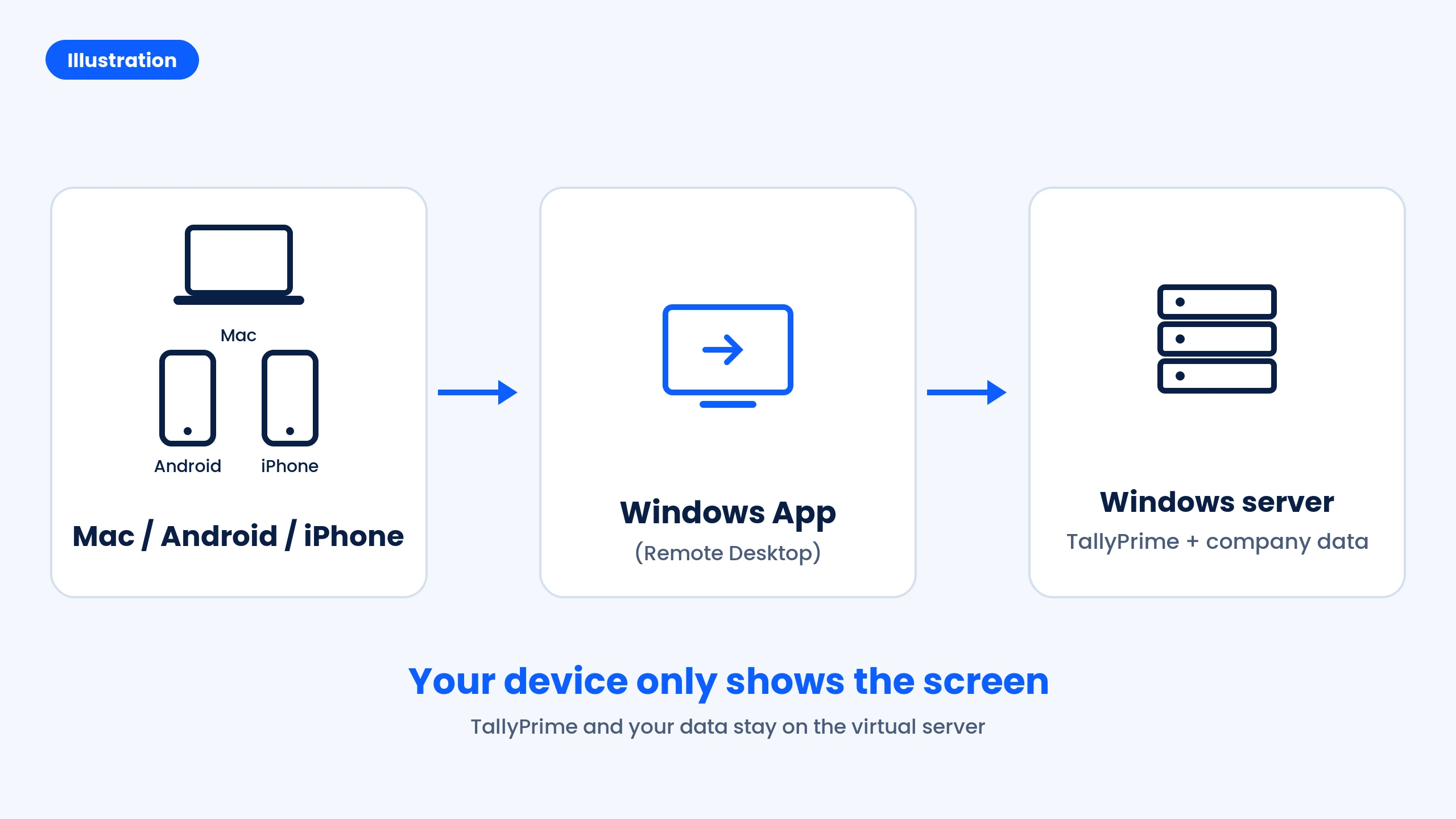
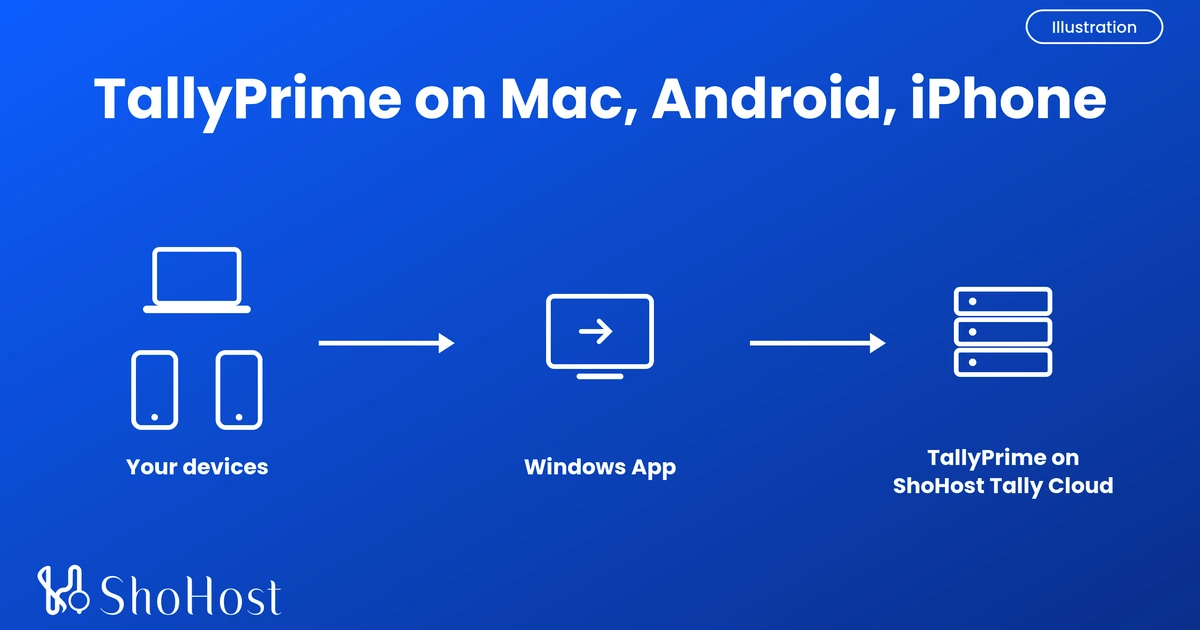
- Your Mac, Android phone or iPhone runs Windows App.
- Windows App connects to the server with Remote Desktop.
- The Windows server runs TallyPrime and keeps your company data.
- Your device only shows the screen, so it works the same on a phone or a laptop.
In this guide
- Can TallyPrime run on a Mac, Android or iPhone?
- What you need before you start
- Step 1: Get a Tally cloud server (ShoHost Tally Cloud)
- How to access TallyPrime from a Mac
- How to use TallyPrime on Android
- How to use TallyPrime on iPhone or iPad
- Other ways to use Tally on a Mac or phone
- Check that it works
- Troubleshooting
- FAQ
- Related ShoHost pages
Can TallyPrime run on a Mac, Android or iPhone?
Not directly. Tally’s system requirements list only 64-bit Windows (Windows 7, Windows Server 2008 R2 or later, including Windows 11), and its FAQ answers “Can I install TallyPrime on my Mac?” with a clear no. There is no Android or iOS build either. So every route to TallyPrime on these devices is a bridge to a Windows machine. Here are the four you’ll hear about:
| Option | Devices | What you can do | Catch |
|---|---|---|---|
| TallyPrime on a cloud server + Windows App | Mac, Android, iPhone, iPad, Windows | Full TallyPrime: vouchers, reports, printing | Needs internet; you pay for the server |
| Windows on your Mac (Parallels, UTM, Boot Camp) | Mac only | Full TallyPrime | Needs a Windows licence and uses your Mac’s memory and disk; nothing for phones |
| TallyPrime Reports in Browser | Any browser, including phones | View and download reports only | Needs an active TSS; no data entry |
| TallyPrime Remote Access | Another Windows PC | Full TallyPrime on shared company data | Needs TallyPrime installed at your end, so not on a Mac or phone |
If you need to work in Tally from a Mac or phone, not just look at reports, the first row is the one that works on every device. That’s what the rest of this guide sets up.
What you need before you start
- A Windows machine running TallyPrime that you can reach over Remote Desktop: a ShoHost Tally Cloud server, or your office PC with Remote Desktop turned on.
- The login details for that machine: IP address or hostname, username and password.
- Windows App on your device. Microsoft lists macOS 12 or later, iOS and iPadOS 16 or later, and Android 10 or later.
- A steady internet connection. Tally recommends at least 512 kbps; faster is smoother.
- The right Tally licence for virtual use. Tally counts RDP use as Tally Virtual User (TVU). A Silver licence includes 1 TVU and Gold includes 10 at no extra cost.
| Time | Difficulty | Risk | Downtime |
|---|---|---|---|
| About 10 minutes per device | Beginner | Low | None |
Step 1: Get a Tally cloud server (ShoHost Tally Cloud)
An office PC works, but it has to stay on, and you have to open it to the internet safely. A cloud server avoids both. ShoHost’s TallyPrime Cloud Servers come with TallyPrime installed and managed for you, and each plan lists Windows, Mac, Android and iOS access.
| Plan | Users | Server | Tally licence | Price a month |
|---|---|---|---|---|
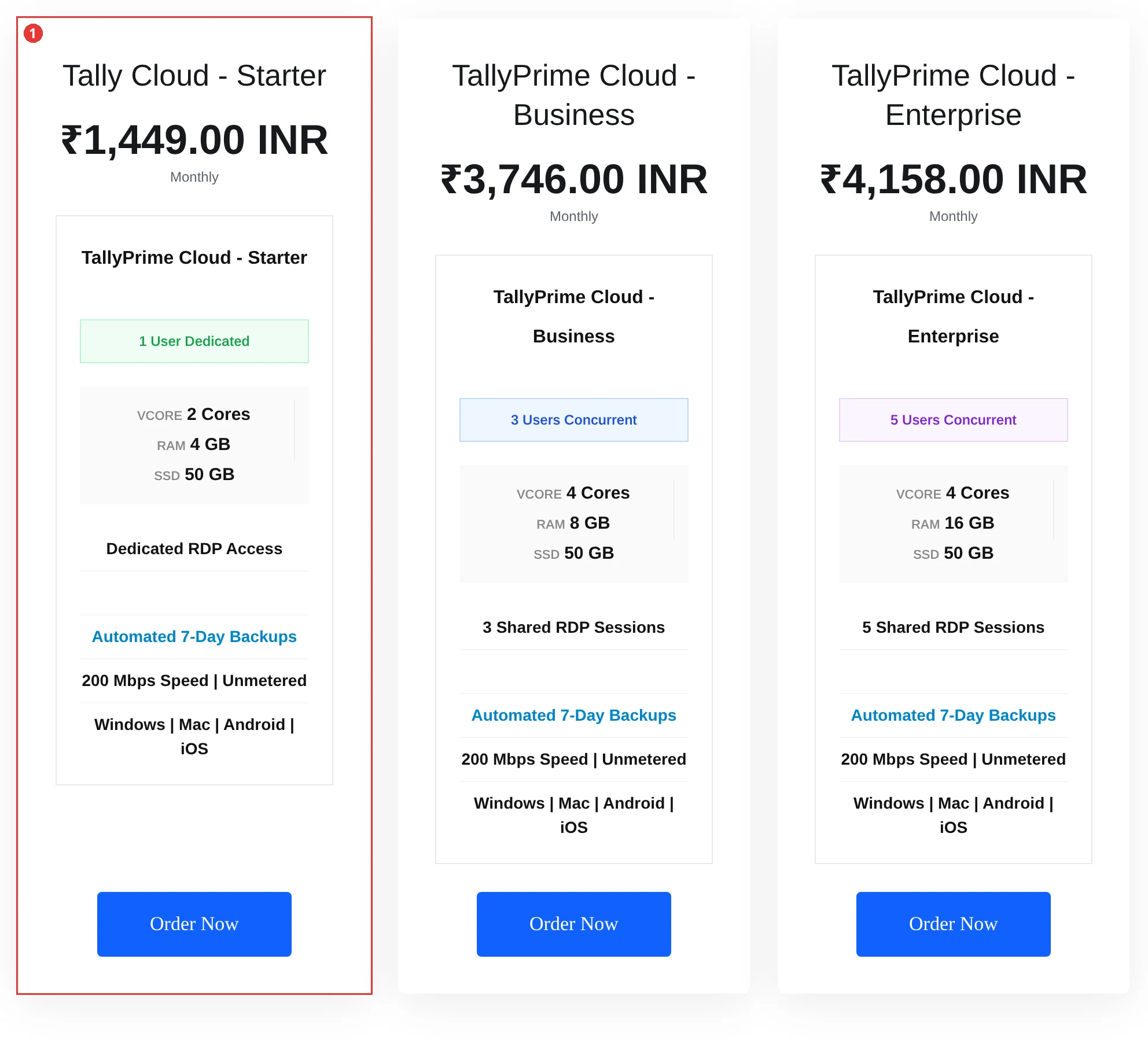
| Tally Cloud – Starter | 1 dedicated user | 2 cores, 4 GB RAM, 50 GB SSD, dedicated RDP access | Your own licence (Silver) | ₹1,449 |
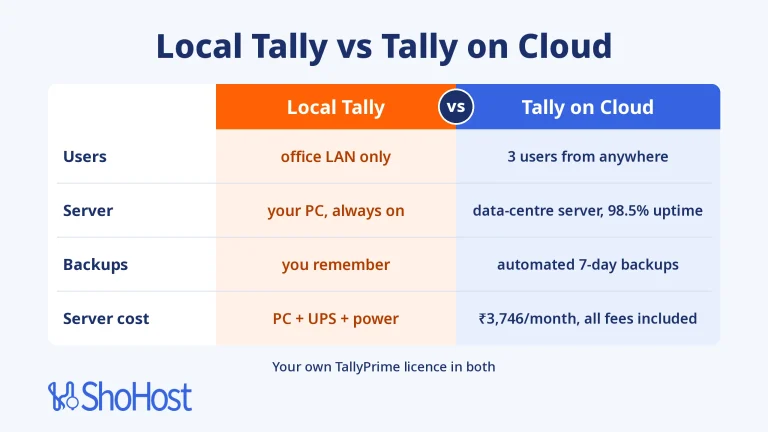
| TallyPrime Cloud – Business | 3 concurrent users | 4 cores, 8 GB RAM, 50 GB SSD, 3 shared RDP sessions | Your own licence (Gold) | ₹3,746 |
| TallyPrime Cloud – Enterprise | 5 concurrent users | 4 cores, 16 GB RAM, 50 GB SSD, 5 shared RDP sessions | Your own licence (Gold) | ₹4,158 |
Prices are what you pay each month, all fees included. Every plan also has automated 7-day backups and 200 Mbps unmetered speed. For one person working from a Mac or phone, Starter is enough. Pick Business or Enterprise when 3 or 5 people need Tally at the same time.
- Open the Tally Cloud – Starter page.
- Under Choose Billing Cycle, pick Monthly, or a longer cycle to save: Quarterly is ₹1,414 a month, Semi-Annually ₹1,408.33 and Annually ₹1,351.
- Click Continue and complete the order. Keep the login details ShoHost sends you.
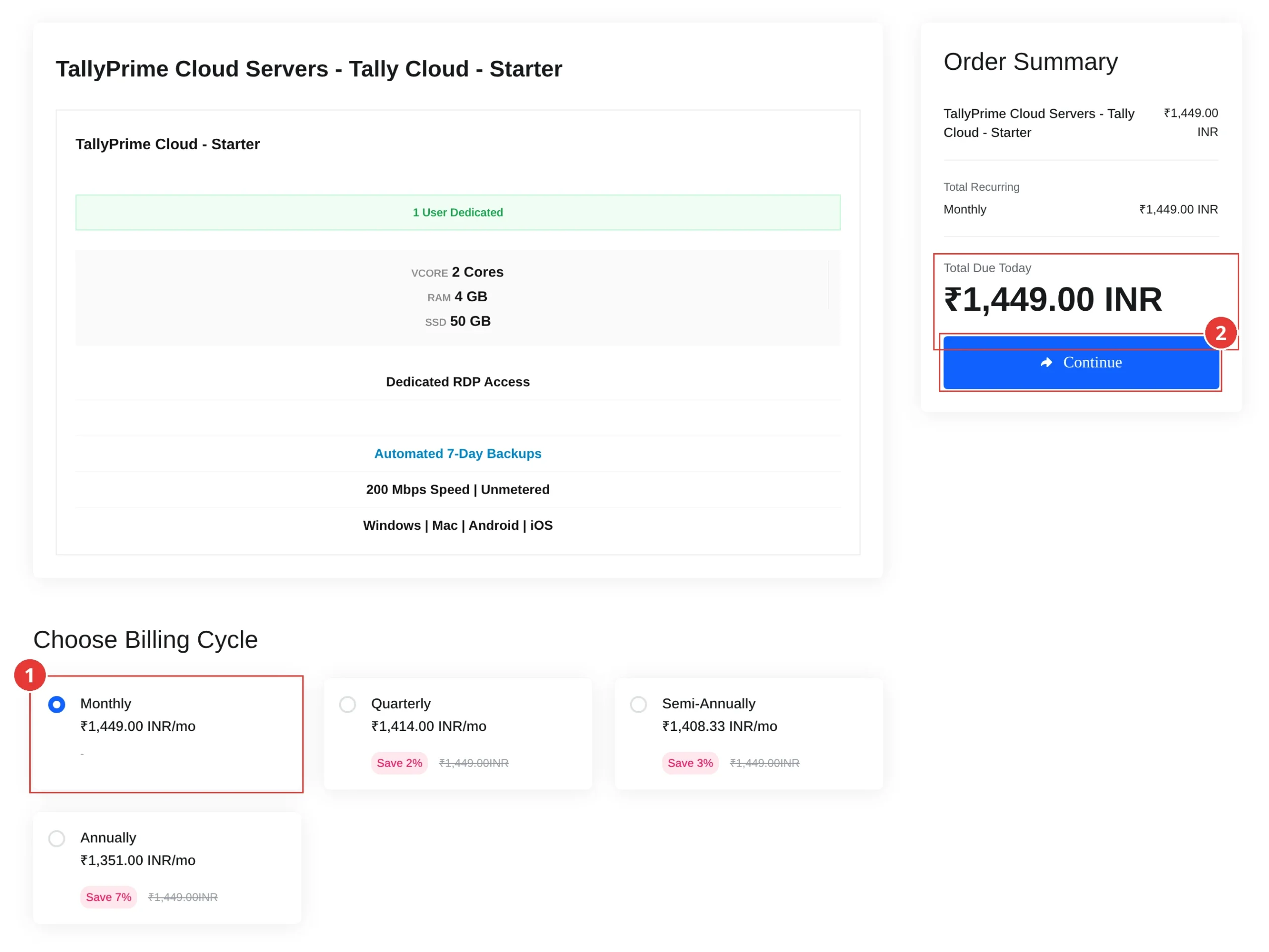
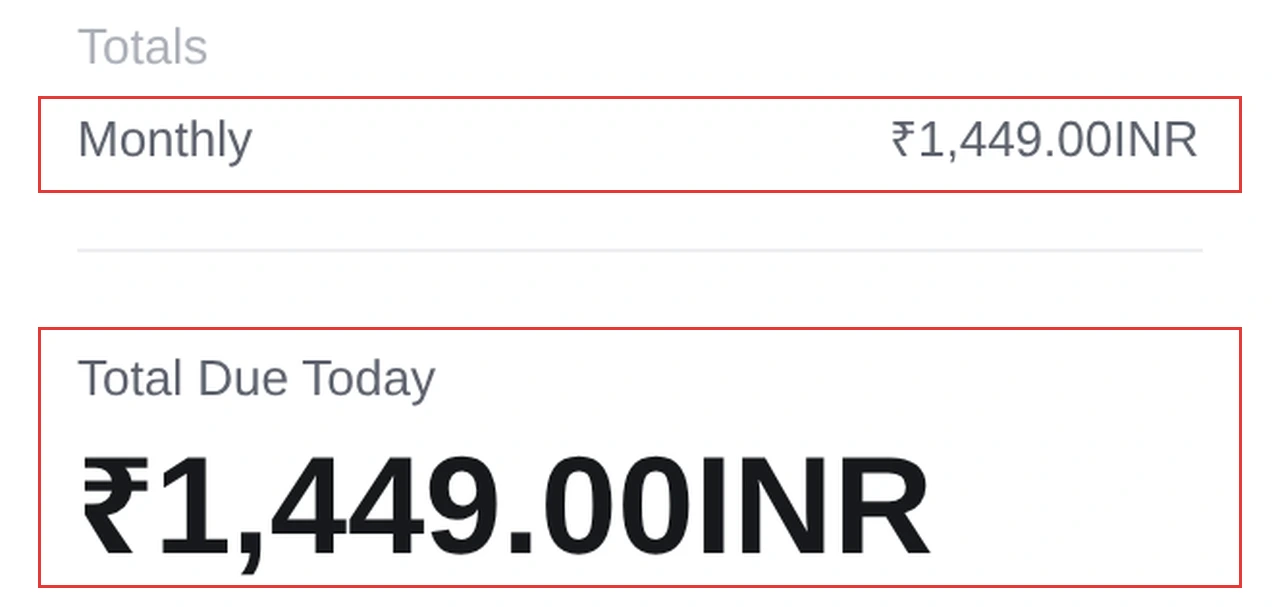
Expected result: you have a server address, a username and a password. Using your own office PC instead? Turn on Remote Desktop on that PC first, as Microsoft’s guide explains.
How to access TallyPrime from a Mac
Microsoft’s Windows App is free on the Mac App Store and needs macOS 12 or later. You don’t need a Microsoft account to connect to a server.
- Install Windows App from the Mac App Store and open it. Skip the tour if you like.
- On the Devices tab, click + > Add PC.
- In PC Name, type the server’s IP address or hostname from your welcome details.
- Optional: add the username as a saved user account and a friendly name such as Tally Cloud.
- Click Add, then double-click the new PC and enter the password.
Expected result: the Windows desktop of your server opens and you can start TallyPrime, then select your company as usual.
Mac tip for Tally shortcuts: TallyPrime leans on F-keys (F5 Payment, F8 Sales and so on). On a Mac those keys control brightness and volume by default. Hold Fn while pressing the F-key, or turn on System Settings > Keyboard > Keyboard Shortcuts > Function Keys > Use F1, F2, etc. keys as standard function keys, as Apple describes.
How to use TallyPrime on Android
Windows App is on the Google Play Store for Android 10 or later and Chrome OS 126 or later. A tablet with a keyboard is the most comfortable, but a phone in landscape is fine for quick entries and reports.
- Install Windows App from the Google Play Store and open it.
- Tap +, then PC connection.
- Tap PC Name and enter the server’s IP address or hostname. Optional: add your username.
- Tap Save, then tap the PC on the Devices tab.
- When asked to trust the remote PC, choose which device features the session may use and tap Connect. Enter your password.
Expected result: the server desktop fills your screen. Turn the phone sideways for a wider Tally view.
How to use TallyPrime on iPhone or iPad
Windows App is in the App Store for iOS and iPadOS 16 or later. An iPad with a keyboard feels close to a laptop.
- Install Windows App from the App Store and open it. Allow the Bluetooth and local network prompts if you use a keyboard.
- Tap +, then PC.
- Tap PC Name and enter the server address. Optional: add your username and a friendly name.
- Tap Save, then tap the PC on the Devices tab and sign in.
Expected result: TallyPrime opens on your iPhone or iPad, with the same company data as on your Mac or office PC.
Other ways to use Tally on a Mac or phone
Windows on your Mac. Use this when you work alone on one Mac and don’t want a server. Parallels or UTM run Windows inside macOS, and Intel Macs can use Boot Camp. You need a Windows licence, and the data lives on that one Mac. Tally’s own FAQ also mentions CrossOver-style tools, which don’t need Windows but may not support every feature.
TallyPrime Reports in Browser. Use this when you only need to see numbers. Log in at tallysolutions.com with your Tally.NET ID, pick a connected company and open a report on any phone browser; you can download PDF or Excel. It needs an active TSS, and you can’t enter vouchers.
TallyPrime Remote Access. Use this when you and your accountant both have Windows PCs. It needs TallyPrime installed at the remote end, so it doesn’t help on a Mac or phone.
Check that it works
- Open TallyPrime on the server and select your company. The Gateway of Tally should appear.
- Press F5 (Payment) or F8 (Sales) and check the voucher screen opens. On a Mac, hold Fn if needed.
- Save a test entry, close Windows App, connect again from a second device and check the entry is there.
Troubleshooting
| Symptom | Likely cause | Fix |
|---|---|---|
| Windows App can’t connect | Wrong address or username, or no internet | Re-check PC Name and username against your welcome details; try another network |
| F-keys change brightness or volume on a Mac | macOS uses F-keys for media by default | Hold Fn, or turn on Use F1, F2, etc. keys as standard function keys |
| “Maximum Tally Virtual User (TVU) limit exceeded” and Tally opens in Educational mode | More TallyPrime windows are open than your licence’s TVU count | Close the extra TallyPrime windows and try again, or move to a plan with more users |
| Slow or jerky screen | Weak mobile signal | Use Wi-Fi or a stronger connection; Tally recommends 512 kbps or more |
| Still stuck? | Contact ShoHost support: support@shohost.com or WhatsApp +91 94880 91432 (9 AM to 12 midnight IST). Send a screenshot of the error and the device you’re using. |
FAQ
Can I install TallyPrime on a MacBook?
Not natively. Tally says TallyPrime installs only on Windows. Run it on a cloud server and open it with Windows App, or run Windows on your Mac with Parallels or UTM.
Is there a TallyPrime app for Android or iPhone?
No. Tally has no Android or iOS build. Use Windows App to open TallyPrime on a cloud server, or Reports in Browser to view reports.
Can I enter vouchers in Tally from my phone?
Yes, with TallyPrime on a cloud server and Windows App. Reports in Browser is view-only, so it can’t post entries.
Does Tally Remote Access work on mobile?
No. Remote Access needs TallyPrime installed at your end, and TallyPrime runs only on Windows.
How much does Tally on Cloud cost in India?
ShoHost Tally Cloud – Starter is ₹1,449 a month, all fees included, for one user, and you bring your own TallyPrime licence. Business (3 users) is ₹3,746 a month.
Related ShoHost pages
- TallyPrime Cloud Servers: all plans
- Private Admin Windows RDP, for other Windows apps
- How to run MetaTrader 24/7 on a Windows RDP, another Windows app you can keep running in the cloud
- ShoHost storage, for an extra copy of your Tally backups
- Contact ShoHost
ShoHost has served 180+ clients since 2020 with 98.5% uptime, and support is on support@shohost.com or WhatsApp +91 94880 91432 (9 AM to 12 midnight IST). If you just want TallyPrime on your Mac or phone today, the Starter plan is the quickest way there.