Email Not Received: MX Records, Forwarders and Filters
Checked on 12 October 2026 using public DNS lookups (Google’s DNS over HTTPS) from a ShoHost sandbox. cPanel isn’t installed in the sandbox, so the Email Routing image is simulated; option names come from cPanel’s public documentation.
You can send email but nothing arrives, or only some messages arrive. Work through the path a message takes to your inbox: DNS, the server’s routing, forwarders and filters, then the mailbox itself.
Step 1: Check the MX records
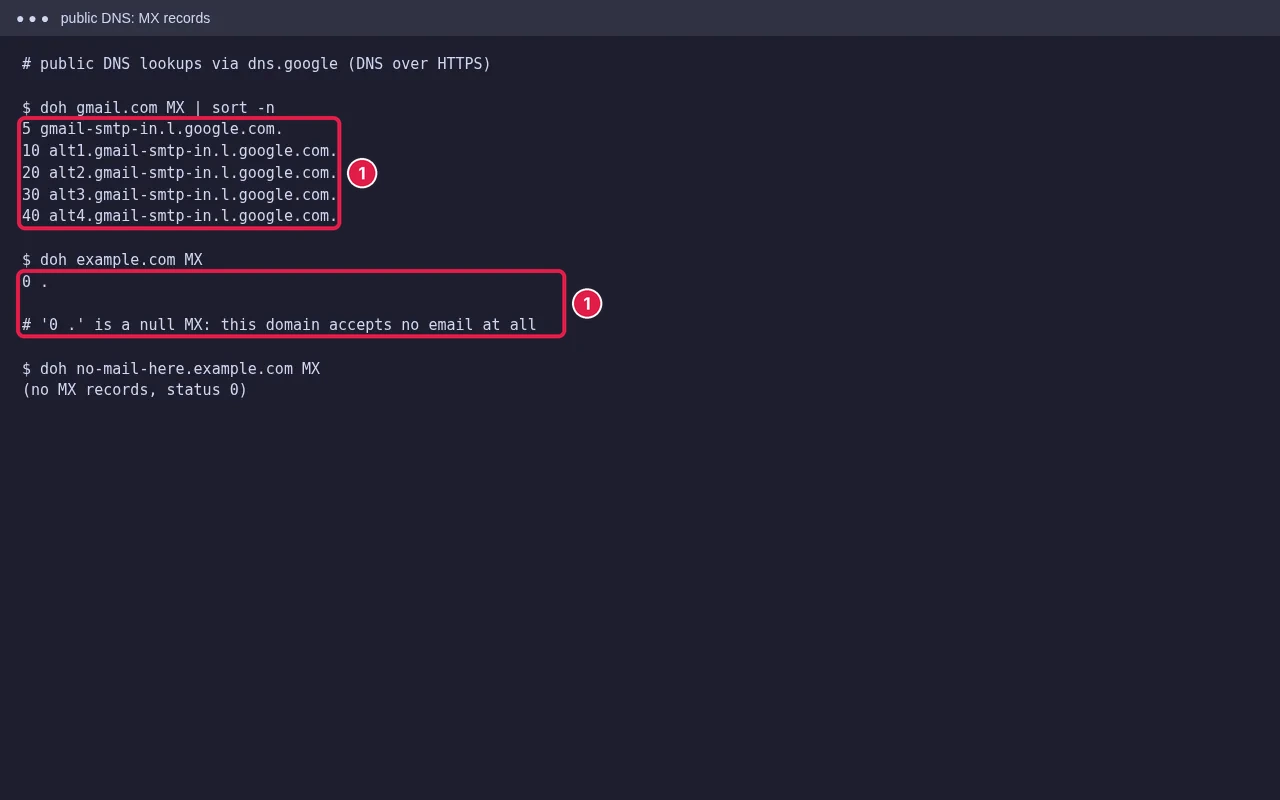
The domain’s MX records tell other servers where to deliver its mail. Look them up with a public DNS checker or dig MX example.in, and compare with cPanel Zone Editor:
- If you use cPanel mail, MX should point to your hosting mail server (often
mail.yourdomainor the server name). - If you moved to Google Workspace or Microsoft 365, MX must point to them, and cPanel’s routing must be set to remote (Step 2).
- If there is no MX, or a null MX
0 ., the domain accepts no mail. - Changed recently? Allow time to propagate: see DNS propagation.
Step 2: Check Email Routing
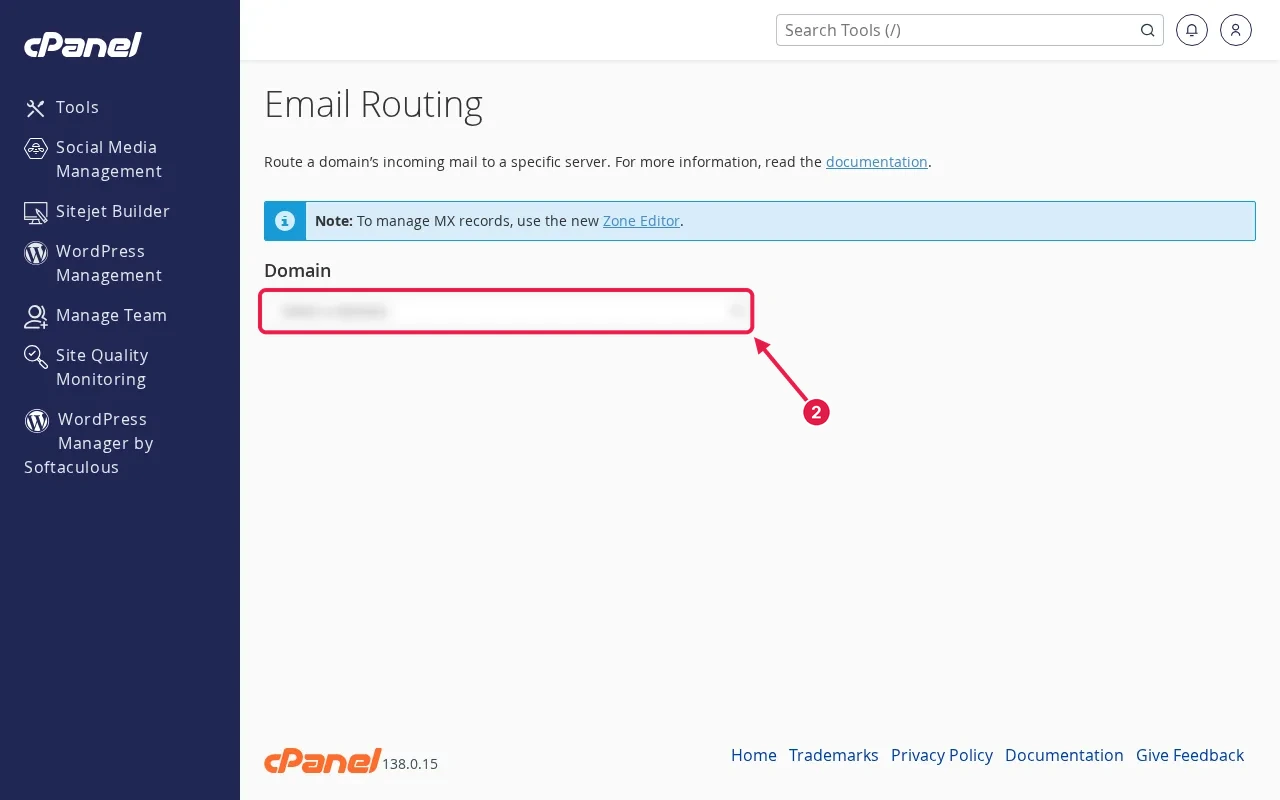
In cPanel Email → Email Routing, choose Local Mail Exchanger if mail is hosted on this server, or Remote Mail Exchanger if it’s on Google or Microsoft. A wrong choice is a classic cause: with Local set but MX at Google, mail sent from your own website or other accounts on the same server is delivered locally and never reaches Google.
Step 3: Forwarders, filters and autoresponders
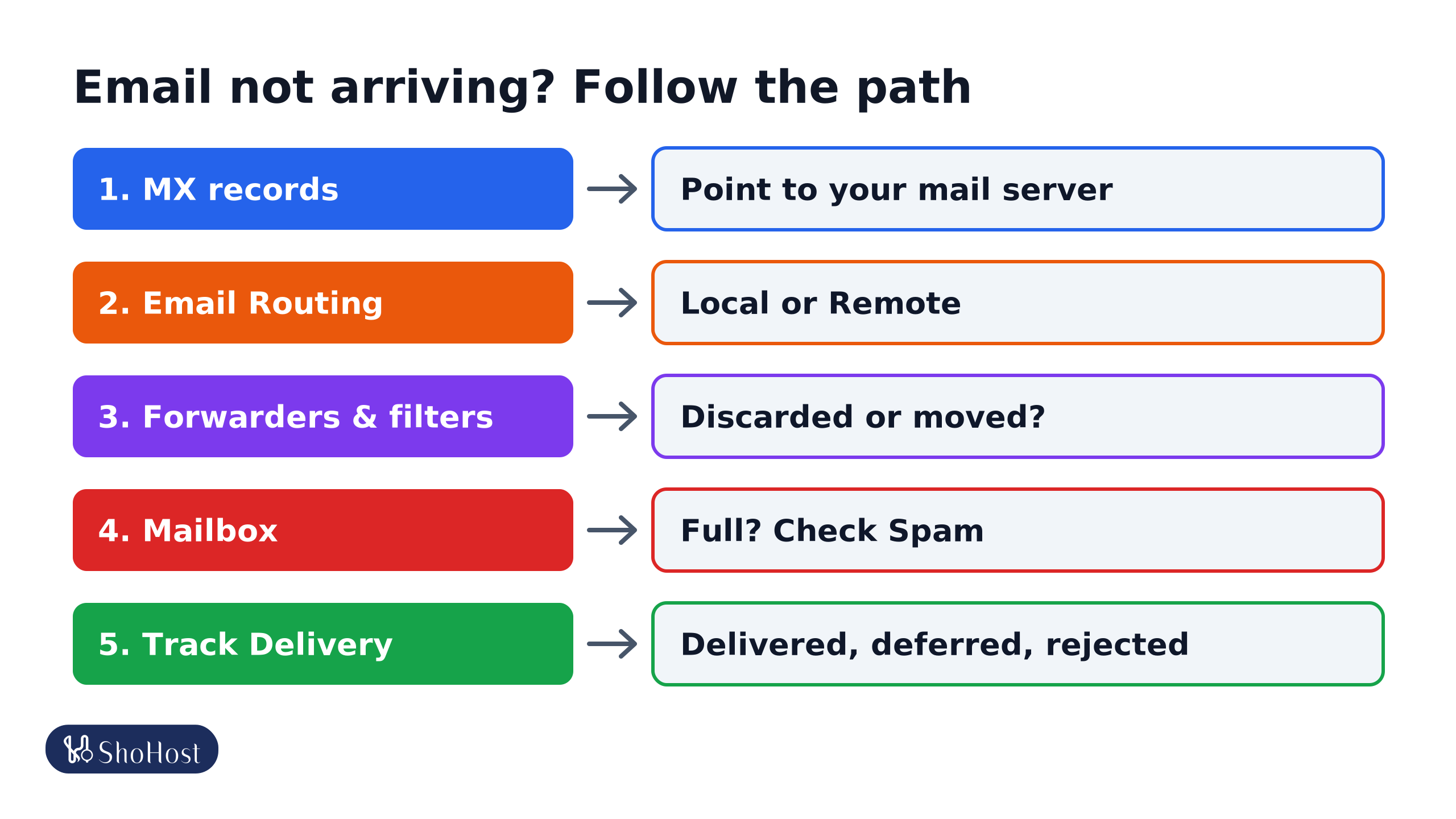
- MX records: point to the server that hosts your mail.
- Email Routing: Local if mail is in cPanel, Remote if it’s at Google or Microsoft.
- Forwarders and filters: mail may be discarded, moved, or forwarded and rejected.
- Mailbox: a full mailbox rejects mail; check the Spam folder too.
- Track Delivery: shows delivered, deferred or rejected, and why.
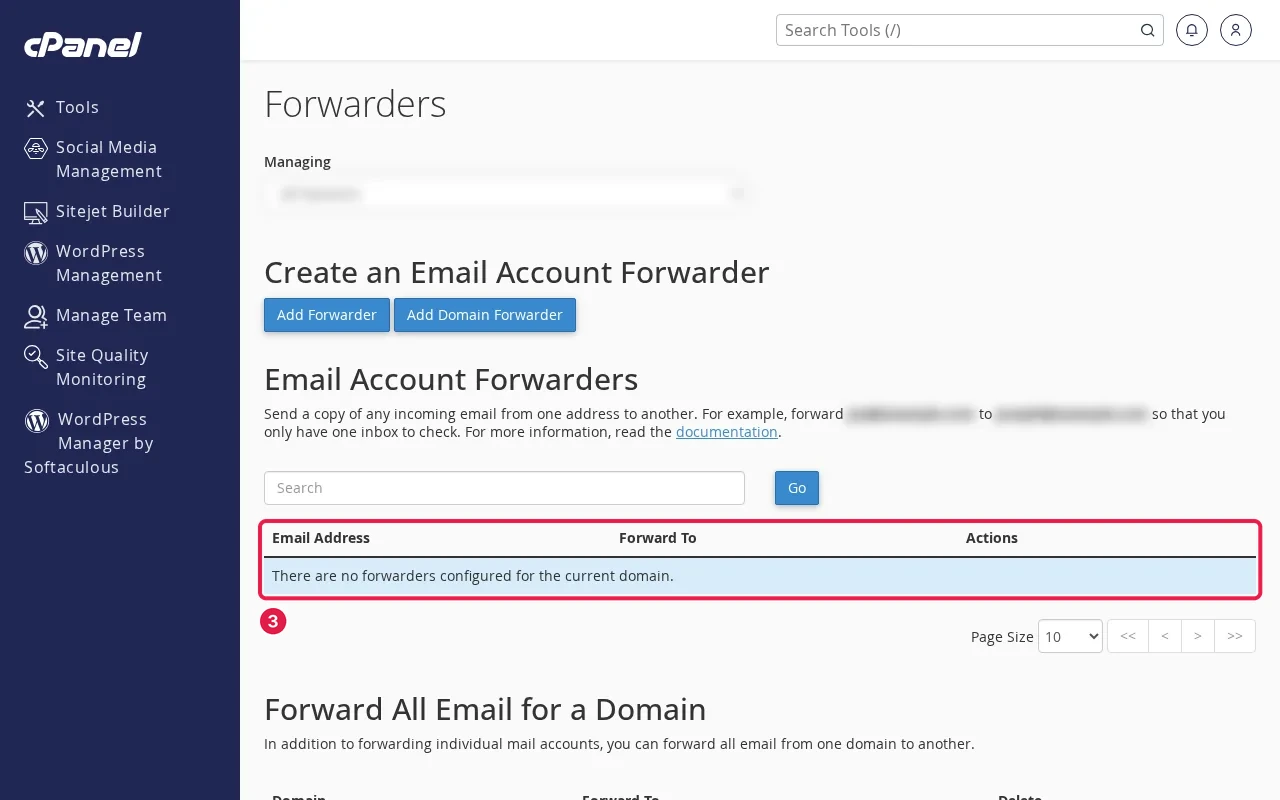
- Forwarders: a forwarder to Gmail may be rejected by Gmail as spam, so you see nothing. Check Track Delivery.
- Email Filters and Global Email Filters: a rule may discard or move mail.
- Default Address: shows what happens to mail for addresses that don’t exist.
Step 4: Mailbox and spam
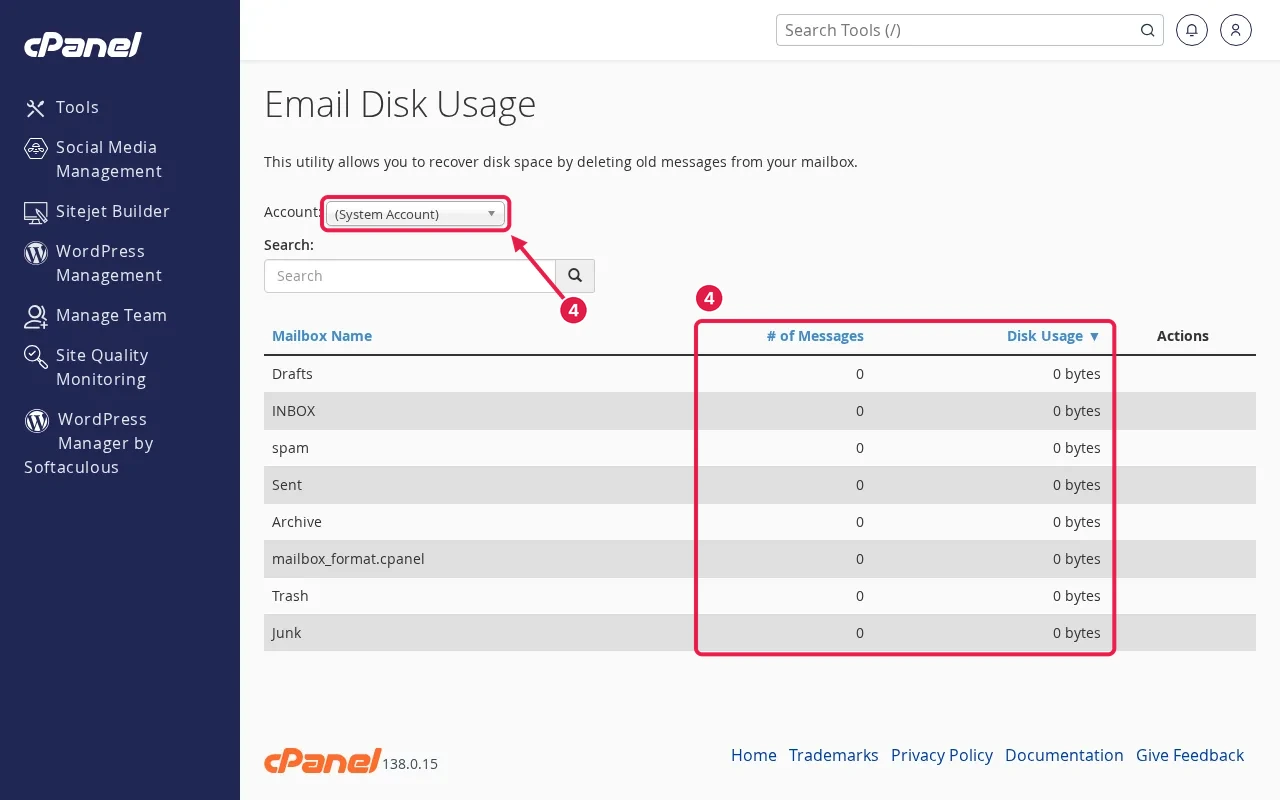
- A full mailbox rejects new mail. See mailbox full.
- Check the Spam folder and, if spam filtering is on, its settings.
- Ask the sender for the bounce message; it says why. See read a bounce message.
Use Track Delivery
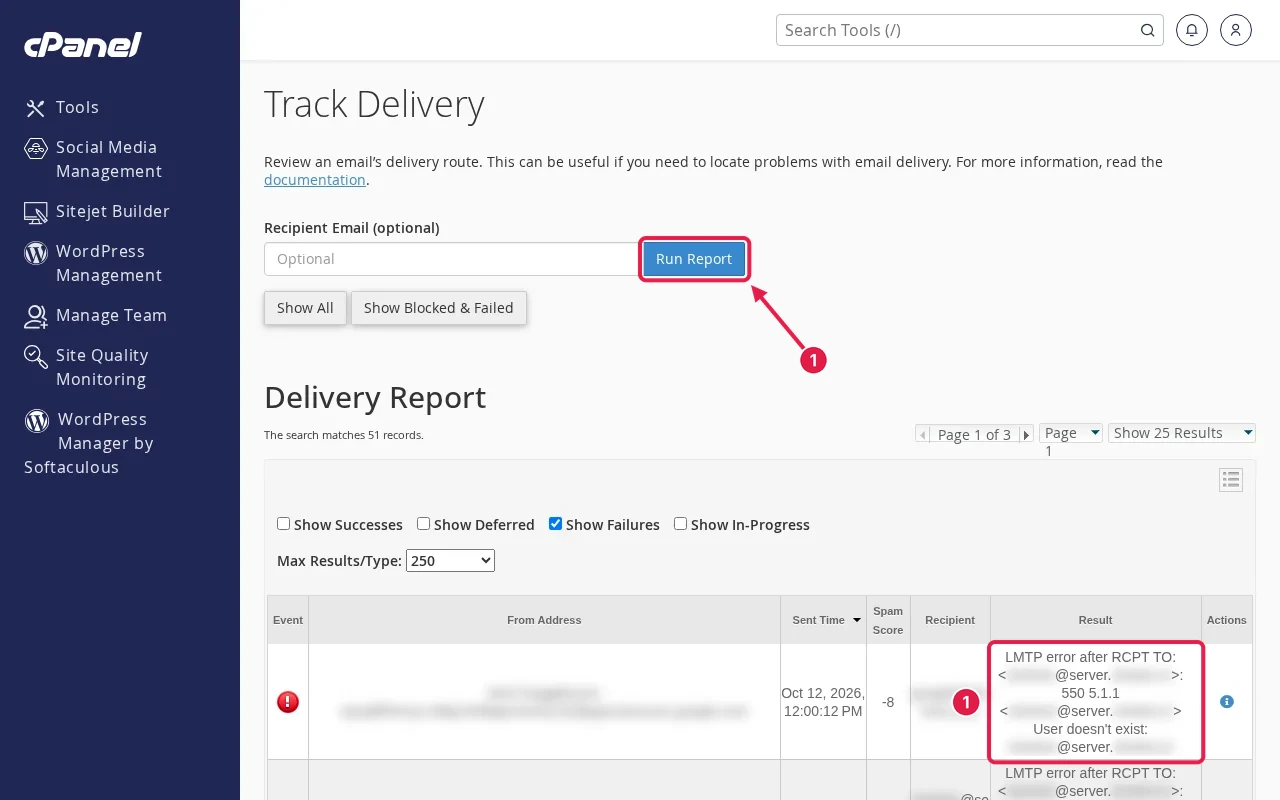
cPanel Email → Track Delivery lists recent messages to and from your account with their result: delivered, deferred or rejected, and why. Search by recipient address. If a message isn’t listed, it never reached the server, which points back to MX or the sender.
FAQ
Why do emails from Gmail arrive but not from my website’s contact form?
Often Email Routing: Local is set while MX points elsewhere, so site mail stays on the server. Or the form’s messages are filtered as spam.
How long do MX changes take?
Usually minutes to a few hours, depending on the old record’s TTL. Some resolvers may hold the old value longer.
Can I have two mail providers for one domain?
Not for the same addresses. Use subdomains or forwarding if you really need both.
Messages still going missing? ShoHost customers can WhatsApp support on +91 94880 91432, and we’ll trace them with you.