Can’t Log In to cPanel: Password, 2FA, cPHulk and IP Blocks
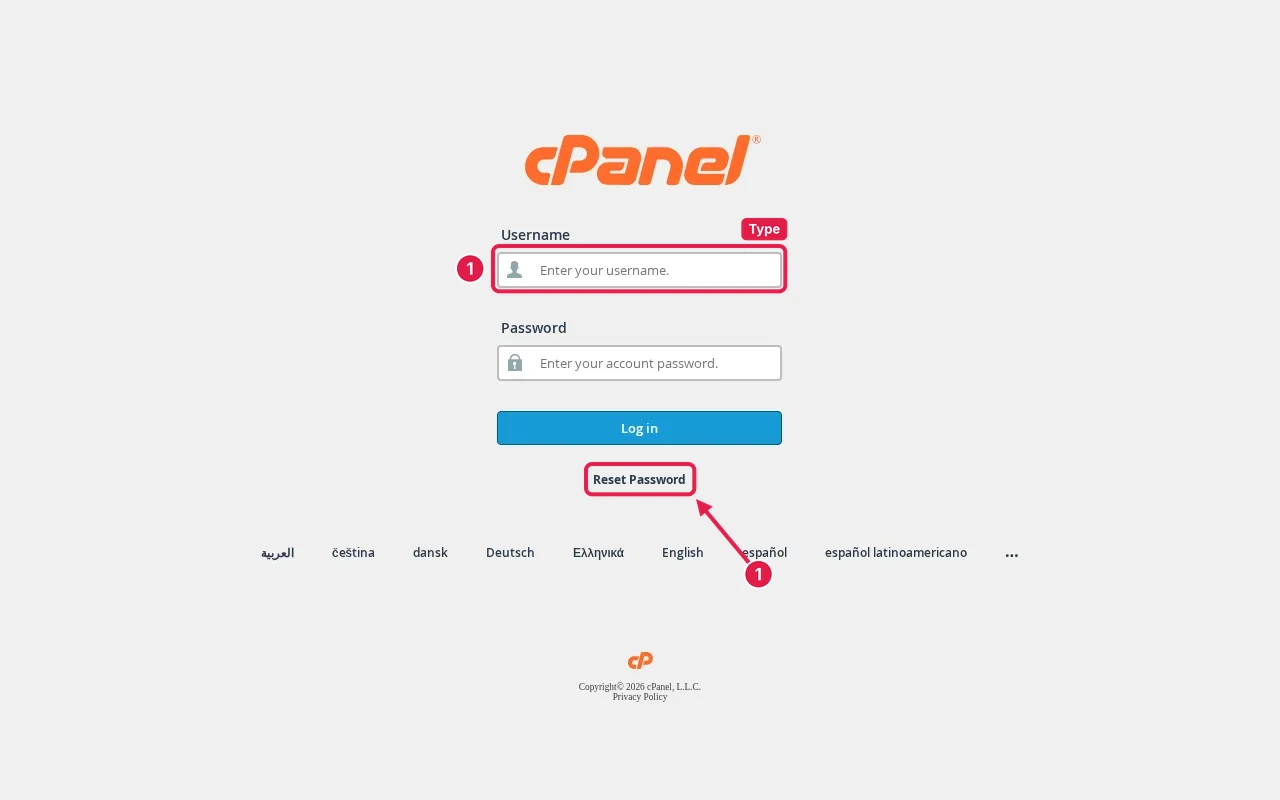
Written on 12 October 2026. We can’t run a licensed cPanel server in the sandbox, so there are no real cPanel login screenshots. The first image is a simulated summary of the standard messages; menu names come from cPanel’s public documentation.
When you can’t log in to cPanel, the message on screen (or the lack of one) tells you which of a few causes it is: a wrong username or password, a brute-force block, a firewall block on your IP, a two-factor code problem, or a suspended account.
What you might see
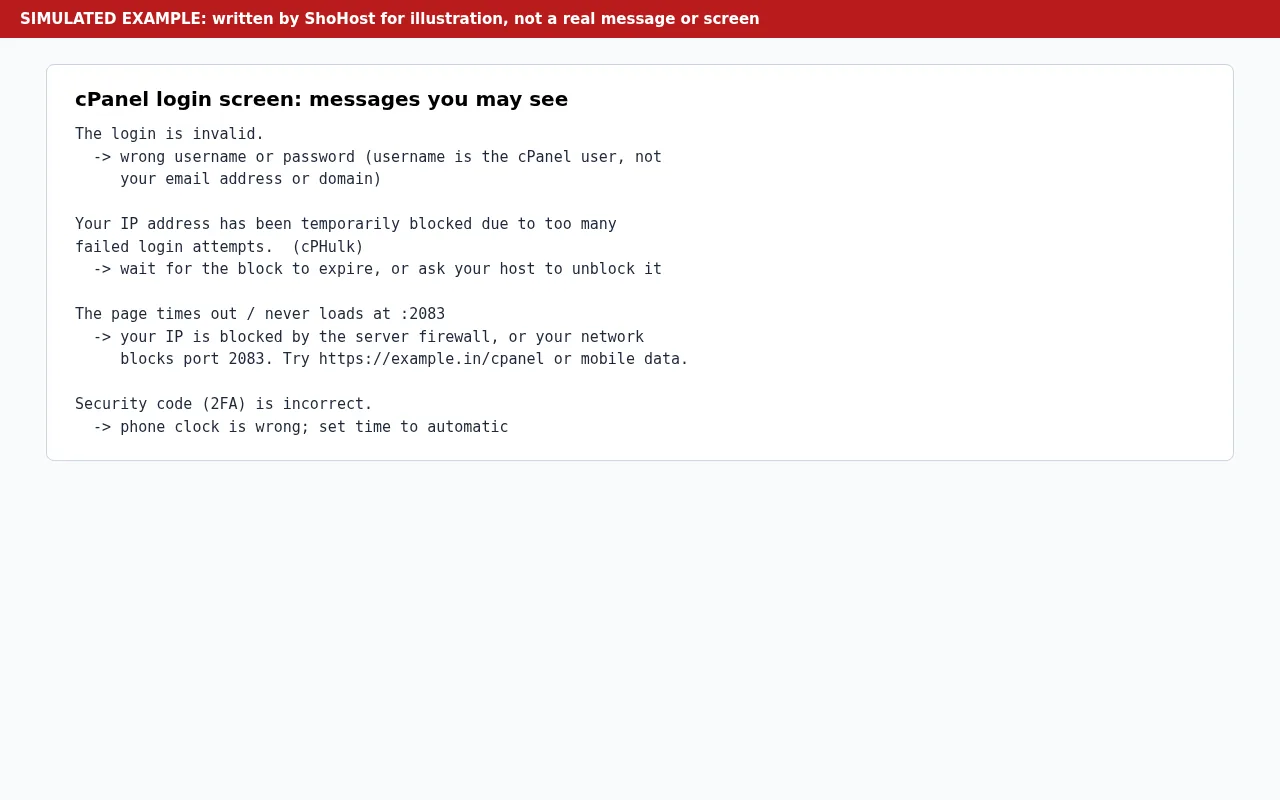
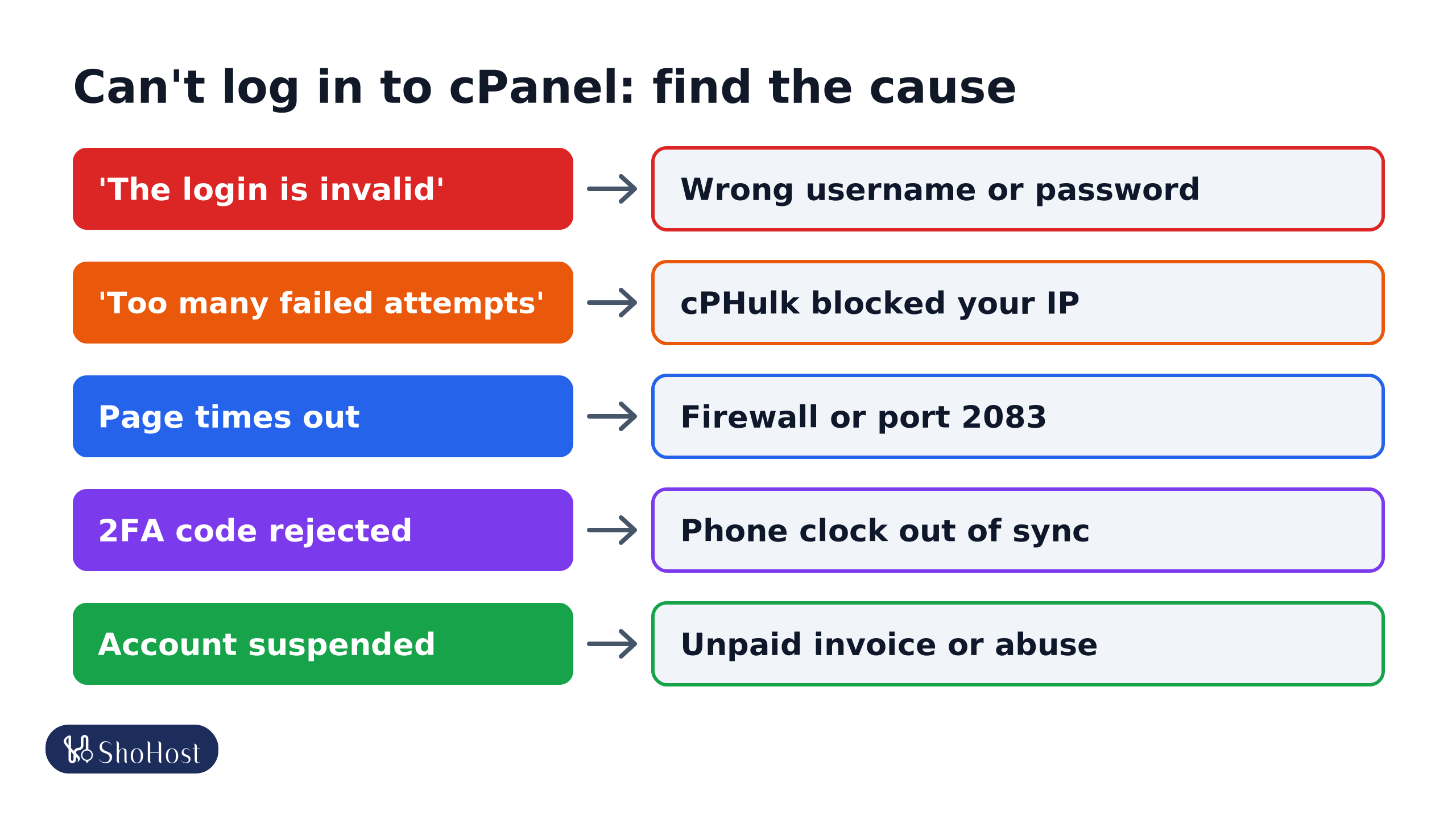
- “The login is invalid.” The username or password is wrong. The username is the cPanel user from your welcome email, not your email address or domain. Reset the password from the client area.
- “Your IP address has been temporarily blocked due to too many failed login attempts.” cPHulk brute-force protection blocked your IP or the account. Wait for the block to expire, or ask your host to unblock it.
- The page times out or never loads at :2083: the server firewall (CSF/LFD) blocked your IP, or your network blocks port 2083. Try
https://example.in/cpanelor mobile data. - “Security code (2FA) is incorrect.” Your phone clock is out of sync (set the time to automatic), or you picked the wrong app entry. Your host can reset 2FA.
- Account suspended: usually an unpaid invoice or abuse. You see a message after login, or a suspended page.
‘The login is invalid’
The username or password is wrong. The cPanel username is a short account name from your welcome email, not your email address or domain. Reset the password from your hosting client area (the service’s page usually has a Change Password option), not by guessing, because repeated failures lead to a block.
‘Too many failed login attempts’ (cPHulk)
cPanel’s brute-force protection, cPHulk, blocks an IP or the account after repeated failures. Stop trying, wait for the block to expire, or ask your host to remove it. Then look for the cause: an email app or FTP client with an old saved password keeps failing in the background and triggers the block again.
The page never loads
If https://yourdomain:2083 just spins and times out, the server firewall may have blocked your IP, or your network blocks port 2083. Try https://yourdomain/cpanel, mobile data, or your host’s client area. Our ERR_CONNECTION_TIMED_OUT guide covers this in detail.
Two-factor code rejected
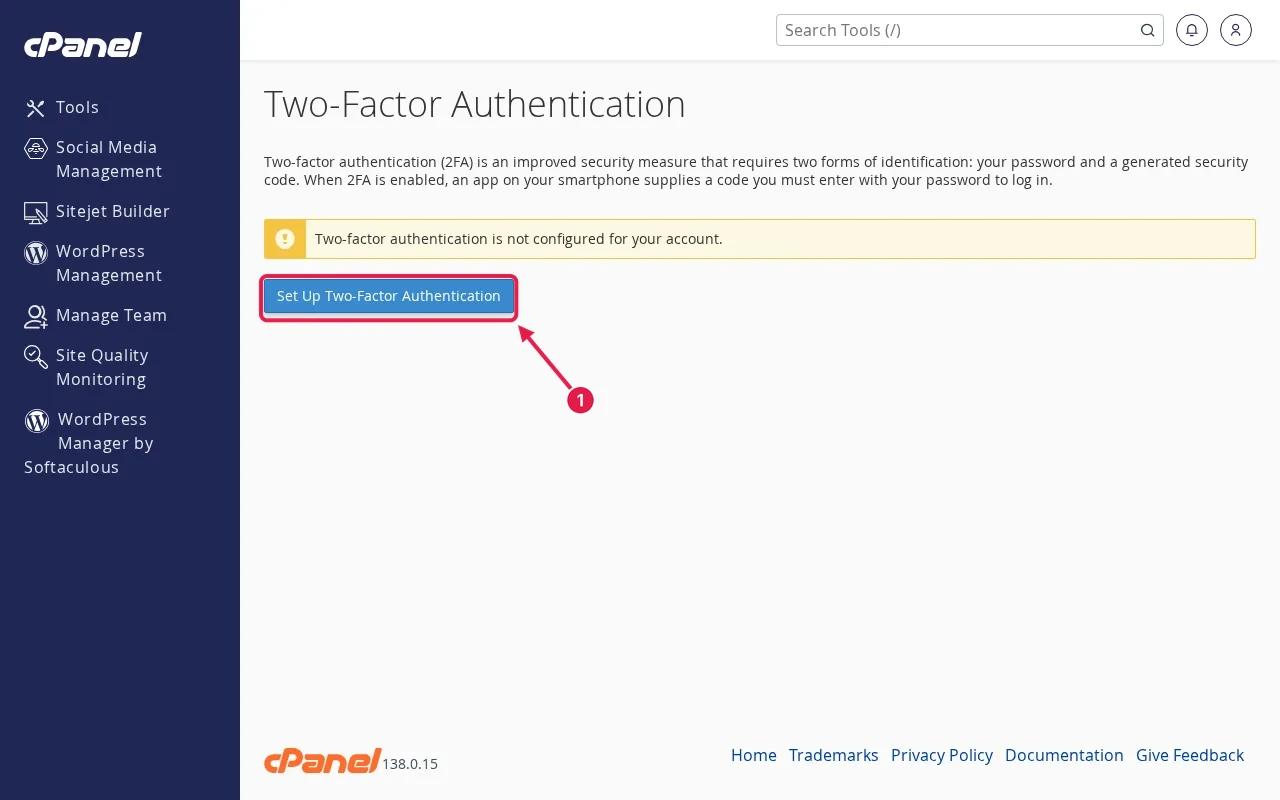
Authenticator codes depend on the time. Set your phone’s date and time to automatic and try a fresh code. If you lost the phone, your host can turn off 2FA for the account after checking it’s you.
Get back in safely
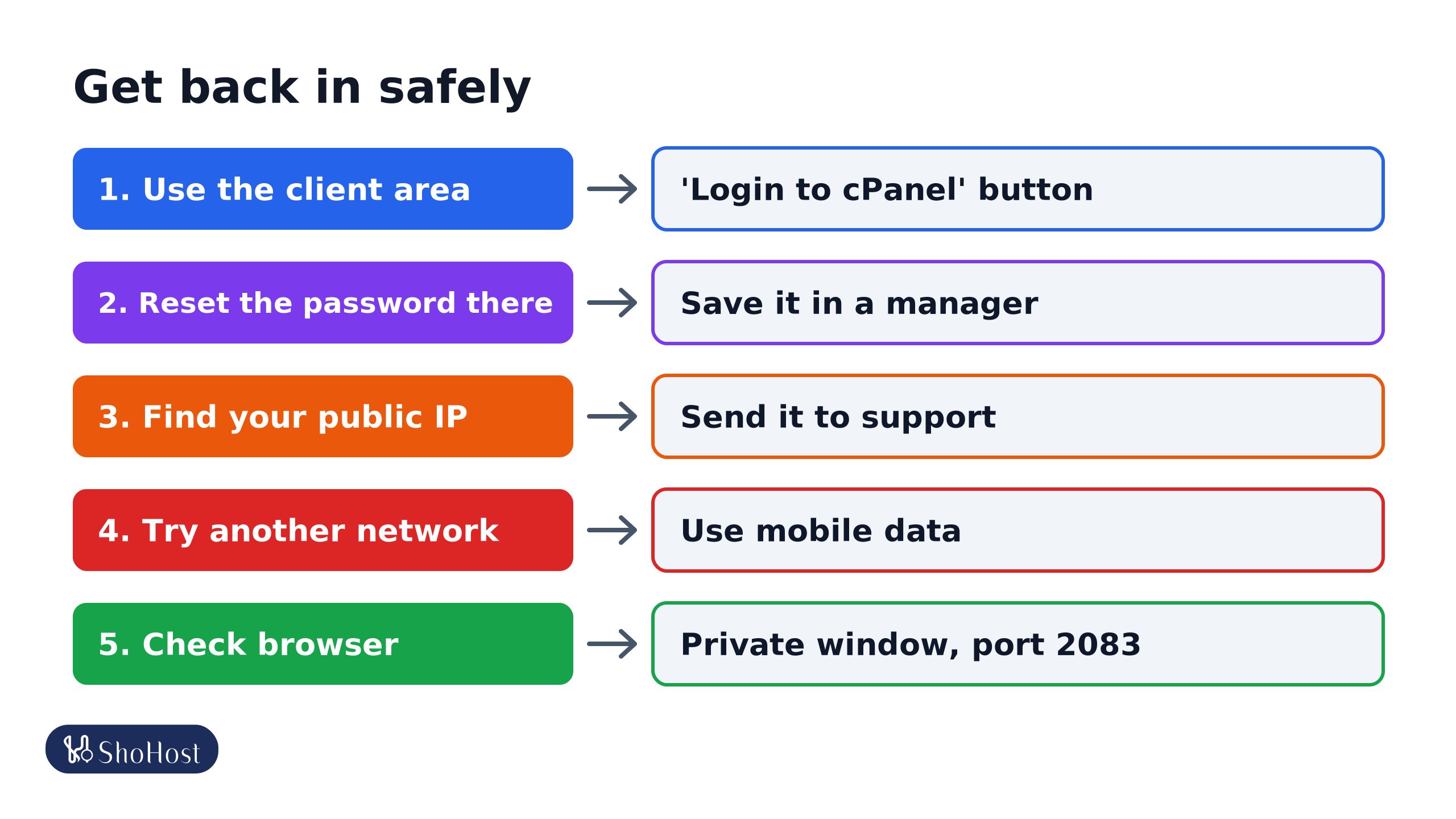
- Log in to your hosting client area and use its Login to cPanel button, which skips the password screen.
- Reset the cPanel password there if you need to, and save it in a password manager.
- Update the password in every email app and FTP client that uses it, so they stop triggering blocks.
- If you think your IP is blocked, find your public IP (search what is my IP) and send it to support.
- Try another network. Mobile data rules out an office firewall or your IP being blocked.
- Check the browser: try a private window, clear cookies for the cPanel URL, and make sure you’re using the correct port (2083).
FAQ
Can I log in to cPanel with my email address?
Usually not. cPanel uses the account username. Email accounts log in to webmail at port 2096 instead.
Why does it work from home but not the office?
Either the office IP is blocked (often by someone’s old saved password) or the office network blocks port 2083.
Is it safe to share cPanel access with a developer?
It’s safer to create a separate FTP account or, if your host supports it, a limited user under User Manager, and remove it when the work is done.
Still locked out of cPanel? ShoHost customers can WhatsApp +91 94880 91432 with their public IP, and we’ll check for a block and get you back in.