How to Find and Read WordPress Error Logs (cPanel + WP_DEBUG)
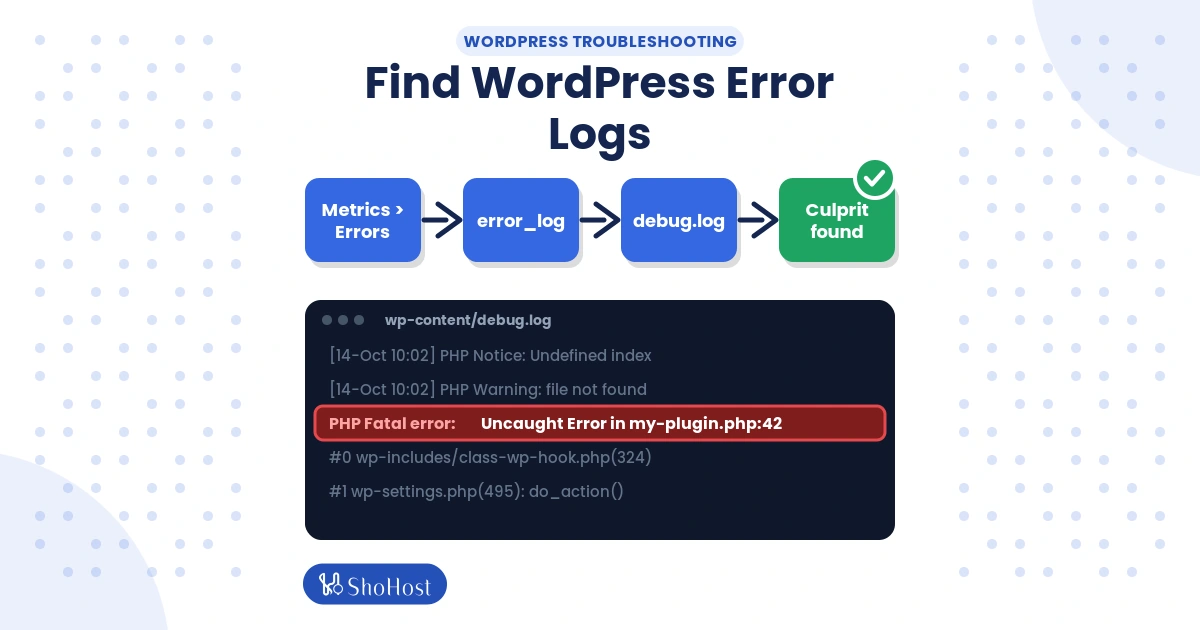
When WordPress breaks, the browser rarely tells you why. You get a blank page, a “critical error” message or a 500 page. The real answer is written in a log file. Knowing how to check WordPress error logs turns guessing into a five-minute fix, because the log names the exact plugin, file and line that failed.
This guide shows you the three places to find WordPress errors on cPanel hosting, how to switch on WP_DEBUG safely on a live site, how to read a PHP error line, what to do when error_log stays empty, and how to clean up afterwards so your logs do not leak information.
Use this guide if you look after WordPress sites on cPanel, your own or a client’s. It won’t walk you through repairing one specific error. Once the log points you at the problem, use the matching fix guide, such as 500 Internal Server Error or “There has been a critical error”.
Where is the WordPress error log? Three places to check
| Location | What it records | Best for |
|---|---|---|
| cPanel > Metrics > Errors | The latest web server errors for your account | A quick look without opening files |
error_log files in public_html (and subfolders) | PHP errors from scripts in that folder | PHP fatal errors and warnings |
wp-content/debug.log | Everything WordPress catches when WP_DEBUG_LOG is on | Plugin and theme errors, notices, deprecated calls |
Before you start (prerequisites)
- cPanel login (File Manager, Metrics and MultiPHP INI Editor).
- Optional: SSH or cPanel > Advanced > Terminal for Method 3, or FileZilla for Method 2.
- A backup of
wp-config.php. Download it before editing; one typo can stop the site. - The time the problem happened, so you can match it to log timestamps (logs usually use UTC, which is 5 hours 30 minutes behind IST).
Time and difficulty
| Time | Difficulty | Risk | Downtime |
|---|---|---|---|
| 10–15 min | Beginner | Low | None |
The quick version
Open cPanel > Metrics > Errors for a quick view, then File Manager > public_html > error_log for PHP errors. If you need more detail, add WP_DEBUG, WP_DEBUG_LOG and WP_DEBUG_DISPLAY (false) to wp-config.php, reproduce the problem and read wp-content/debug.log. Delete the log and turn debugging off when you finish.
Method 1: Check WordPress error logs in cPanel (recommended)
Step 1: Open cPanel Metrics > Errors
In cPanel > Metrics > Errors, read the list. The newest entries are at the top. This page shows the last few hundred server errors for your account, including PHP errors and blocked requests.
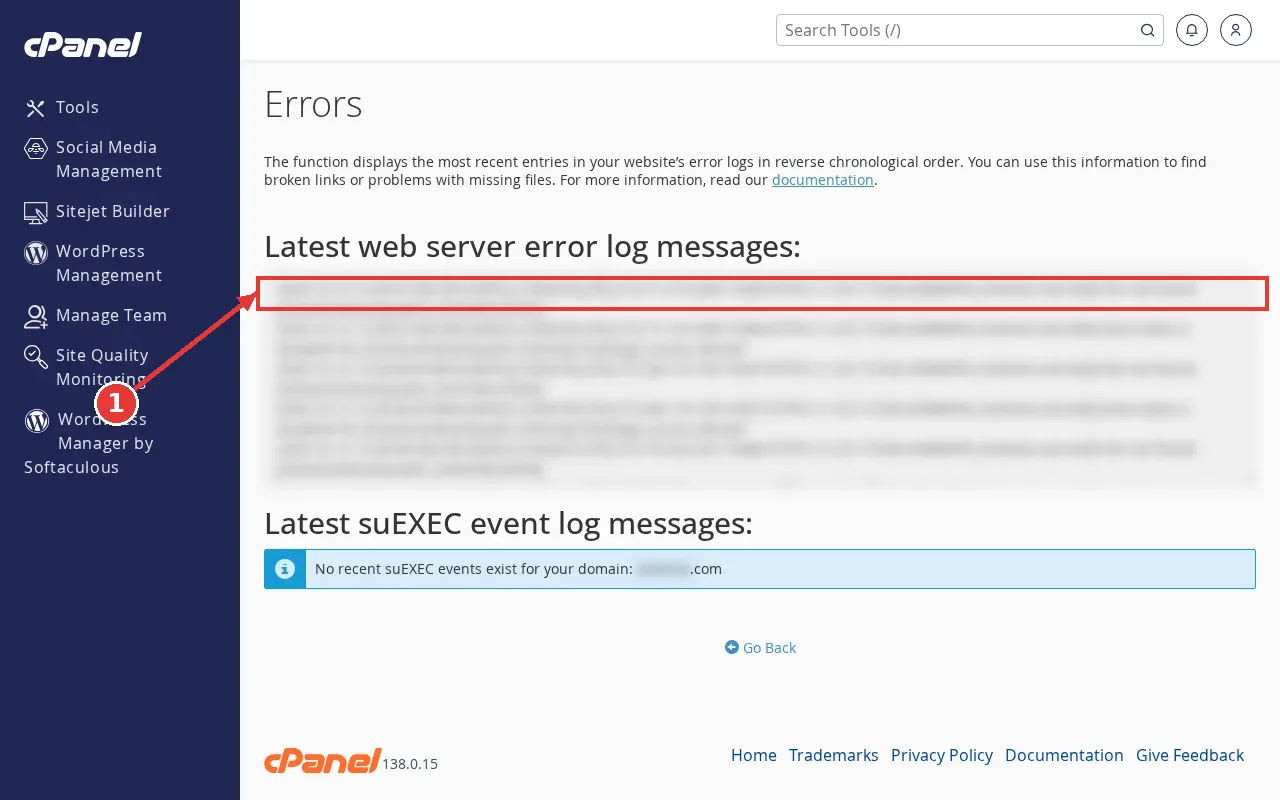
You should see timestamped lines. If the page is empty, the error may be logged only in error_log or debug.log; continue to Step 2.
Step 2: Show hidden files in File Manager
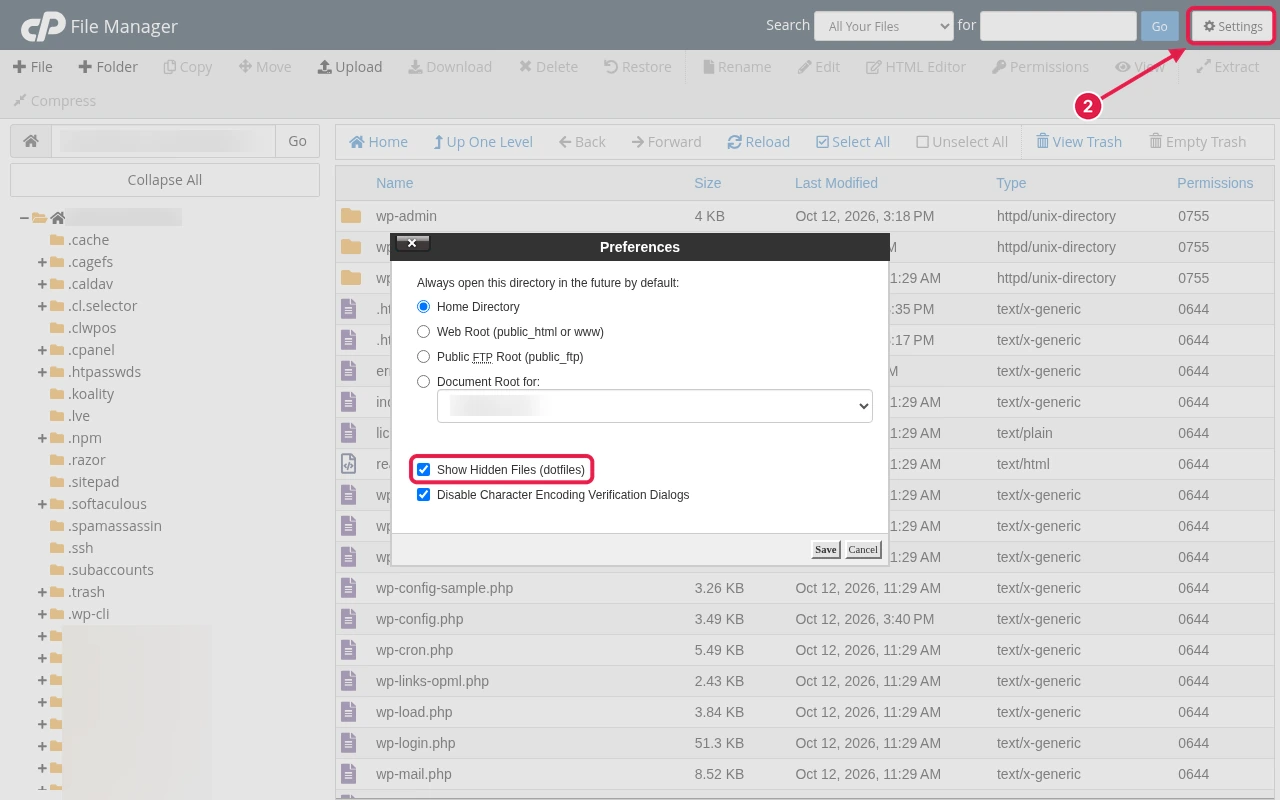
In cPanel > Files > File Manager, click Settings at the top right, tick Show Hidden Files (dotfiles) and click Save. This also reveals .htaccess and .user.ini, which you may need later.
Step 3: Open the error_log file
Open public_html. Find error_log, right-click it and choose View (or Edit for long files). Also check public_html/wp-admin/error_log, because errors in the dashboard are logged there.
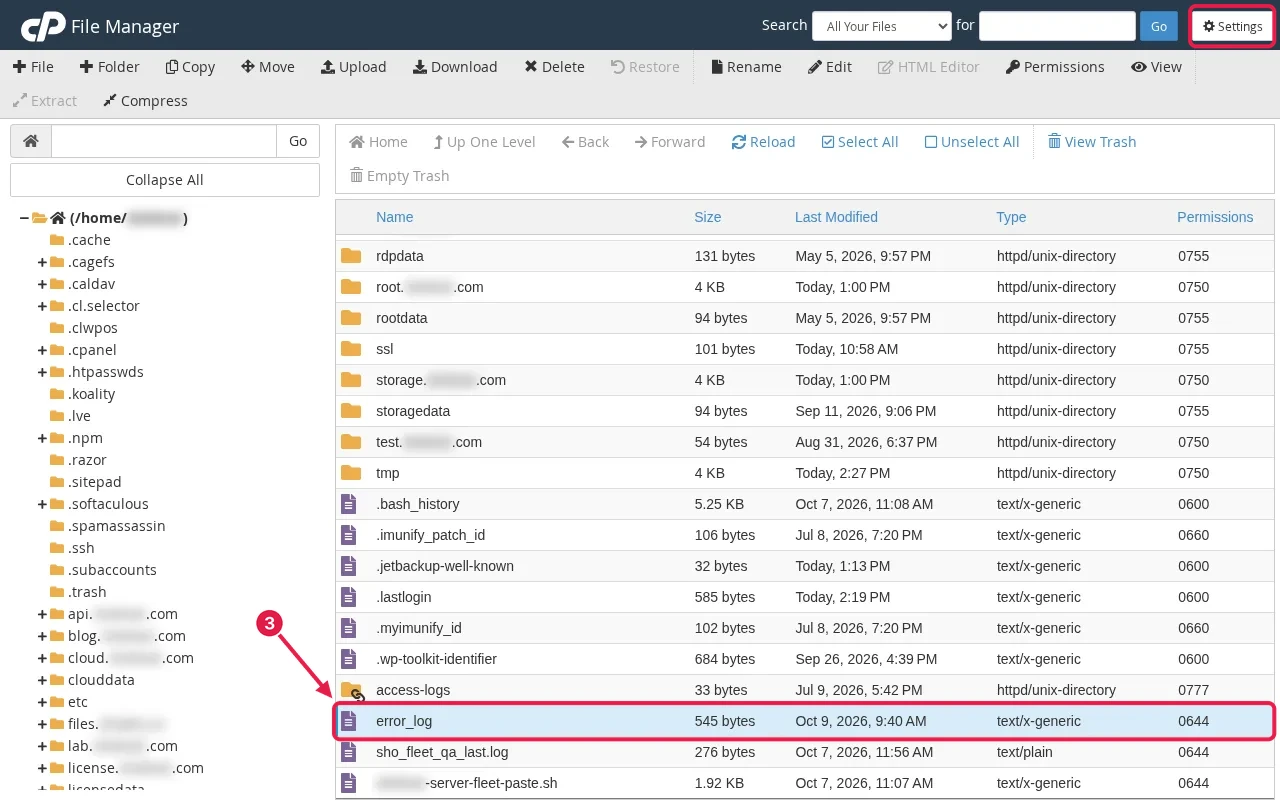
The last lines of the file show your most recent errors, for example:
[14-Oct-2026 05:41:09 UTC] PHP Fatal error: Allowed memory size of 134217728 bytes exhausted (tried to allocate 20480 bytes) in /home/USERNAME/public_html/wp-content/plugins/big-gallery/gallery.php on line 88Step 4: Enable WP_DEBUG safely in wp-config.php
Warning: never leave WP_DEBUG_DISPLAY set to true on a live site. It prints file paths and errors to every visitor.
In File Manager, right-click public_html/wp-config.php and choose Edit. Above the line /* That's all, stop editing! Happy publishing. */, remove any existing WP_DEBUG line and paste these lines. Click Save Changes.
define( 'WP_DEBUG', true );
define( 'WP_DEBUG_LOG', true );
define( 'WP_DEBUG_DISPLAY', false );
@ini_set( 'display_errors', 0 );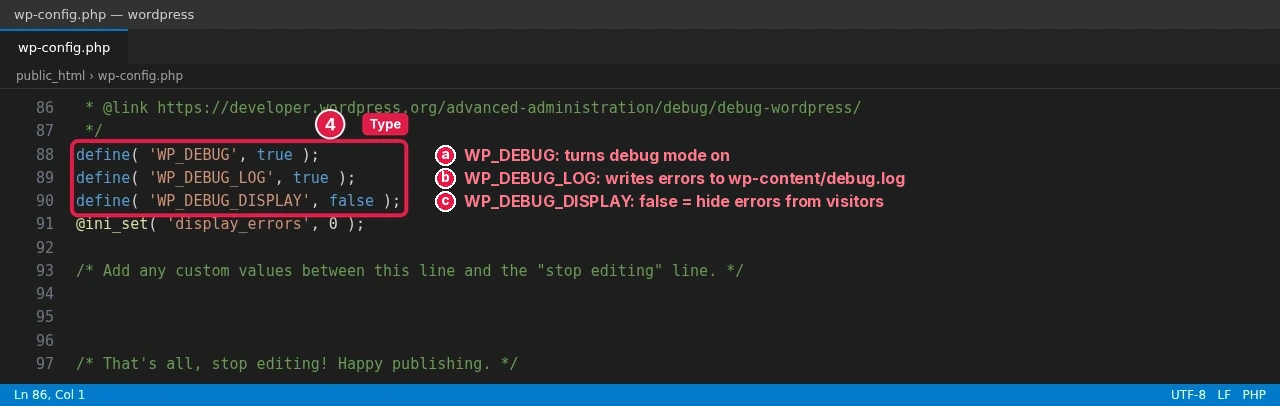
Optional: to write the log outside the public folder, give WP_DEBUG_LOG a path instead of true:
define( 'WP_DEBUG_LOG', '/home/USERNAME/logs/wp-debug.log' );Step 5: Reproduce the problem and read debug.log
Visit the broken page once. Then open public_html/wp-content/debug.log in File Manager and scroll to the end.

At this point debug.log exists and has new lines with the current UTC time.
How to read a PHP error line
Every line has the same four parts. Take this example:
[14-Oct-2026 05:41:09 UTC] PHP Warning: Undefined array key "title" in /home/USERNAME/public_html/wp-content/themes/shop-theme/header.php on line 42| Part | Example | Meaning |
|---|---|---|
| Time | 14-Oct-2026 05:41:09 UTC | When it happened (add 5:30 for IST) |
| Type | PHP Warning | How serious it is |
| File | .../themes/shop-theme/header.php | Which plugin or theme the code belongs to |
| Line | line 42 | Where in that file |
The type tells you what to worry about:
- Fatal error / Parse error: stops the page. Fix these first.
- Warning: something went wrong but the page continued. Worth fixing.
- Notice / Deprecated: code style or future-version warnings. Usually safe to ignore on a live site; report them to the plugin author.
The folder right after wp-content/plugins/ or wp-content/themes/ is the plugin or theme to update, disable or replace.
error_log not working? Turn on log_errors in MultiPHP INI Editor
If no error_log appears even when the site errors, PHP logging may be off.
Step 6: Check log_errors in MultiPHP INI Editor
In cPanel > Software > MultiPHP INI Editor, choose Basic Mode, select your domain’s home directory, and make sure log_errors is Enabled. Click Apply.
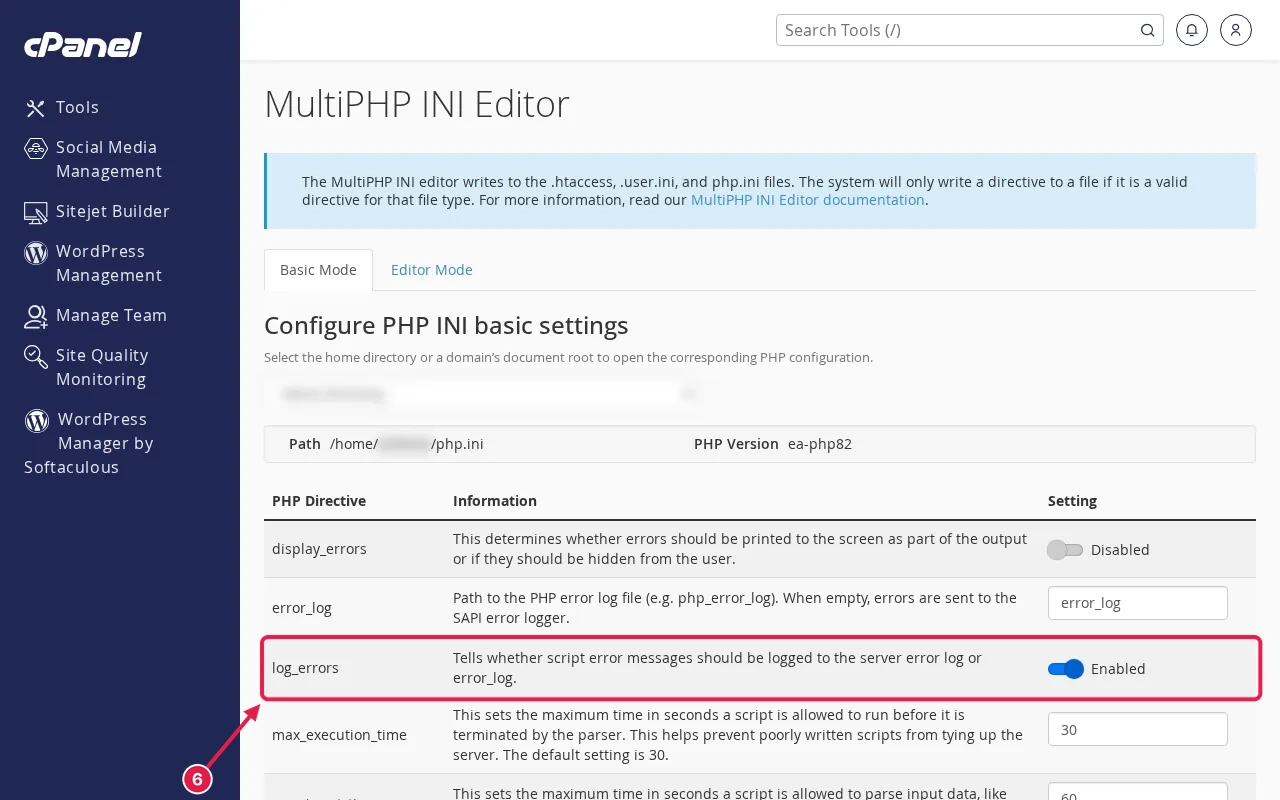
You should now see a green success message. Reload the broken page and check for a new error_log.
Still nothing? Check that wp-content is writable (folder permission 755) so WordPress can create debug.log, and that no plugin calls error_reporting(0).
Method 2: Download WordPress error logs with FTP/SFTP
Use this when File Manager is slow or the log is too large to view in the browser.
- Connect with FileZilla using your FTP or SFTP details.
- In the remote pane, open
public_html/wp-content. Turn on Server > Force showing hidden files if you cannot see dotfiles. - Right-click
debug.logand choose Download. FileZilla saves it to the folder open in the local pane. - Open it in a text editor and search for
Fatal.
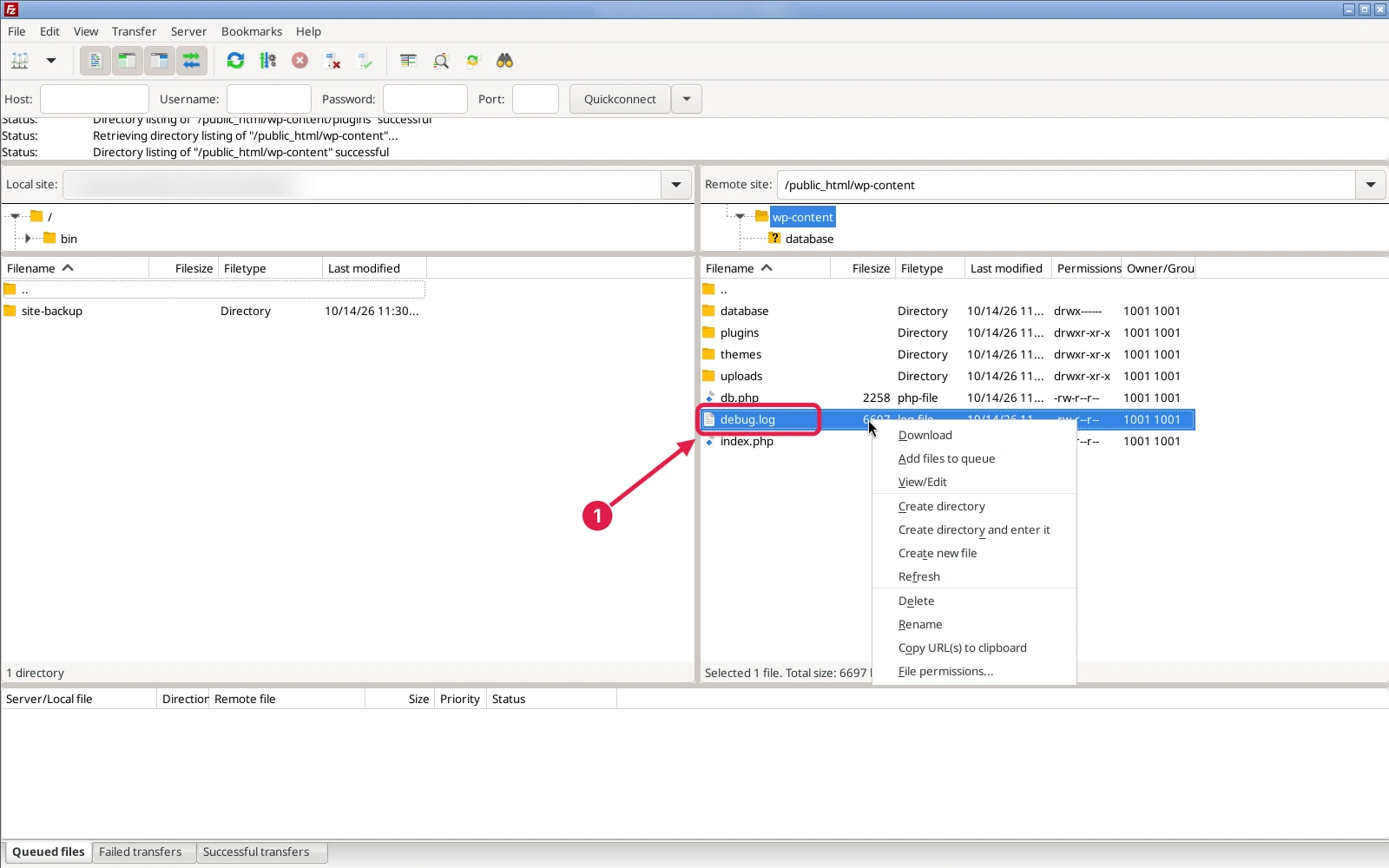
Note: the PHP error_log file sits in public_html. Download it the same way (right-click > Download) if you need it too.
The file opens locally; the newest lines are at the bottom.
Method 3: Read WordPress error logs over SSH or Terminal
Use this when you have SSH or cPanel > Advanced > Terminal. Run these commands; every command is typed out below.
cd ~/public_html
tail -n 50 error_log
tail -n 50 wp-content/debug.log
grep -i "fatal" wp-content/debug.log | tail -n 10
find ~/public_html -name error_log -size +0 -exec ls -lh {} \;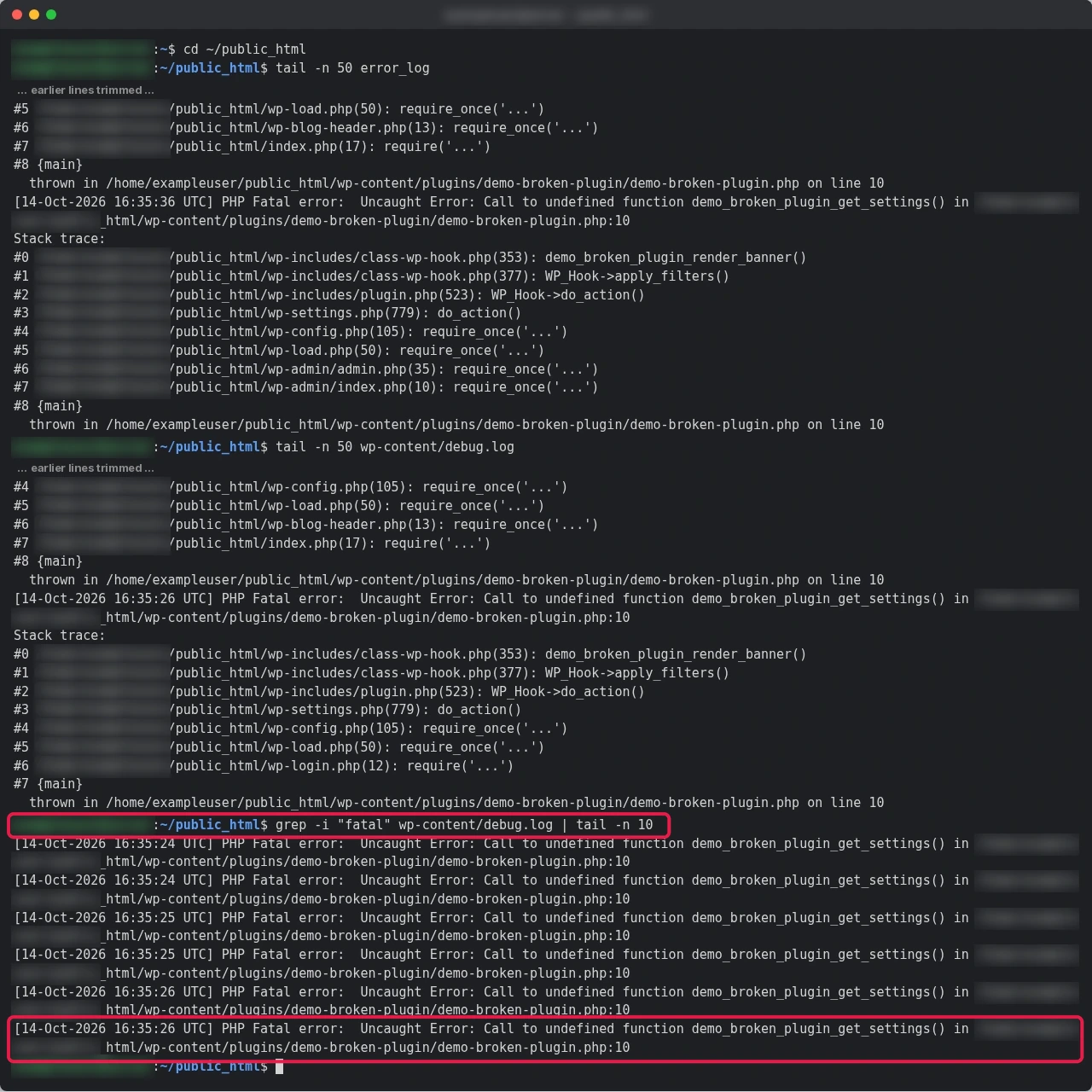
To watch errors appear live while you reload the page, run:
tail -f wp-content/debug.logYou should find that new lines print as you load pages. Press Ctrl+C to stop.
Clean up after debugging
Warning: debug.log in wp-content can be opened by anyone who knows the URL. Delete it when you finish.
- Set
WP_DEBUGback tofalseinwp-config.php. - Delete
wp-content/debug.logand large olderror_logfiles (they count towards your disk space). - If you must keep logging on, block access to the log with this
.htaccessrule inwp-content:
<Files "debug.log">
  Require all denied
</Files>
Verify your logs are working (and private)
curl -sI https://example.com/wp-content/debug.log | head -n 1After cleanup, the file is gone or blocked:
HTTP/2 404A 403 also means it is blocked. A 200 means the log is public; repeat the cleanup steps.
Troubleshooting WordPress error logs
| Symptom | Likely cause | Fix |
|---|---|---|
| No error_log file anywhere | log_errors off or hidden files not shown | Step 2 and Step 6 |
| debug.log not created | Constants placed below “stop editing”, or wp-content not writable | Move the lines up; set wp-content to 755 |
| Site shows errors to visitors | WP_DEBUG_DISPLAY true or missing | Set it to false (Step 4) |
| Log is huge and File Manager freezes | Months of repeated notices | Download it (Method 2) or use tail (Method 3), then delete |
| Only Deprecated notices | Old code, not the cause | Look for Fatal or Warning lines near the time of the problem |
| Still stuck? | — | WhatsApp support on +91 94880 91432. Paste the last 20 lines of the log. |
WordPress hosting where logs are easy to reach
ShoHost WordPress hosting gives you cPanel with Metrics, File Manager, MultiPHP INI Editor and Terminal, so every log in this guide is a few clicks away. If you get stuck, our team can read the log with you: WhatsApp support on +91 94880 91432. Plans come with 98.5% uptime and a 7-day refund. Unlimited free website migration, within your plan’s limits.
WordPress error logs FAQ
How do I show WordPress errors?
Set WP_DEBUG and WP_DEBUG_LOG to true and read wp-content/debug.log. On a live site, keep WP_DEBUG_DISPLAY false so visitors never see errors.
Is debug.log public?
It can be, because it sits inside wp-content. Delete it after debugging, move it outside public_html, or block it with .htaccess.
Why is my error_log empty?
PHP logging may be off (log_errors), errors may be going to debug.log instead, or the error happens in another folder such as wp-admin.
What time zone are the log entries in?
Usually UTC. Add 5 hours 30 minutes to get IST.
Can ShoHost support read my logs for me?
Yes. Send the error lines to %s and we will tell you which plugin or setting is causing it.