Windows RDP vs Home PC for 24/7 Jobs: Cost and Uptime Compared (India 2026)
You’ve written a scraper, a Telegram or Discord bot, or you’ve got a big download queue, and it needs to run all day and all night. The easy option is to leave your own PC switched on. The other option is to rent a Windows RDP, a remote Windows machine in a data centre that you log into from anywhere. This guide compares the two honestly: what your home PC really costs in electricity at Indian tariffs, how much uptime you lose to power cuts, Wi-Fi drops and Windows restarts, and when an RDP is worth paying for.
Who it’s for: freelancers, students and small teams in India running always-on jobs, plus resellers and developers abroad comparing the same choice. Reading time: about 8 minutes.
In this guide
- Windows RDP vs home PC: the quick answer
- How much electricity does a PC use running 24/7?
- How much does it cost to leave your PC on 24/7 in India?
- Is it bad to leave your PC on 24/7? The uptime problem
- What a Windows RDP gives scrapers, bots and downloads
- How to move an always-on job to a Windows RDP
- When your home PC is still the better choice
- Get a Windows RDP for your always-on jobs
- FAQ
- Related guides
Windows RDP vs home PC: the quick answer
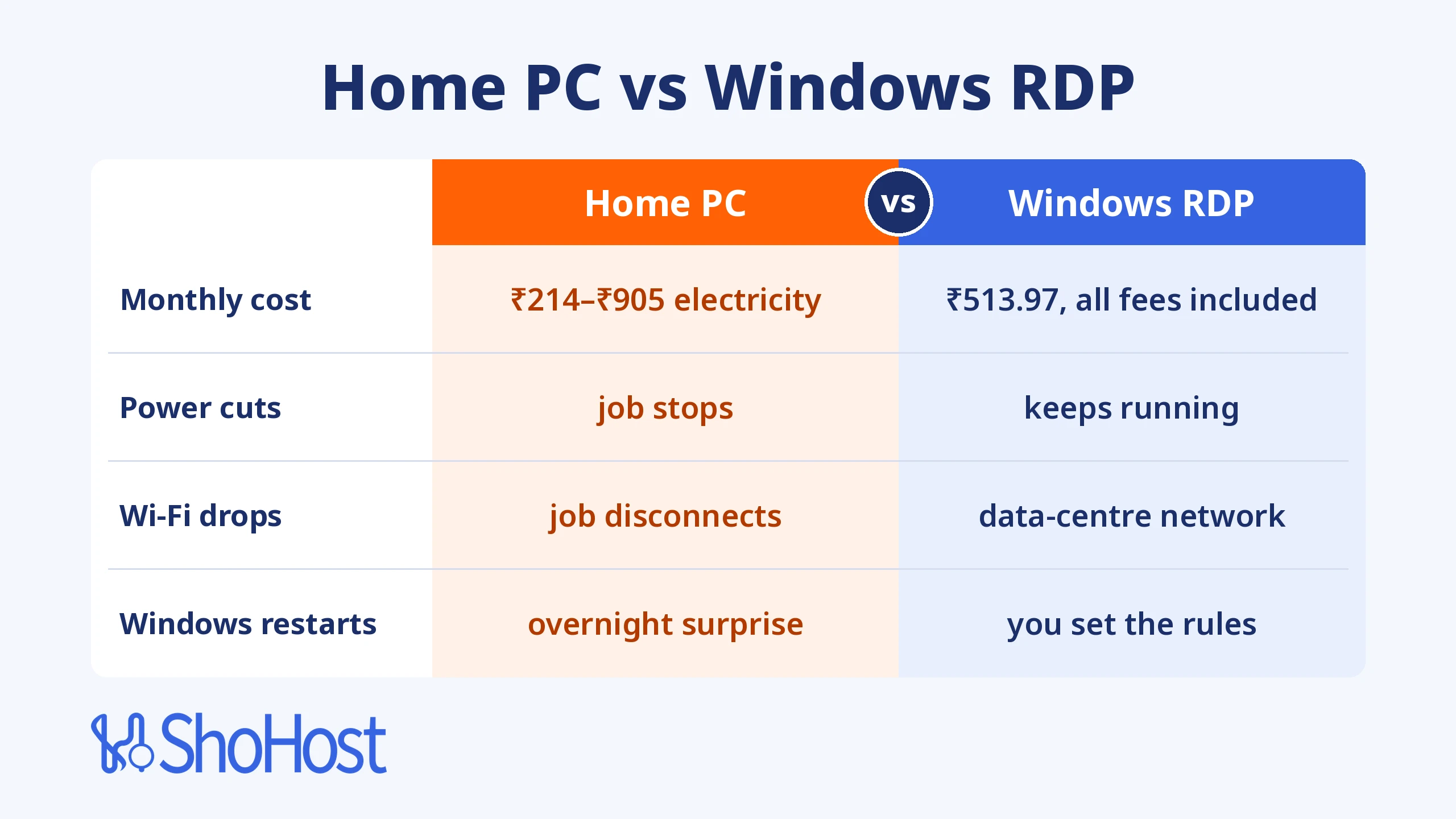
If your job can stop for a few hours without hurting anyone, your home PC is fine. If it has to keep running while you sleep, travel or game, a Windows RDP wins on uptime, and at ShoHost it costs about the same each month as the electricity a mid-range PC can burn running 24/7 in many Indian homes.
| Your home PC | ShoHost Windows RDP (RDP – 2C4R) | |
|---|---|---|
| Monthly cost | Electricity only: about ₹214–₹905 for a 60–100 W PC on 24/7 (see the table below) | ₹513.97 a month, all fees included |
| Power cuts | The job stops unless you have a UPS or inverter | Runs in a data centre, not on your home supply |
| Internet drops | The job loses its connection | Runs on the data centre’s network, 200 Mbps port |
| Your own PC | Busy, noisy and warm all day | Free for gaming, work or sleep |
| Restarts for Windows updates | Can stop your job overnight | You’re the admin, so you set the restart rules |
| Resources | Whatever your PC has | 2 vCore, 4 GB RAM, 50 GB SSD (bigger plans up to 8 vCore and 16 GB RAM) |
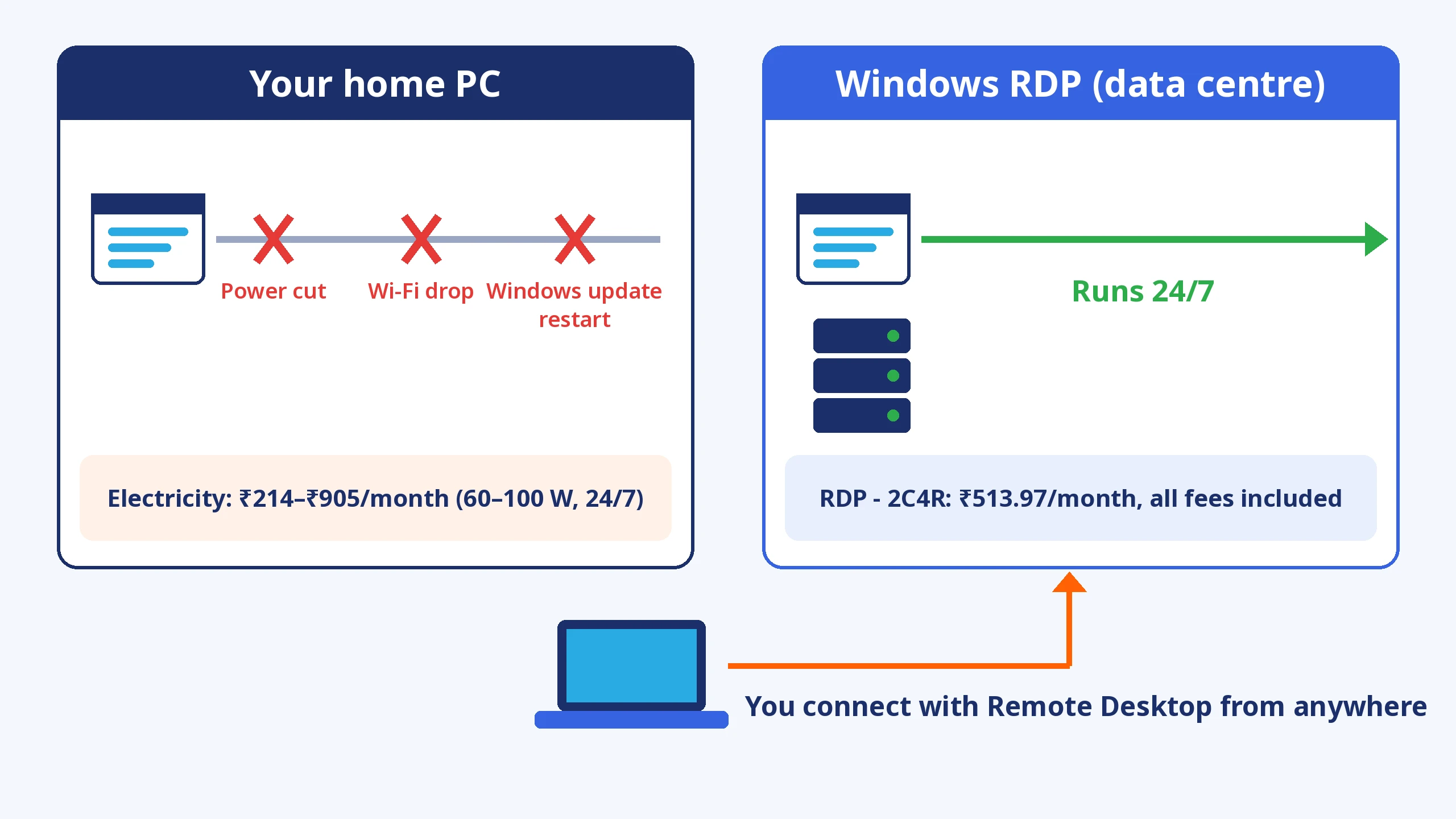
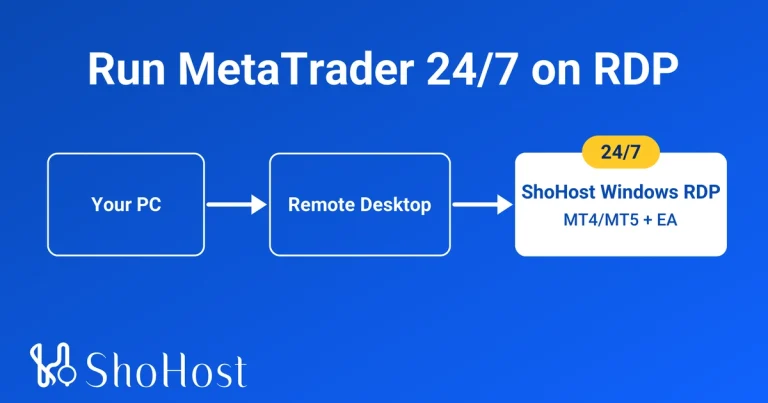
Illustration in words: at home, three things can stop your job: a power cut, a Wi-Fi drop and a Windows update restart. On a Windows RDP the job keeps running in the data centre, and you connect to it with Remote Desktop from your laptop or phone.
How much electricity does a PC use running 24/7?
It depends far more on what the PC does all day than on its power supply rating. In Overclockers’ wall-socket tests, a Core i3-10100 desktop drew 39 W at idle and a Core i9-10900K gaming build drew 90 W at idle, with the i9 build reaching 279 W under a CPU stress test. PCWattVault, which logs a real PC with a smart plug, uses 60 W as a typical office-PC average and shows that a heavy workstation averaged 284 W over two months, with two thirds of its cost coming from simply being switched on.
The maths is simple: watts × 24 hours × 30 days ÷ 1,000 = units (kWh) a month. A 60 W PC uses about 43 units a month running 24/7, and a 100 W PC uses about 72 units. A scraper running a headless browser, or a download queue keeping the disk busy, sits above idle, so measure your own PC with a plug-in meter for a week if you want an exact number.
How much does it cost to leave your PC on 24/7 in India?
Those extra units land on top of what your home already uses, so they’re charged at your highest slab. Here’s what 43 and 72 extra units cost at three real domestic rates:
| Domestic tariff (per unit) | 60 W PC, 24/7 (43.2 units) | 100 W PC, 24/7 (72 units) |
|---|---|---|
| Tamil Nadu, TNERC lowest slab (0–400 units bi-monthly): ₹4.95 | about ₹214 a month | about ₹356 a month |
| Tamil Nadu, TNERC 501–600 units bi-monthly slab: ₹8.80 | about ₹380 a month | about ₹634 a month |
| Maharashtra, MSEDCL 101–300 units: ₹11.10 energy + ₹1.47 wheeling = ₹12.57 | about ₹543 a month | about ₹905 a month |
Rates are from the TNERC tariff order No. 6 of 2025 (effective 1 July 2025) and MERC’s revised MSEDCL tariff in Case No. 75 of 2025 (FY 2025-26, from 1 July 2025). They’re before electricity duty and other bill add-ons, and they don’t count a monitor, router or UPS losses. Subsidies in some states lower the first slabs, so check your own bill for the slab you actually reach.
So, for a light PC on Tamil Nadu’s lowest slab, home electricity is cheaper than an RDP. For a 100 W PC in a home that’s already in a higher slab, the electricity alone costs about as much as, or more than, a ShoHost RDP – 2C4R at ₹513.97 a month. And electricity is only part of the cost.
Is it bad to leave your PC on 24/7? The uptime problem
Running a PC all the time won’t wreck it overnight, but heat, dust and fans wear parts faster, and the bigger problem for an always-on job is that a home simply isn’t built for 24/7 uptime:
- Power cuts. Government figures put average supply at 23.4 hours a day in urban areas and 22.6 hours in rural areas in 2025. That’s roughly 18 hours a month without grid power in a city and 42 hours in a village, on average, unless you’ve got an inverter or UPS that can carry the PC.
- Internet drops. Your router restarts, your provider has an outage, or someone in the house switches the Wi-Fi off. Your scraper or bot loses its connection every time.
- Windows update restarts. Microsoft’s documentation says Windows restarts automatically after updates outside your active hours, which default to 8 AM to 5 PM. That means overnight, exactly when your job is meant to be working alone.
- Your own use. A game, a video call or a big install fights your job for CPU, RAM and bandwidth.
A Windows RDP runs in a data centre with its own power and network, and ShoHost’s uptime is 98.5%. As the admin you control restarts, and your home PC goes back to being yours.
What a Windows RDP gives scrapers, bots and downloads
Every ShoHost Private Admin RDP plan gives you admin access to your own Windows machine, a 200 Mbps port and unlimited bandwidth. The store lists two things included with every plan: Install Any Windows OS and only RDP Port Allowed.
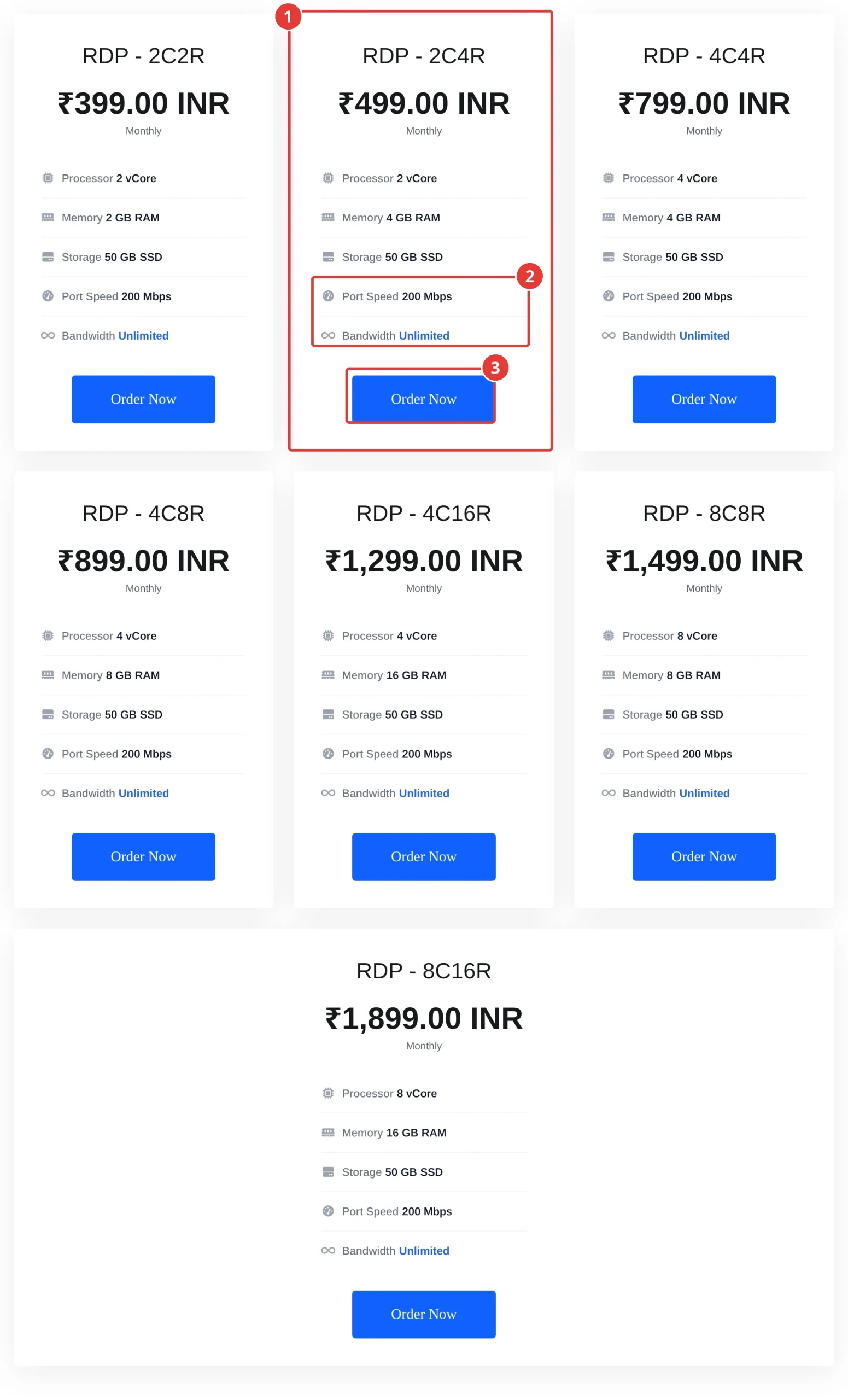
Here’s how that fits common always-on jobs:
- Scrapers and headless browsers: 4 GB RAM on RDP – 2C4R is a comfortable start for a Python or Node.js scraper with one browser. Move up to 8 GB or 16 GB plans if you run many browser tabs at once.
- Telegram, Discord and trading bots: small scripts run happily on 2 vCore. If you trade, our guide to running MetaTrader 4/5 24/7 on a Windows RDP covers the setup step by step.
- Downloads: the 200 Mbps port and unlimited bandwidth suit long download queues, but each plan has 50 GB SSD, so move finished files to ShoHost SDrive storage or your own drive regularly.
Two honest notes before you buy. First, the store says only RDP Port Allowed, so if your job needs to accept incoming connections on other ports, ask our support team before you order. Second, each RDP is a private Windows machine, but its public IP is shared with other RDP customers (that’s why you connect on an assigned port). Some websites also treat data-centre IPs more strictly than home connections, and every site has its own terms, so scrape politely: respect robots.txt and rate limits, and only collect data you’re allowed to use.
How to move an always-on job to a Windows RDP
Step 1: Choose your plan
Open the Private Admin RDP store and click Order Now on RDP – 2C4R. On Configure, pick a billing cycle and click Continue. Longer cycles show their savings on the page.
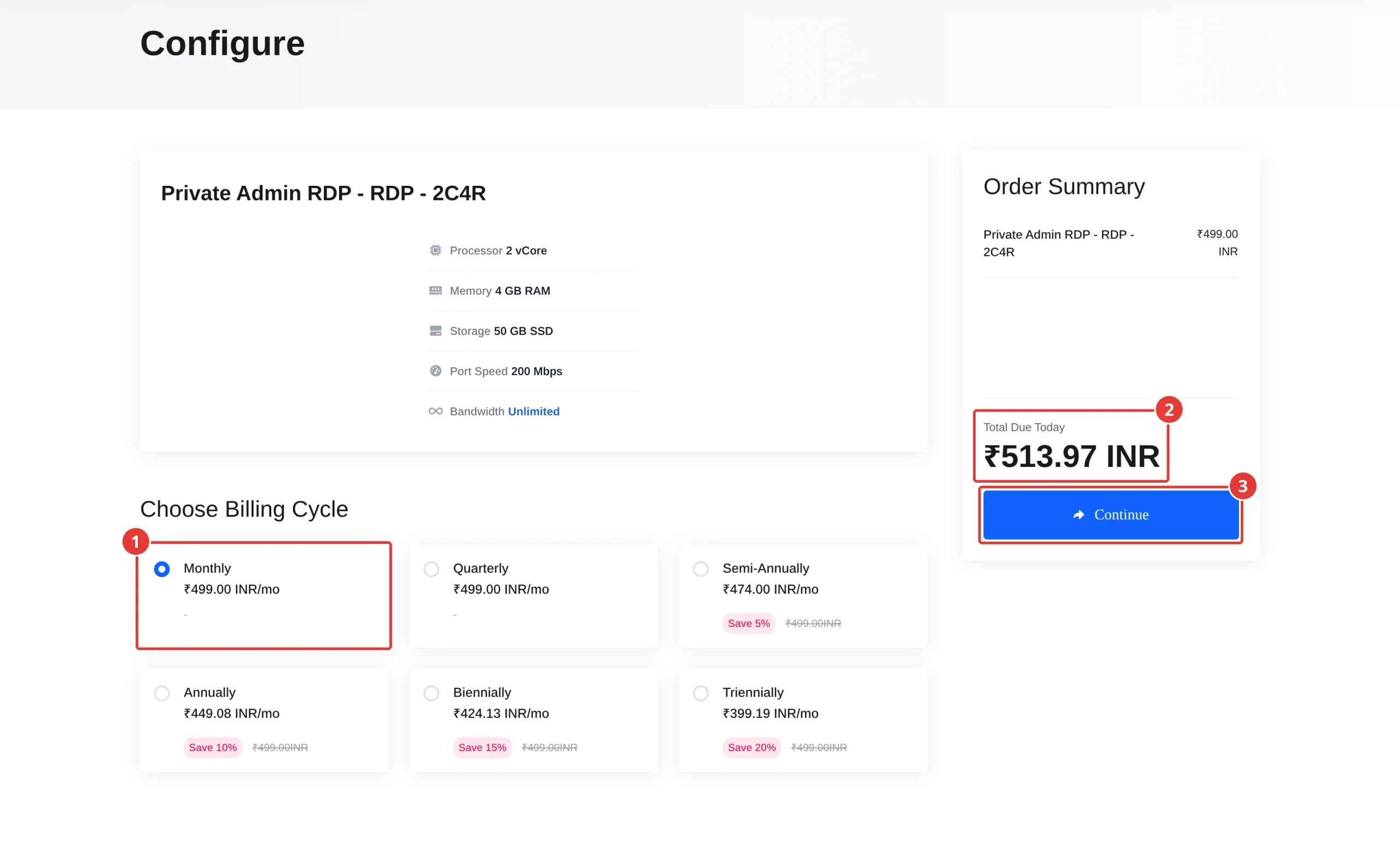
Expected result: the cart shows Total Due Today ₹513.97 INR for a month of RDP – 2C4R.
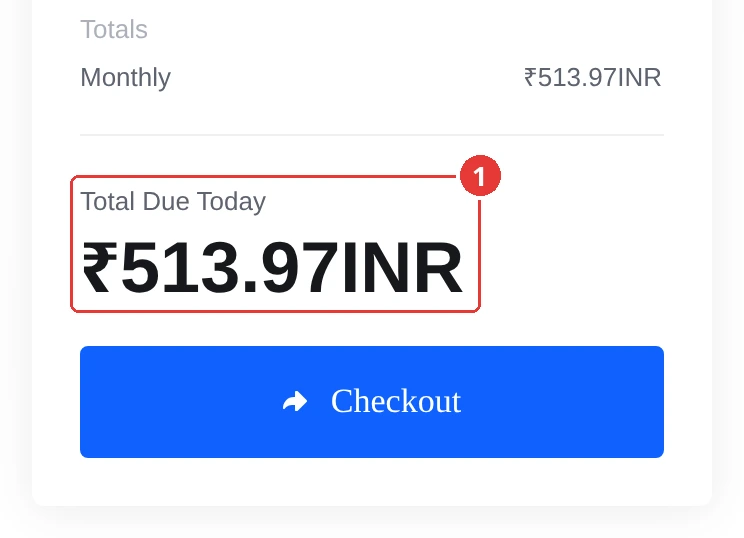
Step 2: Connect and copy your job
When your RDP is ready, open Remote Desktop Connection on Windows (or the Windows App on Mac, Android or iPhone), enter the host and port exactly as written in your welcome email, then sign in with the username and password from the same email. Copy your script or app over, install its runtime (Python, Node.js or similar), and run it once by hand to check it works.
Step 3: Make the job start by itself after a restart
An always-on job should survive a restart without you. For a script that doesn’t need a desktop window, create a startup task. Open Command Prompt as administrator on the RDP and run this, changing the path to your own start file:
schtasks /create /tn "AlwaysOnJob" /tr "C:\jobs\start-job.bat" /sc onstart /ru SYSTEM /rl HIGHESTThen check that the task exists:
schtasks /query /tn "AlwaysOnJob"Expected result: the query lists AlwaysOnJob with the status Ready. Restart the RDP once to confirm your job comes back by itself. If your bot needs a visible browser or app window, skip the task and keep it running in your signed-in session instead.
Step 4: Disconnect, don’t sign out
When you’re done, close the Remote Desktop window or choose Disconnect. Your session and your job keep running. Sign out closes every app in that session, including your bot.
When your home PC is still the better choice
An RDP isn’t always the answer. Keep the job at home if it only runs for a few hours a day, if it needs your home IP or a device plugged into your PC, if it needs a powerful graphics card, or if downtime genuinely doesn’t matter. If you do keep a home PC on all night, stop it from sleeping while plugged in. Open Command Prompt as administrator and run:
powercfg /change standby-timeout-ac 0
powercfg /change hibernate-timeout-ac 0
Also set your Active hours under Settings > Windows Update > Advanced options, and put the PC on a UPS or inverter if you can.
Get a Windows RDP for your always-on jobs
RDP – 2C4R gives you 2 vCore, 4 GB RAM, 50 GB SSD, a 200 Mbps port and unlimited bandwidth for ₹513.97 a month, all fees included. You can install any Windows OS, and the plan runs 24/7 whether your home PC is on or not. ShoHost has been running since 2020 and serves 180+ clients. Need more power for many browsers or bots? The Private Admin RDP store goes up to 8 vCore and 16 GB RAM.
Not sure which plan fits your job? Email support@shohost.com or WhatsApp +91 94880 91432, 9 AM to 12 midnight IST.
FAQ
Can a PC run 24/7?
Yes. A desktop can run around the clock, but heat, dust and fans wear parts faster, and power cuts, internet drops and Windows update restarts will still stop your job. For jobs that must not stop, a Windows RDP in a data centre is more reliable.
How much electricity does a PC use per month if it’s left on?
A PC averaging 60 W uses about 43 units (kWh) a month running 24/7, and a 100 W PC uses about 72 units. At Indian domestic rates of ₹4.95 to ₹12.57 a unit, that’s roughly ₹214 to ₹905 a month.
Is a Windows RDP cheaper than leaving my PC on?
Sometimes. On Tamil Nadu’s lowest slab, a light 60 W PC costs about ₹214 a month in electricity. A 100 W PC on a higher slab can cost ₹634 to ₹905 a month, more than ShoHost RDP – 2C4R at ₹513.97 a month, all fees included.
How do I run a bot 24/7 without keeping my PC on?
Run it on a Windows RDP. Copy the bot to the RDP, set it to start automatically with Task Scheduler, then disconnect instead of signing out so it keeps running while your own PC is off.
Can I run a web scraper on a Windows RDP?
Yes. A scraper with one headless browser runs well on 4 GB RAM. Respect each site’s terms, robots.txt and rate limits, and check with support before ordering if your job needs incoming ports other than RDP.
Related guides
- How to run MetaTrader 4/5 24/7 on a Windows RDP
- How to access TallyPrime from a Mac, Android or iPhone
- n8n hosting price in India, for automations that don’t need Windows
- When to move to a KVM Virtual Dedicated Server
- Fix cPanel cron jobs, for scheduled scripts on hosting