Softaculous: Install, Clone, Stage and Fix Failed Installs
Tested on 12 October 2026 in a ShoHost sandbox with WordPress 7.1.3, PHP 8.4 and MariaDB 11.8, using WP-CLI. Softaculous is a licensed cPanel add-on and isn’t installed in the sandbox, so we reproduced what a clone does (copy the files and database to a new URL) by hand. The Softaculous form is simulated; its menu names come from the public Softaculous documentation.
Softaculous is the app installer in many cPanel accounts (under Software). Besides one-click installs of WordPress and other apps, it can clone a site, make a staging copy to test changes, and push the staging copy back to live. Here is how to use each, and what to check when one fails.
Install an app
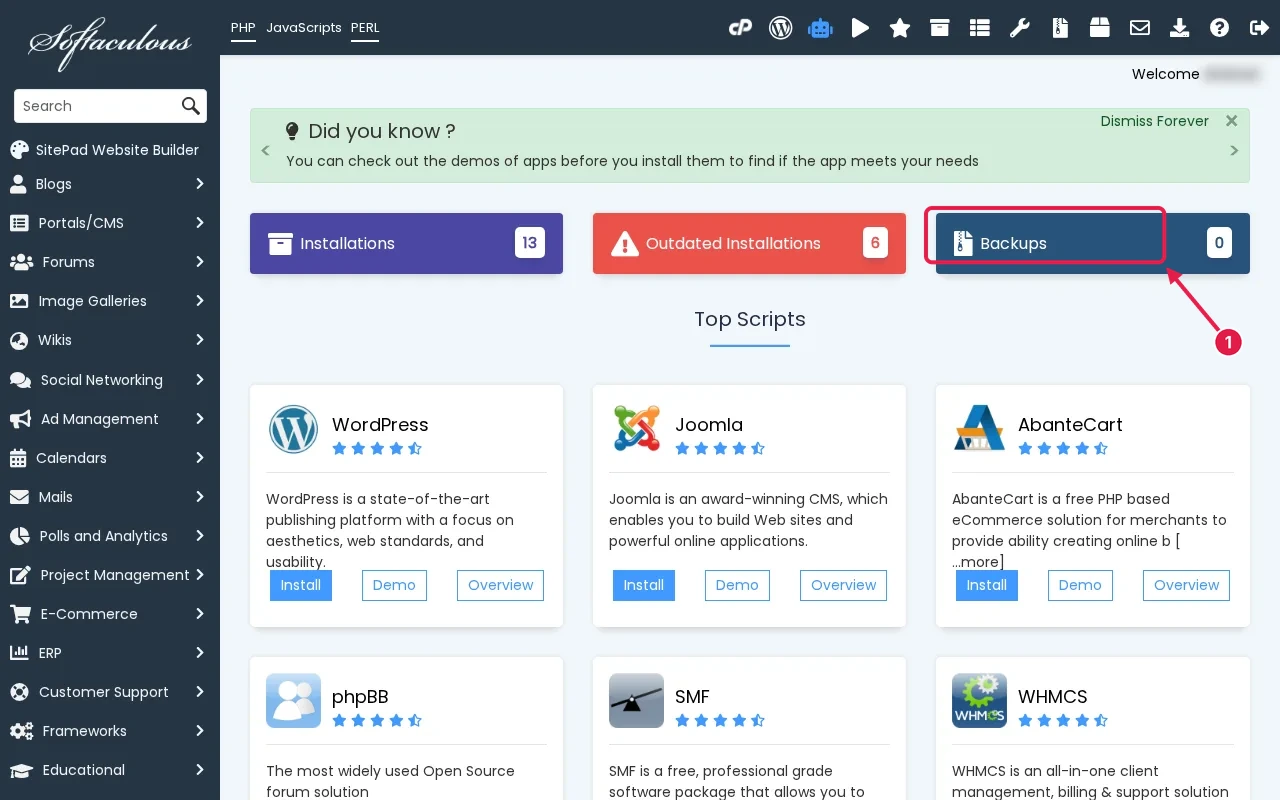
- Open Softaculous Apps Installer in cPanel and choose the app, for example WordPress.
- Click Install. Pick the protocol (choose
https://once SSL is active), the domain, and the directory. Leave In Directory empty to install at the domain root. - Set the admin username, a strong password and the admin email. Avoid
adminas the username. - Under Advanced Options, note the database name, and choose automatic backups if offered.
- Click Install and wait for the success message with the admin URL.
Create a staging copy
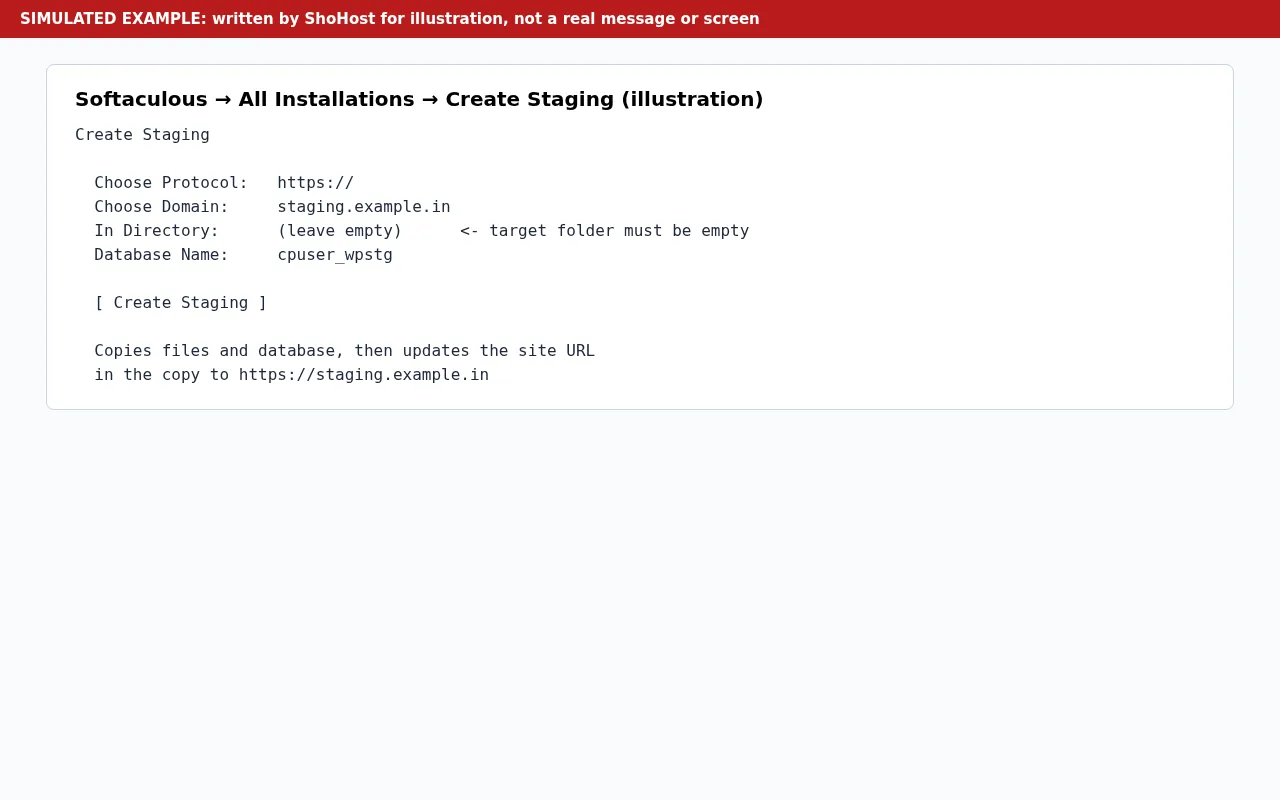
In All Installations, click the staging icon next to the site (or use Create Staging on the install’s page). Choose the https:// protocol, a subdomain such as staging.example.in or a folder, and a database name for the copy (for example cpuser_wpstg). Keep the target folder empty. Softaculous copies the files and database and updates the site’s URL in the copy.
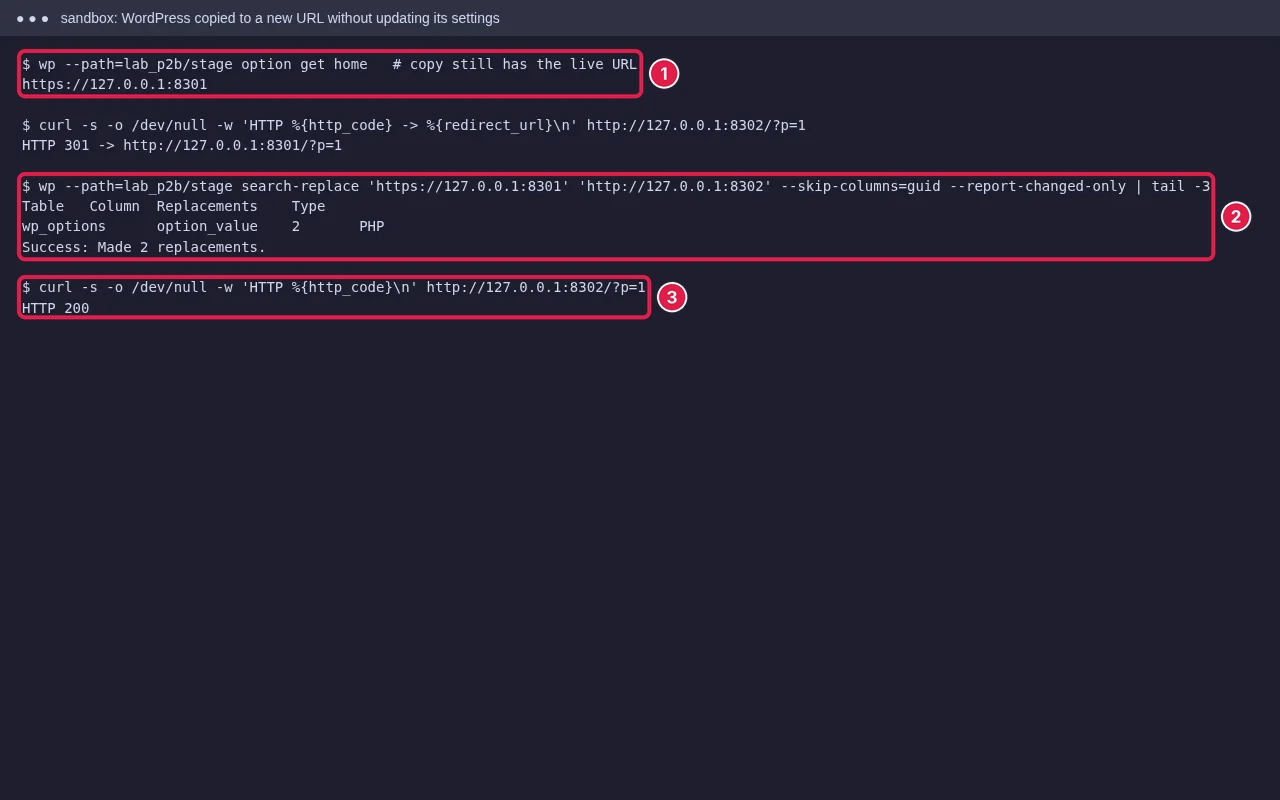
That URL update is the important step. Our test copies a site by hand without updating it: the copy redirects to the live site with a 301. If a staging site keeps sending you to the live site, the URL in its database wasn’t changed; often because the URL Softaculous has on record doesn’t match the site’s own Site Address setting. Fix the record with Edit Installation, or update the URL in the staging copy’s settings.
Push staging to live
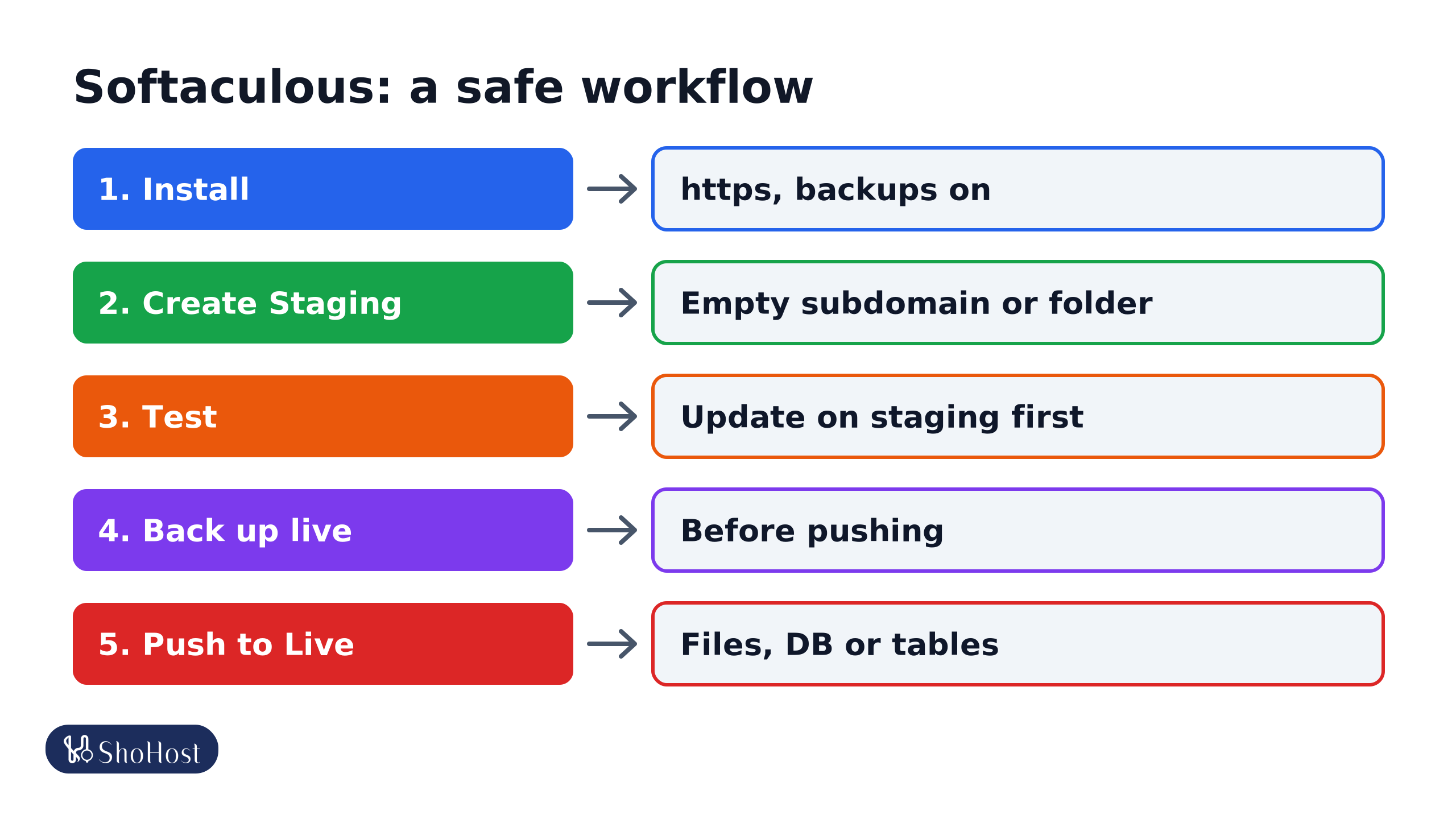
- Install: one-click install with
https://, a strong admin login and backups on. - Create Staging: copy to an empty subdomain or folder.
- Test: update plugins, themes and PHP on staging first.
- Back up live: Softaculous Backup or a cPanel backup before pushing.
- Push to Live: files, database or selected tables only.
When you’re happy with the staging site, use Push to Live on its row. You can usually choose to push files, database or both, and specific tables. Take a backup of the live site first (Softaculous Backup, or cPanel backups), because new orders, comments or form entries on live since you made the copy can be overwritten by the staging database.
Clone to another domain
Clone makes an independent copy on another domain or subdomain in the same account, for example to start a new site from an existing design. The clone gets its own database. Check the new site’s URL and permalinks afterwards.
Fix failed installs and clones
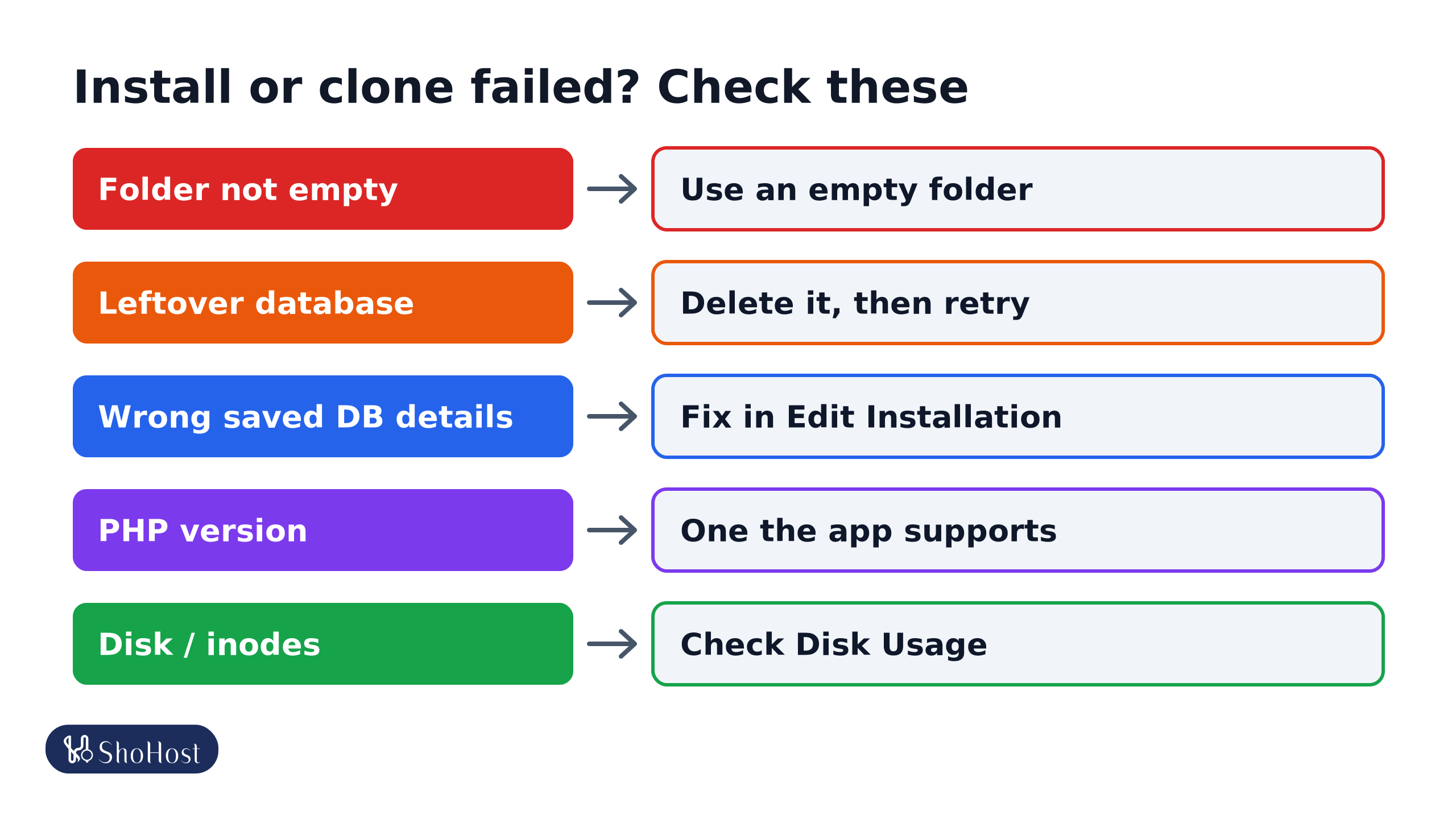
- Folder not empty: Softaculous may refuse to install, or a clone may hang, if the target folder has files. Move old files out, or choose an empty folder.
- Leftover database from a failed attempt: delete it in cPanel MySQL Databases before retrying, so you don’t hit a name clash or your database limit.
- Wrong database details on record: if you changed the database in
wp-config.phpby hand, Softaculous still uses the old one. Errors like Table … doesn’t exist point to this. Correct them in Edit Installation. - PHP version: the app needs a PHP version that cPanel’s MultiPHP Manager or Select PHP Version provides. See our PHP version guide.
- Disk or inode limit: a copy doubles the space used. Check Disk Usage (see our disk and inode guide).
- A site installed by hand isn’t listed: use Import (Softaculous calls it Remote Import or Import from this server) to add it, then staging and backups work.
FAQ
Will a staging site affect my live site’s SEO?
Keep staging out of search results: Softaculous and WordPress let you discourage search engines on the copy. Delete the staging copy when you’re done.
Does pushing to live overwrite new orders?
It can, if you push the database. Take a backup and push only files, or only the tables you changed, on a shop that takes orders.
Why does Softaculous not show my existing WordPress site?
It was installed by hand or migrated. Use Softaculous’s import option to add it to All Installations.
Clone or staging copy not behaving? ShoHost customers can WhatsApp +91 94880 91432, and we’ll check the installation and copy it safely with you.