How to Run MetaTrader 4/5 24/7 on a Windows RDP (2026 Guide)
Your Expert Advisor only trades while MetaTrader is open and connected to your broker. Shut the laptop, lose power for ten minutes or let Windows restart at 3 AM, and the robot stops. MetaQuotes says it too: robots, Market EAs and copied Signals need a constant connection and uninterrupted power, and a home PC isn’t always up to that.
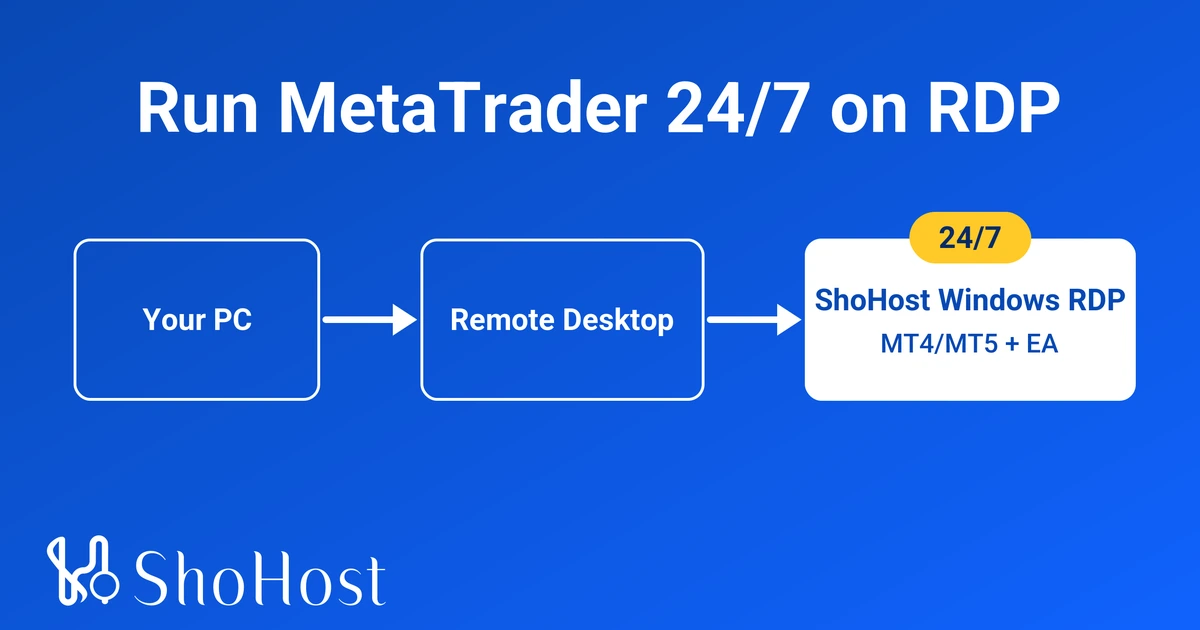
The usual fix is a Windows RDP: a Windows machine in a data centre that you open from your PC with Remote Desktop. Here’s how to set up MetaTrader 4 or 5 on one, keep it running after you close the window, and bring it back by itself after a restart. The steps are the same whichever broker you use; if your broker needs specific ports, check with ShoHost support before ordering.
Who it’s for: traders in India and abroad who run EAs, copy Signals or keep alerts live around the clock. Not for: trading advice. This guide keeps the software running; what it trades is up to you.
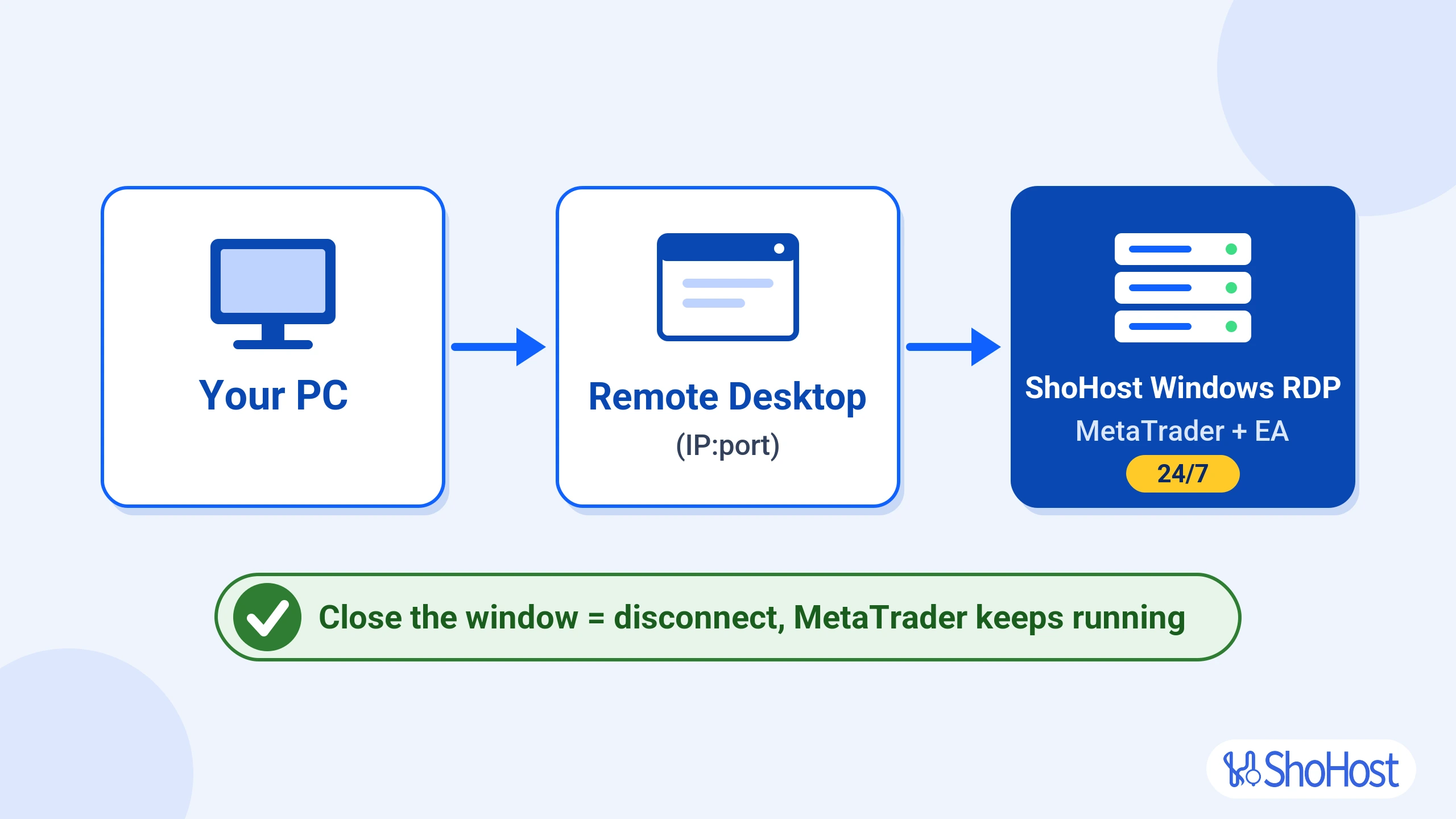
- Your PC opens Remote Desktop to the RDP’s IP and port.
- ShoHost Windows RDP runs MetaTrader and your EA 24/7.
- Your PC can be off: MetaTrader stays open on the RDP, not on your PC.
- Close the window: you disconnect, MetaTrader keeps running.
Why run MetaTrader on a Windows RDP instead of your PC
| Your home PC | ShoHost Windows RDP | MetaTrader’s built-in hosting | |
|---|---|---|---|
| Keeps running when your PC is off | No | Yes | Yes |
| Power cuts and Wi-Fi drops at home | Stop the EA | Don’t affect it | Don’t affect it |
| What you get | Your own computer | A private Windows machine with admin access; install any Windows OS | A hosted copy of your platform’s robots and Signals |
| Resources | Whatever your PC has | 2 vCore, 4 GB RAM, 50 GB SSD on RDP – 2C4R | Up to 3 GB RAM and 16 GB disk for each platform |
| Price | Your electricity and hardware | ₹513.97 a month, all fees included (RDP – 2C4R) | 15 USD a month, or 10 USD a month on a 12-month plan |
MetaTrader’s own hosting is fine for one terminal whose robots or Signals you just want copied over. A Windows RDP suits you if you want a full desktop you can sign in to like your own PC: open charts, run MT4 and MT5 side by side, keep several broker accounts open or add other Windows tools.
Which ShoHost Windows RDP plan fits MetaTrader
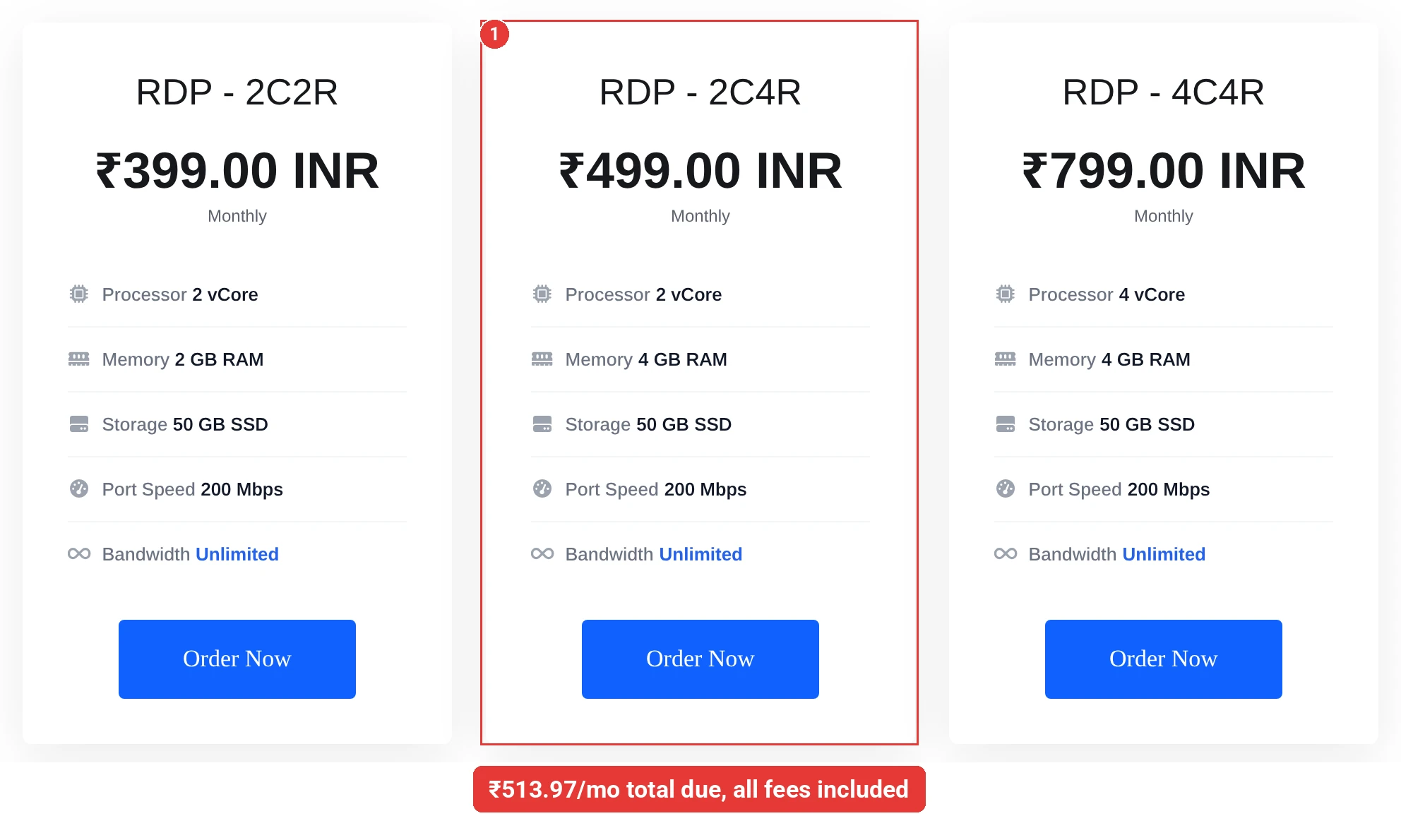
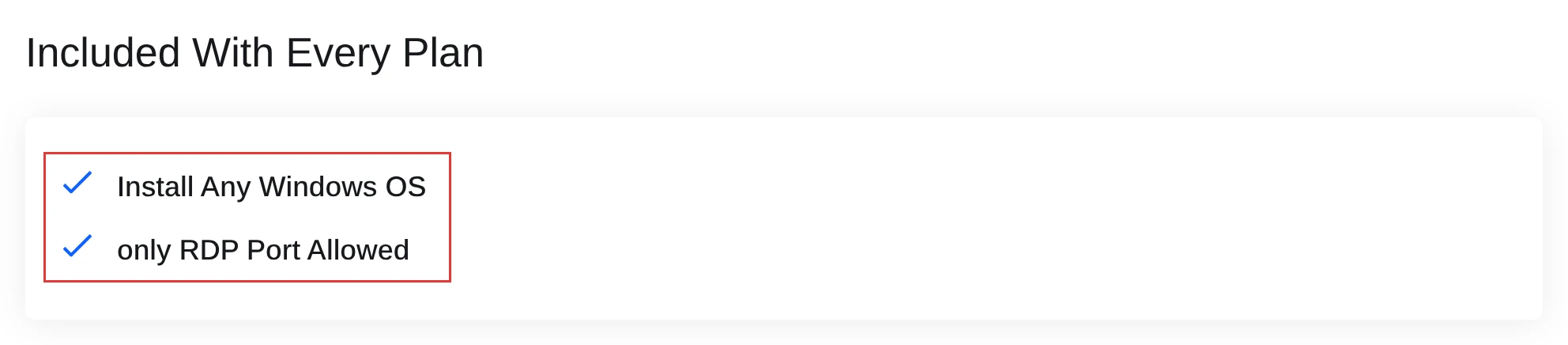
Every plan has 50 GB SSD, 200 Mbps port speed and unlimited bandwidth, and the store lists Install Any Windows OS and only RDP Port Allowed with each one. If your broker or EA needs specific ports, check with ShoHost support before ordering: support@shohost.com or Call/WhatsApp +91 94880 91432. Prices are what you pay each month, all fees included.
| Plan | vCore | RAM | Total per month (all fees included) |
|---|---|---|---|
| RDP – 2C2R | 2 | 2 GB | ₹410.97 |
| RDP – 2C4R | 2 | 4 GB | ₹513.97 |
| RDP – 4C4R | 4 | 4 GB | ₹822.97 |
| RDP – 4C8R | 4 | 8 GB | ₹925.97 |
| RDP – 4C16R | 4 | 16 GB | ₹1,337.97 |
| RDP – 8C8R | 8 | 8 GB | ₹1,543.97 |
| RDP – 8C16R | 8 | 16 GB | ₹1,955.97 |
MetaQuotes doesn’t publish a fixed spec; it says hardware needs depend on how many programs, symbols and charts you run. For one or two terminals, RDP – 2C4R is a sensible start: twice the RAM of the entry plan on the same 2 vCore. Running several terminals or heavy EAs? Move up to 4 or 8 vCore. Longer terms save 5% (6 months) up to 20% (3 years).
Before you start
- A ShoHost Windows RDP plan (Step 1), plus the host, port, username and password from your welcome email.
- Your broker login for MT4 or MT5: account number, password and server name.
- Your EA or indicator files (.ex4 for MT4, .ex5 for MT5), or the Signal you copy.
- Remote Desktop on your own computer: Remote Desktop Connection (mstsc) on Windows, or Microsoft Remote Desktop on macOS.
Time and difficulty
| Time | Difficulty | Risk | Downtime |
|---|---|---|---|
| About 30 minutes | Beginner | Low | None |
Quick answer
Order a Windows RDP, connect with Remote Desktop, install MT4 or MT5, log in with Save password ticked, allow algo trading and attach your EA. Then close the Remote Desktop window instead of signing out, so MetaTrader keeps running. A Startup shortcut plus Autologon brings it back after a restart.
Method 1: Set up MetaTrader on a Windows RDP (recommended)
Step 1: Order a Windows RDP plan
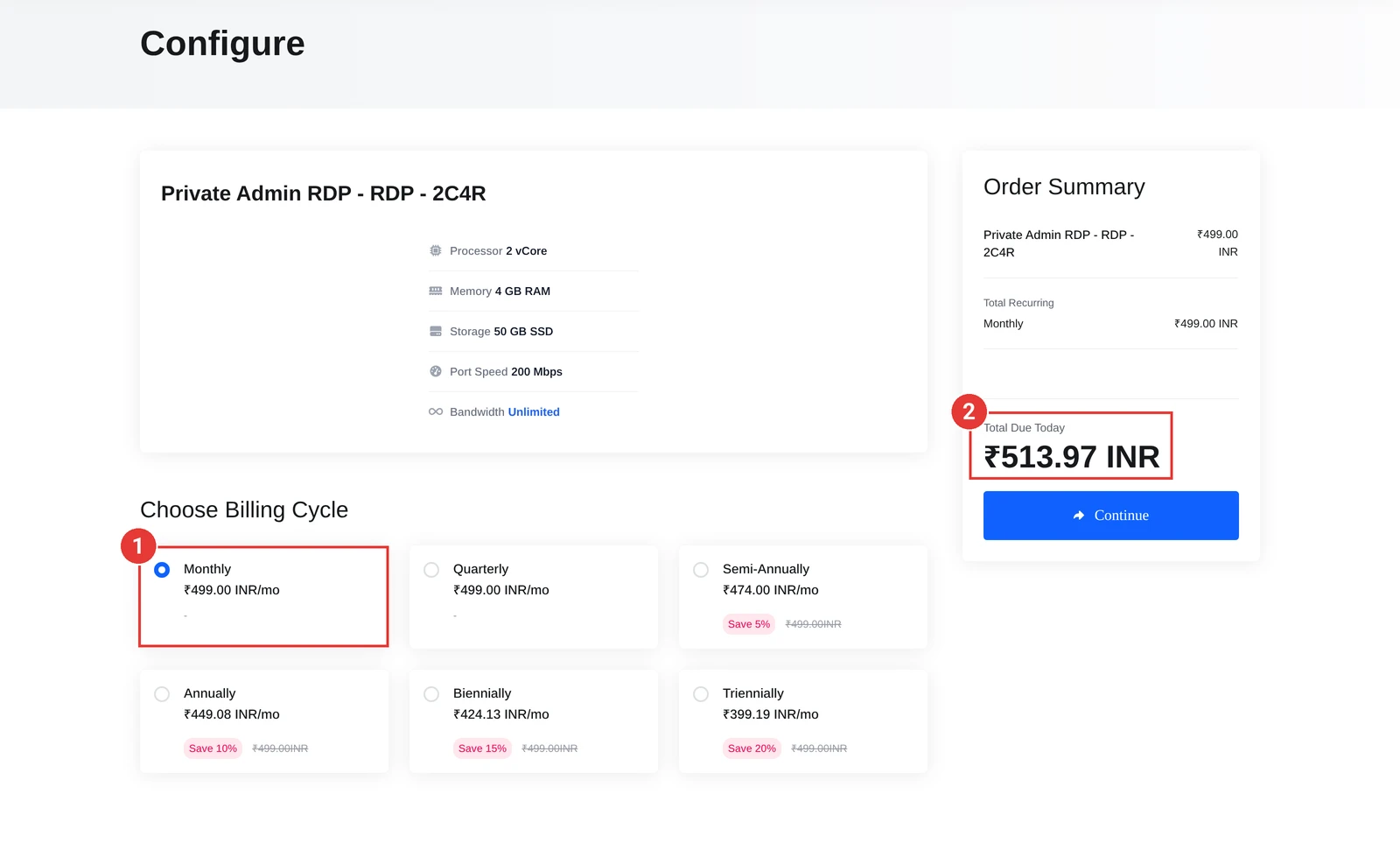
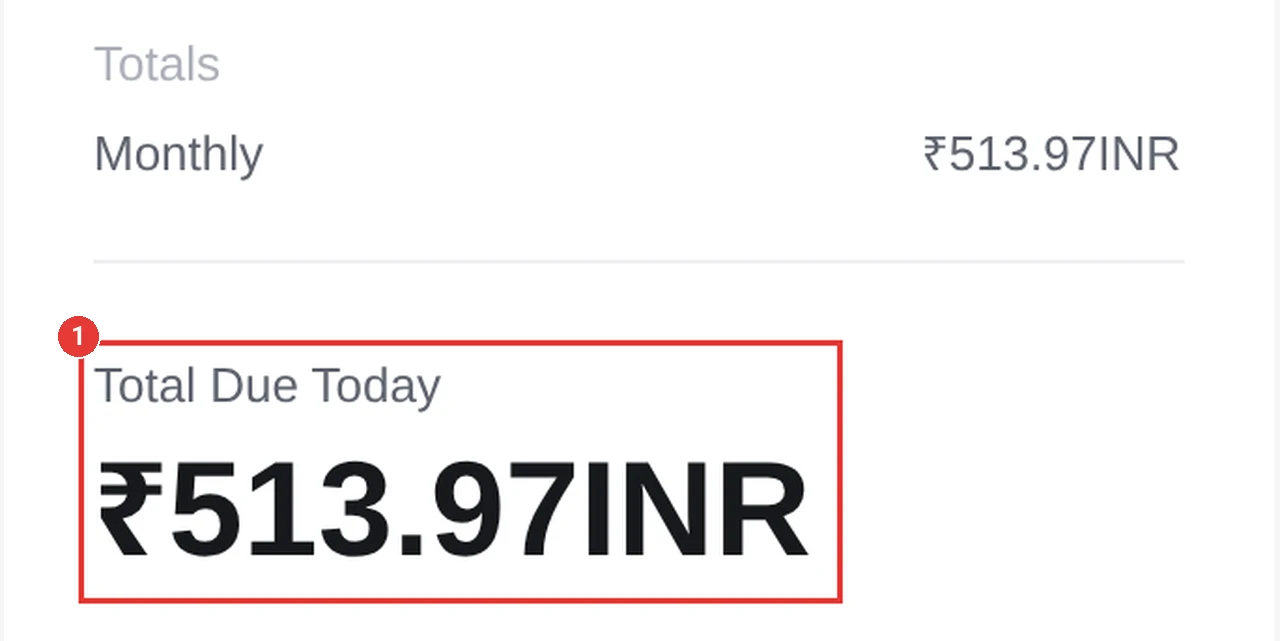
On the ShoHost RDP store, click Order Now under RDP – 2C4R, choose a billing cycle, click Continue and check out. Monthly is ₹513.97 total due, all fees included. Order RDP – 2C4R.
Expected result: a welcome email with your RDP host, port, username and password.
Step 2: Connect to the RDP with Remote Desktop
On your Windows PC, press Win + R, type mstsc and press Enter. In Computer, type the host and port from your welcome email as IP:port, click Connect and sign in with the username and password from that email. Or do it in one line:
mstsc /v:<IP>:<PORT>Replace <IP> and <PORT> with the host and port from your welcome email. On a Mac, add the same IP:port in Microsoft Remote Desktop.
Expected result: the Windows desktop of your RDP opens in a window.
Step 3: Install MetaTrader 4 or MetaTrader 5 inside the RDP
Inside the RDP, download the installer from your broker’s website or from MetaQuotes (MetaTrader 5 or MetaTrader 4). If your broker has its own installer, use that. mt5setup.exe is a web installer that downloads the platform as it runs: open it, accept the licence, click Next and let it finish.
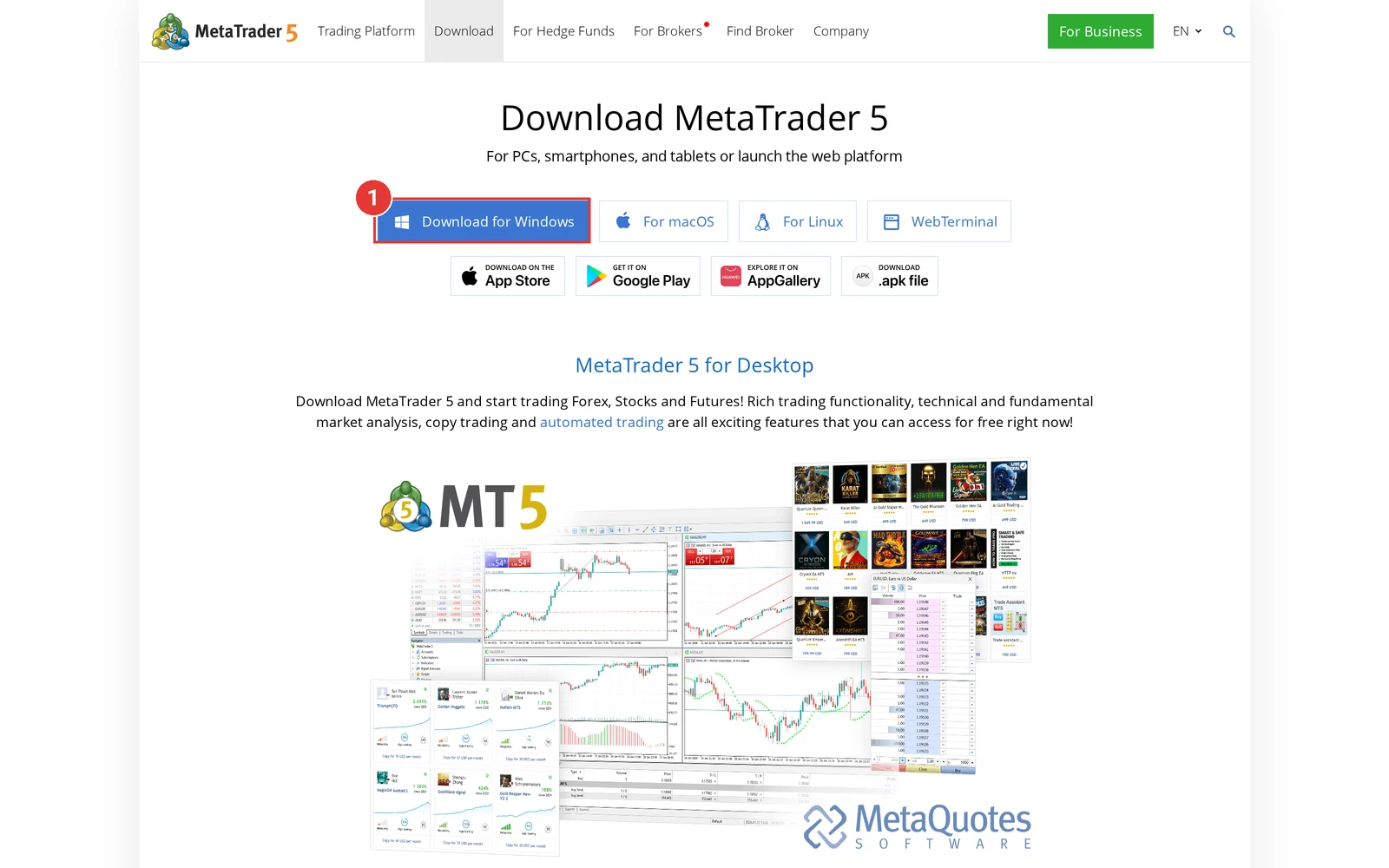
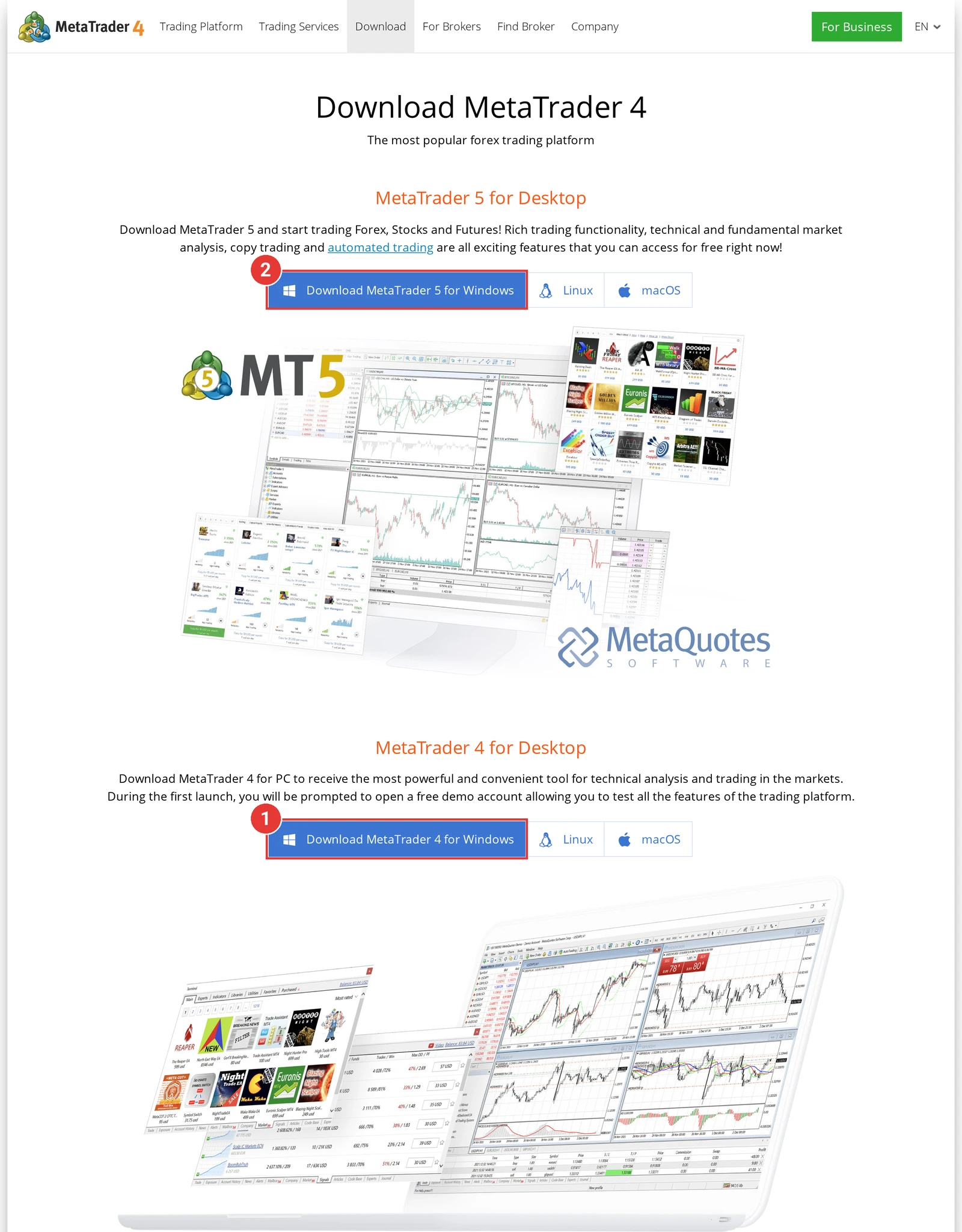
MetaQuotes lists Windows 10 and 11 for MT5; ShoHost RDP runs Windows Server, and the store says you can install any Windows OS. See the plan page for current OS details.
Expected result: MetaTrader opens and offers to open a demo account or log in.
Step 4: Log in to your broker account
Open File > Login to Trade Account. Enter your account number in Login, your password and your broker’s Server, tick Save password and click OK. Save password lets the platform reconnect by itself at its next start, which Method 2 relies on.
Expected result: your account appears under Accounts in the Navigator and quotes start moving.
Step 5: Allow algo trading for the platform
Open Tools > Options (Ctrl+O) > Expert Advisors. Tick Allow Auto Trading (MT5) or Allow automated trading (MT4) and click OK. While this is off, no EA can trade, whatever its own settings say.
Leave Allow DLL imports off unless a trusted EA needs it; MetaQuotes recommends that for unknown EAs.
Step 6: Attach your EA to a chart
Click File > Open Data Folder and copy your EA into MQL5\Experts (MT5) or MQL4\Experts (MT4). Restart MetaTrader, then drag the EA from Navigator > Expert Advisors onto a chart. On the Common tab allow live trading, set your Inputs and click OK.
In MT4, a smiley in the chart’s top-right corner means the EA is running and allowed to trade; an L means live trading is off for it, and a cross means all EAs are off. MT4 allows one EA per chart.
Step 7: Disconnect instead of signing out
When you’re done, close the Remote Desktop window with the X, or run the command below. Both disconnect the session, and Microsoft says apps running at that moment are still running when you reconnect, with no loss of data. Don’t pick Sign out: that ends the session and closes MetaTrader.
tsdiscon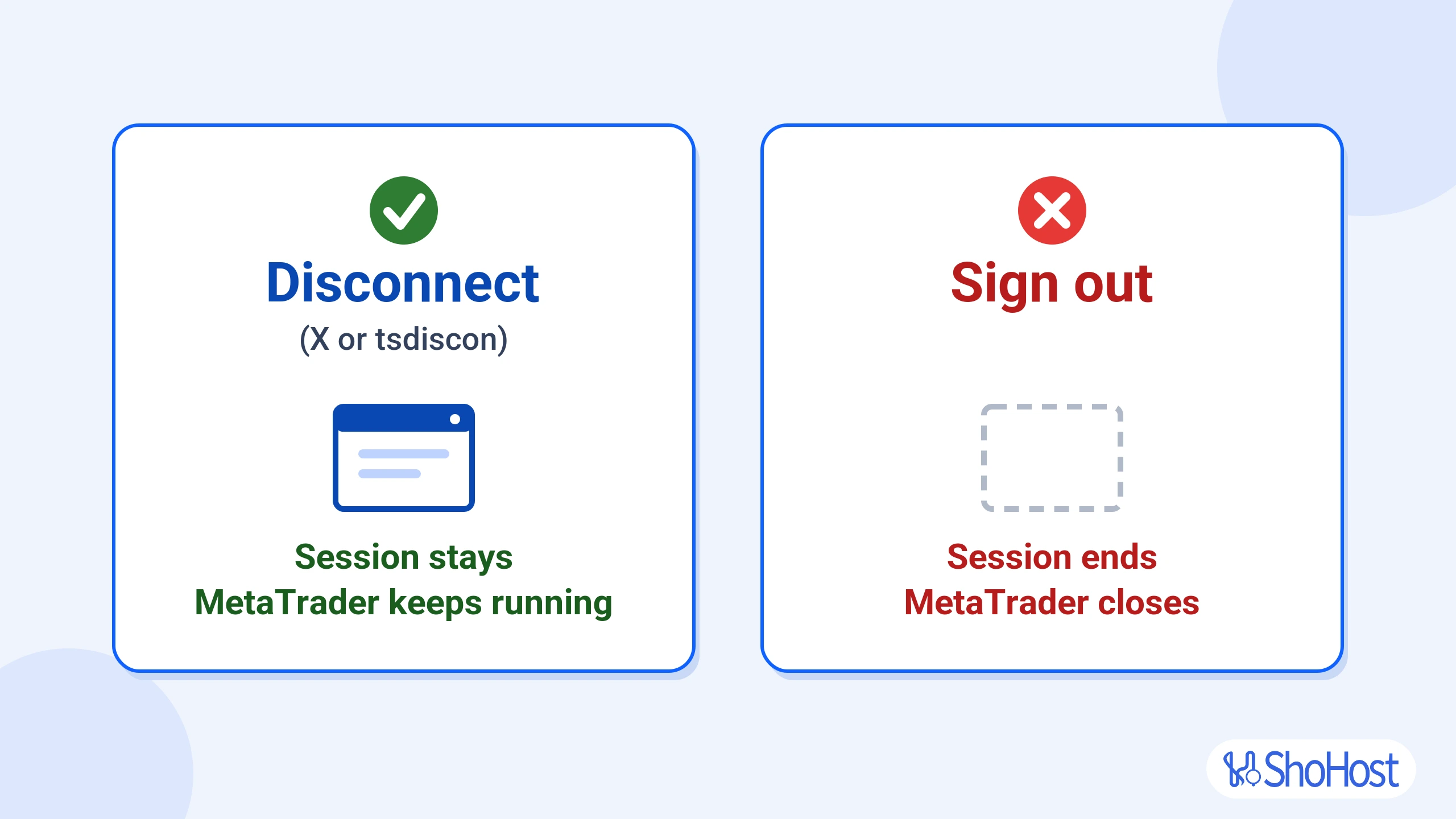
- Disconnect (window X or
tsdiscon): the session stays, MetaTrader keeps running. - Sign out: the session ends and MetaTrader closes.
Expected result: the window closes, and MetaTrader keeps running on the RDP.
Method 2: Make MetaTrader start by itself after a restart
Use this when Windows restarts for updates, or MetaTrader restarts for a new build (MT5’s Live Update can’t be turned off).
Step 1: Add MetaTrader to the Startup folder
Inside the RDP, press Win + R, type shell:startup and press Enter, then copy the MetaTrader desktop shortcut into that folder. Windows opens everything in it at sign-in. From PowerShell:
explorer shell:startupStep 2: Sign in automatically with Autologon
Warning: Autologon stores your Windows password in the registry, and Microsoft notes any admin on the machine can decrypt it. Use a strong, unique password and keep the admin account to yourself.
Download Autologon from Microsoft Sysinternals inside the RDP, run autologon.exe, enter your username, computer name (as the domain) and password, and click Enable. Windows then signs you in at every start, and the Startup folder opens MetaTrader.
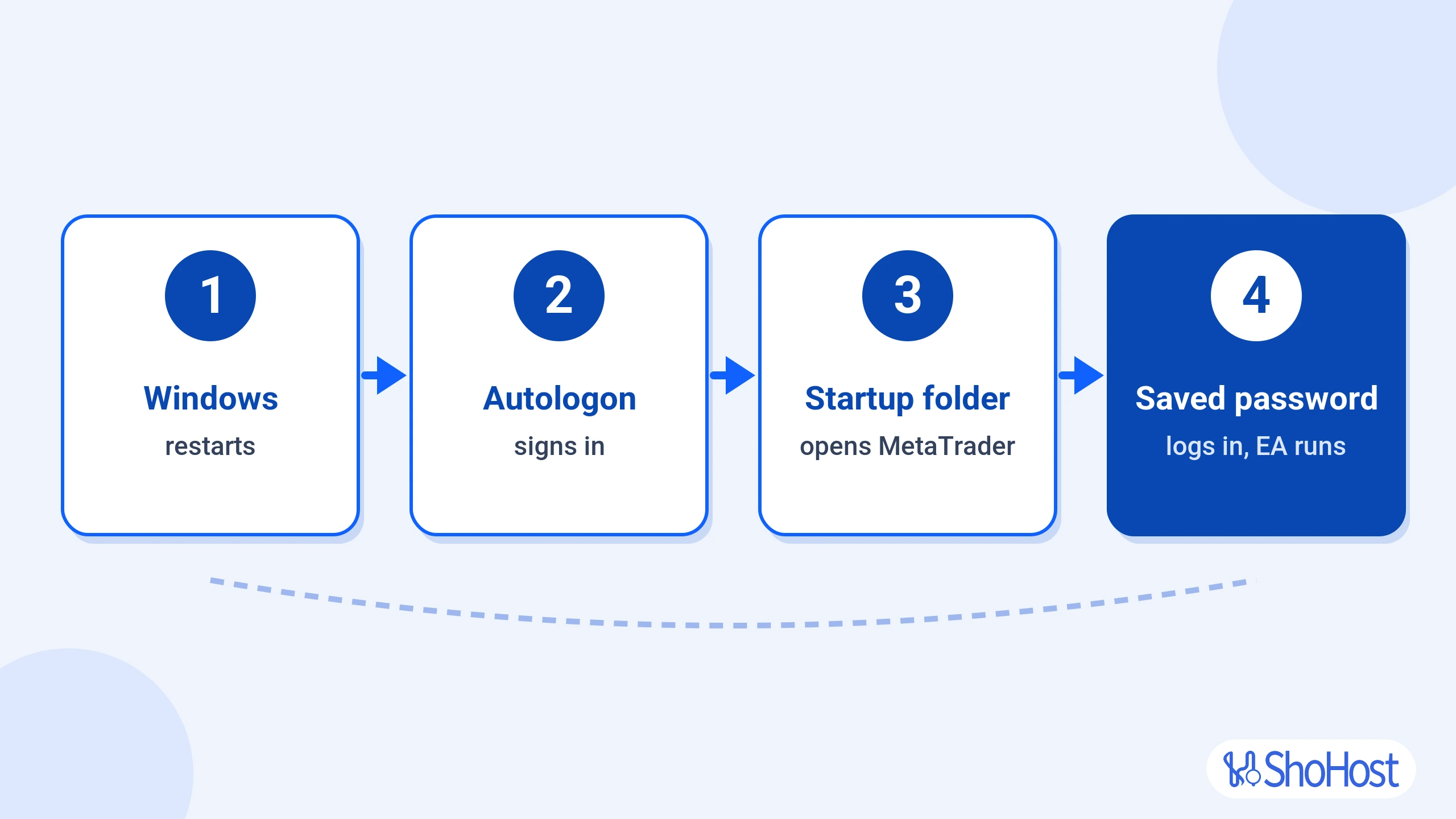
- Windows restarts.
- Autologon signs in for you.
- The Startup folder opens MetaTrader.
- MetaTrader logs in with the saved password and your EA runs again.
Step 3: Test it with a restart
Restart from PowerShell. It waits 60 seconds; shutdown /a cancels it.
shutdown /r /t 60Expected result: reconnect a few minutes later and MetaTrader is open, logged in, with your EA on its chart.
Method 3: Start MetaTrader 5 from the command line with a config file
Use this when you want MT5 to log in and load a set EA on a chart at every start. Create C:\MT5\autostart.ini:
[Common]
Login=<ACCOUNT_NUMBER>
Server=<BROKER_SERVER>
KeepPrivate=1

[Experts]
Enabled=1
AllowLiveTrading=1

[StartUp]
Expert=<EA_NAME>
Symbol=EURUSD
Period=H1
Fill in your account number, broker server and EA name, and set the symbol and timeframe. With no password in the file, MT5 uses the one saved in Step 4. Then put a shortcut with this target in shell:startup instead of the plain one:
"C:\Program Files\MetaTrader 5\terminal64.exe" /config:C:\MT5\autostart.iniAdjust the path to your install folder. MT5 treats this file as read-only, so changes made in the platform aren’t saved to it. Running several terminals? Install each in its own folder (two copies can’t share one), and add /portable to keep a copy’s data in its own folder.
Verify MetaTrader keeps running 24/7
Disconnect, wait an hour and reconnect. In PowerShell, check you’re back in the same session:
query userIt looks like this (your name, ID and times will differ):
 USERNAME              SESSIONNAME        ID  STATE   IDLE TIME  LOGON TIME
>administrator         rdp-tcp#3           2  Active          .  21-10-2026 09:15
If LOGON TIME is earlier than your disconnect, you rejoined the same session and MetaTrader never closed. Then open the Journal and Experts tabs in MetaTrader’s Toolbox: entries should carry on through the time you were away.
Troubleshooting MetaTrader on a Windows RDP
| Symptom | Likely cause | Fix |
|---|---|---|
| EA is on the chart but doesn’t trade (MT4 shows an L or a cross) | Algo trading is off for the platform or in the EA’s settings | Turn it on in Step 5 and on the EA’s Common tab in Step 6 |
| MetaTrader was closed when you came back | You signed out instead of disconnecting | Close the window with the X or run tsdiscon (Step 7), and add Method 2 |
| MetaTrader isn’t open after a restart | No Startup shortcut, or Windows is waiting at the sign-in screen | Method 2, Steps 1 and 2 |
| The terminal opens but doesn’t log in | The password wasn’t saved | Log in again with Save password ticked (Step 4), or use Method 3 |
| Remote Desktop can’t connect | Wrong host or port | Use the host and port exactly as in your welcome email (Step 2) |
| Still stuck? | Email support@shohost.com (9 AM to 12 midnight IST) or Call/WhatsApp +91 94880 91432. Include your plan name, the time it happened and a screenshot of the message. |
MetaTrader on Windows RDP: FAQ
Does MetaTrader keep running when I close Remote Desktop?
Yes, if you close the window or run tsdiscon instead of signing out. Apps in a disconnected session keep running.
Which ShoHost RDP plan is best for MT4 or MT5?
For one or two terminals, RDP – 2C4R (2 vCore, 4 GB RAM) at ₹513.97 a month, all fees included. Go 4 or 8 vCore for more.
Can I run MT4 and MT5, or several brokers, on one RDP?
Yes. Install each terminal in its own folder and log each in to its own account.
Can I pay in rupees, or from abroad?
Yes. The store prices in INR: RDP – 2C4R is ₹513.97 a month, all fees included. Outside India, switch the store currency to USD, EUR, GBP or CNY.
Related guides and products
- Private Admin RDP plans: all seven Windows RDP plans in one place.
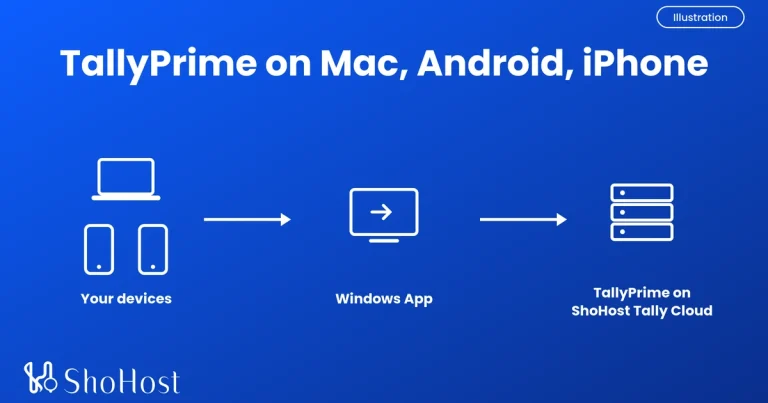
- TallyPrime Cloud servers: run Tally on the same kind of Windows setup, from any device.
- SDrive storage: keep off-site copies of your MetaTrader data folder, presets and EA files over SFTP, WebDAV or Samba.
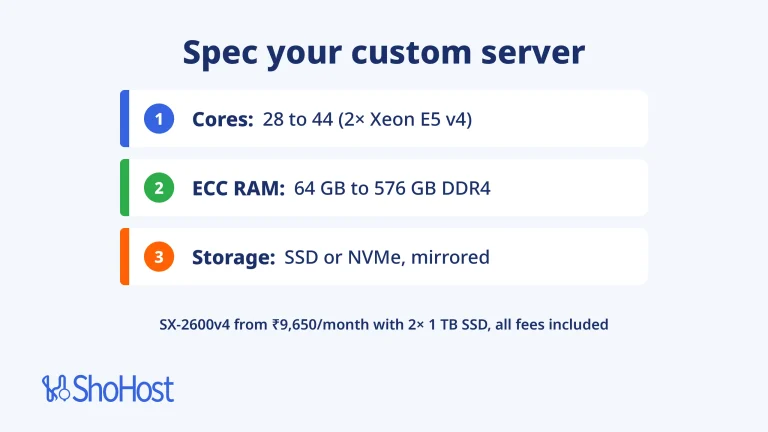
- KVM Virtual Dedicated Servers: dedicated CPU threads and RAM for heavier setups.
- Dedicated servers: a whole physical server when you need everything to yourself.
Keep your EA running while you sleep
A Windows RDP takes your home PC, power and Wi-Fi out of the picture. Set MetaTrader up once, close the window, and your EA keeps working. ShoHost has served 180+ clients since 2020 with 98.5% uptime. Need help? Email support@shohost.com (9 AM to 12 midnight IST) or Call/WhatsApp +91 94880 91432.