When to Move from Shared Hosting to a KVM Virtual Dedicated Server
Your site has been on shared hosting for a while. Now the cPanel graphs keep touching the ceiling, a 508 page shows up during a sale, or a developer asks for root so they can run Docker. That’s usually the moment people start looking at a virtual dedicated server (VDS). This guide shows how to tell if you’ve really outgrown shared resources, what a KVM VDS changes for databases, Docker stacks and AI tools, and which ShoHost plan fits, with prices in rupees.
In this guide
- What is a virtual dedicated server (VDS)?
- Shared hosting vs VDS vs dedicated server
- Signs you’ve outgrown shared hosting
- Running databases on a VDS: how much RAM?
- Docker stacks need root, and shared hosting can’t give it
- AI tools without a GPU: VDS RAM sizing
- ShoHost VDS plans and prices in India
- How to order a ShoHost VDS 1
- Frequently asked questions
What is a virtual dedicated server (VDS)?
A VDS is a virtual machine with its own operating system, its own root login and a reserved slice of CPU, RAM and disk on a physical server. TechTarget describes a virtual dedicated server as a virtual server that looks to you like a dedicated server, even though it shares the physical machine with other virtual servers. OVHcloud adds the key point: a VDS gets resources that are not shared with other users, so the activity of other machines on the host shouldn’t slow it down.
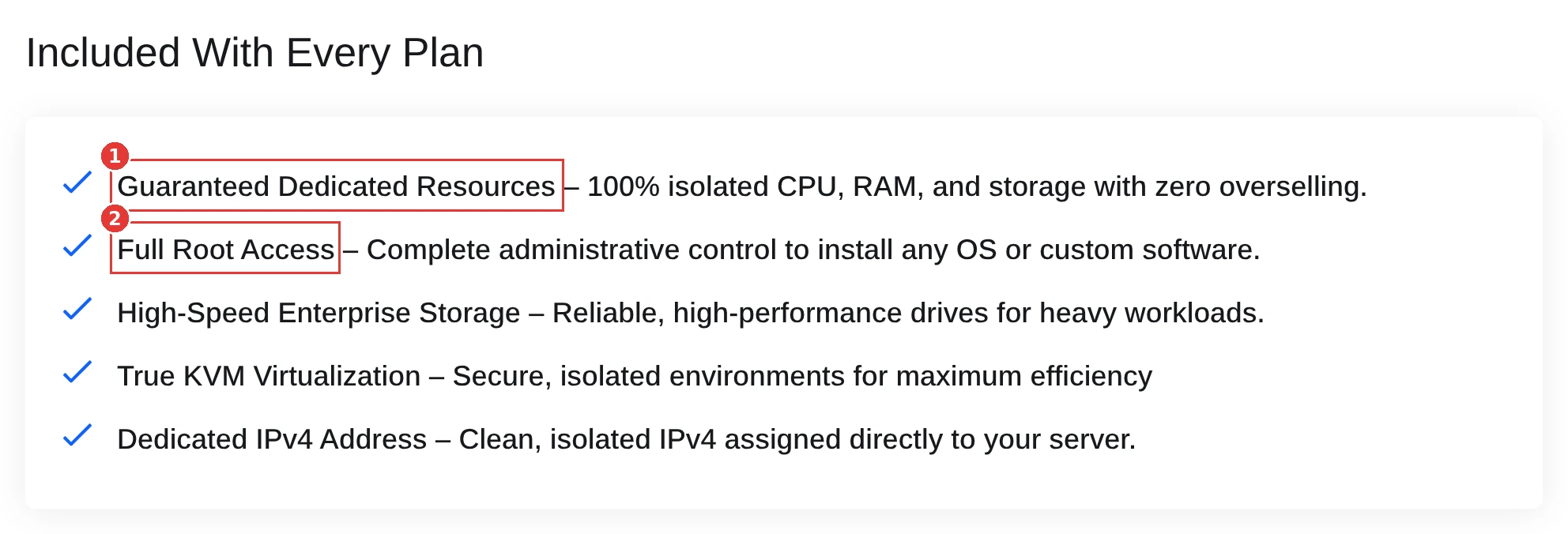
The label alone means little, because providers use it differently. Check what the plan promises. ShoHost’s VDS store says every plan comes with dedicated resources (isolated CPU, RAM and storage with zero overselling), full root access to install any OS or custom software, true KVM virtualisation and a dedicated IPv4 address.
Shared hosting vs VDS vs dedicated server
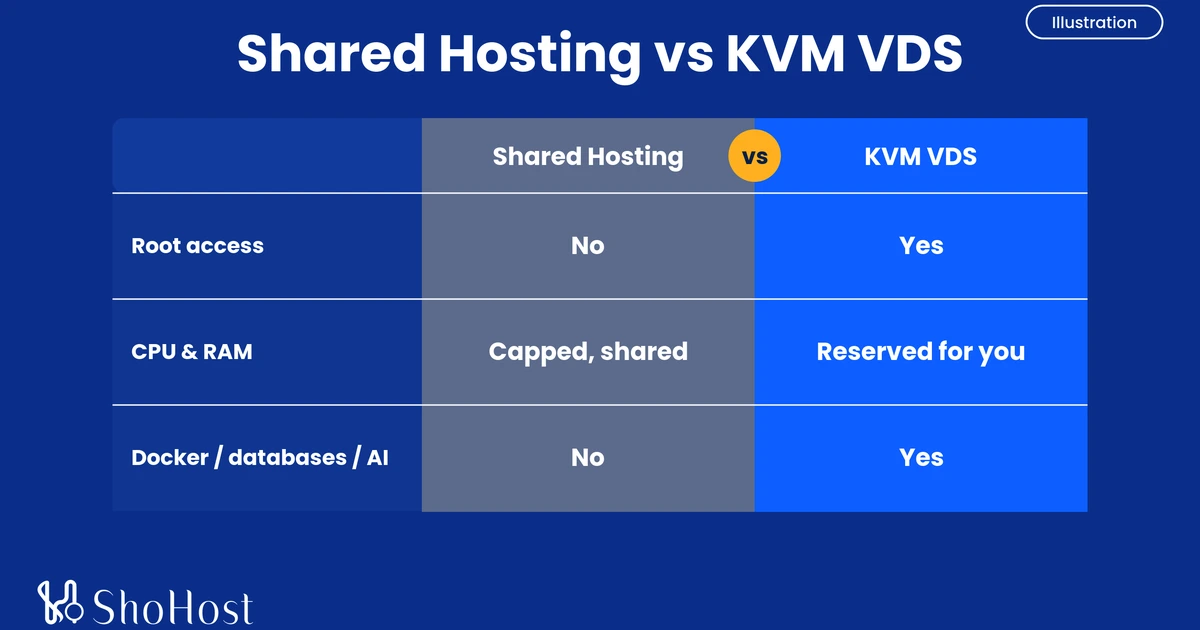
Here’s the short version of what changes at each step up.
| Shared hosting | KVM VDS | Dedicated server | |
|---|---|---|---|
| Root access | No | Yes | Yes |
| Your own OS and kernel | No | Yes | Yes |
| CPU and RAM | Capped per account, shared server | Reserved for you | The whole machine |
| Runs Docker, custom databases, AI tools | No | Yes | Yes |
| Who manages the server | The host | You | You |
| ShoHost starting price | Hosting plans on shohost.com | VDS 1: ₹3,261/mo | Intel server: from ₹4,650/mo |
The last row matters for budgeting. A VDS isn’t a bigger shared plan. You get a whole server to run, which means updates, firewall and backups are on you (or your developer).
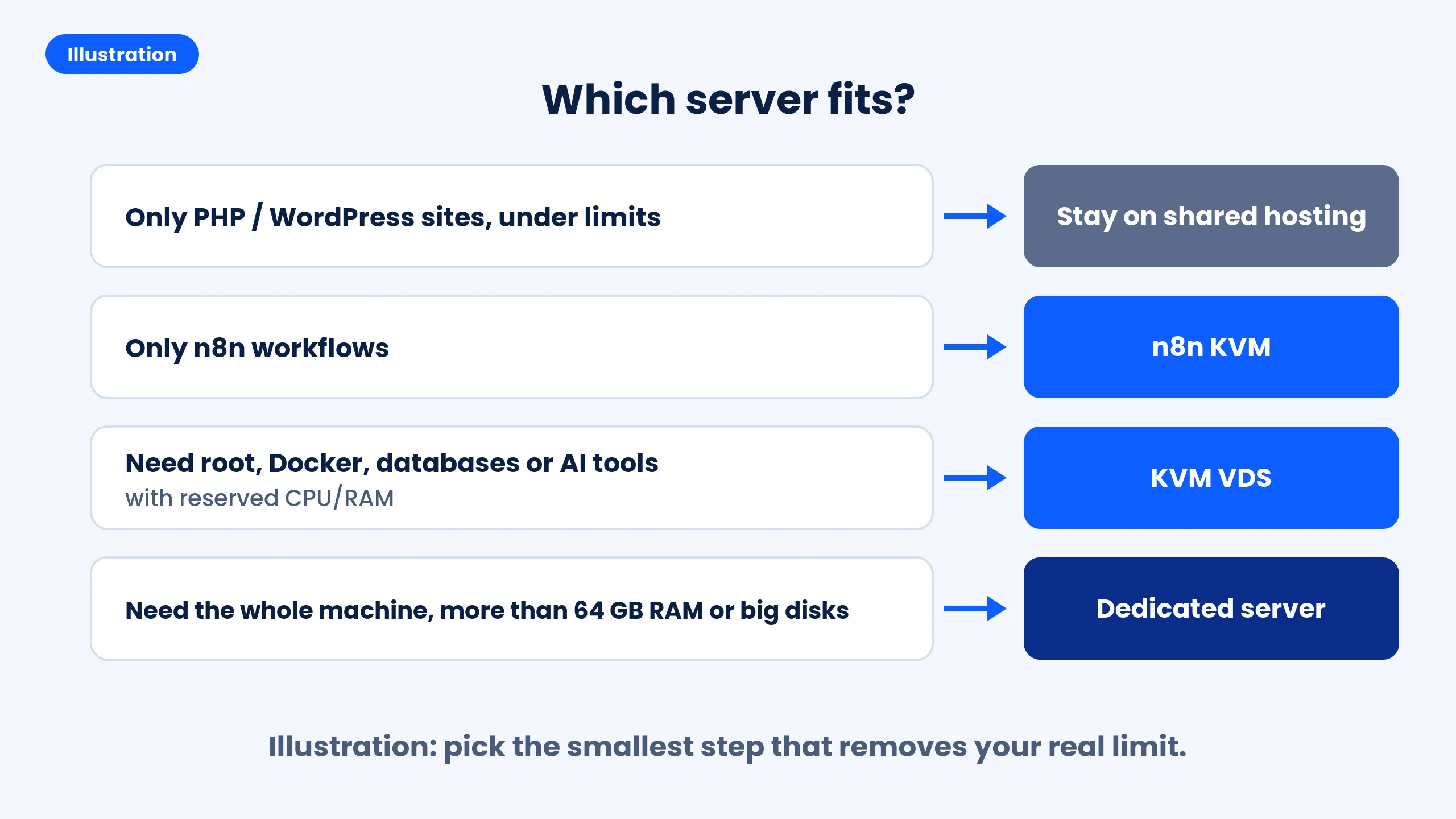
Illustration in words:
- Only PHP or WordPress sites, and you’re under your limits: stay on shared hosting.
- Only n8n workflows: an n8n KVM plan.
- You need root, Docker, your own database server or AI tools with reserved CPU and RAM: a KVM VDS.
- You need the whole machine, more than 64 GB of RAM or large disks: a dedicated server.
Signs you’ve outgrown shared hosting
On a Reddit thread about when to move up, the most practical answer was simple: shared is fine until you keep hitting resource limits or need more control. Hosting guides from Hostdeal and KnownHost list the same signs. Fix the cheap things first (caching, a current PHP version, heavy plugins), because a slow site is often a software problem, not a hosting one. If these still show up after that, it’s time:
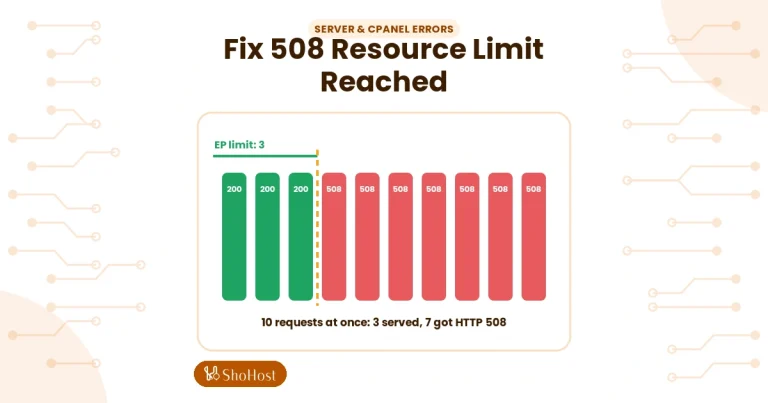
- 508 Resource Limit Reached errors. CloudLinux, the limit system behind cPanel’s Resource Usage page, shows a 508 page when a site hits its entry process limit (the number of PHP requests running at the same time).
- Constant CPU, memory or IO throttling. CloudLinux doesn’t kill a site that hits its IO limit. It slows the processes down, so pages just get slower.
- Your database is the bottleneck. Slow checkout or admin pages that caching can’t fix.
- You need software shared hosting can’t run: Docker, your own database server, background workers, or anything that needs root.
- Revenue depends on steady speed at your busiest hour.
For reference, each ShoHost shared hosting account gets 1 CPU, 4 GB RAM, 40 MB/s IO, 1024 IOPS, 100 processes and 40 entry processes. You can see how close you are in cPanel > Metrics > Resource Usage.
If you’re on a cloud server with shared CPU and it feels slow at random times, check steal time. Red Hat’s docs define it as CPU time your virtual machine needed but the host gave to another guest. It shows as st in top:
top -bn1 | head -3top - 07:35:47 up 14:41, 0 users, load average: 1.01, 1.25, 0.92
Tasks: 215 total, 1 running, 211 sleeping, 0 stopped, 3 zombie
%Cpu(s): 1.1 us, 0.0 sy, 0.0 ni, 97.7 id, 1.1 wa, 0.0 hi, 0.0 si, 0.0 stThe last value, 0.0 st, is steal time. AWS suggests keeping it under 5% and looking into it if it stays above 10%. For workloads that need steady CPU, AWS points to dedicated resources.
Running databases on a VDS: how much RAM?
A database is the most common reason to move. On a VDS you run MySQL, MariaDB or PostgreSQL yourself, tuned for your data, instead of sharing one database server with every account.
RAM is what matters most. The PostgreSQL manual says a reasonable starting point for shared_buffers on a dedicated database server is 25% of system memory. MySQL’s manual says up to 80% of physical memory is often given to the InnoDB buffer pool on dedicated servers. On VDS 1 (8 GB) that’s about 2 GB for PostgreSQL’s buffers. Busy stores with large catalogues usually feel better on VDS 2 (16 GB).
Check the cores and memory you actually got right after your first SSH login:
nproc
free -h
Expected result: nproc prints 2 on VDS 1 (2 threads), and the total column of free -h shows close to the plan’s 8 GB.
Docker stacks need root, and shared hosting can’t give it
People often ask if they can run Docker on cPanel hosting. On shared hosting you can’t. Docker’s own install script needs root or sudo, and no shared account has that. On a KVM VDS you have root, so the install from Docker’s docs works as written:
curl -fsSL https://get.docker.com -o get-docker.sh
sudo sh get-docker.sh
sudo docker run hello-world
Expected result: the test container prints a short message that starts with:
Hello from Docker!
This message shows that your installation appears to be working correctly.
Docker itself notes that the convenience script suits test and development setups. For production, use its package repository method instead. From there you can run a full stack (app, database, Redis, a reverse proxy) with Docker Compose on one server.
If n8n is the only thing you want to run, you don’t need a VDS. ShoHost’s n8n Self Hosting plans start at ₹299 a month and come with n8n already set up in an isolated Docker environment.
AI tools without a GPU: VDS RAM sizing
Running a local language model for a chatbot, document search or internal tools is a newer reason to move. Ollama’s README says you need at least 8 GB of RAM available for 7B models, 16 GB for 13B models and 32 GB for 33B models. ShoHost’s VDS plans don’t list a GPU, so models run on the CPU, and smaller models are the practical choice.
Because “available” means free RAM after the OS and your other apps, size one step up:
- Small 1B to 3B models next to your app: VDS 1 (8 GB).
- 7B models: VDS 2 (16 GB).
- 13B models: VDS 3 (32 GB).
- Larger models, or a model plus a busy database: VDS 4 (64 GB).
Ollama’s Linux install is one command, followed by a small model to test with:
curl -fsSL https://ollama.com/install.sh | sh
ollama run llama3.2
Expected result: Ollama downloads the model and opens a chat prompt in your terminal. Type a question to test it, then /bye to exit.
ShoHost VDS plans and prices in India
All four plans run on KVM with 512 GB SSD and one dedicated IPv4. Prices are monthly totals due with the default 200 Mbps port, all fees included.
| Plan | CPU | RAM | Storage | Monthly |
|---|---|---|---|---|
| VDS 1 | 2 threads | 8 GB | 512 GB SSD | ₹3,261 |
| VDS 2 | 4 threads | 16 GB | 512 GB SSD | ₹4,061 |
| VDS 3 | 8 threads | 32 GB | 512 GB SSD | ₹5,661 |
| VDS 4 | 12 threads | 64 GB | 512 GB SSD | ₹8,961 |
Outside India? VDS 1 works out to about $38.99 a month, and you’re billed in INR at checkout.
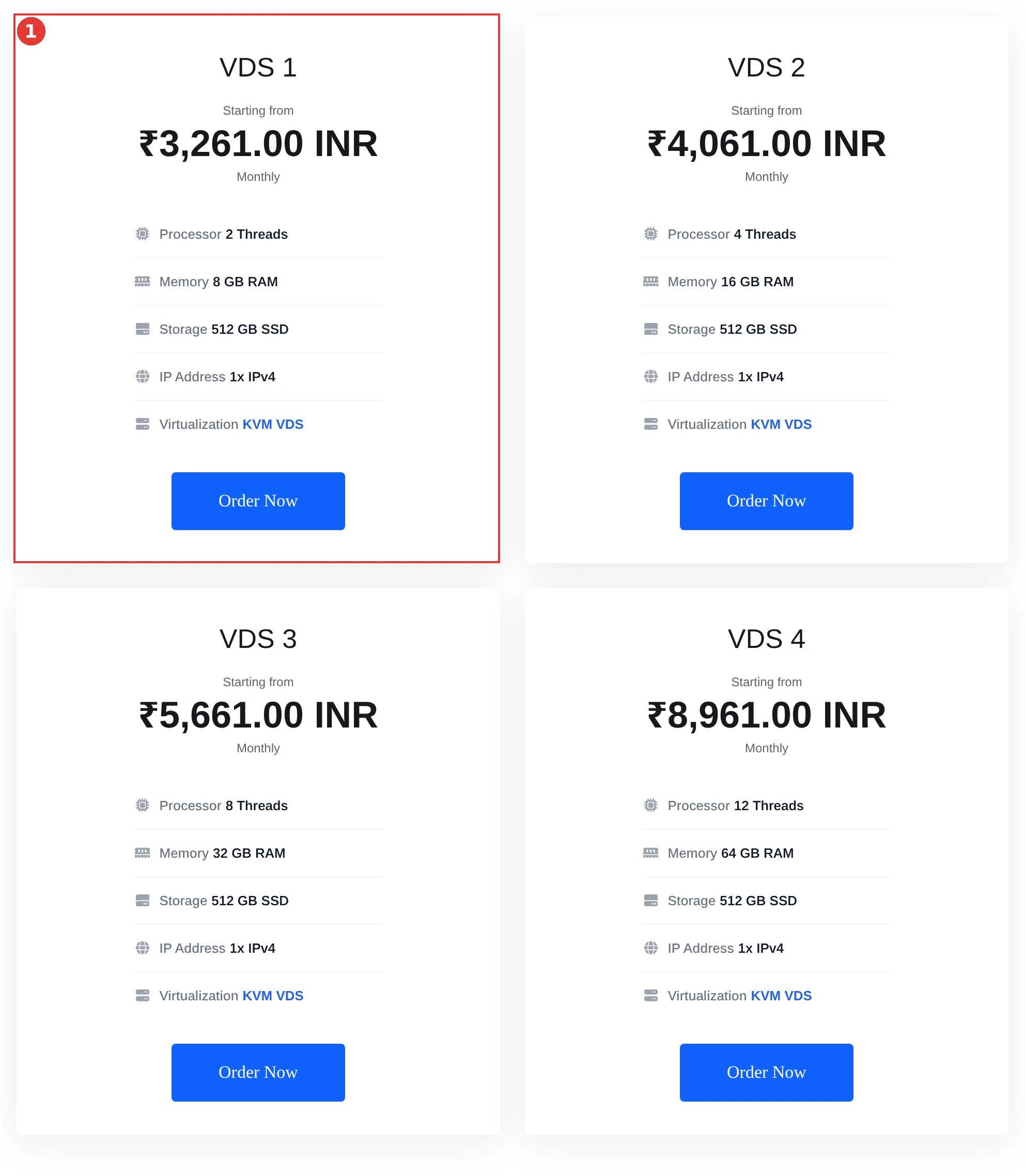
If your load outgrows VDS 4, or you want the whole machine, look at ShoHost’s dedicated Intel servers, from ₹4,650 a month.
How to order a ShoHost VDS 1
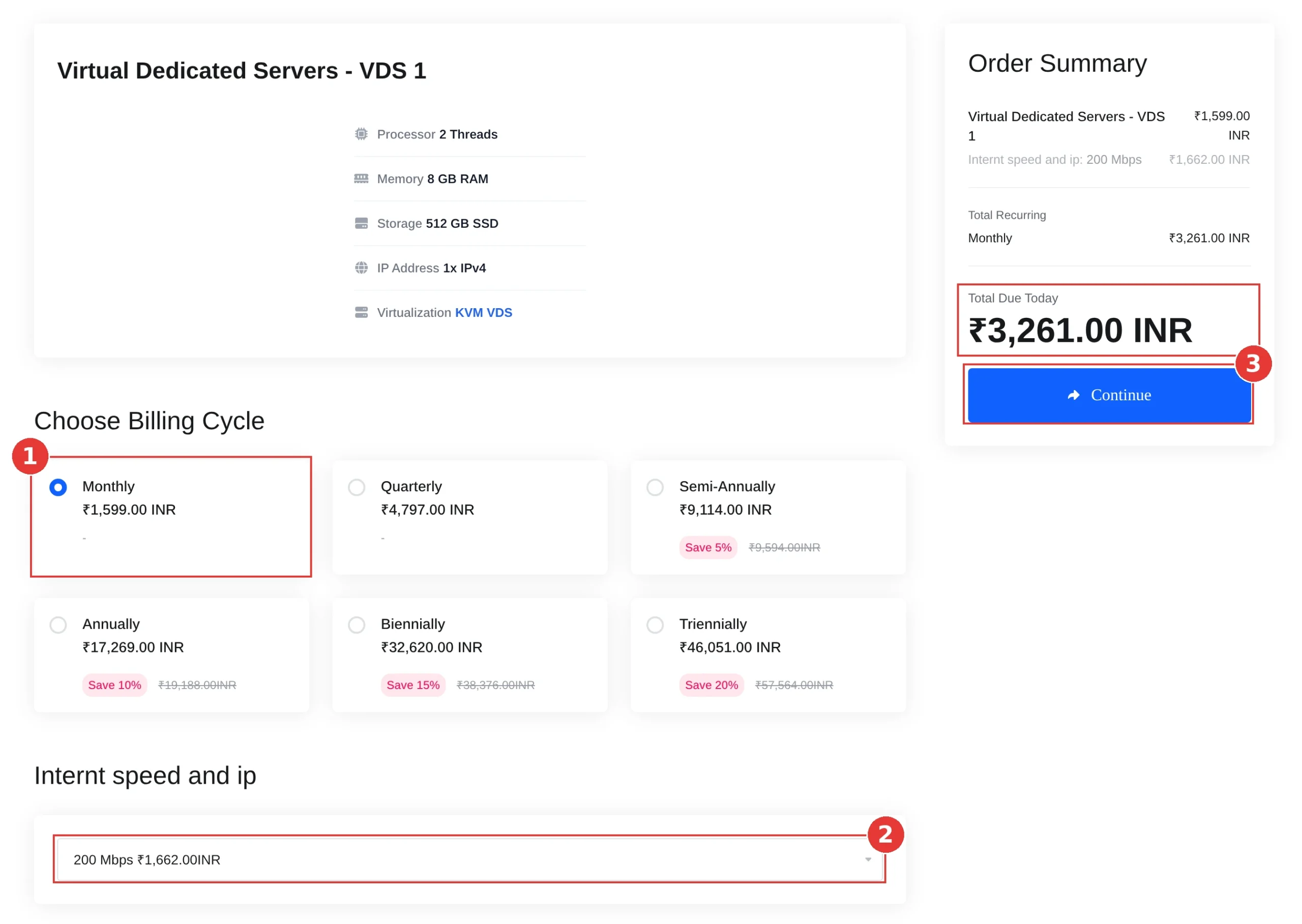
- Open the VDS 1 order page. Under Choose Billing Cycle, pick Monthly. Longer terms save 5% to 20% on the server price.
- Under Internt speed and ip, keep 200 Mbps unless you need more. 300 Mbps, 500 Mbps and 1 Gbps cost extra.
- Check the Order Summary, then click Continue.
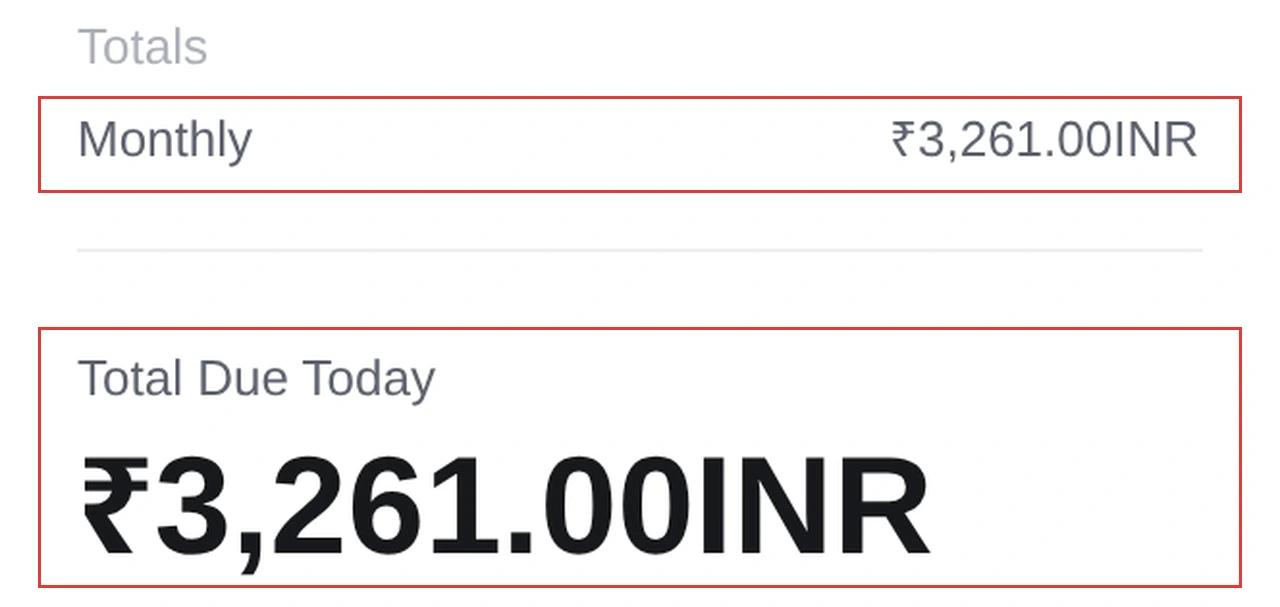
- In the cart, confirm Total Due Today, then click Checkout to sign in or create your account and pay.
Once your server is ready, log in over SSH, run nproc and free -h to check your resources, then update the OS before you install anything.
Frequently asked questions
What is a VDS server?
A virtual dedicated server is a virtual machine with its own OS, root access and reserved CPU, RAM and disk. ShoHost VDS plans run on KVM with reserved resources and a dedicated IPv4.
What is the difference between a VDS and a dedicated server?
A VDS is a reserved slice of a physical server. A dedicated server is the whole machine. A VDS costs less and is ready faster. A dedicated server gives you all of the hardware.
Can I run Docker on shared hosting?
No. Docker’s install needs root or sudo, which shared accounts don’t have. A KVM VDS gives you root, so Docker and Docker Compose work.
How much RAM do I need to run Ollama?
Ollama says at least 8 GB of free RAM for 7B models, 16 GB for 13B and 32 GB for 33B. Choose a plan one step bigger, such as VDS 2 (16 GB) for 7B models.
How do I know I’ve outgrown shared hosting?
Repeated 508 errors, constant CPU or IO throttling in cPanel Resource Usage, slow database pages after caching, or needing root for custom software.
Related guides
- Fix 508 Resource Limit Reached in cPanel
- Increase PHP limits in cPanel
- Fix 503 Service Unavailable on shared hosting
- Set up cron jobs in cPanel
Not sure which plan fits? Email support@shohost.com or WhatsApp ShoHost on +91 94880 91432 (9 AM to 12 midnight IST) with what you want to run. ShoHost is based in Erode, Tamil Nadu, with 180+ clients and 98.5% uptime. When you’re ready, order VDS 1 and start with root access and reserved resources.