Automated Server Backups to SFTP or S3 with rsync and restic (Step by Step)
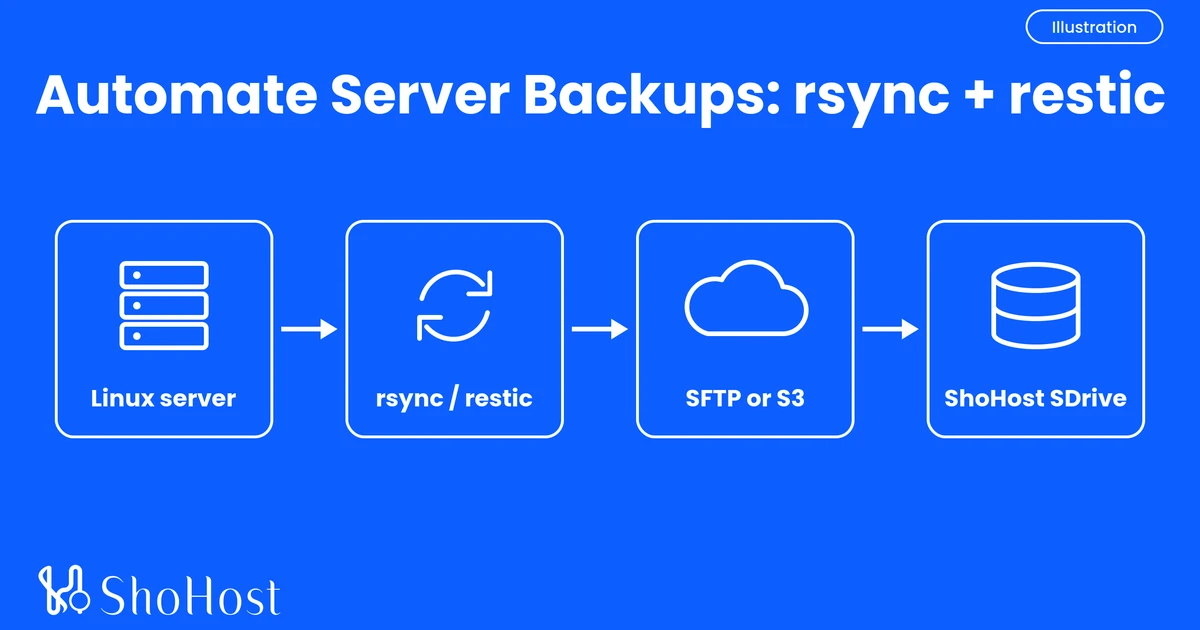
A server without an offsite backup is one bad rm -rf, failed disk or ransomware hit away from a very long week. The fix doesn’t need an expensive backup suite. Two free, open-source tools do the job well: rsync copies your files to another machine fast, and restic keeps encrypted, versioned snapshots you can roll back to. This step-by-step guide sets up restic on a Linux server (with rsync as an optional quick copy), sends the backups to SFTP or S3 storage, and runs them automatically every night with cron. We use ShoHost SDrive storage as the target, but the commands work with any SFTP or S3-compatible storage.
Who it’s for: anyone running a Linux server, a KVM virtual dedicated server or a dedicated server, from Indian agencies hosting client sites to resellers abroad. Time needed: about 30 minutes.
In this guide
- Rsync vs restic: which one should you use for server backups?
- What you need before you start
- Step 1: Get your backup storage ready
- Step 2: Set up SSH key login to the storage
- Step 3: Optional quick folder copy with rsync
- Step 4: Encrypted backups with restic over SFTP
- Step 5: Restic to S3-compatible storage (alternative)
- Step 6: Automate backups with cron and keep rules
- How to restore a restic or rsync backup
- Verify your backups
- Troubleshooting
- Why back up to ShoHost SDrive storage?
- FAQ
Rsync vs restic: which one should you use for server backups?
This is the most common question people search, and the honest answer is: they do different jobs. The rsync manual describes it as a fast, incremental file-copying tool. Run with --delete, it keeps an exact mirror. That’s also its weak spot, as Reddit’s r/selfhosted users keep warning: if a file gets deleted or corrupted on your server, the mirror copies that mistake on the next run. Restic, on the other hand, saves each run as a snapshot, deduplicates the data so only changed chunks upload, and encrypts everything on your server before it leaves.
| rsync | restic | |
|---|---|---|
| What you get | A plain mirror of your files | Encrypted snapshots you can roll back to |
| Older versions | Only if you add --link-dest folders | Built in, with keep rules (forget) |
| Encryption | In transit over SSH only | Client-side, before upload |
| Targets | SSH/rsync | SFTP, S3-compatible, REST server, local disk and more |
| Best for | Fast copies, browsing files directly | Real backups you can trust after a mistake |
Our advice: use restic for the real backup, and rsync when you want a quick, browsable copy of a folder. Many admins run both.
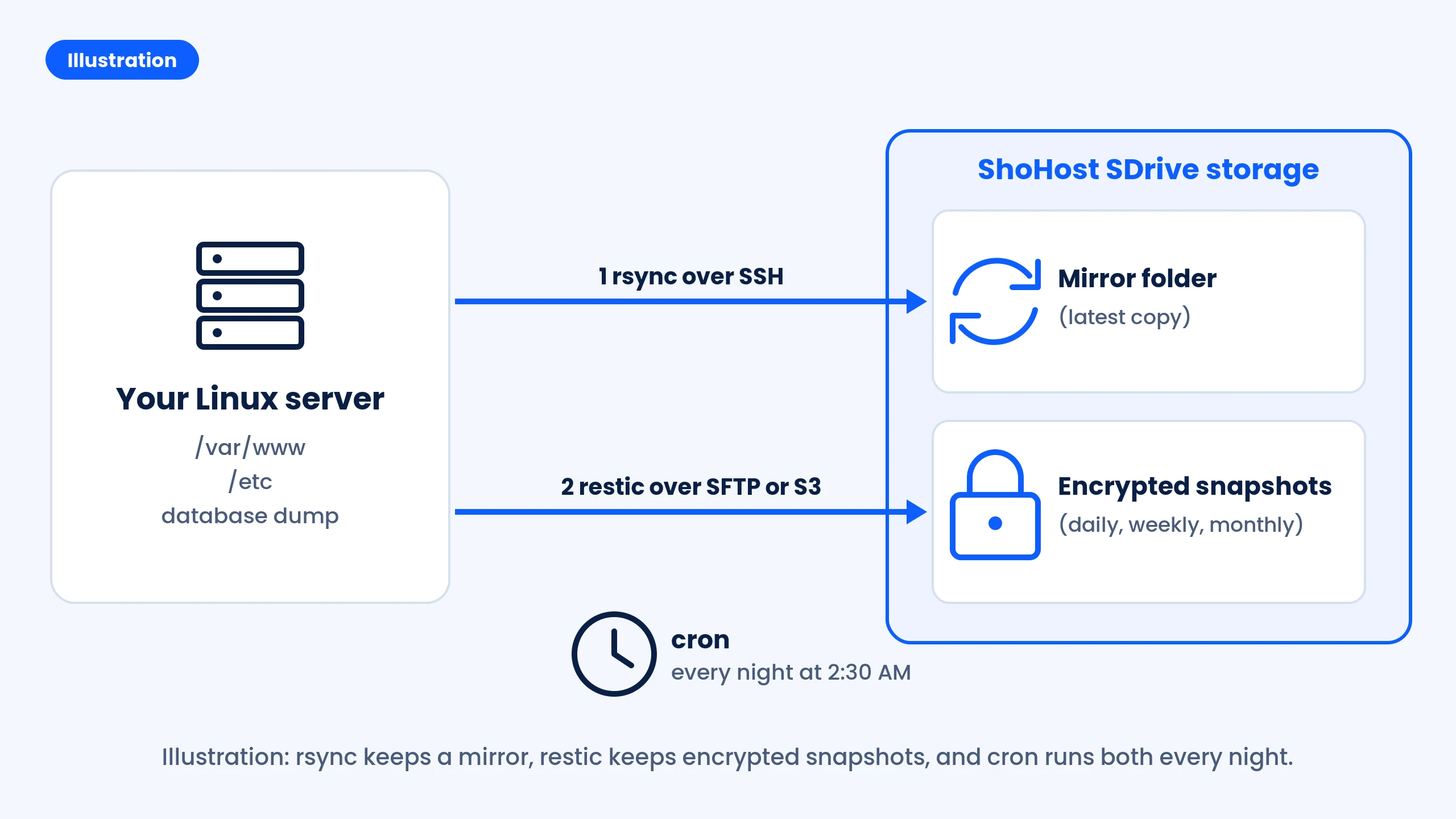
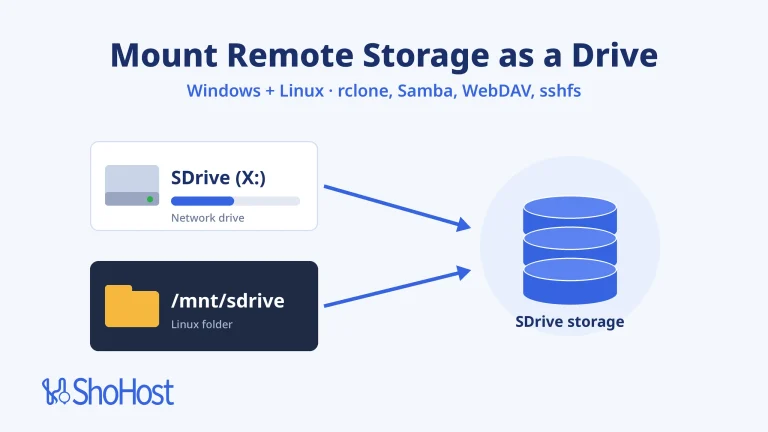
Illustration in words: your server sends two things to the storage every night. restic pushes encrypted snapshots over SFTP or S3, which is the main backup. If your storage accepts it, rsync can also push a plain mirror as an optional extra. cron starts the job on a schedule.
What you need before you start
- A Linux server (Ubuntu or Debian in our examples) with root or
sudoaccess. - Backup storage that accepts SFTP, S3 or rsync. ShoHost SDrive Lite gives you 1 TB with SFTP, FTPS, WebDAV, Samba, S3 and rsync access.
- Your storage login details: host, port, username, and S3 access keys if you plan to use S3. On SDrive, all of these are in the SDrive StorageBox client portal.
- A list of what to back up. Typical:
/var/www,/etc, and a fresh database dump.
Step 1: Get your backup storage ready
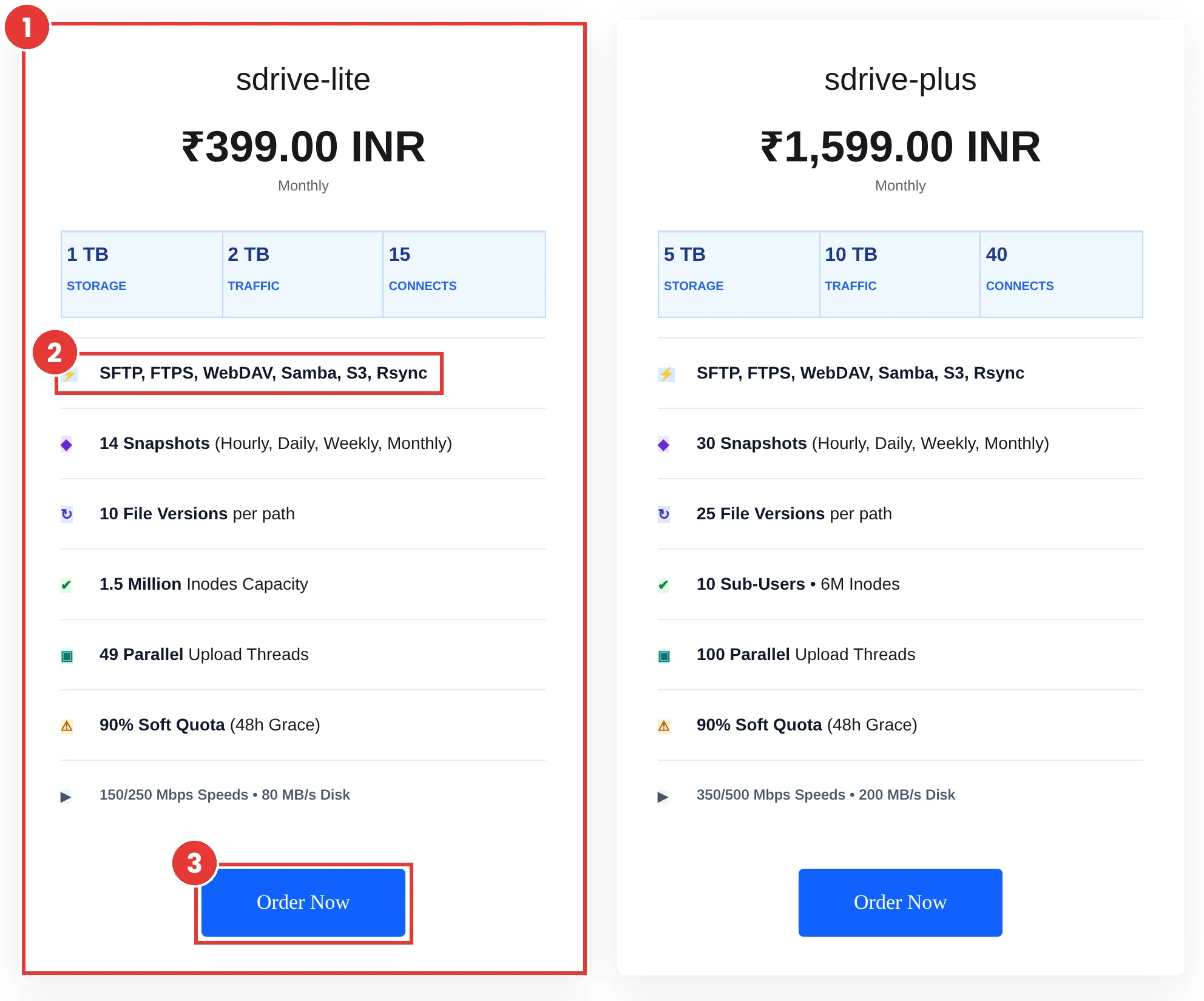
Open the SDrive HDD Storage store and choose sdrive-lite (1 TB storage, 2 TB traffic, 14 snapshots, 10 file versions per path).
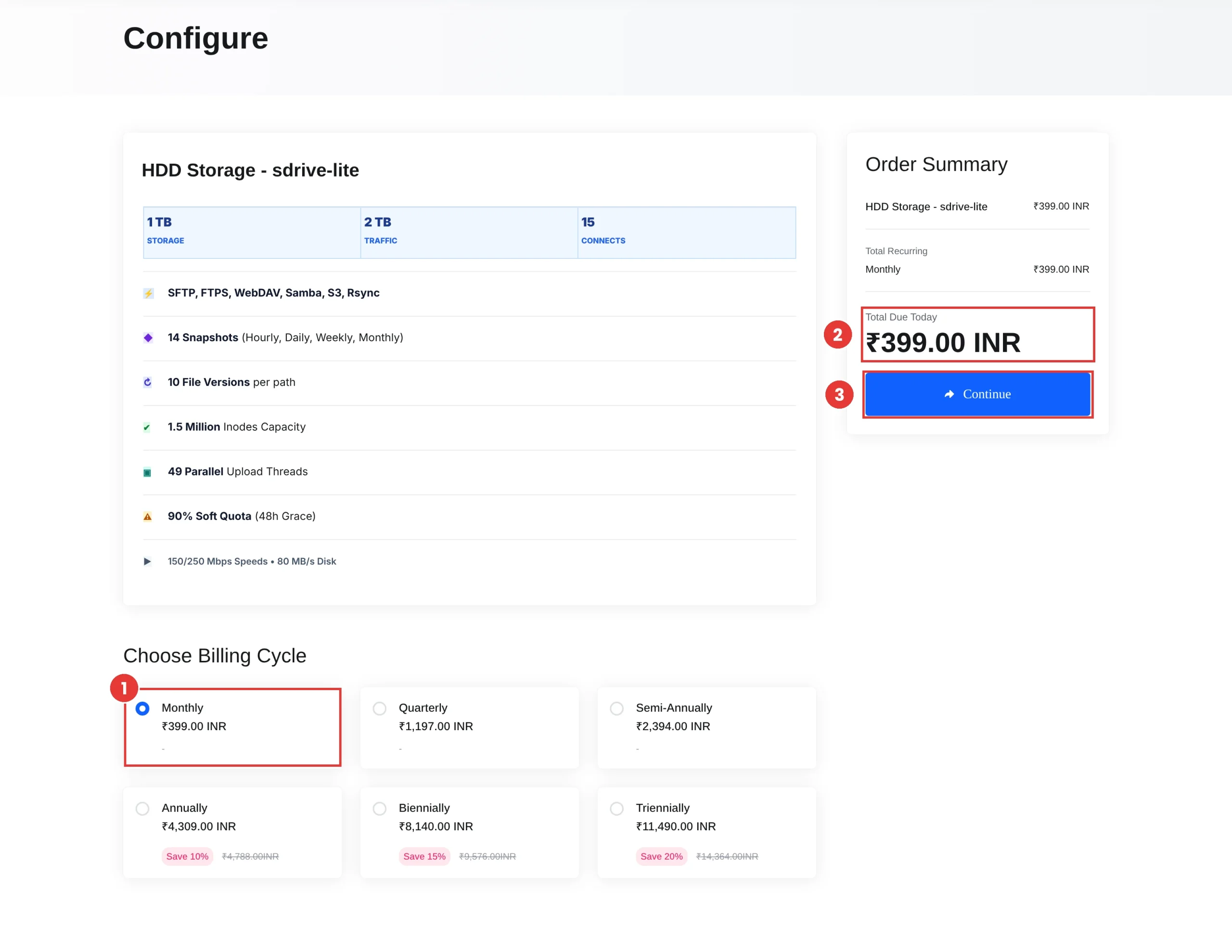
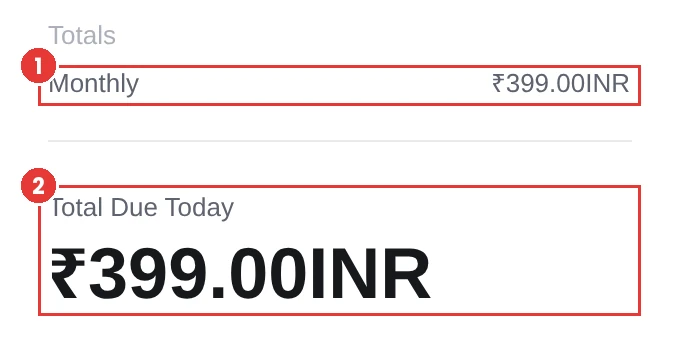
On Configure, pick a billing cycle and click Continue. Monthly is ₹399, and longer cycles show their savings right on the page.
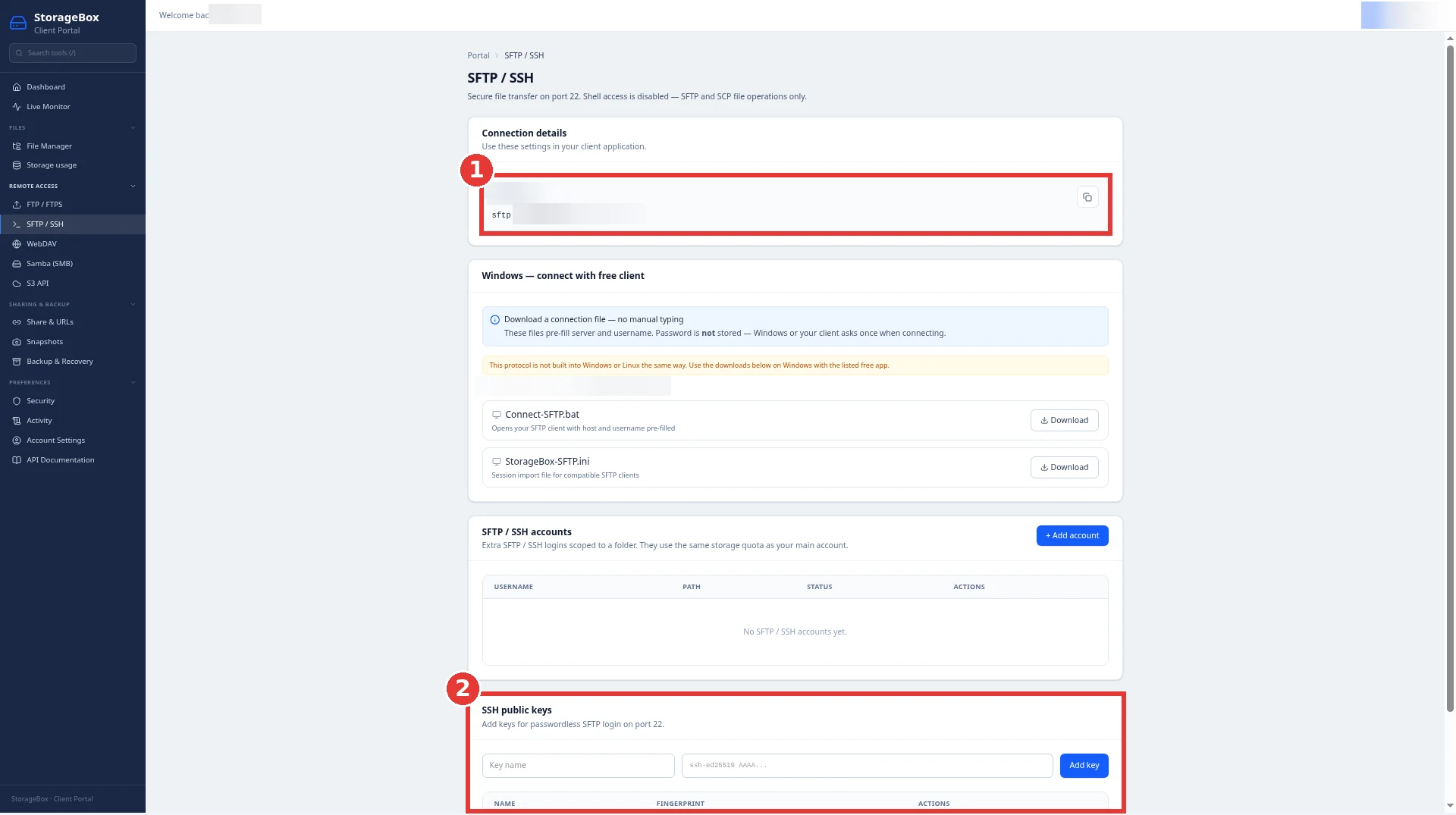
Expected result: after the order is active, sign in to the SDrive StorageBox client portal and open Remote Access > SFTP / SSH. There you’ll find your SFTP details: port 22, and your username is your plain account name. Copy the host from that page too. SDrive accounts are for SFTP and SCP only, so there’s no shell login, and that’s normal.
Step 2: Set up SSH key login to the storage
Restic’s documentation is clear that automatic backups need a login that doesn’t stop and ask for a password. So first create an SSH key on your server:
sudo ssh-keygen -t ed25519 -f /root/.ssh/sdrive -N ""Print the public key and copy the whole line (it starts with ssh-ed25519):
sudo cat /root/.ssh/sdrive.pubIn the SDrive portal, go to Remote Access > SFTP / SSH > SSH public keys, paste the line and save it. Password login also works, but a key is what lets backups run on their own at night.
Then add this block to /root/.ssh/config, so every command can use the short name sdrive. Replace SDRIVE_HOST with the host from your portal page and SDRIVE_USER with your account name. The two ServerAlive lines come straight from the restic docs: they stop the storage from closing the connection during long scans of unchanged files.
Host sdrive
    HostName SDRIVE_HOST
    Port 22
    User SDRIVE_USER
    IdentityFile /root/.ssh/sdrive
    ServerAliveInterval 60
    ServerAliveCountMax 240
Test it. Expected result: you get an sftp> prompt with no password question. Type bye to leave.
sudo sftp sdriveStep 3: Optional quick folder copy with rsync
Use this when you want a fast, plain copy of a folder that you can browse on the storage. SDrive lists rsync as a supported protocol, but shell login is off, so if the rsync command is refused, skip to Step 4 (restic works over SFTP) and ask ShoHost support (support@shohost.com or WhatsApp +91 94880 91432, 9 AM to 12 midnight IST) for the rsync details. Install rsync, then do a dry run first. The -n flag shows what would be copied without changing anything.
sudo apt update && sudo apt install -y rsync restic
sudo rsync -avzn /var/www/ sdrive:backups/www/
If the list looks right, run it for real. -a keeps permissions and timestamps, -z compresses during transfer, and --partial lets big files resume.
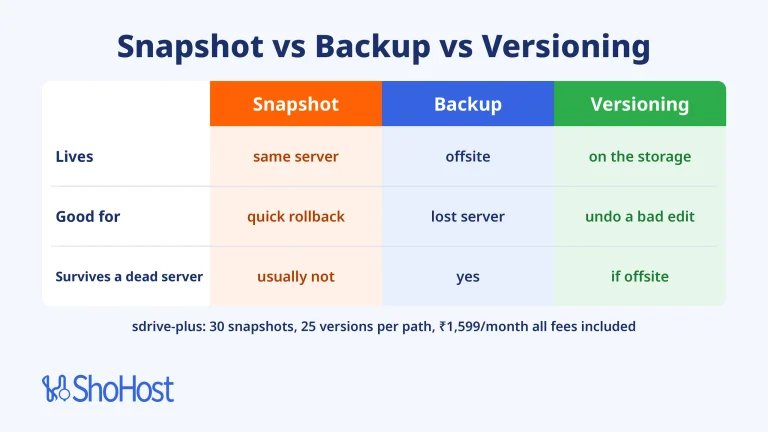
sudo rsync -az --partial --delete /var/www/ sdrive:backups/www/Warning: --delete removes files on the storage that no longer exist on your server. That keeps the mirror clean, but it also copies your mistakes. Leave it off, or rely on restic (Step 4) for real version history. ShoHost SDrive also keeps its own storage snapshots and file versions, which gives you one more safety layer.
Optional: for dated copies, rsync’s --link-dest option hard-links unchanged files to the previous copy, so each day’s folder only uses space for what changed.
TODAY=$(date +%F); YESTERDAY=$(date -d yesterday +%F)
sudo rsync -az --link-dest=../www-$YESTERDAY /var/www/ sdrive:backups/www-$TODAY/
Step 4: Encrypted backups with restic over SFTP
Use this when you want proper backups: encrypted, deduplicated and versioned. Restic calls the backup location a repository. Save a strong password in a root-only file first. If you lose this password, restic can’t open your backups, so keep a copy in your password manager.
sudo sh -c 'openssl rand -base64 32 > /root/.restic-pass && chmod 600 /root/.restic-pass'
sudo restic -r sftp:sdrive:restic-repo --password-file /root/.restic-pass init
Expected result: restic prints created restic repository ... at sftp:sdrive:restic-repo and a reminder that losing the password means losing the data. Now take your first backup:
sudo restic -r sftp:sdrive:restic-repo --password-file /root/.restic-pass backup /var/www /etc --tag dailyHere’s the real output from our test run on a small sample site (restic 0.19.1). The first backup reads everything. The second run, after one file changed, uploaded only about 3 KiB:
no parent snapshot found, will read all files

Files:          41 new,     0 changed,     0 unmodified
Dirs:            4 new,     0 changed,     0 unmodified
Added to the repository: 797.530 KiB (787.833 KiB stored)

processed 41 files, 781.267 KiB in 0:00
snapshot 0f8d9eb8 saved
using parent snapshot 0f8d9eb8
Files: 0 new, 1 changed, 40 unmodified
Dirs: 0 new, 4 changed, 0 unmodified
Added to the repository: 16.287 KiB (3.359 KiB stored)
processed 41 files, 781.273 KiB in 0:00
snapshot 5254432e savedBack up your database too. Dump it first, then let restic pick up the dump file:
sudo sh -c 'mysqldump --single-transaction --all-databases > /root/db-backup.sql'Step 5: Restic to S3-compatible storage (alternative)
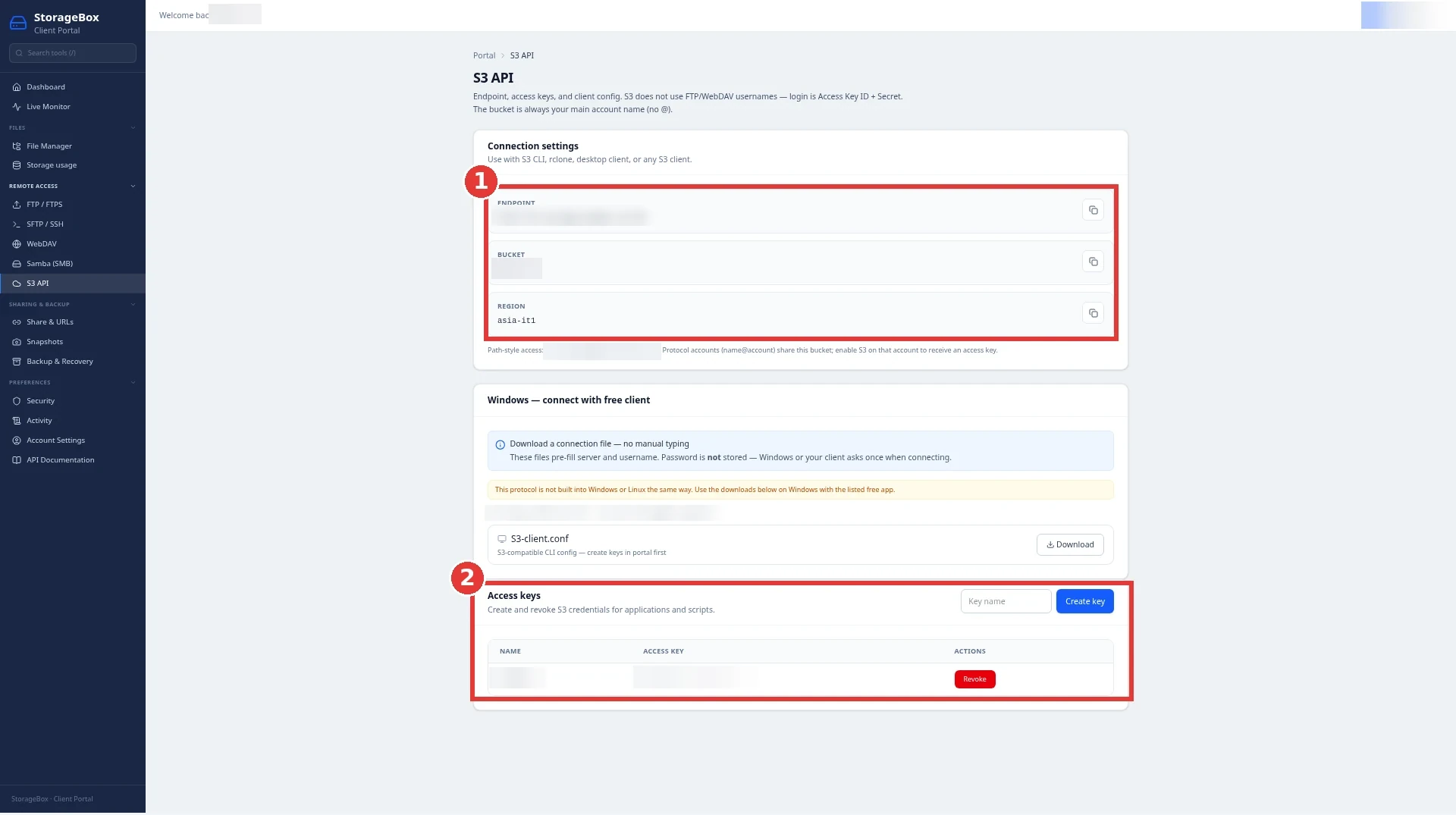
Use this when you prefer S3 keys over SSH, or your firewall only allows HTTPS out. Restic’s docs give the format s3:https://server:port/bucket_name for any S3-compatible service. On SDrive, S3 is self-serve: open the S3 API page in the SDrive portal and create an access key there (you can revoke it on the same page). Copy the endpoint exactly as that page shows it, including its http:// or https:// prefix. The bucket is your account name (path style), and the region is asia-it1.
export AWS_ACCESS_KEY_ID=YOUR_ACCESS_KEY
export AWS_SECRET_ACCESS_KEY=YOUR_SECRET_KEY
export AWS_DEFAULT_REGION=asia-it1
restic -r s3:S3_ENDPOINT/YOUR_ACCOUNT_NAME --password-file /root/.restic-pass init
Here S3_ENDPOINT is the full endpoint from the S3 API page, prefix included. This should work with restic and with tools like aws-cli, though we tested our sample runs over SFTP. Every other restic command stays the same. Only the -r value changes.
Step 6: Automate backups with cron and keep rules
Put the whole job in one script. It dumps the database, backs up, then applies a keep rule: 7 daily, 4 weekly and 6 monthly snapshots. Per the restic docs, forget removes old snapshots and --prune then deletes the data only they used.
sudo tee /root/backup.sh > /dev/null <<'EOF'
#!/bin/sh
set -e
export RESTIC_REPOSITORY=sftp:sdrive:restic-repo
export RESTIC_PASSWORD_FILE=/root/.restic-pass
mysqldump --single-transaction --all-databases > /root/db-backup.sql
restic backup /var/www /etc /root/db-backup.sql --tag daily
restic forget --keep-daily 7 --keep-weekly 4 --keep-monthly 6 --prune
EOF
sudo chmod 700 /root/backup.sh
Schedule it for 2:30 AM every night and log the result. Open root’s crontab with sudo crontab -e and add:
30 2 * * * /root/backup.sh >> /var/log/restic-backup.log 2>&1If you’re new to cron syntax, our guide on setting up cron jobs explains each field.
How to restore a restic or rsync backup
A backup is only worth something if you can get files back. List snapshots, then restore the latest one to a safe folder, not straight over your live site:
sudo restic -r sftp:sdrive:restic-repo --password-file /root/.restic-pass snapshots
sudo restic -r sftp:sdrive:restic-repo --password-file /root/.restic-pass restore latest --target /root/restore
Summary: Restored 45 files/dirs (781.273 KiB) in 0:00If you made the optional rsync copy in Step 3, pull it back by swapping the source and destination:
sudo rsync -az sdrive:backups/www/ /root/restore-www/Verify your backups
Run a check once a week. Plain check tests the repository’s structure. Adding --read-data-subset also downloads and verifies part of the data, without reading the full repository every time.
sudo restic -r sftp:sdrive:restic-repo --password-file /root/.restic-pass check --read-data-subset=5%using temporary cache in /tmp/restic-check-cache-2734200919
create exclusive lock for repository
load indexes
check all packs
check snapshots, trees and blobs
[0:00] 100.00% 2 / 2 snapshots
read 5.0% of packfiles
[0:00] 100.00% 1 / 1 packs
no errors were foundAlso look at /var/log/restic-backup.log after the first night, and do a real test restore every month.
Troubleshooting
| Problem | Likely cause | Fix |
|---|---|---|
| Backup asks for a password in cron | Key login not set up | Repeat Step 2 and test sudo sftp sdrive |
| Connection closed during a long backup | Idle SSH session timed out | Keep the ServerAlive lines in /root/.ssh/config |
repository is already locked | An earlier run crashed or is still running | Check no backup is running, then restic unlock |
| Slow first backup | Restic reads and uploads everything once | Later runs only send changed data |
| Still stuck | Account or network issue | Email support@shohost.com or WhatsApp +91 94880 91432, 9 AM to 12 midnight IST |
Why back up to ShoHost SDrive storage?
Your backup should live on a different machine from your server. SDrive Lite gives you that for ₹399 a month, all fees included (about $4.16 for global buyers):
- 1 TB storage and 2 TB traffic
- SFTP, FTPS, WebDAV, Samba, S3 and rsync access, with restic working over SFTP or S3
- 14 storage snapshots (hourly, daily, weekly, monthly) and 10 file versions per path
- 150/250 Mbps speeds and 49 parallel upload threads
It pairs well with any ShoHost server: a KVM virtual dedicated server, a dedicated server in India or a Windows RDP. ShoHost has 180+ clients and 98.5% uptime.
FAQ
Is rsync a backup tool?
rsync is a file-copying tool. On its own it keeps a mirror, so a deleted or corrupted file gets copied over on the next run. With –link-dest folders it can keep dated copies, but restic is the better pick for real versioned backups.
Does restic do incremental backups?
Each restic snapshot is a full backup you can restore, but restic deduplicates data and only uploads chunks it hasn’t stored before. In our test, the second run uploaded about 3 KiB after one file changed.
Are restic backups encrypted?
Yes. Restic encrypts your data on your server before it’s uploaded, and the repository can’t be opened without your password. Keep that password safe, because there’s no way to recover it.
Can restic back up to SFTP and S3 storage?
Yes. Restic supports SFTP repositories (sftp:host:path) and any S3-compatible service (s3:https://server/bucket). ShoHost SDrive offers both: SFTP on port 22 and self-serve S3 keys in the SDrive portal.
How much does backup storage cost in India?
ShoHost SDrive Lite is ₹399 a month, all fees included, for 1 TB with SFTP, S3 and rsync access. Bigger plans go up to 20 TB.
Related guides
- Back up and restore a cPanel account (files, databases, email)
- Set up cron jobs, with examples and log output
- When to move from shared hosting to a KVM virtual dedicated server
- Disk quota or inode limit exceeded: find and clean
Need help picking a plan or setting this up? Email support@shohost.com or WhatsApp +91 94880 91432 (9 AM to 12 midnight IST). When you’re ready, order SDrive Lite and get your first offsite backup running tonight.