WHMCS Hacked? First Steps to Contain, Clean and Recover (2026)
An admin account you never created. A gateway setting that changed overnight. When WHMCS has been broken into, the instinct is to change your password and hope. That’s the wrong first move, because whoever got in may still have a session, an API key or a hook file that lets them back in.
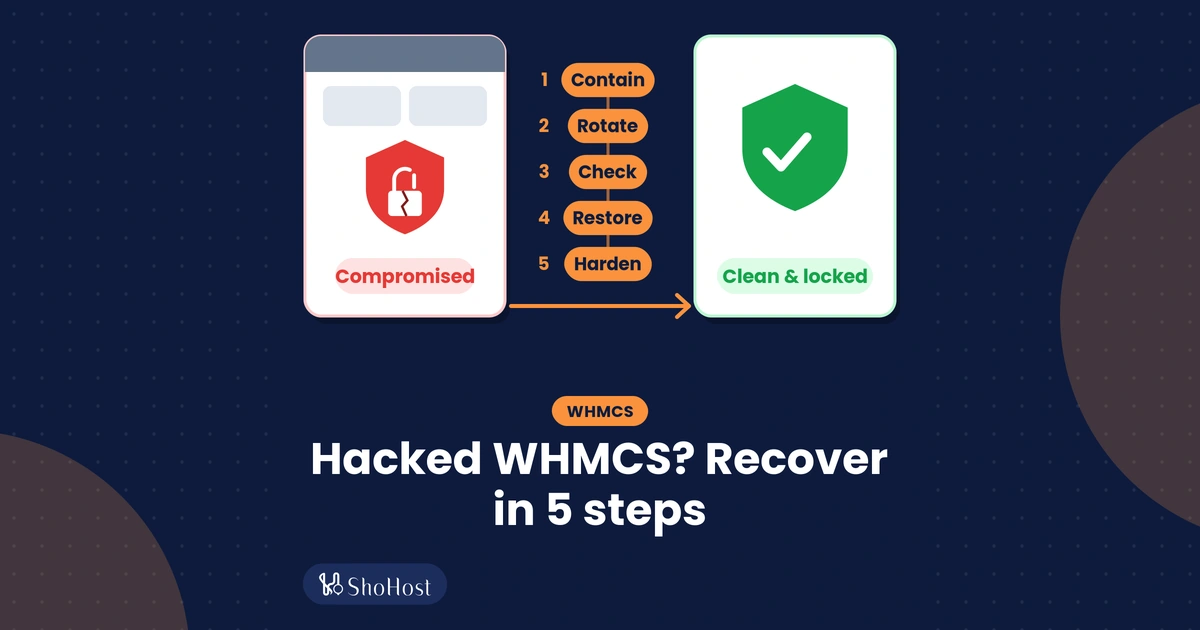
Work in this order instead: contain, rotate, check, restore, harden. Each step uses WHMCS’s own admin tools and standard cPanel features, with commands you can copy.
Note: this is for self-hosted WHMCS on cPanel hosting, where you bring your own WHMCS licence. If you’re on ShoHost and want a second pair of eyes, message WhatsApp support on +91 94880 91432 before you start restoring anything.
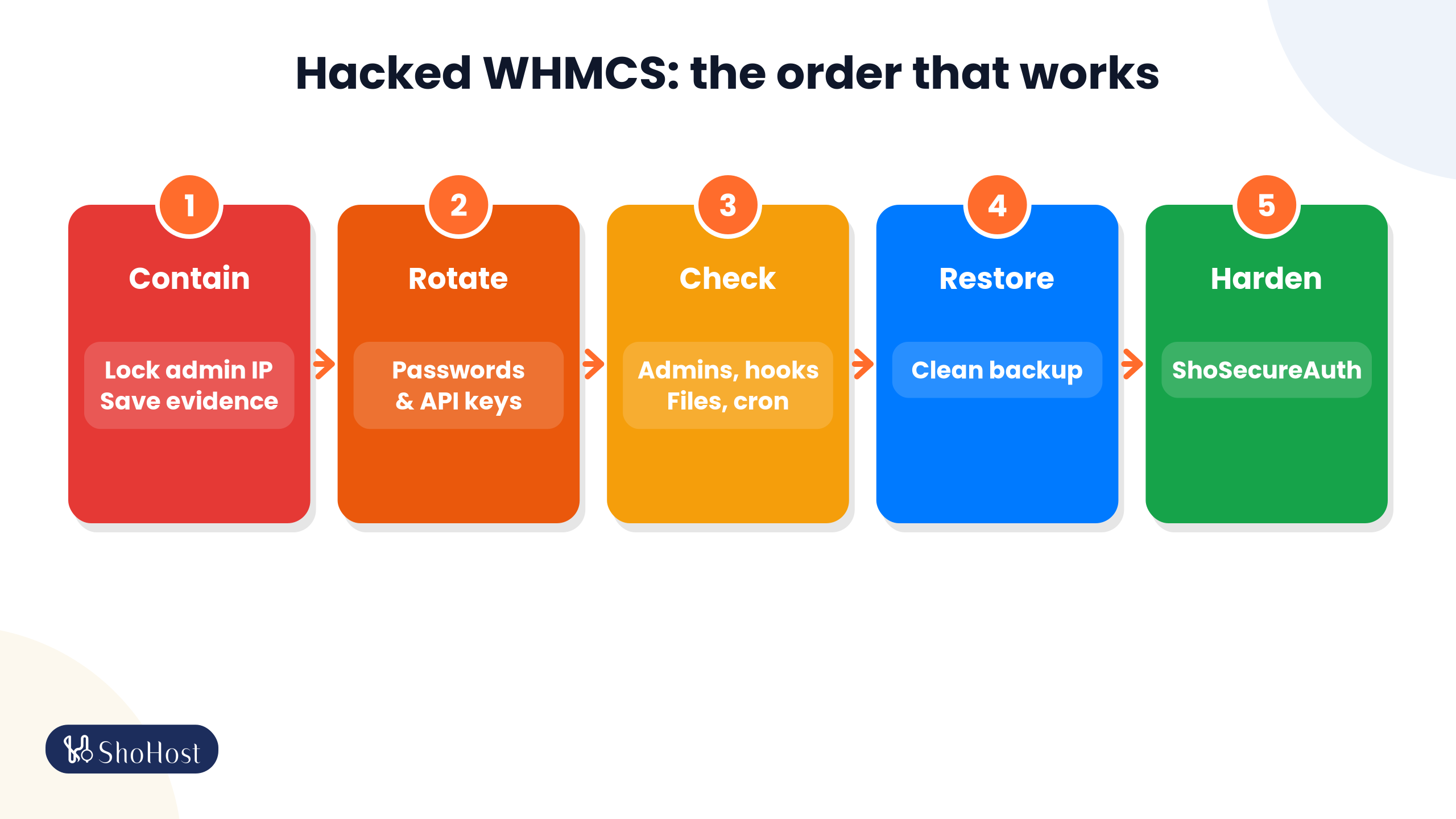
- Contain: lock the admin folder by IP, change your cPanel password and save the evidence.
- Rotate: passwords and API keys.
- Check: admins, hooks, files and cron.
- Restore: from a clean backup.
- Harden: with ShoSecureAuth on the login.
Signs your WHMCS was hacked, and where to look
| Sign | Where to check in WHMCS |
|---|---|
| An admin you don’t know, or a role with new permissions | Configuration > System Settings > Administrator Users and Administrator Roles |
| Admin logins at odd hours or from unfamiliar IPs | Configuration > System Logs > Admin Log (login and logout times, IPs, usernames) |
| Emails to clients that you didn’t send | Configuration > System Logs > Email Message Log |
| Changed gateway details, or new bank transfer instructions on invoices | Configuration > System Settings > Payment Gateways |
| API keys nobody remembers creating | Configuration > System Settings > Manage API Credentials |
| Strange files in the WHMCS folders | includes/hooks/ and modules/ (Step 3) |
Step 1: Contain the WHMCS breach
For the first half hour, stop further damage and keep the evidence, as both CISA and NIST incident guidance advise. Don’t delete anything yet.
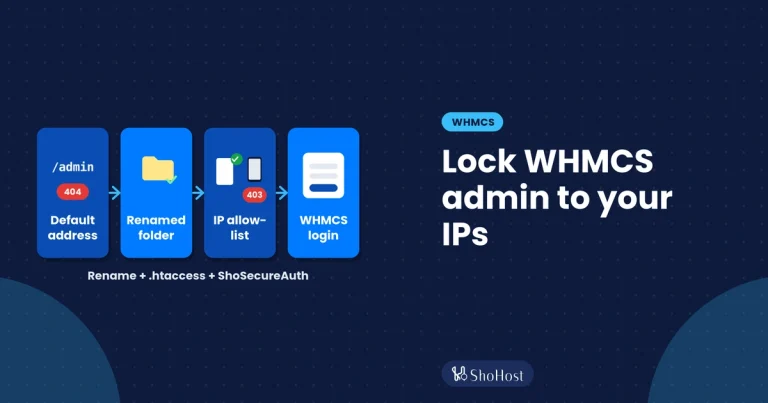
- Lock the admin folder to your IP. Add an
.htaccessallow-list to the WHMCS admin folder so only your connection can reach it. Our guide to restricting WHMCS admin access has the exact lines. - Change your cPanel password in cPanel > Preferences > Password & Security, using a new, long password you haven’t used anywhere else.
- Optional: turn on Maintenance Mode in the General tab at Configuration > System Settings > General Settings if clients could be harmed by what’s on the client area. WHMCS notes that the API and hooks keep running in Maintenance Mode, so it hides the client area but doesn’t stop a malicious hook.
- Save the evidence. Download your access logs from cPanel > Metrics > Raw Access, and export or screenshot the Admin Log. Then take a copy of the current files and database, kept outside your website folder.
cd ~
tar -czf ~/whmcs-incident-files-$(date +%F).tar.gz -C ~/public_html billing
mysqldump -u DBUSER -p DBNAME > ~/whmcs-incident-db-$(date +%F).sql
ls -lh ~/whmcs-incident-*
Replace billing with your WHMCS folder, and DBUSER and DBNAME with the values in your configuration.php. mysqldump asks for the database password. The last command should list two files. This copy is evidence only. Never restore from it.
Running a hosting business in India? CERT-In’s directions of 28 April 2022 require service providers, data centres and body corporates to report listed cyber incidents, including unauthorised access to IT systems or data, within 6 hours of noticing them. Check with your adviser whether this applies to you, and see the CERT-In directions.
Step 2: Rotate WHMCS passwords and API keys
Assume every secret WHMCS holds or uses has been seen. Start with WHMCS itself, then move out to the services it connects to.
| Secret | Where to change it | Then |
|---|---|---|
| Every admin password | Account > My Account for your own; edit each admin under Administrator Users | Changing a password also ends that admin’s remembered “Remember Me” sessions. |
| WHMCS API credentials | Configuration > System Settings > Manage API Credentials | Delete every pair and generate new ones for the integrations you still use. Changing an admin password does not cancel API credentials. |
| Database password | cPanel > Databases > Manage My Databases (MySQL Databases on older cPanel) > Change Password | Put the new password in $db_password in configuration.php (commands below). |
| Server module logins and API tokens | Revoke and re-create them on the server side (for cPanel servers, WHM’s Manage API Tokens) | Update each server at Configuration > System Settings > Servers. |
| Payment gateway and registrar API keys | Regenerate them in each provider’s own dashboard | Paste the new keys into Payment Gateways and Domain Registrars. |
| SMTP password | Your mail provider, or cPanel > Email > Manage Email Accounts | Update the Mail tab in General Settings. |
| cPanel API tokens | cPanel > Security > Manage API Tokens | Revoke any token you don’t recognise. |
configuration.php should be read-only, so unlock it, edit, then lock it again. You can also edit it in File Manager after the first command.
cd ~/public_html/billing
chmod 600 configuration.php
nano configuration.php
chmod 400 configuration.php
Warning: don’t touch $cc_encryption_hash in configuration.php. WHMCS uses it to decrypt stored passwords and card data, and if it’s lost or changed, that data can’t be decrypted. Keep a safe offline copy of the file instead.
For clients, Clients > Manage Users lets you send any user a password reset email. If client data may have been viewed, tell affected clients plainly what happened and what you’ve done.
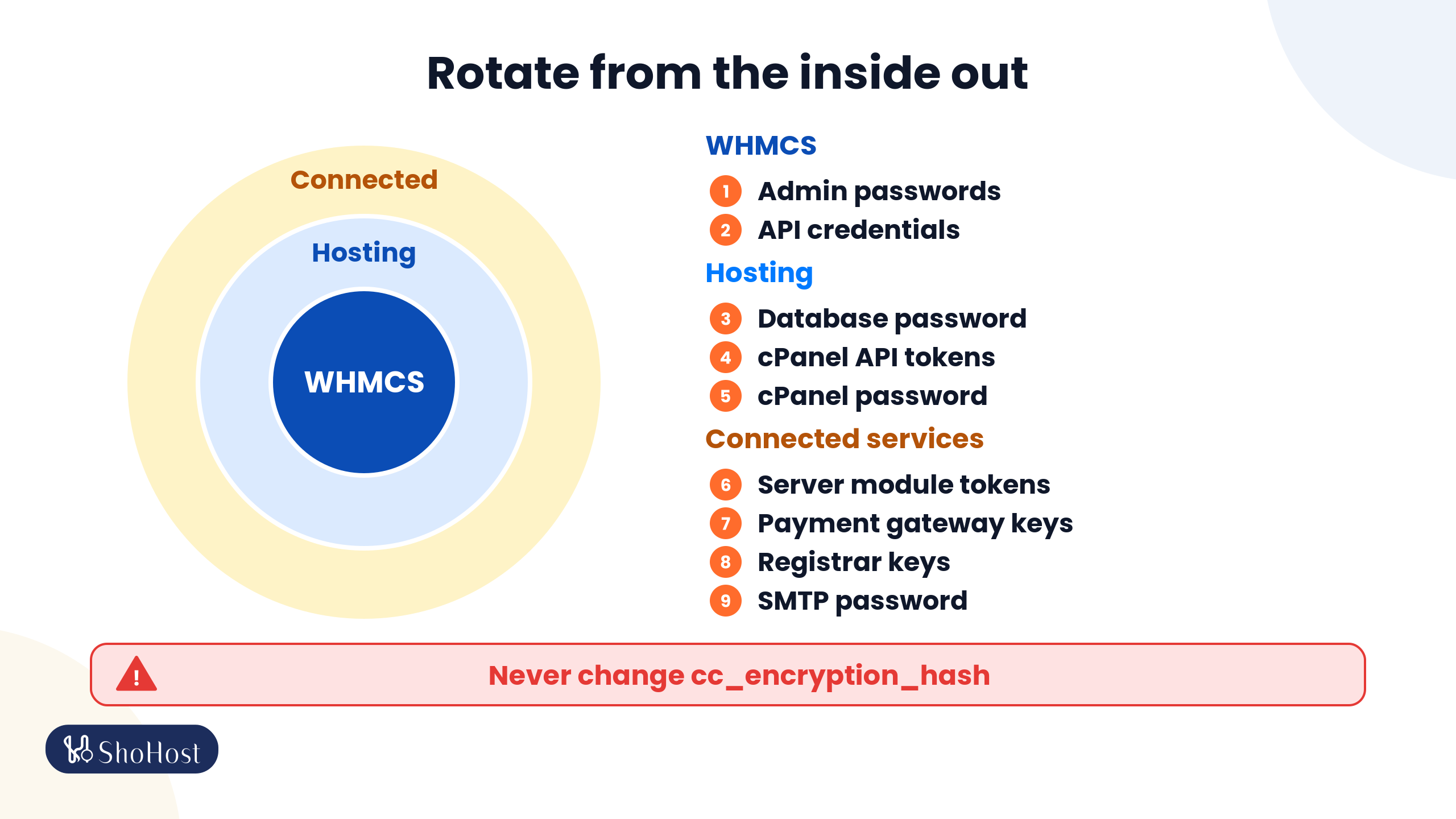
In short, rotate from the inside out, and never change $cc_encryption_hash along the way:
- WHMCS: admin passwords and API credentials.
- Hosting: the database password, cPanel API tokens and your cPanel password.
- Connected services: server module tokens, payment gateway keys, registrar keys and SMTP.
Step 3: Check WHMCS admin users, hooks and files
CISA’s incident response playbook warns that attackers often keep several backdoors and can hop back into “clean” areas if clean-up isn’t thorough. These are the places to look in WHMCS, from easiest to hardest.
Admin users and settings
- In Administrator Users, click Edit on any admin you don’t recognise, tick Disable and save. Disabling an admin also invalidates their API credentials. Disable rather than delete, so the account is kept as evidence.
- In Administrator Roles, check that Sales and Support roles haven’t gained configuration permissions.
- On the Security tab, remove unknown entries from Whitelisted IPs, API IP Access Restriction and Trusted Proxies.
- In Payment Gateways, re-read every gateway, including the bank transfer instructions your clients see on invoices.
Hook files and recently changed code
WHMCS loads every hook file in includes/hooks/, except files whose names start with an underscore, and it loads each module’s hooks.php on every page. That makes hooks a favourite hiding place. Run these from your WHMCS folder:
cd ~/public_html/billing
ls -la includes/hooks/
find modules -name hooks.php -mtime -30 -printf '%TY-%Tm-%Td %TH:%TM  %p\n' | sort -r
find . -type f -name '*.php' -mtime -14 -printf '%TY-%Tm-%Td %TH:%TM  %p\n' | sort -r | head -n 50
grep -rlE 'eval\(|base64_decode\(|gzinflate\(|str_rot13\(' includes/hooks modules/addons
The first command lists your custom hooks; each should be one you or a module vendor added. The find commands list files changed in the last 30 and 14 days, newest first, so anything changed on a day you didn’t update WHMCS stands out. The grep lists files using functions that can run or unpack hidden code (PHP’s own manual calls eval() very dangerous). Genuine modules use some of them too, so compare each match with a fresh vendor copy before removing it.
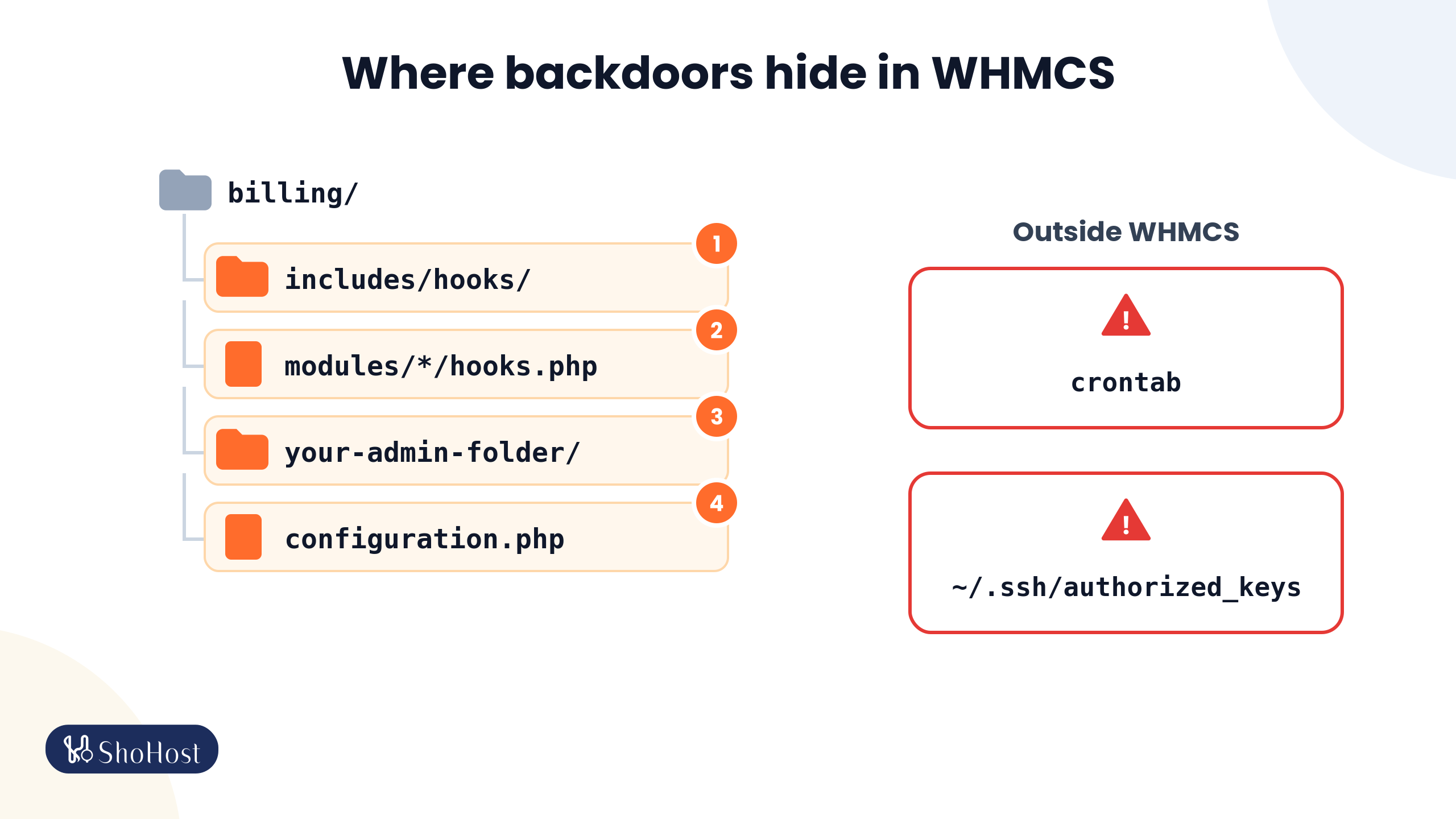
Inside the WHMCS folder, backdoors usually hide in four places:
includes/hooks/modules/*/hooks.php- The renamed admin folder
configuration.php
Outside WHMCS, the crontab and ~/.ssh/authorized_keys are the two to check next.
Cron jobs and SSH keys
crontab -l
cat ~/.ssh/authorized_keys
You should see only your WHMCS cron and the jobs you set up yourself, plus SSH keys you recognise. You can see the same lists in cPanel > Advanced > Cron Jobs and cPanel > Security > SSH Access > Manage SSH Keys. Remove anything unknown.
Step 4: Restore WHMCS from a clean backup
If you found changes you can’t fully account for, restoring beats cleaning by hand. Use the Admin Log to find the first suspicious login and pick a backup from before it. Act quickly: on ShoHost hosting, daily backups are kept for 3 days, plus one weekly copy in Google Drive, so message us on WhatsApp straight away and we’ll help you find a clean point. WHMCS’s own Database Backups (SFTP/FTP, cPanel or daily email) are another source.
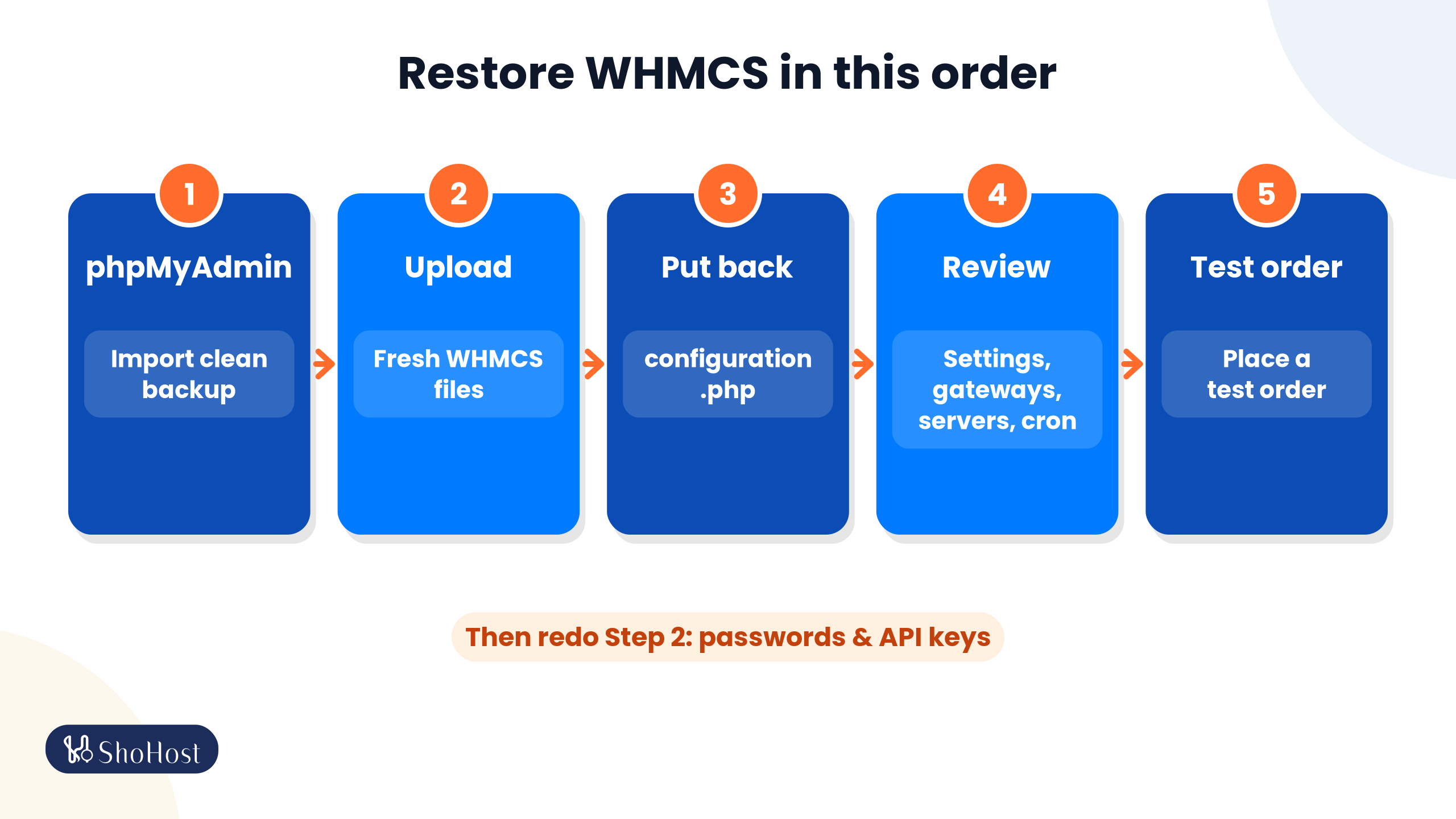
- Restore the database. In phpMyAdmin, select the WHMCS database, click Check all, choose Drop under With selected, then use the Import tab to load the clean backup.
- Replace the WHMCS files with a fresh copy of the full release from wherever you bought your licence, rather than the files on the server. Reinstall addons from their vendors too.
- Put back your own
configuration.phpfrom a backup. Without the original encryption hash, stored passwords and card data stay encrypted for good. - Check the settings WHMCS recommends after a restore: General Settings, Payment Gateways, Servers, Domain Registrars, and your cron jobs and email forwarders. Then place a few test orders.
If phpMyAdmin times out on a large file, import it from the Terminal once the old tables are dropped:
mysql -u DBUSER -p DBNAME < ~/whmcs-clean-backup.sqlImportant: an older database brings back the old admin passwords and API credentials. Repeat the WHMCS parts of Step 2 straight after the restore.
Step 5: Harden WHMCS so it doesn’t happen again
WHMCS’s own security checklist for self-hosted installs is a good backbone:
- Move the writeable folders (
attachments,downloads,templates_c) and thecronsfolder above your web root. - Set
configuration.phpto400permissions. - Rename the admin folder and restrict it by IP, as in our admin access guide.
- Use SSL, give the database user only the privileges WHMCS needs, and keep WHMCS, addons and PHP updated.
- Give every staff member their own admin account. Never share one.
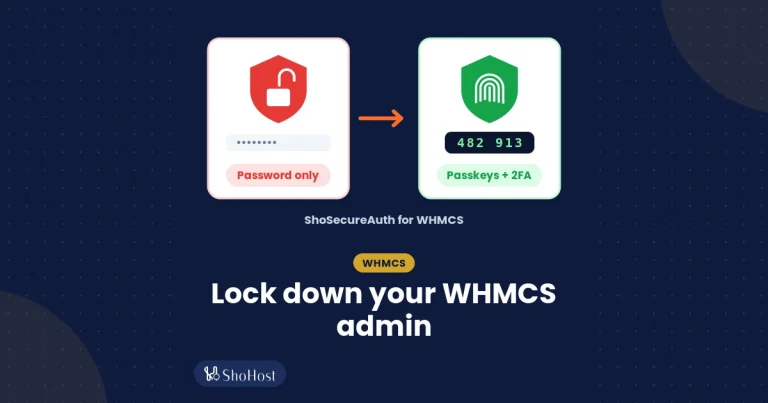
As the ShoSecureAuth page puts it, password reuse and stolen mailbox access are how WHMCS accounts get taken over. So the most important fix is at the login. ShoSecureAuth, our in-house WHMCS addon, adds passkey sign-in and one-time codes for admins and clients. It also gives you the visibility you were missing this time:
| What went wrong | What ShoSecureAuth adds |
|---|---|
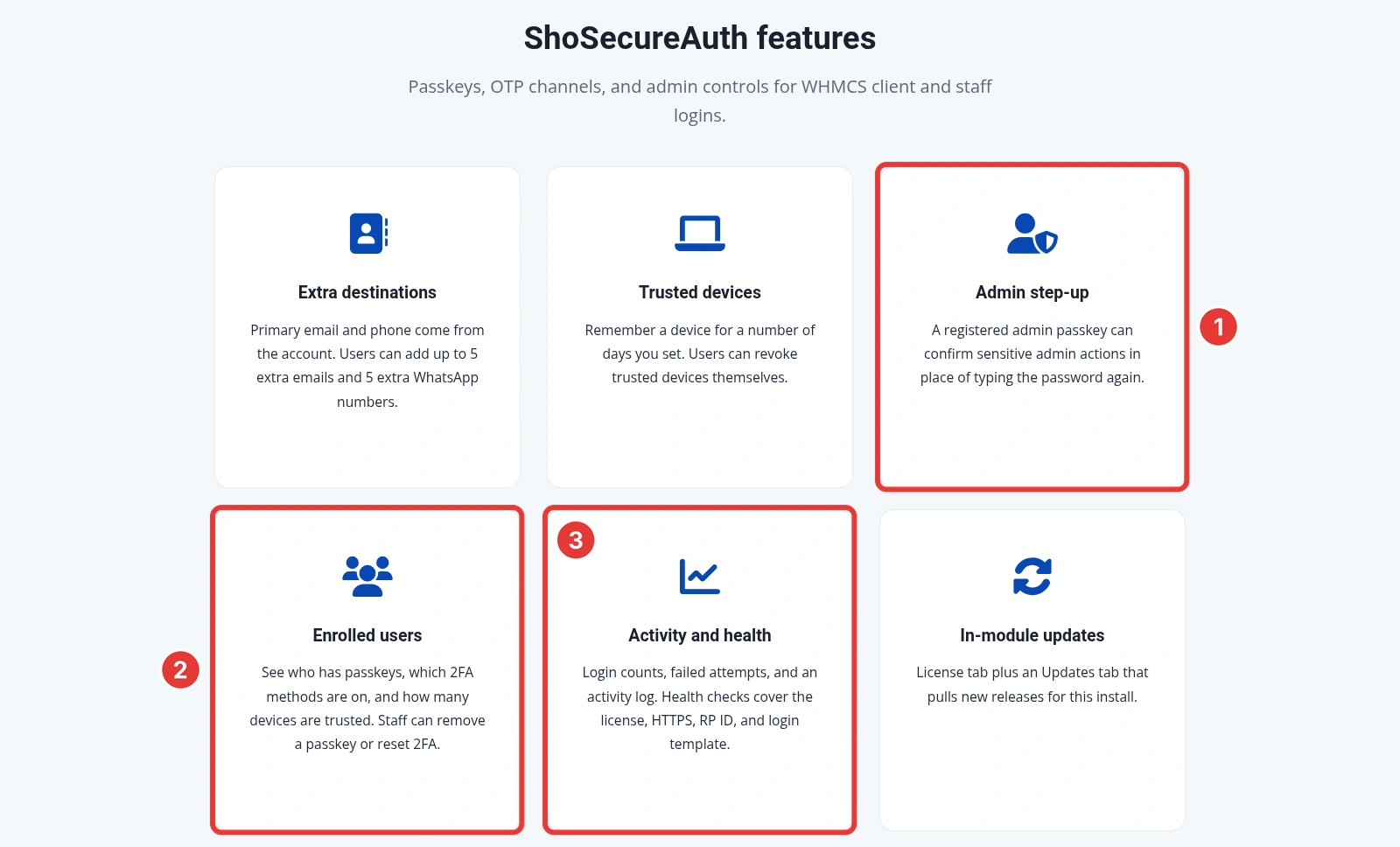
| A stolen admin password was enough | Passkey login, or a one-time code after the password by email, WhatsApp, authenticator app or backup codes |
| Sensitive changes were made quietly | Admin step-up: a registered admin passkey can confirm sensitive admin actions |
| Nobody noticed the failed attempts | Login counts, failed attempts and an activity log, plus health checks for the licence, HTTPS, RP ID and login template |
| No one knew who had what protection | An enrolled-users view of passkeys, 2FA methods and trusted devices. Staff can remove a passkey or reset 2FA. |
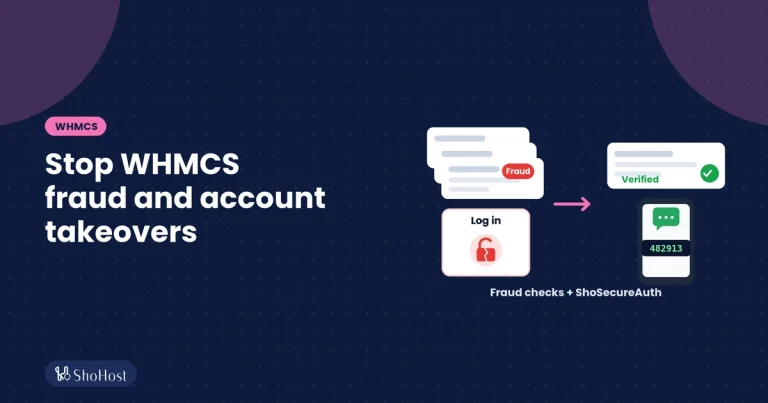
Next, read the WHMCS admin hardening guide and our guide to client logins and fraud orders.
The trial runs from the addon’s License tab, and eligible module orders have a 7-day refund. Your WHMCS licence is a third-party licence and is non-refundable.
Troubleshooting a WHMCS clean-up
| Problem | Likely cause | Fix |
|---|---|---|
| WHMCS shows a database error after you change the DB password | $db_password wasn’t updated, or configuration.php wasn’t saved | Unlock, edit and relock the file (Step 2). |
| Stored passwords or card details won’t decrypt after a restore | The configuration.php in use isn’t the original | Restore your original file with its encryption hash. |
| Admin directory error after replacing files | The fresh release put files in admin, but you use a renamed folder | Move them into your renamed folder and delete admin. |
| Still stuck? | Message WhatsApp support on +91 94880 91432 with your WHMCS URL, the date you first noticed the problem and the Admin Log entries you’re unsure about. | |
Hacked WHMCS FAQs
Is changing the admin password enough after a WHMCS hack?
No. API credentials survive a password change, and hook files or extra admin accounts can let an attacker back in. Contain first, then rotate every secret, then check users, hooks and files.
Should I restore a backup or clean WHMCS by hand?
If you can’t account for every changed file and setting, restore a backup from before the first suspicious login, then replace the WHMCS files with a fresh release. Cleaning by hand is risky because one missed hook keeps the door open.
Does Maintenance Mode stop an attacker?
No. It hides the client area from customers, but WHMCS keeps the API and hooks running. Use an IP allow-list on the admin folder and rotate your secrets to actually shut them out.
How far back do ShoHost backups go?
Daily backups are kept for 3 days, plus one weekly copy in Google Drive. If your compromise is older than that, you’ll need WHMCS’s own database backups or your own off-server copies.
Related WHMCS security guides
- How to harden your WHMCS admin area with passkeys and 2FA
- Restrict WHMCS admin access by folder name and IP
- Stop WHMCS fraud orders and protect client logins
- Clean up a hacked WordPress site
Source: WHMCS 9.0 and 9.1 documentation, cPanel documentation, CISA and NIST incident response guidance, CERT-In directions of 28 April 2022 and the ShoSecureAuth product page, checked 19 October 2026.