Tally on Cloud vs Local Tally: Multi-User Access, Backups and Cost (2026)
Your accountant works on TallyPrime in the office, the owner wants to check outstanding payments from home, and a second staff member needs to enter bills at the same time. A local install needs a multi-user licence, a server PC that never switches off and a backup routine someone remembers. Tally on cloud moves that server into a data centre. This guide compares both setups honestly on multi-user access, backups and total cost.
Who it’s for: small businesses, CA firms and traders in India with 2 to 5 Tally users, plus Tally users abroad weighing the same choice. Reading time: about 8 minutes.
In this guide
- Tally on cloud vs local Tally: the quick answer
- How does Tally on cloud work?
- Tally multi-user: how a local Gold install compares with cloud
- Which TallyPrime licence do you need for Tally on cloud?
- Tally backup: local drive vs cloud server
- How much does Tally on cloud cost compared with a local setup?
- When a local Tally install is still the better choice
- How to move to ShoHost TallyPrime Cloud – Business
- Get TallyPrime Cloud – Business for 3 users
- FAQ
- Related guides
Tally on cloud vs local Tally: the quick answer
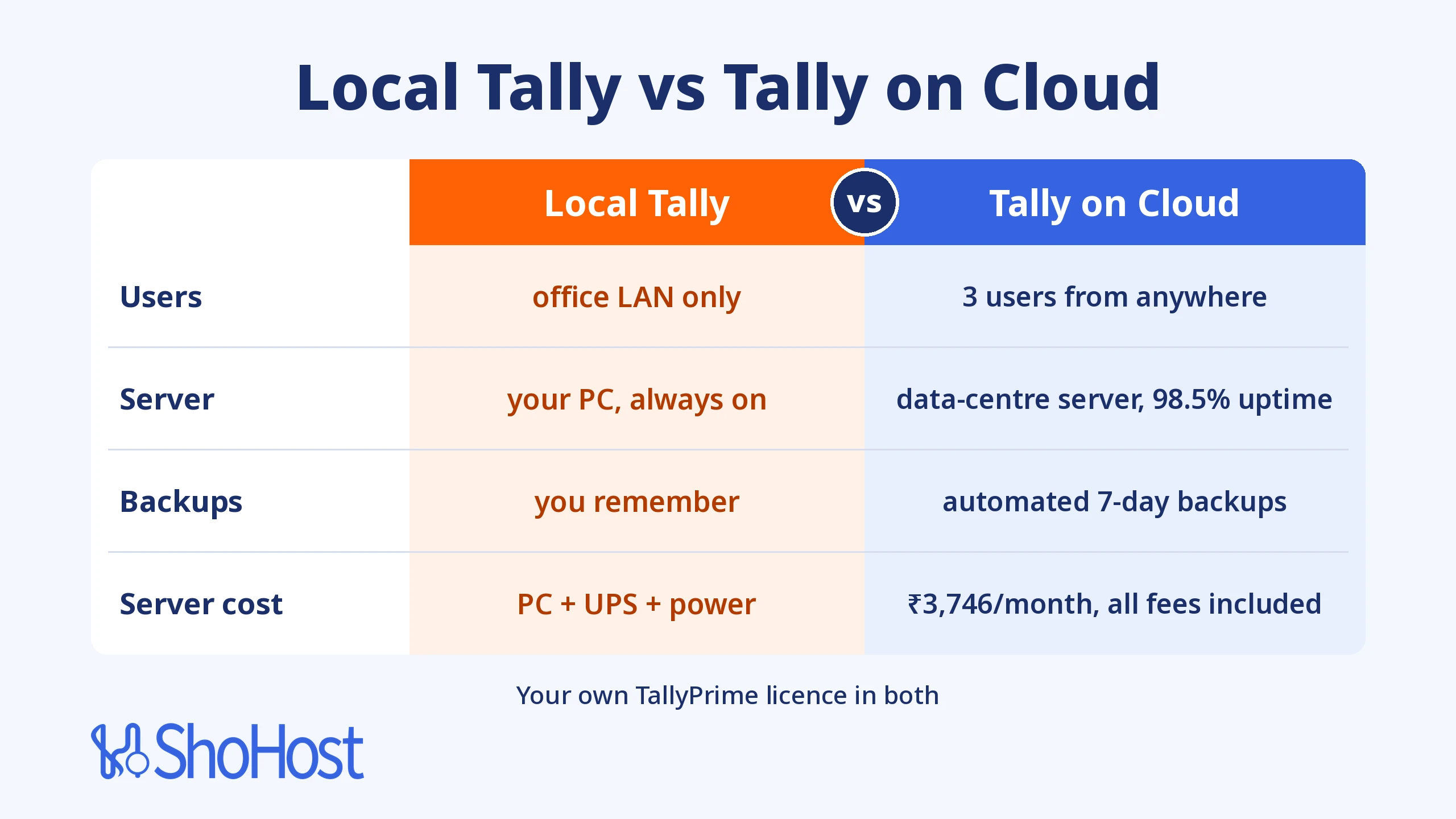
If everyone sits in one office with reliable power and someone takes backups, a local Gold install works well. If even one person works from home, a branch or a phone, Tally on cloud is simpler, because the server is always on, online and backed up. Either way, you pay for your own TallyPrime licence: a cloud server replaces the office server PC, not the licence.
| Local Tally install (office server) | Tally on cloud (ShoHost TallyPrime Cloud – Business) | |
|---|---|---|
| Who can work | Users on the office network (LAN) | 3 concurrent users from anywhere with internet |
| Devices | Windows PCs in the office | Windows, Mac, Android and iPhone/iPad through Remote Desktop |
| Server | Your own PC, which must stay on all the time | 4 cores, 8 GB RAM, 50 GB SSD in a data centre, 98.5% uptime |
| Backups | You schedule them and keep copies yourself | Automated 7-day server backups, plus Tally’s own backups |
| TallyPrime licence | You buy it (Gold for multi-user) | You buy it (Gold for 3 users). Not included in any ShoHost plan |
| Monthly server cost | Hardware, UPS and electricity | ₹3,746 a month, all fees included |
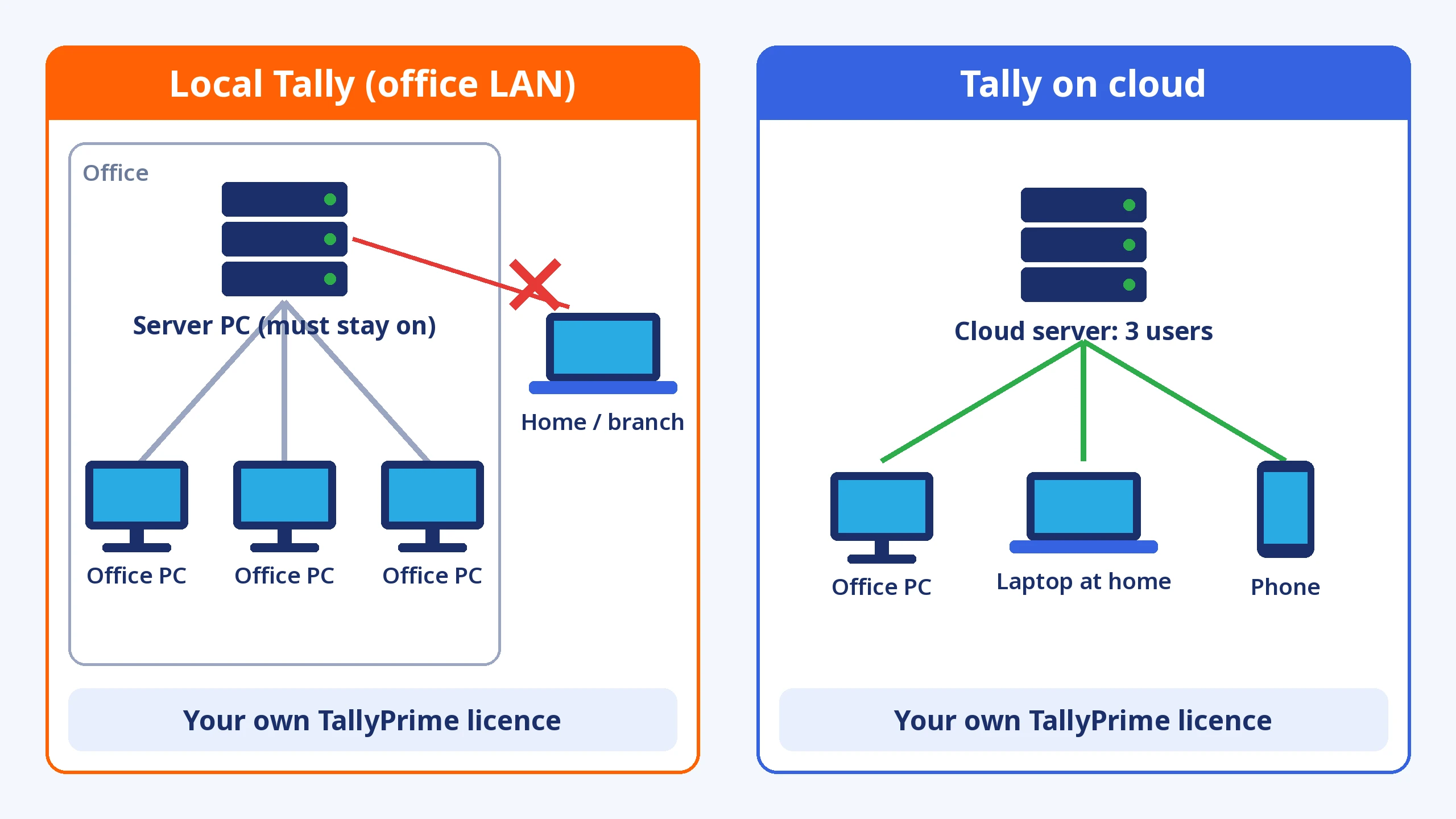
Illustration in words: on the left, three office PCs connect to a server PC on the office network, and a laptop at home can’t join. On the right, an office PC, a laptop at home and a phone all connect to one cloud server. Both sides run your own TallyPrime licence.
How does Tally on cloud work?
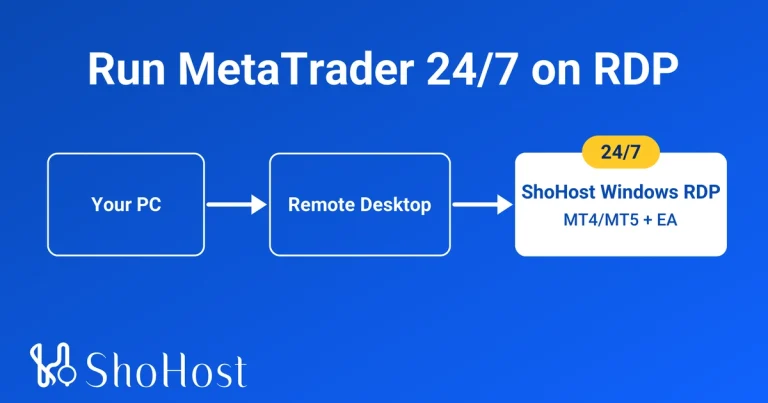
Tally on cloud is TallyPrime installed on a Windows server in a data centre. Your company data sits on that server, and each user opens a Remote Desktop session (Windows, or the Windows App on a Mac, Android or iPhone) to get full TallyPrime with the same shortcuts and reports.
Nothing is copied back and forth, so everyone works on the latest data. Tally Solutions calls this kind of use virtual usage, meaning TallyPrime accessed over RDP, cloud, Citrix or similar tools, and it’s covered by its Tally Virtual User (TVU) policy.
If you only need Tally on one Mac or phone, our guide on how to access TallyPrime from a Mac, Android or iPhone covers that single-user case.
Tally multi-user: how a local Gold install compares with cloud
Multi-user in TallyPrime means a Gold licence. Tally’s licensing best practices put it plainly: Silver is one user on one machine at a time, and Gold allows unlimited concurrent users, but only within the same LAN.
How Tally multi-user works on a local network
You activate Gold on one PC, which becomes the licence server, and every other PC points to it through F1 (Help) > Settings > Manage License (Tally Help). That PC must stay on all the time. If it’s off, has a power cut or loses its network, the other users drop to Educational mode.
Tally multi-user without LAN
People at home or in a branch are outside the LAN, so your options are:
- Tally Remote Access over Tally.NET, which needs an active TSS subscription. The data stays on your office PC, so that PC must be on.
- A VPN plus Remote Desktop into an office PC, which someone has to set up and maintain. Tally counts the RDP part as virtual use.
- Tally on cloud, where every user, inside or outside the office, connects to the same server.
Which TallyPrime licence do you need for Tally on cloud?
ShoHost Tally Cloud plans don’t include a TallyPrime licence. You bring your own, exactly as you would for an office install. On a cloud server, Tally counts users as Tally Virtual Users (TVUs):
- Silver comes with 1 TVU free, which covers one remote user. That fits the 1-user Tally Cloud – Starter plan.
- Gold comes with 10 TVUs free for the life of the licence, so 3 or 5 cloud users are covered.
- TVUs are only for users of the same business. One Gold licence can’t be shared between two different companies.
So for three users on TallyPrime Cloud – Business, you need TallyPrime Gold, the same licence you’d need for three users on a local network.
Tally backup: local drive vs cloud server
Lost Tally data usually comes from a dead disk, a virus, theft or a backup nobody took. In both setups, from Release 7.0 you can schedule backups daily, weekly or monthly through Alt+Y (Data) > Backup & Restore, to a local drive or to TallyDrive, Tally’s cloud backup storage. A baseline amount of TallyDrive storage comes with an active TSS (Backup and Restore in TallyPrime, TallyDrive backup).
| Backup question | Local Tally | Tally on cloud (ShoHost) |
|---|---|---|
| Where the live data sits | On the office server PC | On an SSD server in a data centre |
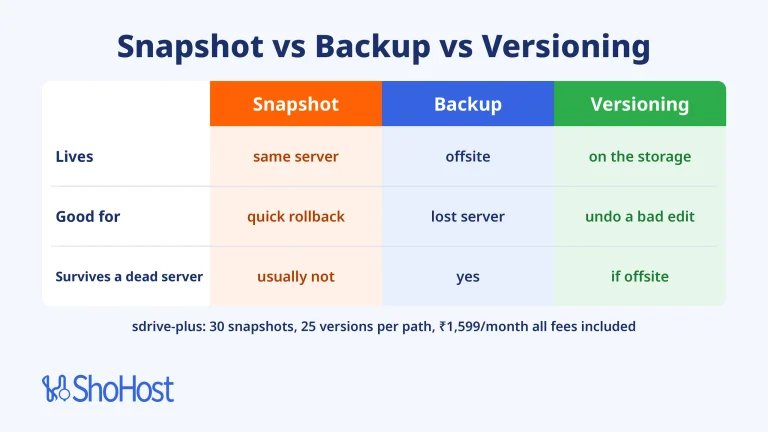
| Automatic copies | Only if you set up Tally’s scheduled backup | Automated 7-day server backups on every plan, and you can still schedule Tally’s own backups |
| Fire, theft or a dead disk in the office | Data and backups can be lost together, unless a copy is kept off-site | The office has no copy to lose; the data stays in the data centre |
Whichever you choose, keep at least two copies in different places.
How much does Tally on cloud cost compared with a local setup?
Let’s price a typical case: 3 users, Year 1. The licence line is the same in both columns, because you buy TallyPrime yourself either way. Licence prices are Tally Solutions’ list prices from its Buy TallyPrime page and cost-of-ownership guide (checked 30 Oct 2026); Tally adds its own charges at checkout.
| Cost line | Local Tally (3 users) | Tally on cloud (3 users) |
|---|---|---|
| TallyPrime Gold licence | ₹67,500 one-time (includes 1 year of TSS), or rental from ₹2,250 a month | Same: ₹67,500 one-time, or rental from ₹2,250 a month |
| TSS from Year 2 (lifetime licence only) | ₹13,500 a year for Gold | Same: ₹13,500 a year |
| Virtual users (TVU) | Not needed on the LAN | 3 of Gold’s 10 free TVUs, so ₹0 |
| Server | A dedicated always-on PC and a UPS, which you buy | TallyPrime Cloud – Business: ₹3,746 a month, all fees included (₹44,952 a year) |
| Electricity | About ₹214–₹905 a month for a 60–100 W PC on 24/7 | Included in the plan |
| Remote access for home or branch users | Remote Access (needs TSS) or a VPN and RDP set up by someone | Included: Remote Desktop from any device |
| Backups | Your own drives and your own routine | Automated 7-day backups included |
The electricity range comes from our Windows RDP vs home PC cost comparison, which uses real Indian tariffs. In pure cash, a local server can cost less if you already own a spare PC and nobody works outside the office. The cloud plan buys everything around the licence: an always-on server, access from anywhere and backups nobody has to remember.
When a local Tally install is still the better choice
Cloud isn’t automatically better. Stay local if:
- Everyone works in one office, and nobody needs Tally from home, a branch or a phone.
- Your office internet is unreliable. A cloud session needs a connection, although Tally recommends only 512 Kbps or more for virtual use.
- You already have a good server PC, a UPS and someone who checks backups every week.
How to move to ShoHost TallyPrime Cloud – Business
Step 1: Choose the Business plan
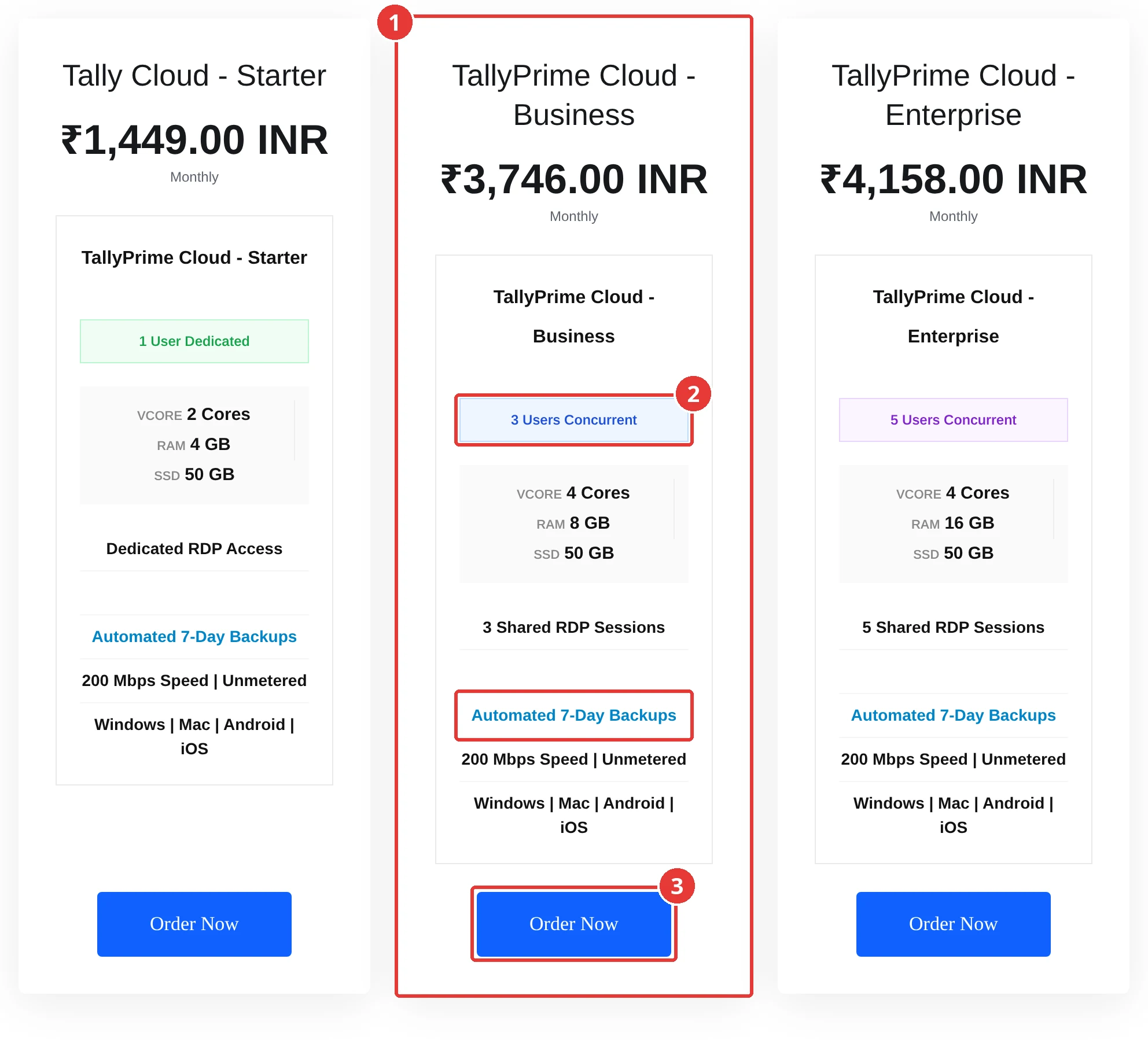
Go to rdp.shohost.com > TallyPrime Cloud Servers and pick by user count: Starter (1), Business (3) or Enterprise (5).
Step 2: Pick a billing cycle and check the total
Choose Monthly under Choose Billing Cycle (longer cycles cost less per month), check Total Due Today and click Continue.
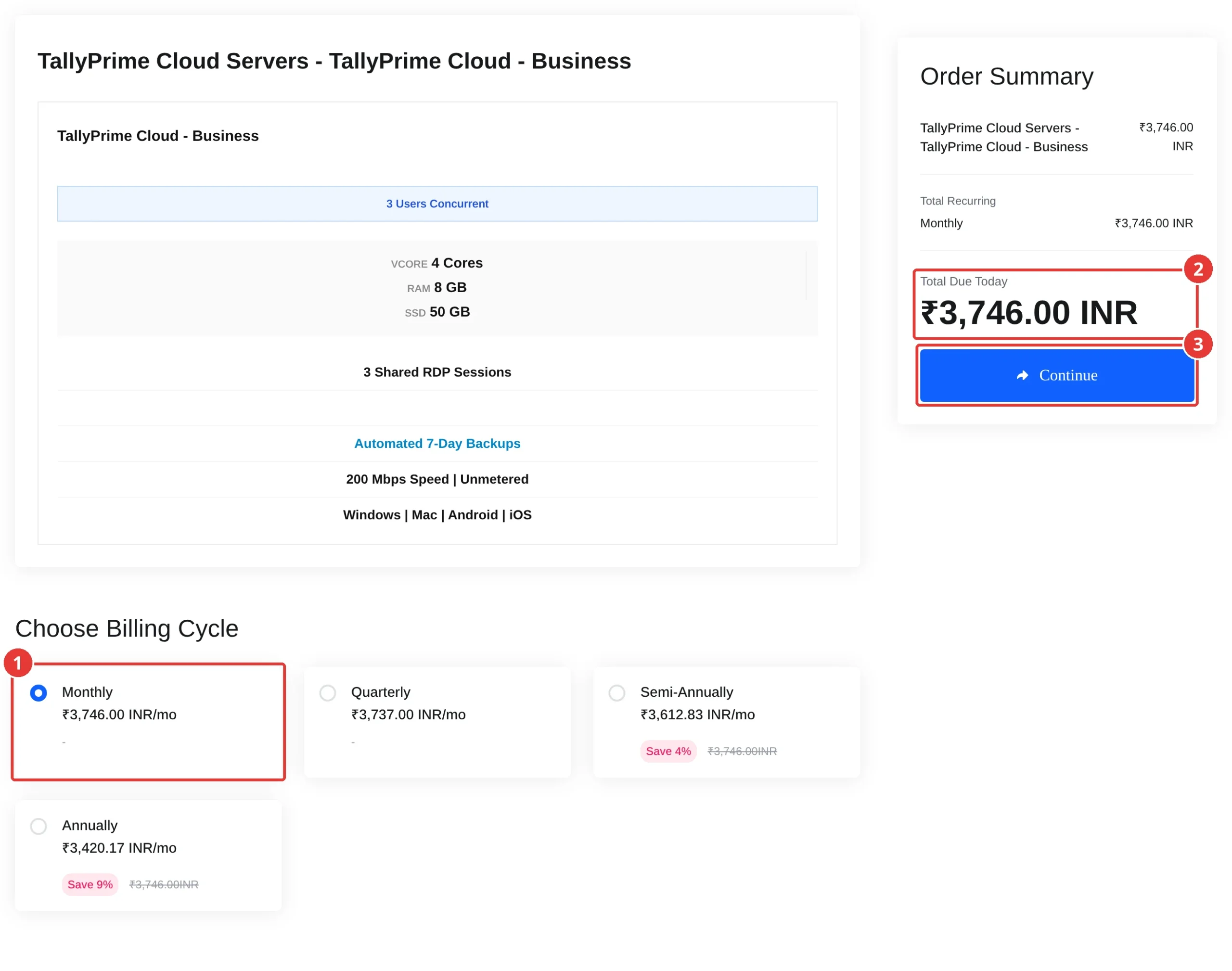
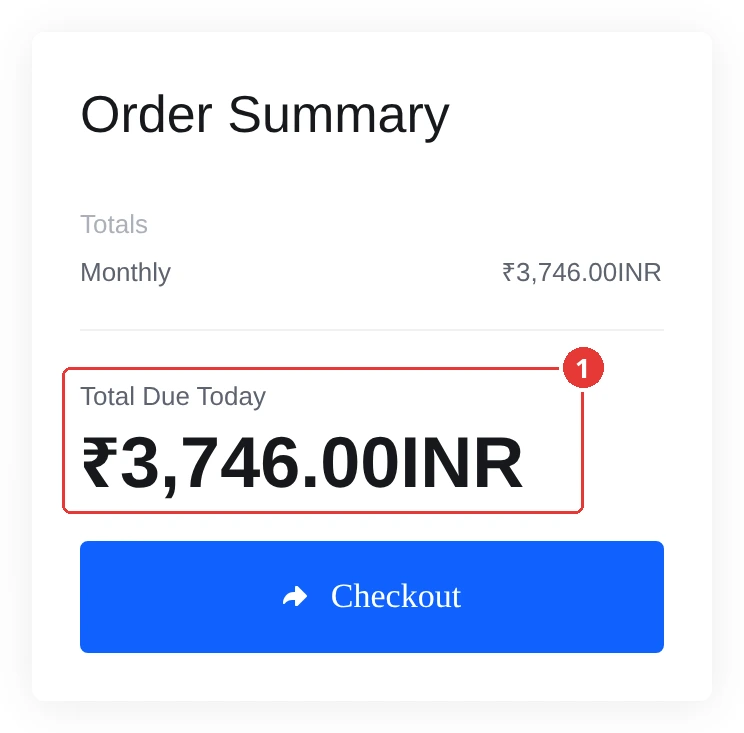
Expected result: the cart shows Total Due Today ₹3,746.00 INR.
Step 3: Activate your own TallyPrime Gold licence on the server
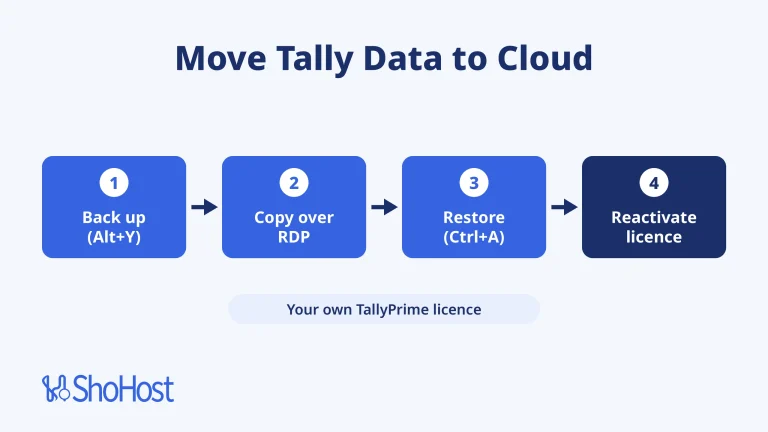
Sign in with the details from your welcome email, run TallyPrime as administrator and activate your Gold licence. Reactivating it on the server surrenders it from the office PC, so switch after office hours. Check it under F1 (Help) > Settings > Manage License.
Step 4: Restore your company data and schedule backups
Copy your latest Tally backup to the server, go to Alt+Y (Data) > Backup & Restore > Restore and press Ctrl+A. Then schedule a daily backup from the same menu.
Step 5: Connect each user
Give each person their own Windows login and TallyPrime user rights. They connect with Remote Desktop Connection on Windows or the Windows App on a Mac, Android or iPhone, and close TallyPrime when they finish so a TVU isn’t left in use.
Expected result: all three users open the same company in TallyPrime at the same time, from the office, from home or from a phone.
Get TallyPrime Cloud – Business for 3 users
ShoHost TallyPrime Cloud – Business gives 3 concurrent users, 4 cores, 8 GB RAM, 50 GB SSD, 3 shared RDP sessions, automated 7-day backups and a 200 Mbps unmetered connection for ₹3,746 a month, all fees included. You bring your own TallyPrime Gold licence. ShoHost has been running since 2020 with 180+ clients. Need only 1 user? Start with Tally Cloud – Starter. Need 5? The TallyPrime Cloud Servers store has an Enterprise plan.
Not sure which plan or licence fits? Email support@shohost.com or WhatsApp +91 94880 91432, 9 AM to 12 midnight IST.
FAQ
Is Tally on cloud safe?
It can be safer than an office PC, because the data sits in a data centre with automated backups instead of on one disk in the office. Use strong Windows passwords, give each user their own login, set TallyPrime user rights and keep a TallyPrime backup with a backup password.
Does Tally cloud include the TallyPrime licence?
Not at ShoHost. Every ShoHost Tally Cloud plan is the server only, and you bring your own TallyPrime licence: Silver for 1 user, or Gold for 3 or 5 users. Gold includes 10 Tally Virtual Users, which covers the Business and Enterprise plans.
Can Tally multi-user work without LAN?
A Gold licence on its own works only inside one LAN. For users outside it, you need Tally Remote Access (which needs TSS and an office PC that stays on), a VPN with Remote Desktop, or Tally on cloud, where every user connects to the same server over the internet.
How much does Tally on cloud cost per month in India?
At ShoHost, TallyPrime Cloud – Business for 3 users is ₹3,746 a month, all fees included, and Tally Cloud – Starter for 1 user is ₹1,449 a month. Your TallyPrime licence is a separate cost that you pay Tally Solutions or your Tally reseller in both cloud and local setups.
How do I take a Tally backup on a cloud server?
The same way as on a PC: Alt+Y (Data) > Backup & Restore > Backup, or schedule a daily backup from the same menu. On ShoHost the server also has automated 7-day backups, so you have two copies.