WordPress Homepage Defaced? How to Restore It and Find the Cause
Tested in the ShoHost fix lab on 12 October 2026: WordPress 7.1.3, PHP 8.4, Apache with MariaDB 11.8. Every screenshot below is from that lab, not from a customer site.
Safety note: Every “attack” in this guide was a harmless marker (text strings and example.com links) planted on a throwaway local WordPress install. Nothing here is real malware. Don’t experiment on your live site.
A defacement replaces your homepage with the attacker’s message. Often the inner pages still work. One of the simplest tricks is to drop an index.html file into your site’s root folder, because the web server serves it before WordPress’s index.php.

Detect
In cPanel File Manager, sort public_html by Last Modified. A new index.html or index.htm, or changed theme files (header.php, index.php), are the usual suspects. Also check .htaccess for a DirectoryIndex change.
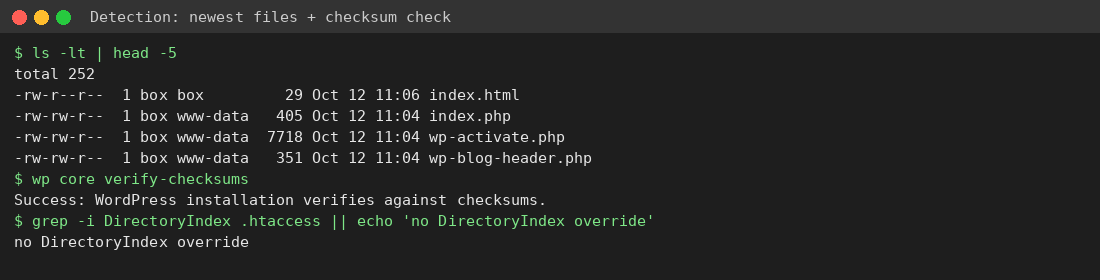
Important: in our lab,
wp core verify-checksumsreported success even with the extraindex.htmlin the root folder, so don’t rely on it alone. Sort by date and look for yourself.
Restore
- Before you change anything, take a full backup in cPanel (Files → Backup, or your host’s backup tool): home directory plus database. Keep it as evidence. Don’t restore it as if it were clean.
- Delete the injected file. If theme files were changed, reinstall the theme (
wp theme install name --force) or restore it from a backup you know is clean. - Find out how they got in (an outdated plugin, a weak FTP password) and fix that before you call the job done: follow the full hacked site checklist.

To prevent it, use SFTP instead of FTP, delete unused FTP accounts, and set up an uptime or content monitor that alerts you when your homepage text changes.
Need a hand?
Not sure your cleanup is complete? If you host with ShoHost, contact support on WhatsApp (+91 94880 91432) or at [email protected] before you change anything else. Moving a site you’ve just cleaned? ShoHost WordPress hosting includes free SSL and free migration.