How to Move Tally Company Data to a Cloud Server (TallyPrime, 2026)
You’ve decided to run TallyPrime on a cloud server, but years of vouchers, ledgers and stock records still sit on an office PC. The good news: TallyPrime’s own Backup and Restore moves a company safely, and the whole job usually fits into one evening. This guide shows the safe order: back up, copy, restore, move the licence, then check that every voucher arrived.
Who it’s for: Indian businesses, CA firms and accountants moving one or more Tally companies from a PC or office server to a cloud server, and Tally users abroad doing the same. Not for: merging two companies or exporting data to Excel.
In this guide
- Before you start
- Quick answer: the 5-step move
- Where is Tally company data stored?
- Method 1: Backup and restore over Remote Desktop (recommended)
- Method 2: Move Tally data through TallyDrive
- Method 3: Copy the company folder (old PC, pendrive or dead PC)
- Move your TallyPrime licence to the cloud server
- Verify the move worked
- Troubleshooting
- Get a TallyPrime cloud server from ₹1,449 a month
- FAQ
- Related guides
Before you start
- The same or a newer TallyPrime release on the cloud server. Data opened in a newer release can’t be opened in an older one (Tally Data Migration FAQ), so never restore into an older release.
- Your Tally.NET administrator ID and password, which you need to move the licence.
- Your TallyVault password if the company is encrypted. Restore asks for it.
- Everyone out of TallyPrime on the office PC at the moment you take the final backup, so no entry is left behind.
- Enough disk space. Each ShoHost Tally Cloud plan has a 50 GB SSD. Check your data folder size first, and remember that migrating older data to a newer release makes it larger.
| Time | Difficulty | Risk | Downtime |
|---|---|---|---|
| 30–60 minutes for most small companies | Beginner | Low, if you restore to an empty folder | Only while you take the final backup and restore |
Quick answer: the 5-step move
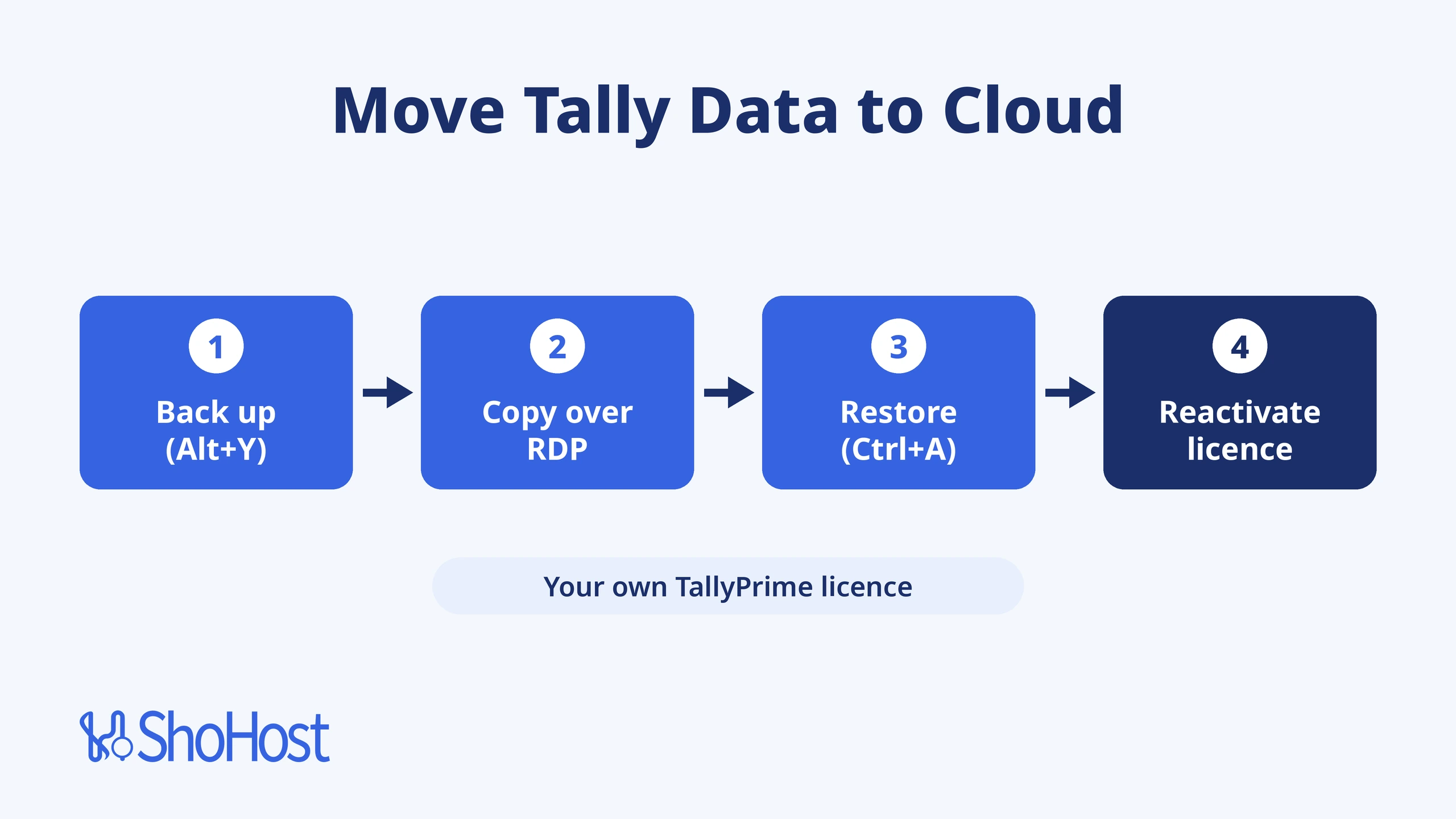
On the office PC, take a TallyPrime backup (Alt+Y (Data) > Backup & Restore > Backup). Copy the backup file to the cloud server through your Remote Desktop session. On the server, restore it (Alt+Y (Data) > Backup & Restore > Restore, then Ctrl+A). Next, move your licence with Reactivate License, and finally compare the Trial Balance on both machines.
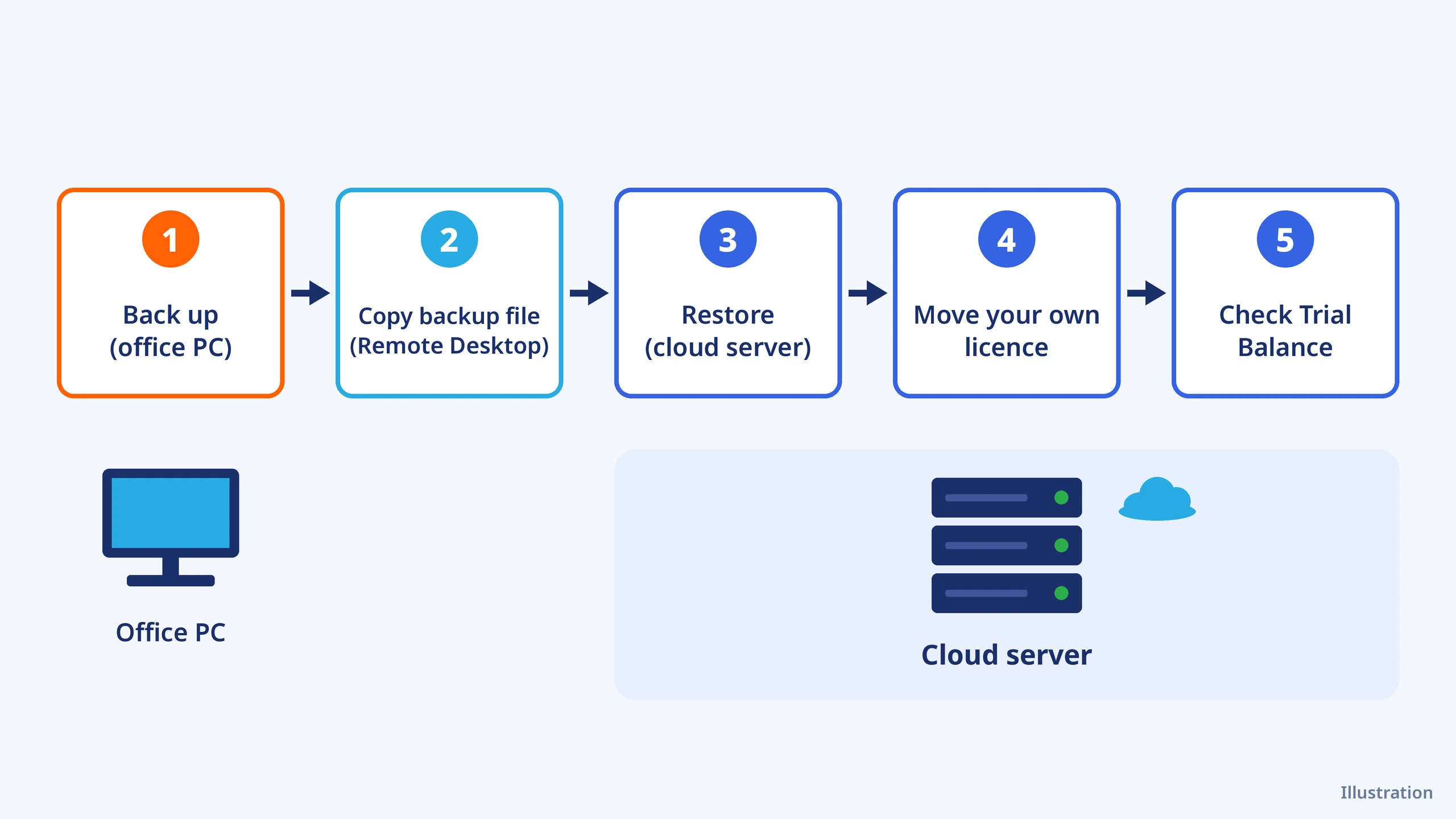
Illustration in words: five boxes joined by arrows: back up on the office PC, copy the backup file, restore it on the cloud server, move your own licence, then check the Trial Balance.
Where is Tally company data stored?
TallyPrime keeps each company in its own numbered folder (for example 10000, or a 6-digit number such as 100000 from Release 3.0) inside one data folder. A new install uses C:\Users\Public\TallyPrime\Data by default, but many offices change it. To see your real path, go to F1 (Help) > About and look at Location of Company data under Data Information.
The file extension also tells you the data format. Files ending in .900 are older data (Tally.ERP 9 and TallyPrime up to Release 2.1). Files ending in .1800 are Release 3.0 or later. Write down the path and the company number before you begin.
Method 1: Backup and restore over Remote Desktop (recommended)
Tally’s own help calls a backup “a much more reliable method than directly copying the company data folders”, so start here.
Step 1: Take a backup on the office PC
In TallyPrime on the office PC, go to Alt+Y (Data) > Backup & Restore > Backup (on Release 6.2 or earlier, Alt+Y (Data) > Backup). Choose Local Drive, select your company (or All Items) and save the backup to a folder you can find, such as D:\TallyBackup. The backup is a single file whose name starts with TBK.
Expected result: TallyPrime confirms the backup, and a TBK… file appears in your backup folder.
Step 2: Copy the backup file to the cloud server
Close the Remote Desktop session if it’s open. On Windows, open Remote Desktop Connection, click Show Options > Local Resources > More, tick Drives (or just the drive that holds the backup) and connect. On a Mac, iPhone or Android, use the Windows App’s Folders setting to redirect a folder (Microsoft Learn). Inside the server, open File Explorer > This PC, find your drive under Redirected drives and folders, and copy the TBK file to a folder on the server, such as C:\TallyBackup.
If you prefer the command line, run this in PowerShell on the server. \\tsclient\D is your PC’s D: drive inside the session, so change the drive letter and folders to match yours:
robocopy "\\tsclient\D\TallyBackup" "C:\TallyBackup" /EExpected result: robocopy finishes with a summary table. The Failed column should show 0 for Files.
Step 3: Restore the company on the cloud server
Open TallyPrime on the server, run as administrator. Go to Alt+Y (Data) > Backup & Restore > Restore (on Release 6.2 or earlier, Alt+Y (Data) > Restore). Check that Restore Data Path points to the folder TallyPrime should use for live data. Under Primary, pick C:\TallyBackup, select the company and the latest version, then press Ctrl+A (Tally Help).
Warning: if TallyPrime says a company with the same name already exists, choose Skip and restore to a new, empty folder. Replace permanently deletes the existing data in that folder.
Expected result: the company appears in Alt+F3 (Company) > Select on the server. If your data came from Release 2.1 or earlier, TallyPrime offers to migrate it to the newer format. Let it finish, because migration can’t safely be stopped halfway.
Method 2: Move Tally data through TallyDrive
Use this when: your TSS is active and copying files over Remote Desktop is slow or blocked. TallyDrive is Tally’s own cloud backup storage, available from Release 7.0, and it needs an active TSS (Backup and Restore in TallyPrime).
- On the office PC: Alt+Y (Data) > Backup & Restore > Backup, choose TallyDrive, log in with your Tally.NET ID and add a Backup Password.
- On the cloud server: Alt+Y (Data) > Backup & Restore > Restore, choose TallyDrive (Cloud Storage), log in, pick the company and the latest version, then press Ctrl+A.
- Enter the same backup password. If you’ve forgotten it, use the Recovery Key that Tally sends to your Tally.NET email.
Expected result: the same company list appears on the server, with the backup date you just took.
Method 3: Copy the company folder (old PC, pendrive or dead PC)
Use this when: the old PC won’t start TallyPrime, or all you have is a copy of the data folder on a pendrive. This is a common story: a Windows 7 PC dies, the data is on a pendrive, and it won’t open on the new machine.
- Copy the whole numbered company folder (for example
10000), not single files, into the data folder on the server. - Open TallyPrime on the server and select the company. If the files end in
.900, TallyPrime asks to migrate. Keep the original pendrive copy untouched in case you need to start again. - Very old data from Tally 7.2 or 4.5 has to go through Tally’s migration tools first; follow the Data Migration FAQ.
To copy the folder from your redirected drive in PowerShell on the server (change the drive letter, company number and data path to yours):
robocopy "\\tsclient\E\TallyData\10000" "C:\Users\Public\TallyPrime\Data\10000" /EExpected result: the company shows in Select Company, either ready to open or asking to migrate.
Move your TallyPrime licence to the cloud server
ShoHost Tally Cloud plans don’t include a TallyPrime licence, so you move your own. A Silver licence works on one machine at a time. Tally’s advice is to surrender it on the old PC first: F1 (Help) > Settings > License > Manage License, press Ctrl+F7 (Surrender) and enter your administrator Tally.NET ID (Surrender License).
On the server, choose Reactivate License on the Welcome screen and sign in with the same ID. If you couldn’t surrender on the old PC, reactivation surrenders it automatically, as long as that PC is online (Reactivate License). Users on a cloud server count as Tally Virtual Users: Silver includes 1 and Gold includes 10 (TVU policy).
Warning: switch the licence after office hours. Once it’s reactivated on the server, the office PC drops to Educational mode.
Verify the move worked
- On both machines, open Trial Balance for the full year and compare the closing totals.
- Open Day Book for your last working day and check that the final voucher is there.
- On the server, set Alt+Y (Data) > Data Path > Company Data Path to the restored folder, so TallyPrime always loads it.
- Schedule a daily backup on the server from Alt+Y (Data) > Backup & Restore. Tally recommends keeping one schedule to a local drive and one to TallyDrive.
- From now on, enter vouchers only on the cloud server. Two live copies quickly drift apart.
Troubleshooting
| Symptom or message | Likely cause | Fix |
|---|---|---|
| “Unable to open the company in this release of TallyPrime” | The data was saved in a newer release than the one on the server | Install the same or a newer release on the server, then restore again |
| Company list is empty after restore | TallyPrime is looking in a different data path | Set Alt+Y (Data) > Data Path to the folder you restored into |
| “Diskette one is damaged” during restore | The backup file is incomplete (copy stopped, or the drive was full) | Take a fresh backup and copy it again, or restore an earlier backup |
| Educational mode on the server | The licence hasn’t been reactivated there yet | Use Reactivate License with your administrator Tally.NET ID |
| Pendrive data won’t open | Older .900 data, or a partial folder | Copy the full numbered folder and let TallyPrime migrate it (Method 3) |
| Still stuck? | — | WhatsApp support on +91 94880 91432 (9 AM to 12 midnight IST). Send a screenshot of the message and your TallyPrime release number |
Get a TallyPrime cloud server from ₹1,449 a month
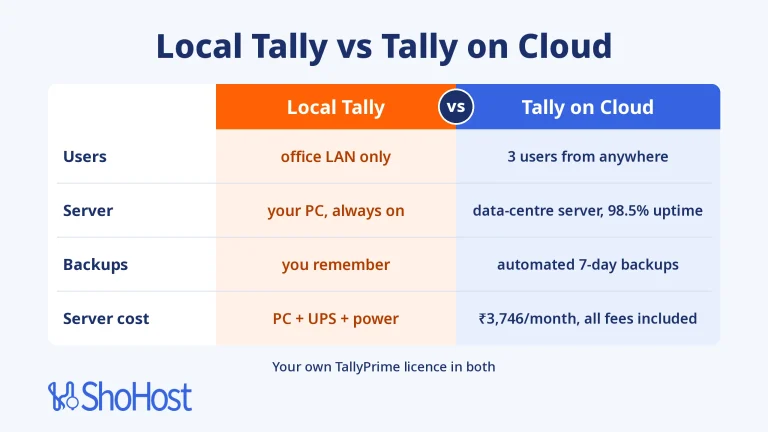
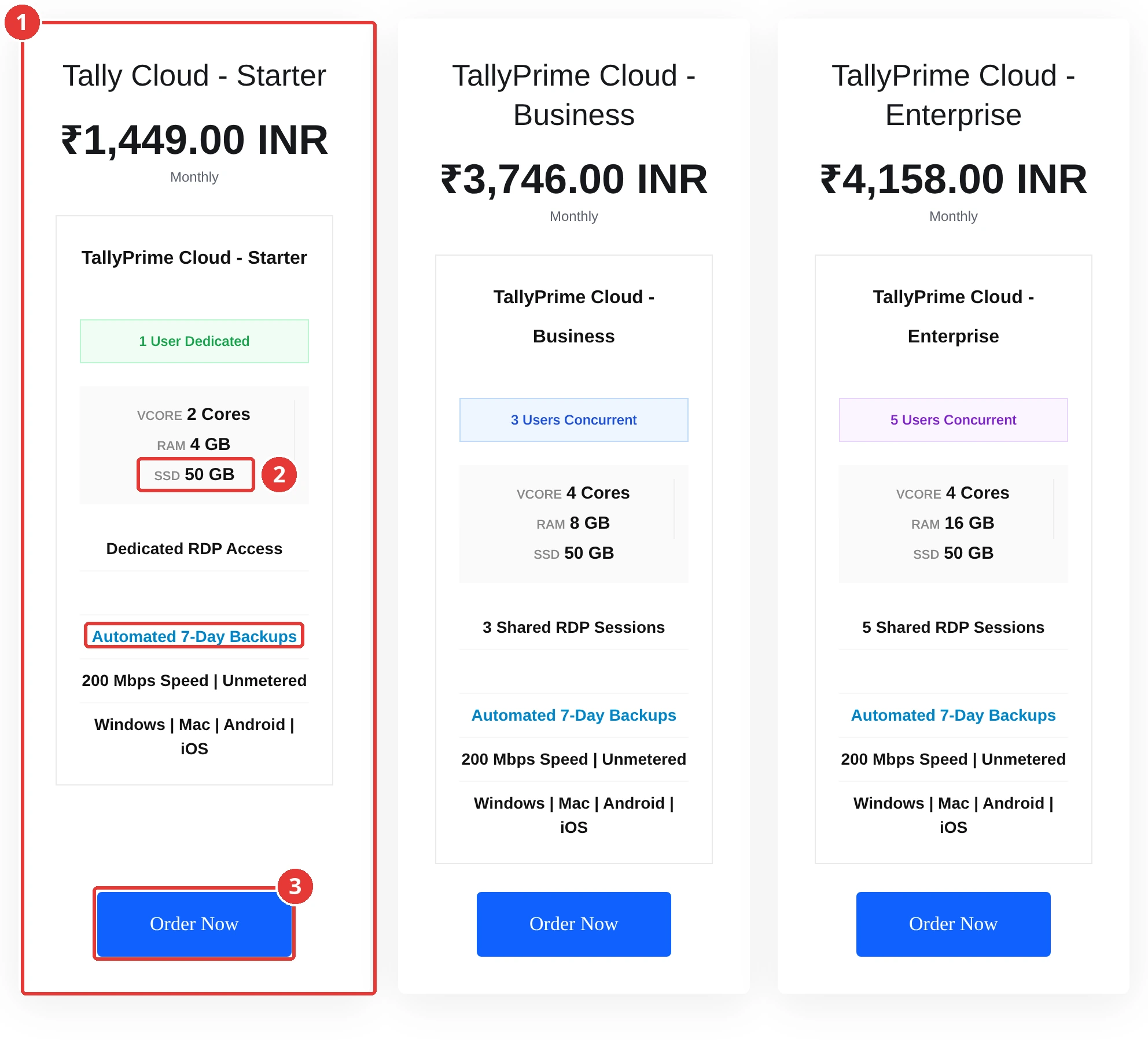
ShoHost Tally Cloud – Starter gives 1 dedicated user, 2 cores, 4 GB RAM, a 50 GB SSD, dedicated RDP access, automated 7-day backups and a 200 Mbps unmetered connection for ₹1,449 a month, all fees included. It works from Windows, Mac, Android and iOS. You bring your own TallyPrime licence. For 3 users, TallyPrime Cloud – Business is ₹3,746 a month, and the TallyPrime Cloud Servers store also has a 5-user Enterprise plan.
How to order
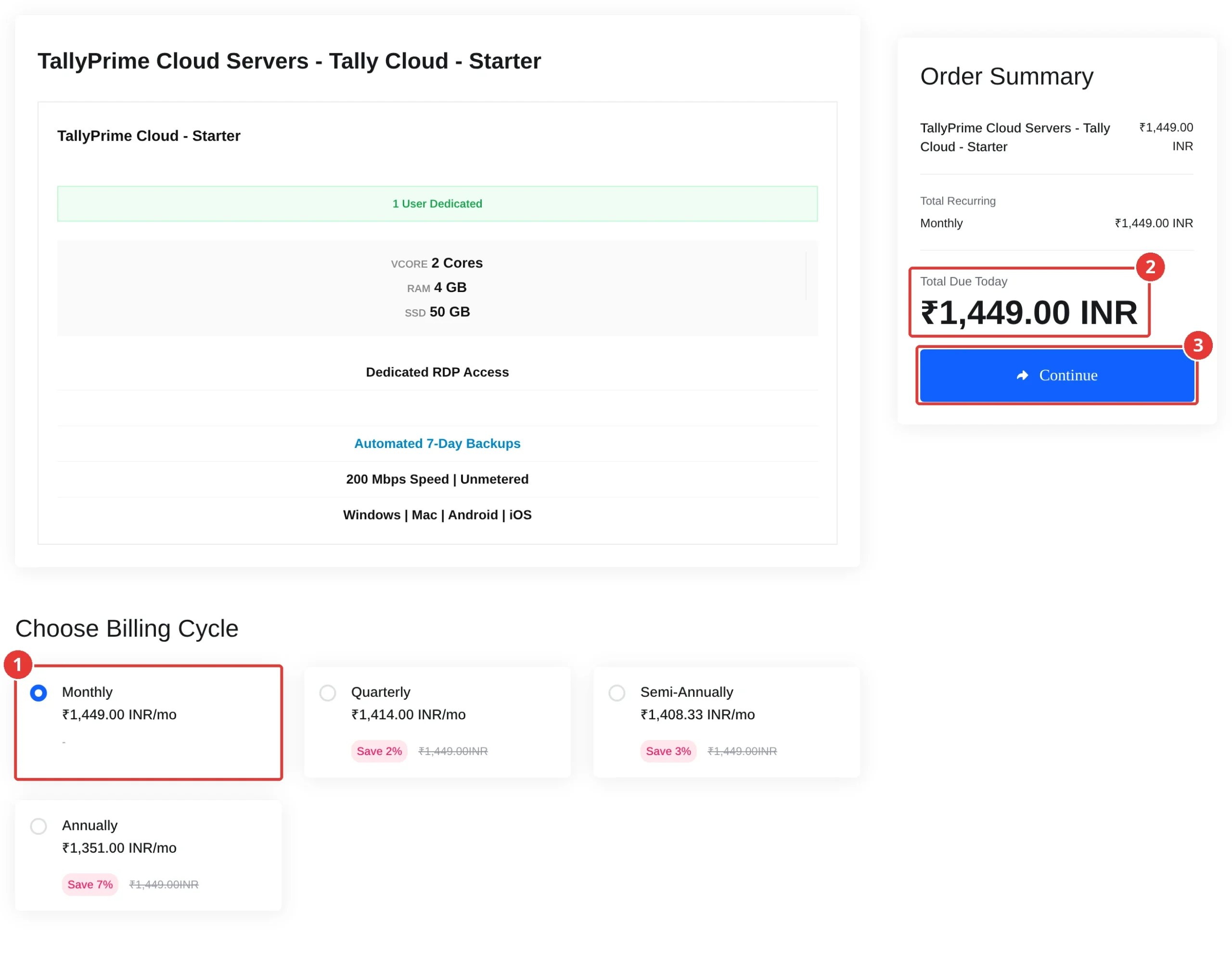
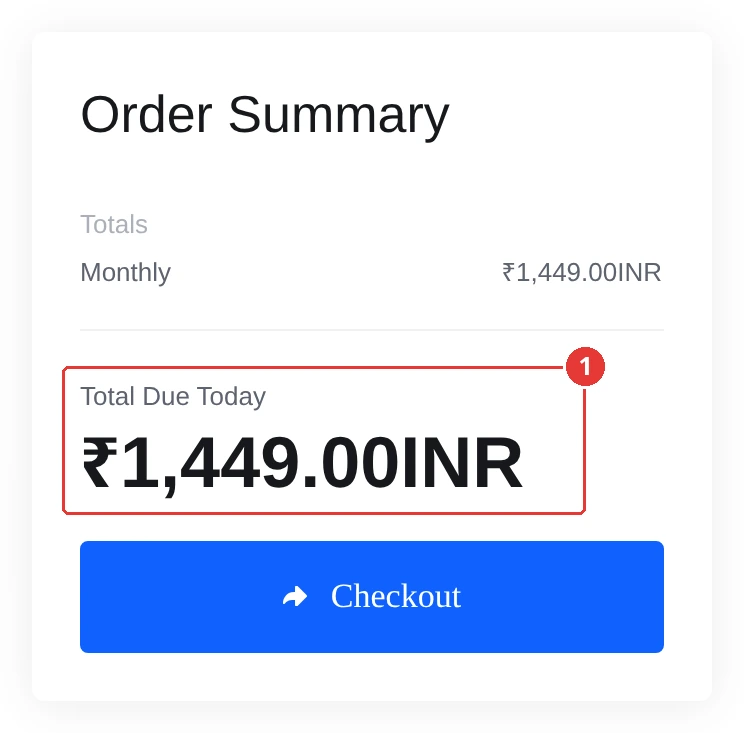
Go to rdp.shohost.com > TallyPrime Cloud Servers, click Order Now on the plan that matches your user count, pick a billing cycle and check Total Due Today.
Questions before you move? WhatsApp support on +91 94880 91432, 9 AM to 12 midnight IST.
FAQ
Can I copy the Tally data folder instead of taking a backup?
Yes, but only as a fallback. Tally says a backup is more reliable than copying company folders. If you copy, take the whole numbered company folder while TallyPrime is closed on the old PC.
Will my old Tally ERP 9 data open on a cloud server?
Yes, after migration. Restore or copy it into TallyPrime on the server and accept the migration prompt. Keep the original copy, because migrated data won’t open in the older release again.
Do I need to buy a new Tally licence for the cloud server?
No. Surrender your existing licence on the old PC and reactivate it on the server. ShoHost Tally Cloud plans don’t include a licence, so you use the one you already own.
Can I send a Tally backup by email or Google Drive?
Yes. A backup is a single TBK file, so you can download it inside the server’s browser from your email or Google Drive, then restore it with Alt+Y (Data) > Backup & Restore > Restore.
How long does it take to move Tally data to the cloud?
For most small companies it takes 30 to 60 minutes. Large data takes longer to copy, and older data takes extra time if TallyPrime has to migrate it.