WordPress 500 vs 503 Errors on Shared Hosting: Plugin Bug or Resource Limit?
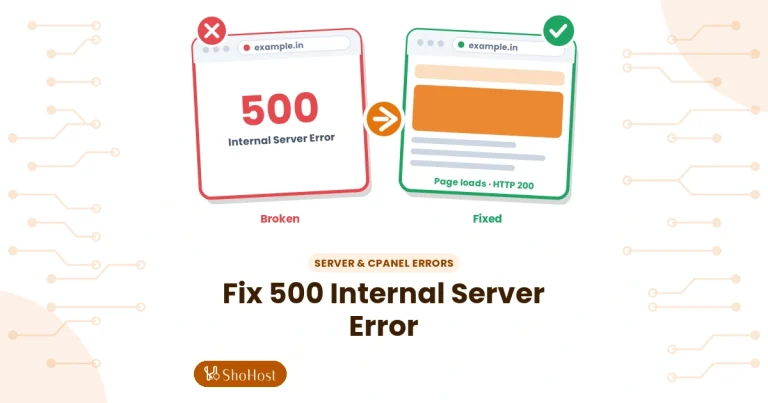
Your WordPress site shows a 500 error one minute and a 503 the next, or only fails when traffic picks up. Both look like “the server is broken”, but they point to different problems. A 500 Internal Server Error usually means something in your code or configuration broke. A 503 Service Unavailable on shared hosting usually means your account hit a resource limit and the server turned requests away.
This guide helps you tell them apart in a few minutes, then work through the common causes in a fixed order, from most to least likely, with a quick check and a fix for each in cPanel. The resource-limit (503) checks sit inside the checklist where they belong. Debugging and logs come last, only if every check passes. If you only need the full 500 walk-through, see our 500 Internal Server Error guide; for 503 alone, see 503 Service Unavailable on shared hosting.
Who it’s for: WordPress owners on cPanel shared hosting. Not for: 502 or 504 gateway errors, which come from a proxy.
WordPress 500 vs 503: what each error means
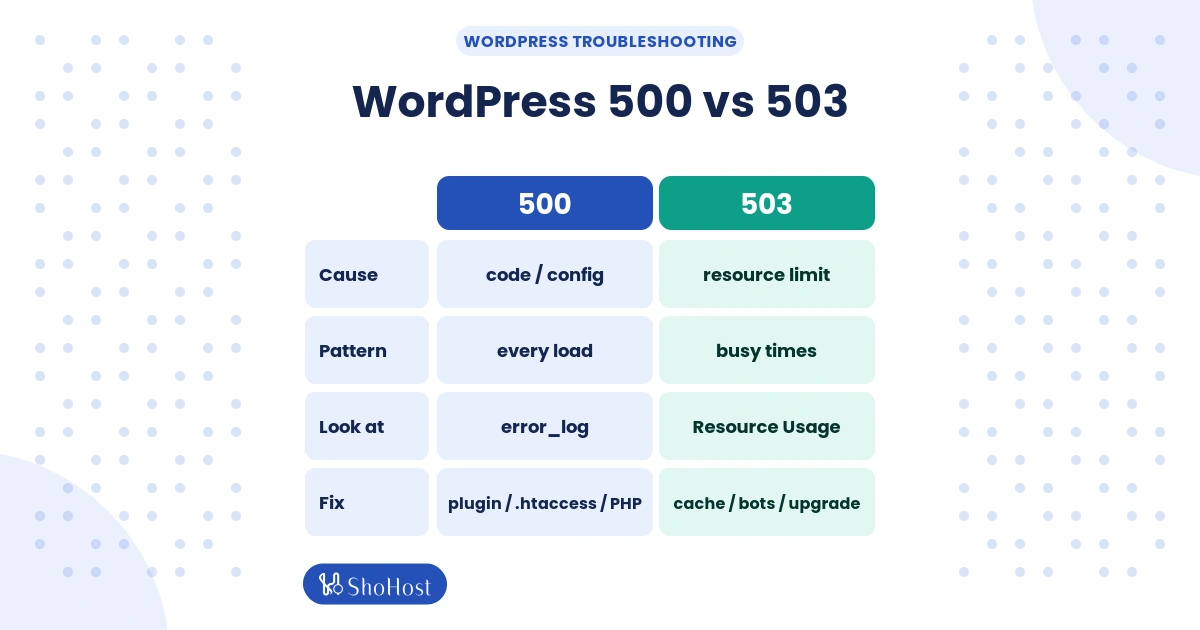
| 500 Internal Server Error | 503 Service Unavailable | |
|---|---|---|
| Meaning | The server hit an error running your site | The server is temporarily refusing requests |
| Typical cause on shared hosting | Broken .htaccess, PHP fatal error, bad plugin, wrong PHP version | Entry process or CPU/RAM limit reached, traffic or bot spike, maintenance |
| When it happens | Every time you load the page | Mostly at busy times; comes and goes |
| Where the evidence is | error_log / debug.log | cPanel > Resource Usage (faults) |
| Fix type | Fix code or config | Reduce load, cache, block bots, or upgrade |
Before you start (prerequisites)
- cPanel login (File Manager, MySQL Databases, MultiPHP Manager, MultiPHP INI Editor, Resource Usage).
- wp-admin access if the site loads at all; otherwise you will use File Manager.
- A recent backup from cPanel > Files > Backup before renaming files.
- Optional: a terminal for
curl, and SSH or FileZilla for the fallbacks. - Note when the error happens: always, or only at busy times. That one fact solves most cases.
Time and difficulty
| Time | Difficulty | Risk | Downtime |
|---|---|---|---|
| 15–45 min | Beginner to intermediate | Low to medium | None extra |
Quick answer: plugin bug or resource limit?
- Does the error appear on every page load, even at 3 a.m.? It is almost certainly a 500 from code or config. Read error_log first, then work through the checklist from cause 2.
- Does it come and go, mostly when traffic is high? It is probably a resource limit (503 or 508). Start the checklist, and give cause 1 (Resource Usage faults) extra attention.
- Did it start right after an update or a PHP change? Check cause 4 and cause 2 closely.
- Does the page say “Resource Limit Is Reached”? That is a 508; see our 508 guide.
Confirm the status code first
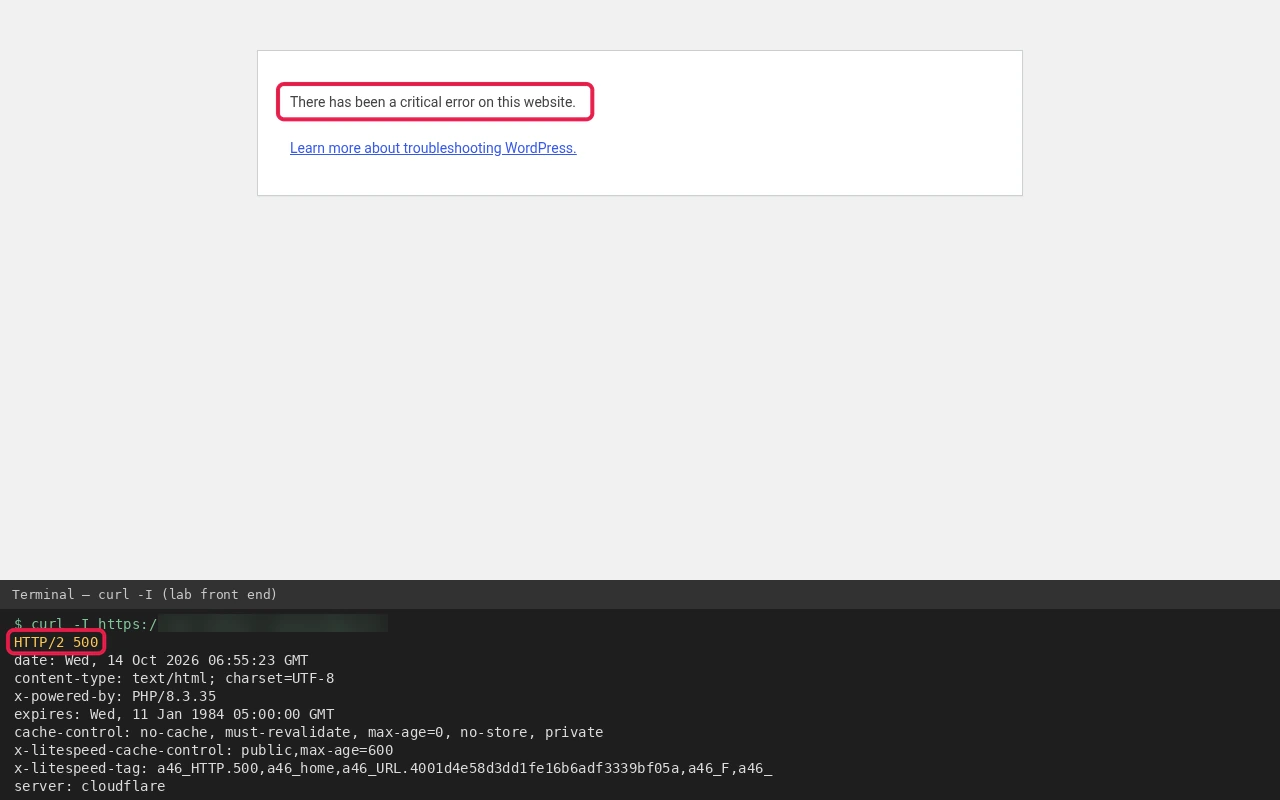
Do not trust the page design; themes and proxy services can show custom pages. Check the real status code from a terminal on your computer (replace the domain):
curl -sI https://example.com | head -n 1
for i in 1 2 3 4 5; do curl -s -o /dev/null -w "%{http_code}\n" https://example.com; done
Expected result: a steady code (always 500) points to code; a mix such as the one below points to limits:
200
503
200
503
200
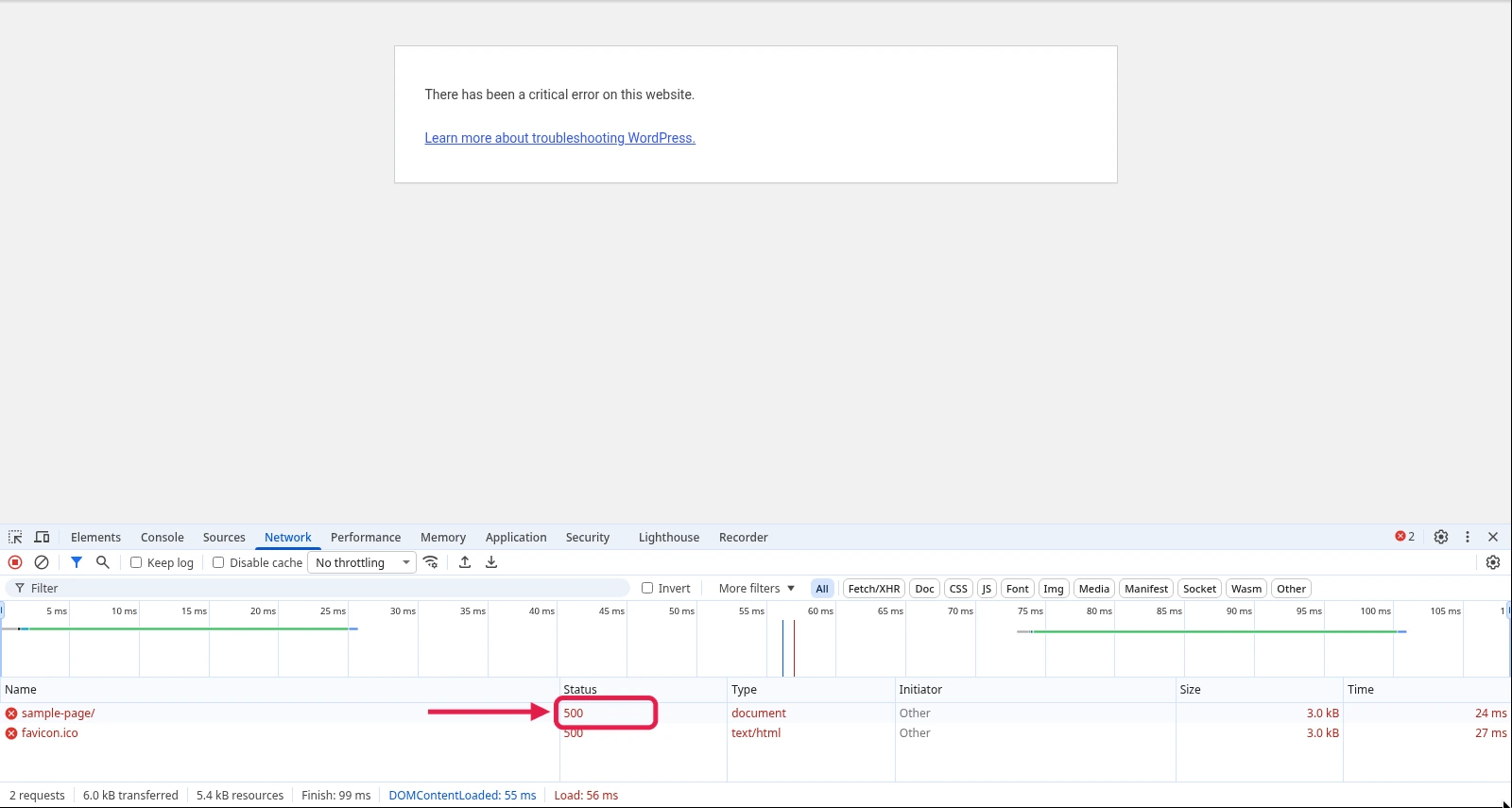
No terminal? In Chrome press F12, open the Network tab, reload, and read the Status column for the first row. In the example below the page request shows 500, the code for a broken plugin, theme or setting. A 503 shows up the same way, with 503 in the Status column instead.
Common causes checklist
Open two things before you change anything: the newest lines in error_log (see Step 1 under debugging) and cPanel Metrics > Resource Usage. The log usually names the file behind a 500, and Resource Usage shows whether the account hit a limit at the time of a 503. Then work through the list below.
- PHP memory and limits (includes the 503 resource-limit checks: Resource Usage faults, caching, bots)
- Plugins and theme
- .htaccess
- PHP version
- File permissions
- Disk and inode quota
- Recent changes
Database problems are left out on purpose. A wrong password or a stopped database server shows “Error establishing a database connection”, not a 500 or 503; that has its own guide.
1. PHP memory and limits (including 503 resource limits)
This is where most 503s on shared hosting are found. Check PHP memory first, then the account limits.
Check PHP memory_limit
Quick check: in cPanel > Software > MultiPHP INI Editor, choose your domain in Basic Mode and read memory_limit. WooCommerce and page builders usually need at least 256M.
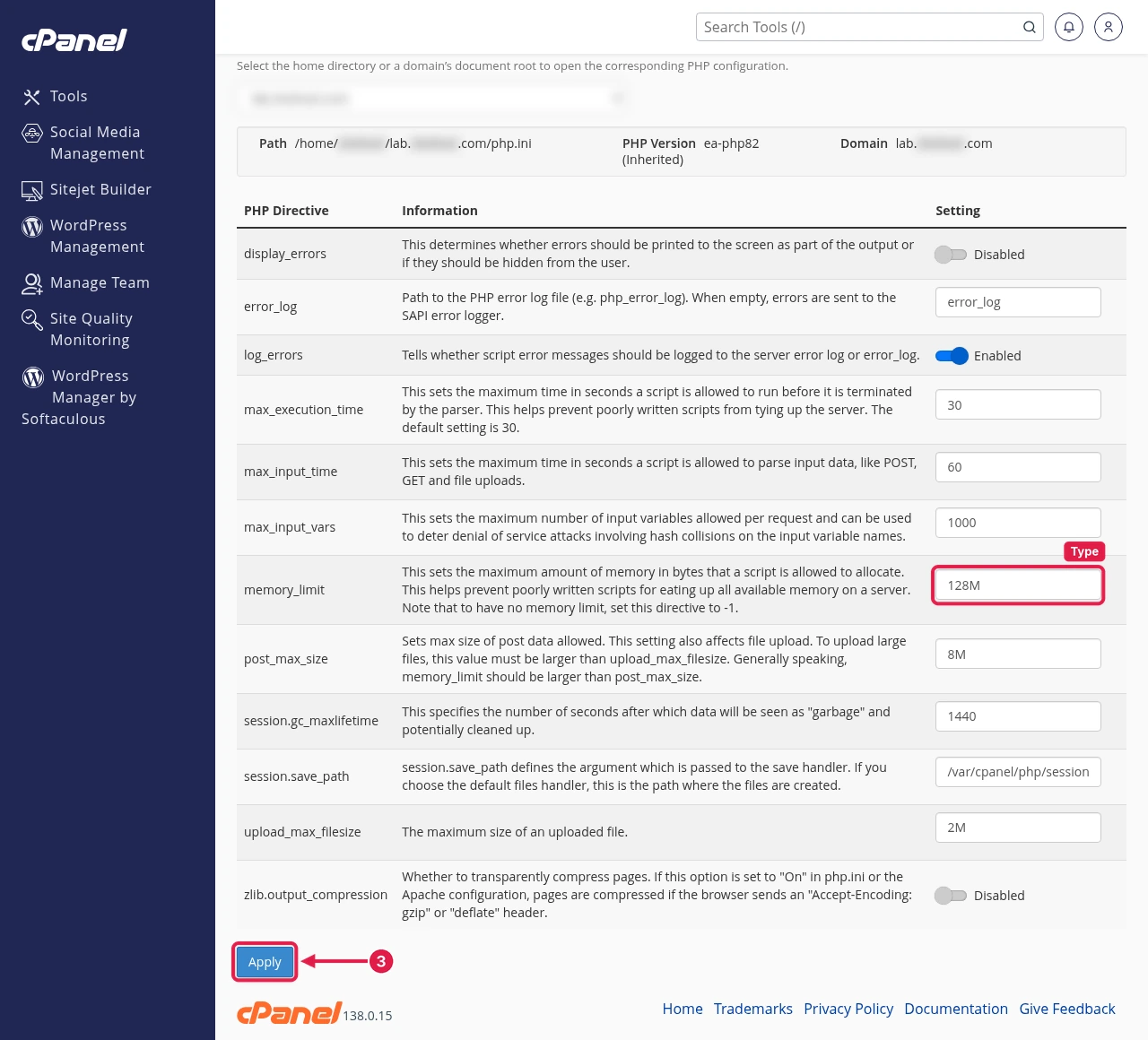
Fix: set memory_limit to 256M, click Apply, and add this line above /* That's all, stop editing! */ in wp-config.php:
define( 'WP_MEMORY_LIMIT', '256M' );Check Resource Usage faults (503)
Quick check: in cPanel > Metrics > Resource Usage, check the Dashboard tab for limit warnings, then open the Current usage tab. Look at Entry Processes, SPEED (CPU) and Physical Memory Usage, and the Fault column. Faults are moments when your account hit a limit and requests were turned away, often as 503 or 508.
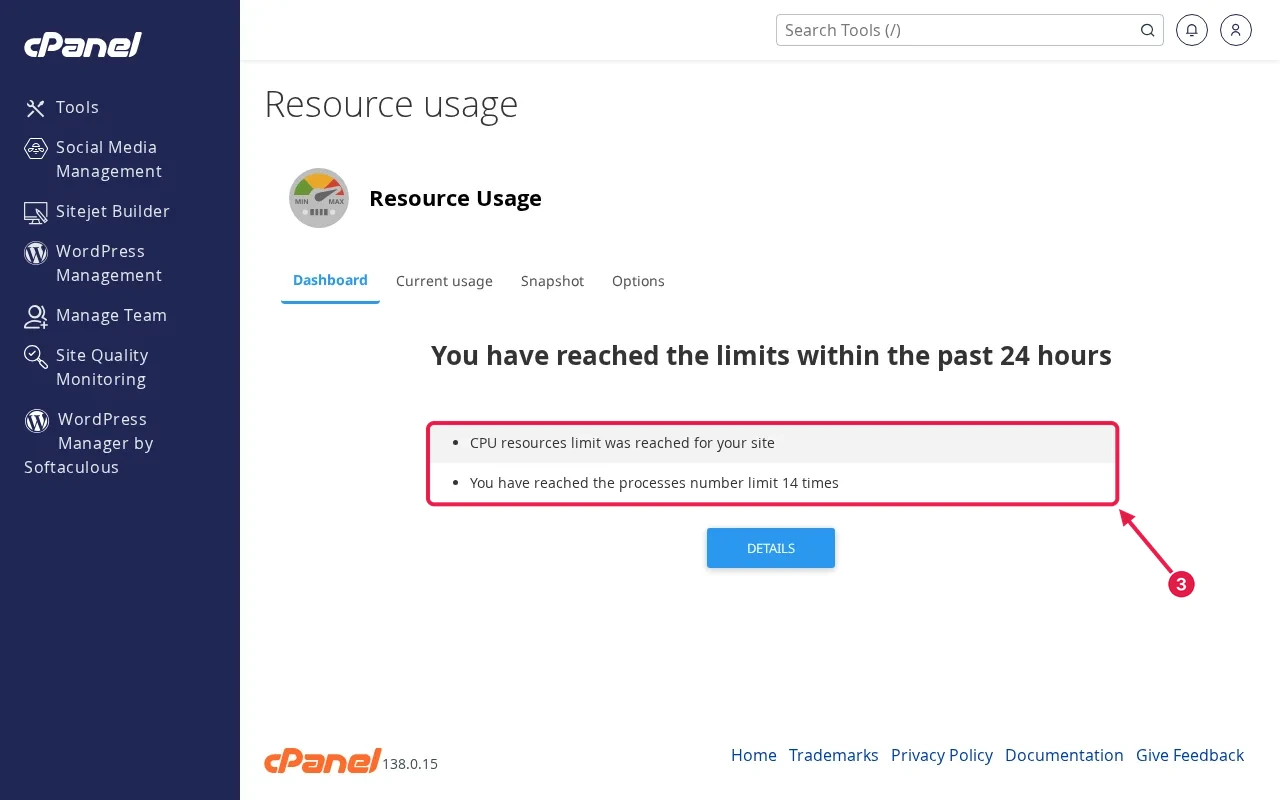
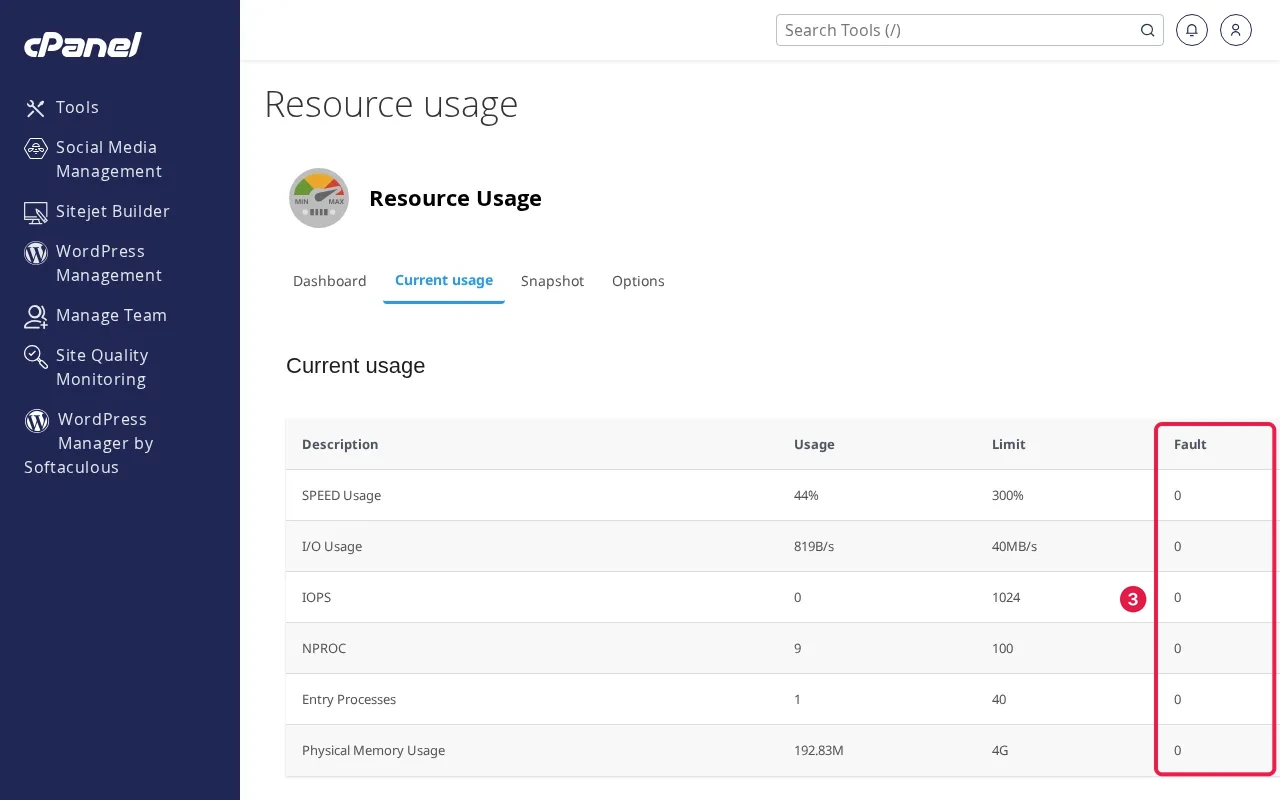
Expected result: you can match limit warnings to the times your site failed. No warnings and no faults means the error is probably not a limit; continue with cause 2.
Fix: turn on caching and purge
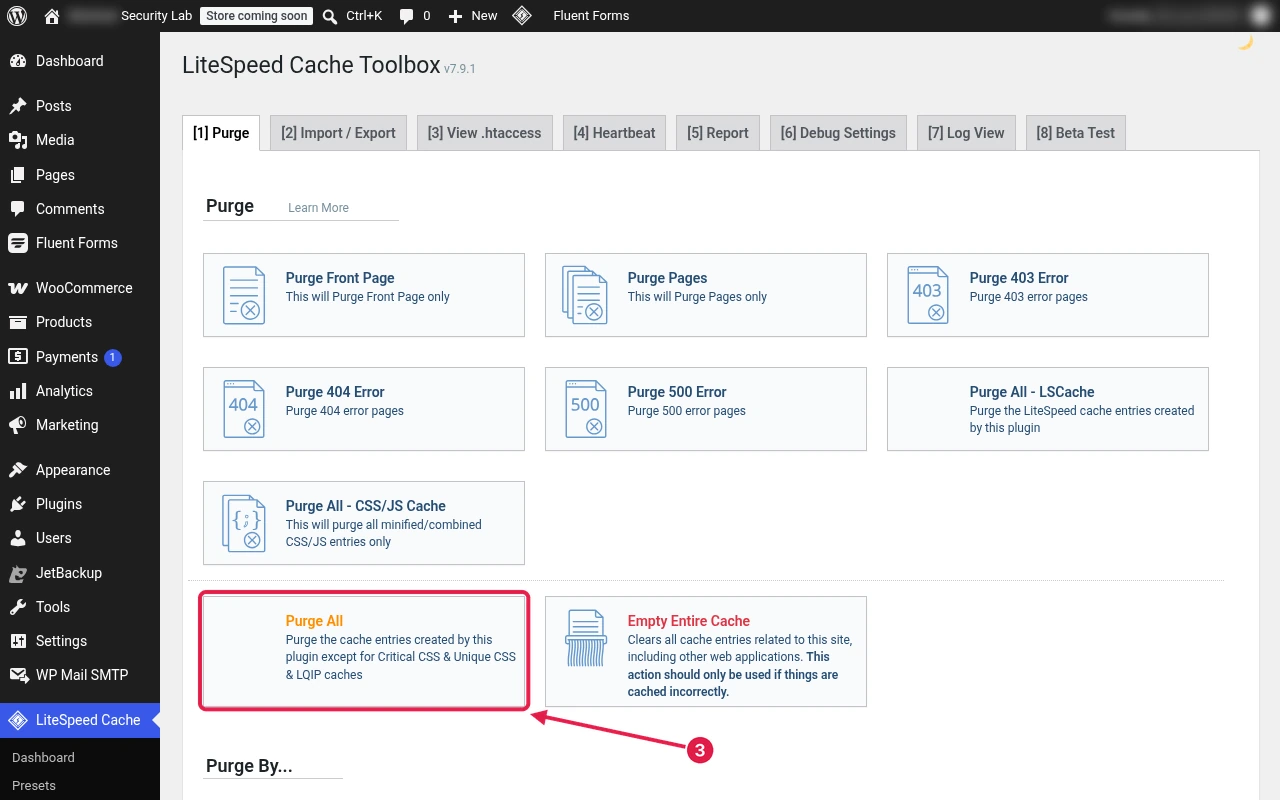
Full-page caching lets most visits skip PHP entirely, which is the biggest cut to entry processes. If your host runs LiteSpeed, install LiteSpeed Cache, enable caching, then go to LiteSpeed Cache > Toolbox and click Purge All after changes.
Fix: block bad bots and heavy requests
Spikes often come from bots hammering wp-login.php or xmlrpc.php. If you do not use XML-RPC (most sites do not), block it by adding this to the top of .htaccess:
<Files "xmlrpc.php">
  Require all denied
</Files>
Block abusive IPs in cPanel > Security > IP Blocker: type the IP address in IP Address or Domain and click Add. To find repeat offenders in the access log, see the SSH step in the final section.
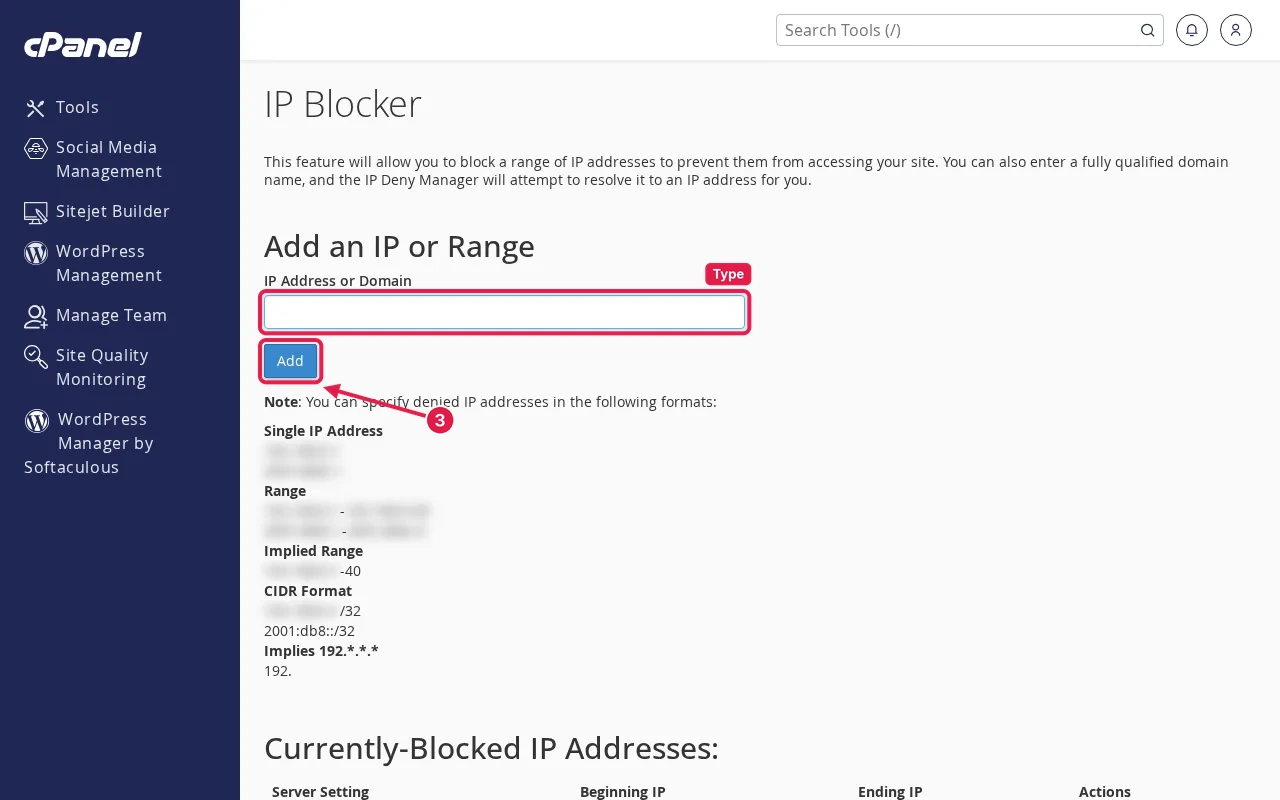
Expected result: fewer faults in Resource Usage over the next day. If faults continue after caching and bot blocking, the site has outgrown the plan; see when to upgrade.
2. Plugins and theme
Quick check: did you just install or update a plugin or theme? A broken plugin causes a 500 on every load; a heavy plugin can use up entry processes and cause 503s, and some maintenance or security plugins return 503 on purpose. Also look for a leftover .maintenance file in public_html after a failed update.
Fix: open public_html/wp-content, select the plugins folder and click Rename in the toolbar. In the Rename dialog, change the name to plugins-disabled, click Rename File and reload. If the site works, rename it back and rename single plugin folders one by one (for example myplugin-disabled) to find the culprit. For a theme, rename the active folder in wp-content/themes the same way, with -disabled on the end. The full routine is in our critical error guide.
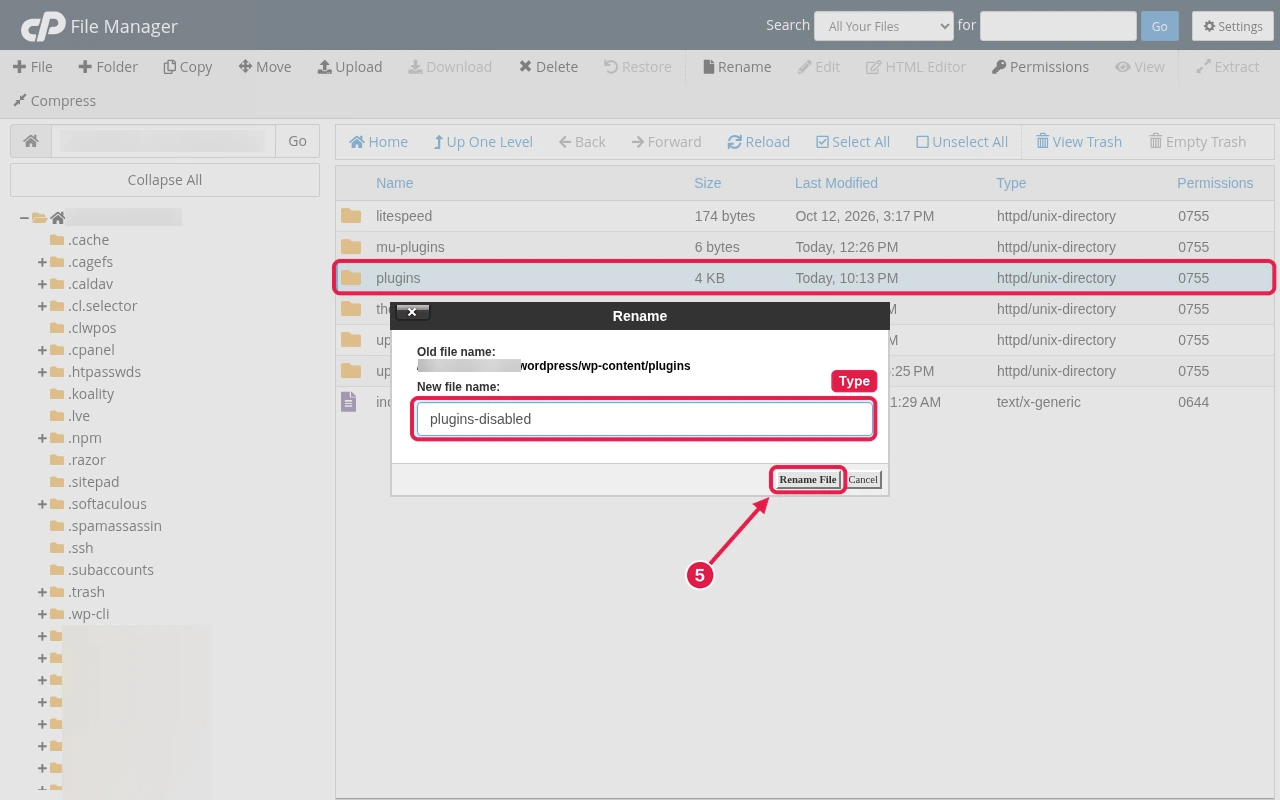
Expected result: the site loads (unstyled parts are normal while plugins are off). If a .maintenance file was there, deleting it removes a 503 at once.
3. .htaccess
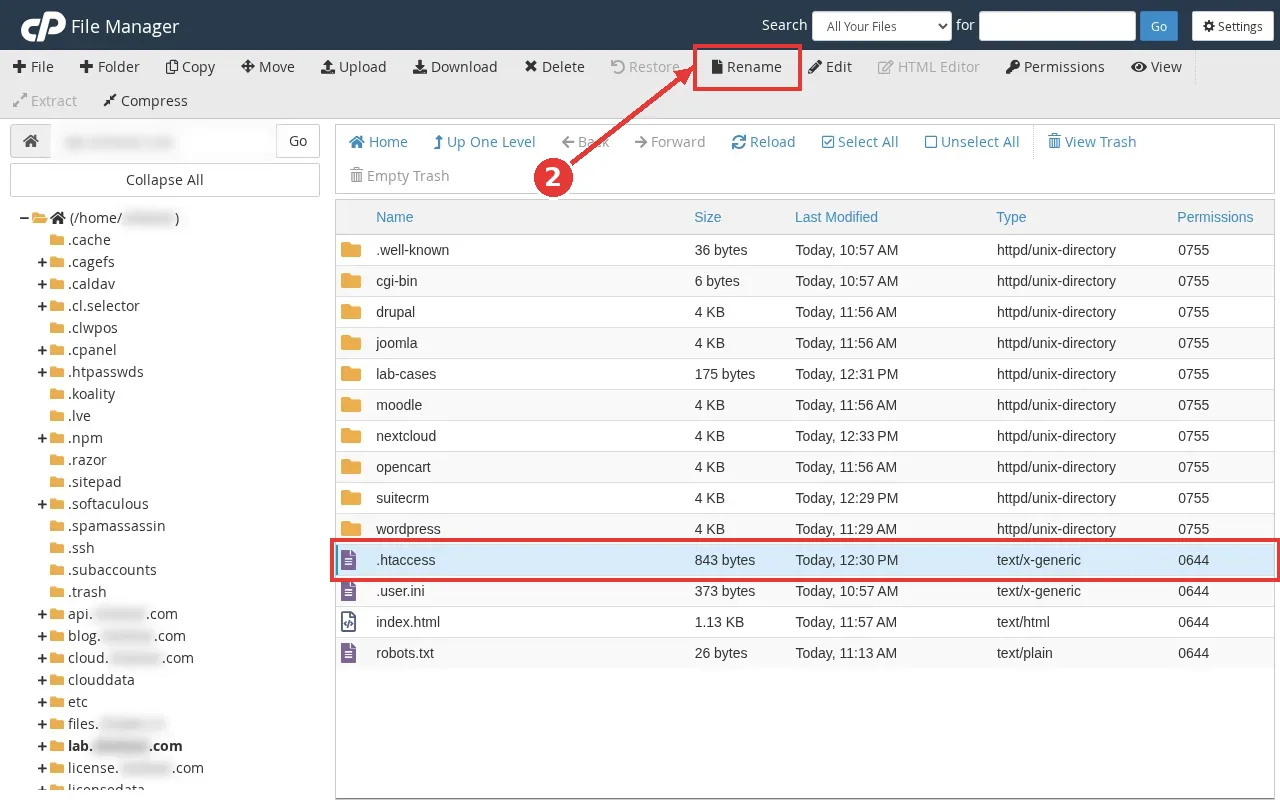
Quick check: in File Manager, open Settings, tick Show Hidden Files (dotfiles), and look at public_html/.htaccess. A bad rewrite rule or a stray AddHandler or SetHandler line causes a 500 on every load.
Warning: rename, do not delete, so you can restore custom rules (redirects, security rules) later.
Fix: select .htaccess, click Rename in the toolbar and change it to .htaccess.old. Reload the site. If it works, create a new .htaccess with the default WordPress rules:
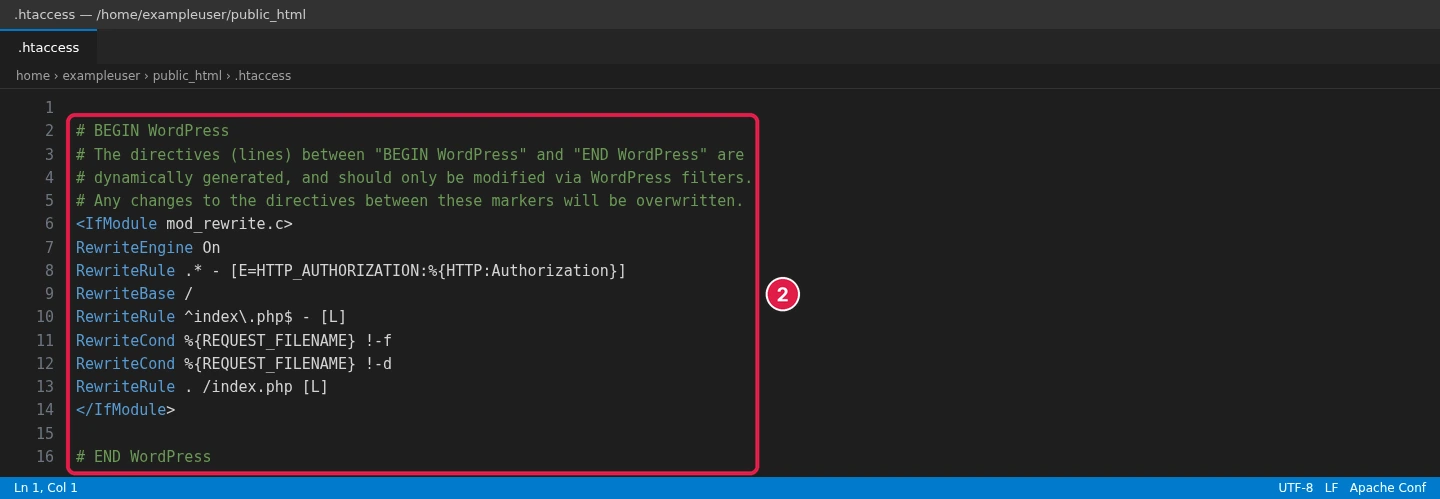
# BEGIN WordPress
<IfModule mod_rewrite.c>
RewriteEngine On
RewriteRule .* - [E=HTTP_AUTHORIZATION:%{HTTP:Authorization}]
RewriteBase /
RewriteRule ^index\.php$ - [L]
RewriteCond %{REQUEST_FILENAME} !-f
RewriteCond %{REQUEST_FILENAME} !-d
RewriteRule . /index.php [L]
</IfModule>
# END WordPress
This is what the default block looks like in the file editor once it is in place:
Fallback over FTP/SFTP: use this when File Manager will not open. In FileZilla, enable Server > Force showing hidden files, right-click .htaccess in public_html and choose Rename.
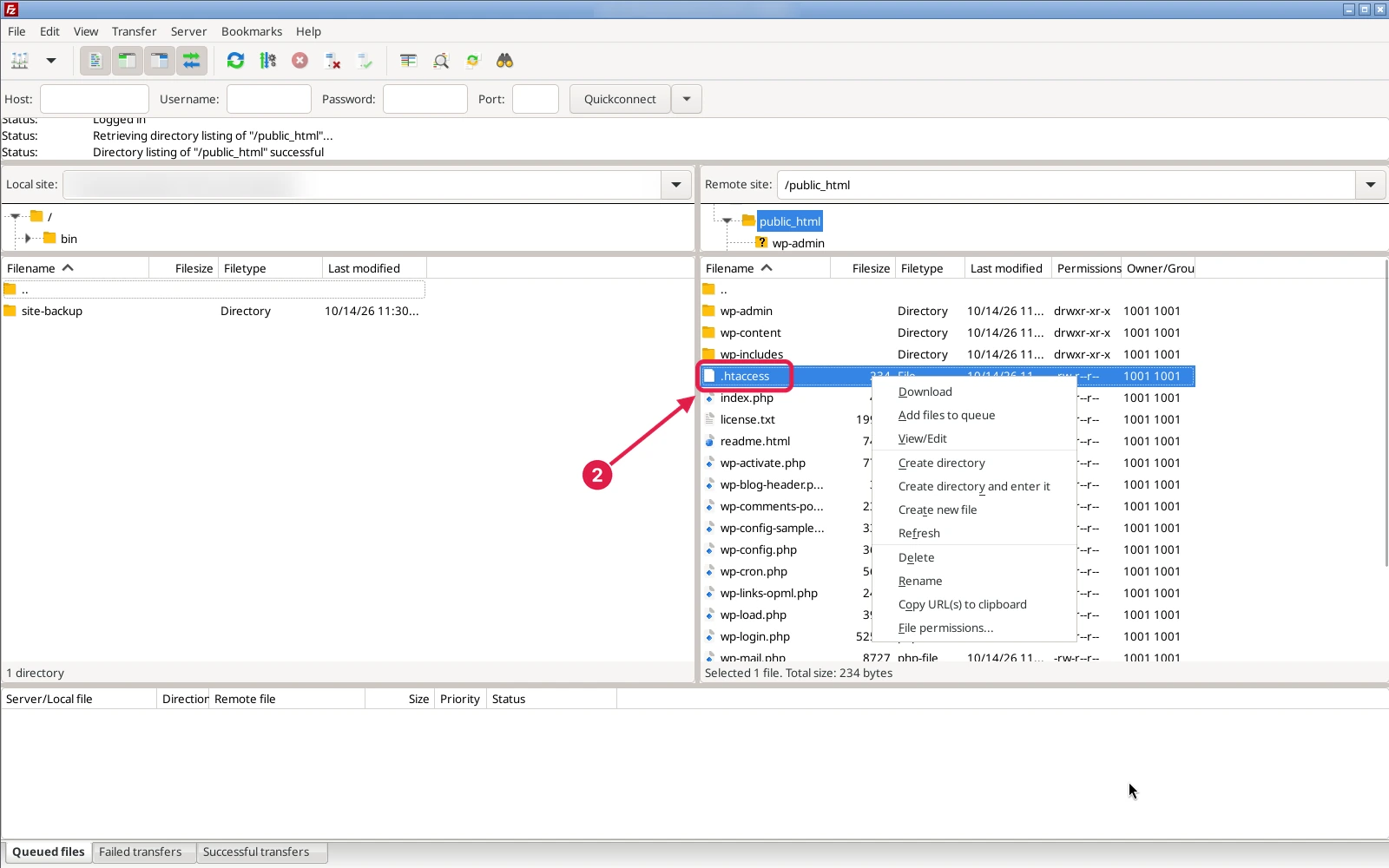
Expected result: the homepage loads. Then save permalinks once in Settings > Permalinks and copy custom rules back from .htaccess.old one block at a time.
4. PHP version
Quick check: did the 500 start after a PHP change? In cPanel > Software > MultiPHP Manager, check which version your domain uses.
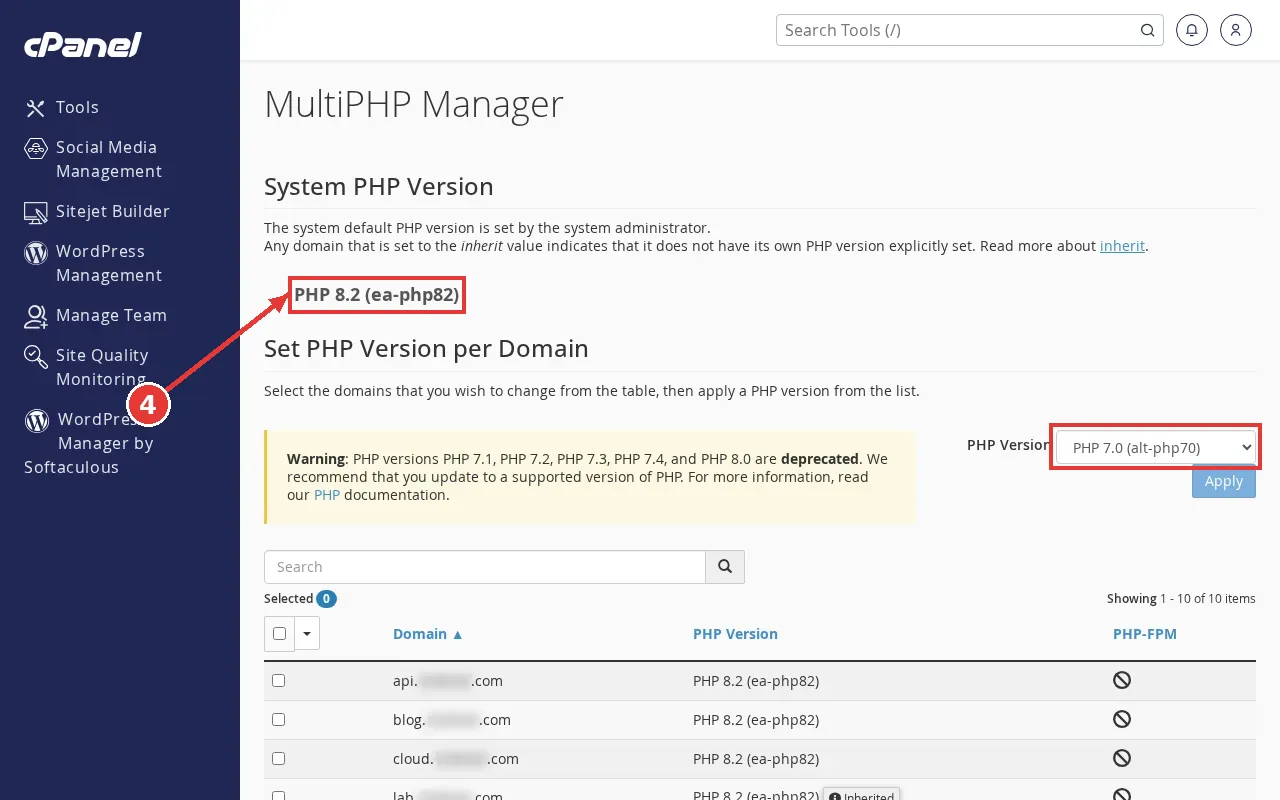
Fix: select the previous version in the PHP Version drop-down and click Apply.
“PHP is not running”: if the browser downloads index.php or shows raw PHP code, the PHP handler for the domain is broken, often after a bad AddHandler line in .htaccess (cause 3) or an old PHP version being removed. Remove any AddHandler or SetHandler lines you did not add on purpose, then reselect a current PHP version here and click Apply. If that does not help, contact support; the handler is set at server level.
Expected result: a success message and a working page after refresh.
5. File permissions
Quick check: in File Manager, read the Permissions column for public_html, wp-content, wp-config.php and index.php. Group- or world-writable PHP files (for example 777) are refused by the server with a 500.
Folders:        755
Files:          644
wp-config.php:  600 or 640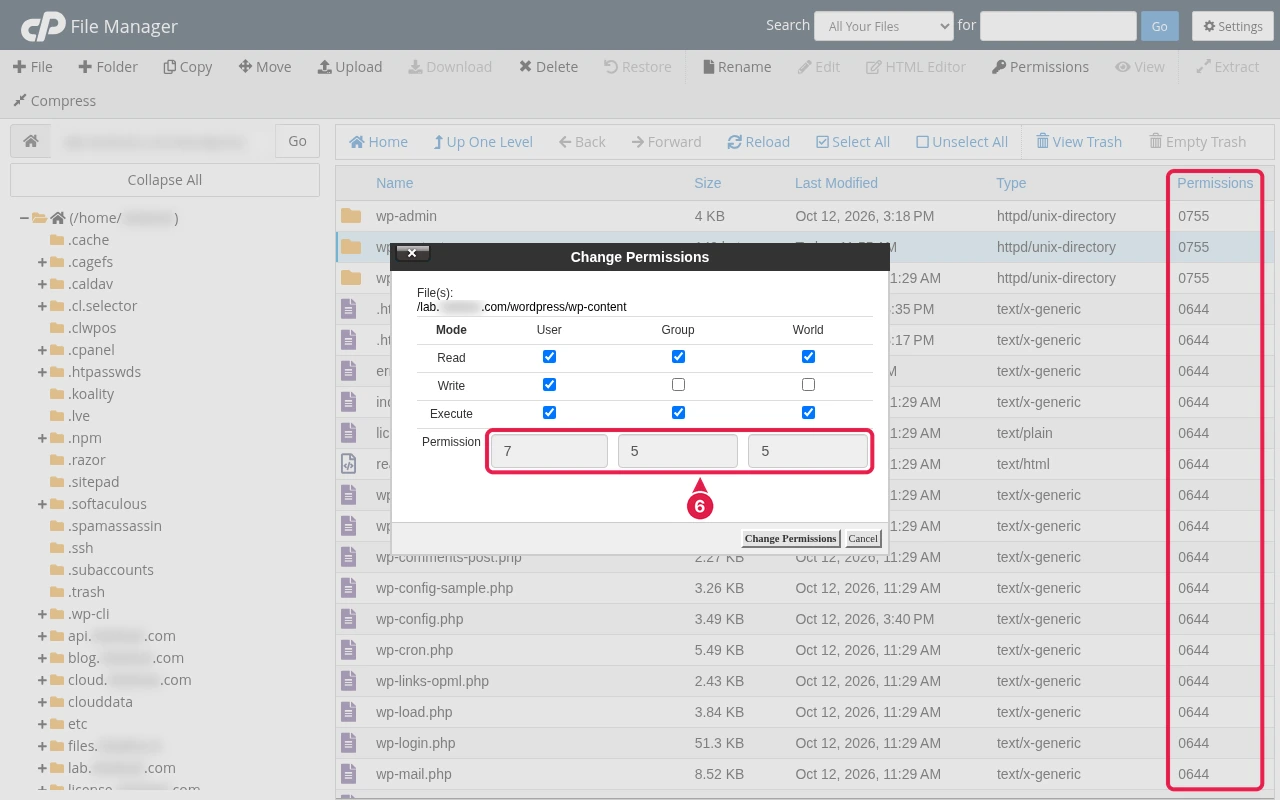
Fix: select the item, click Permissions in the toolbar, set the value above and click Change Permissions. SSH alternative: reset all folders and files at once with the find … chmod commands in debugging Step 4.
Expected result: the site loads and the Permissions column shows 755 for folders and 644 for files.
6. Disk and inode quota
Quick check: on the cPanel home page, read Disk Usage in the Statistics sidebar, and File Usage (inodes) if your cPanel lists it there. At 100%, PHP cannot write sessions or cache and pages fail.
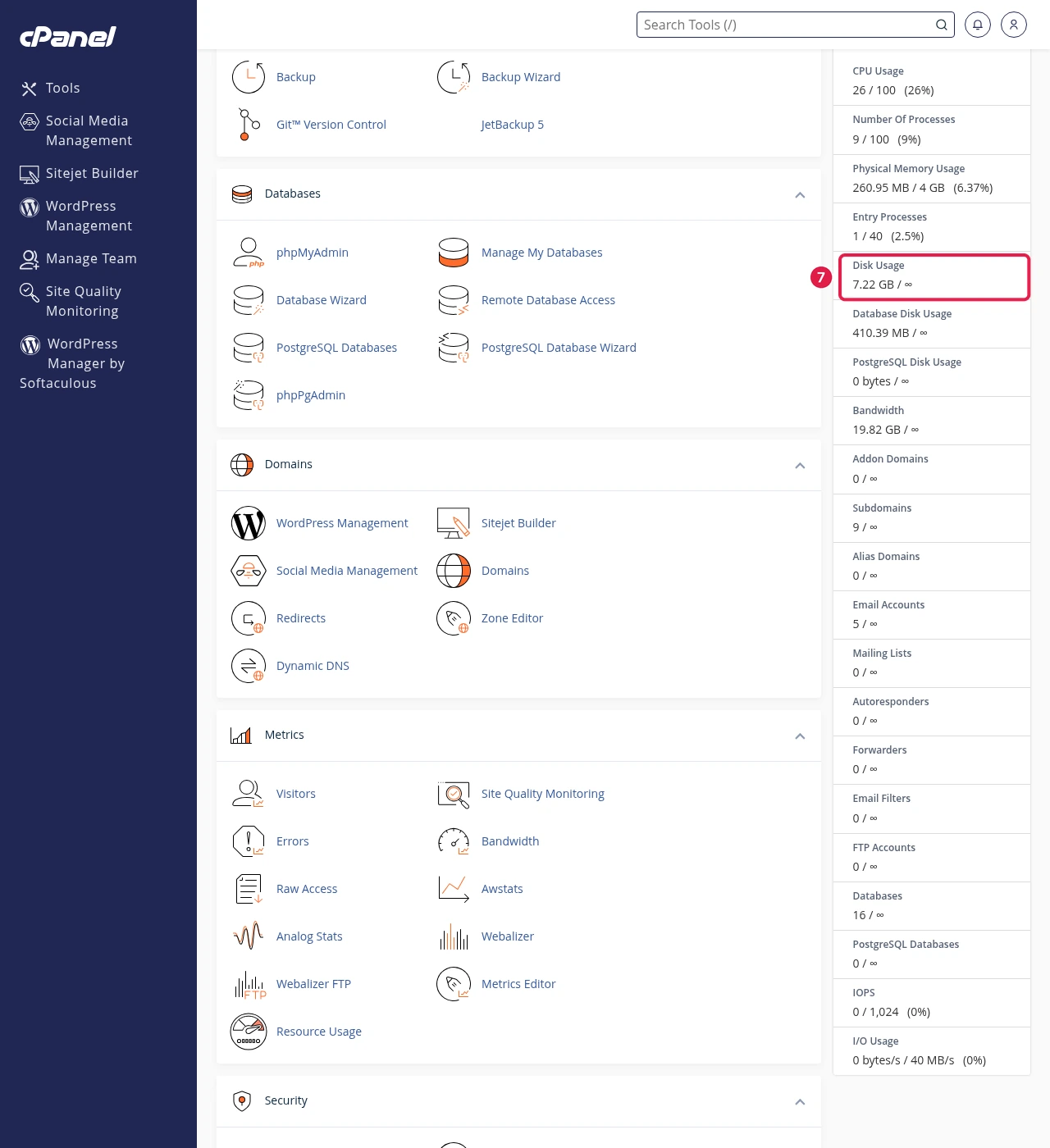
SSH alternative: du -sh ~/public_html and find ~/public_html -type f | wc -l show the size and file (inode) count; see debugging Step 4.
Fix: open cPanel > Files > Disk Usage to find the biggest folders. Download and delete old backup archives, clear wp-content/cache, and delete large old error_log files.
Warning: deleting files cannot be undone. Download anything you might need first.
Expected result: usage is clearly below your limit and the site loads.
7. Recent changes
Quick check: list what changed just before the error: a core or plugin update, a code edit, a new proxy service or security rule, or a traffic campaign. Undo that one change first.
Fix: if you cannot undo it, restore the last working backup in cPanel > Files > Backup (or Softaculous or JetBackup, if your plan has them).
Warning: restoring overwrites newer changes, so download a copy of the current files and database first.
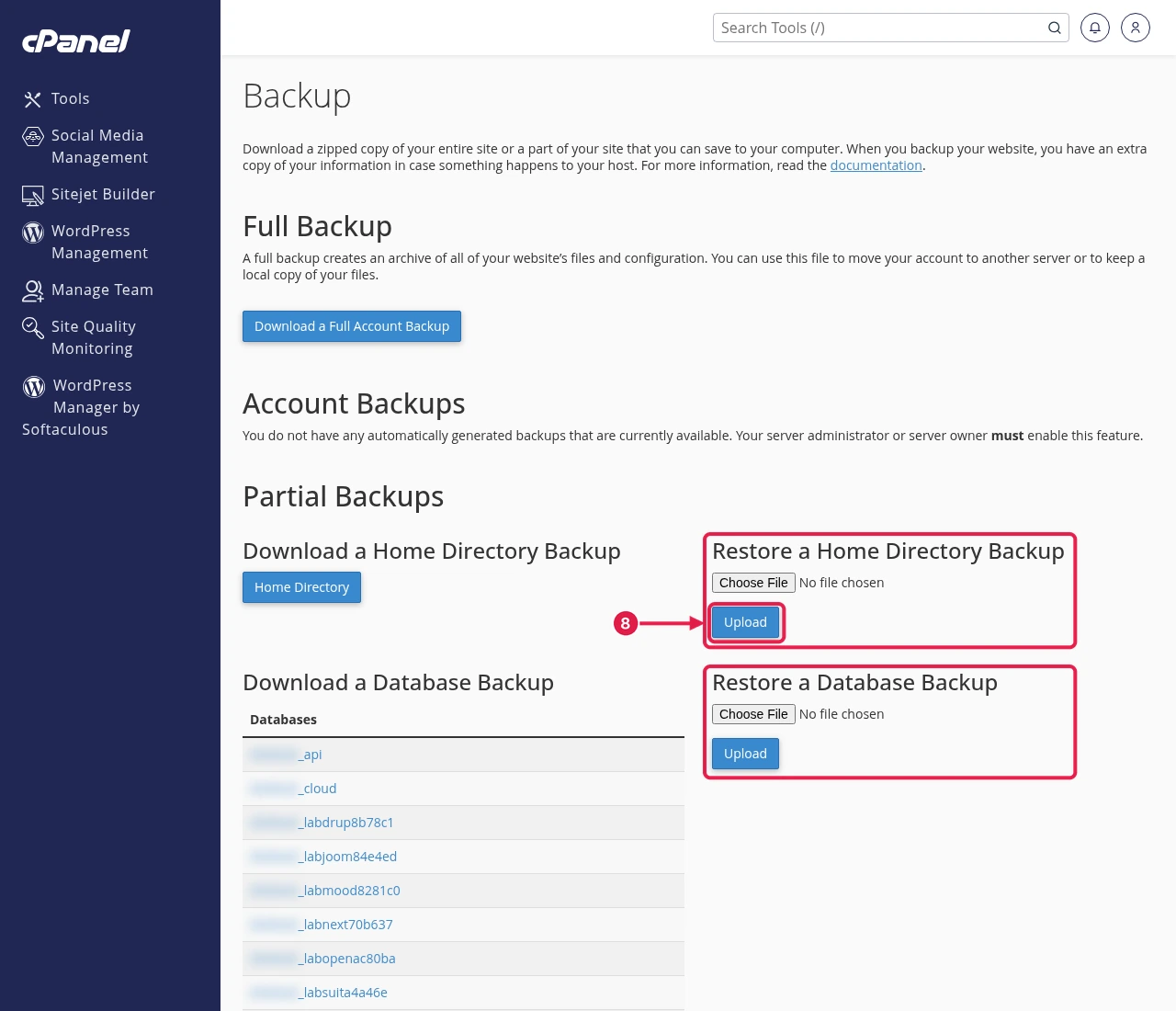
Expected result: the site is back to the state it was in before the change.
If all the above are fine: turn on debugging
Use this only when all eight checks pass. The logs name the exact file and line that failed.
Step 1: Check error_log
In cPanel > Files > File Manager, with hidden files shown, open public_html and view error_log. The newest PHP Fatal error line names the plugin or file. Our WordPress error logs guide explains how to read it.
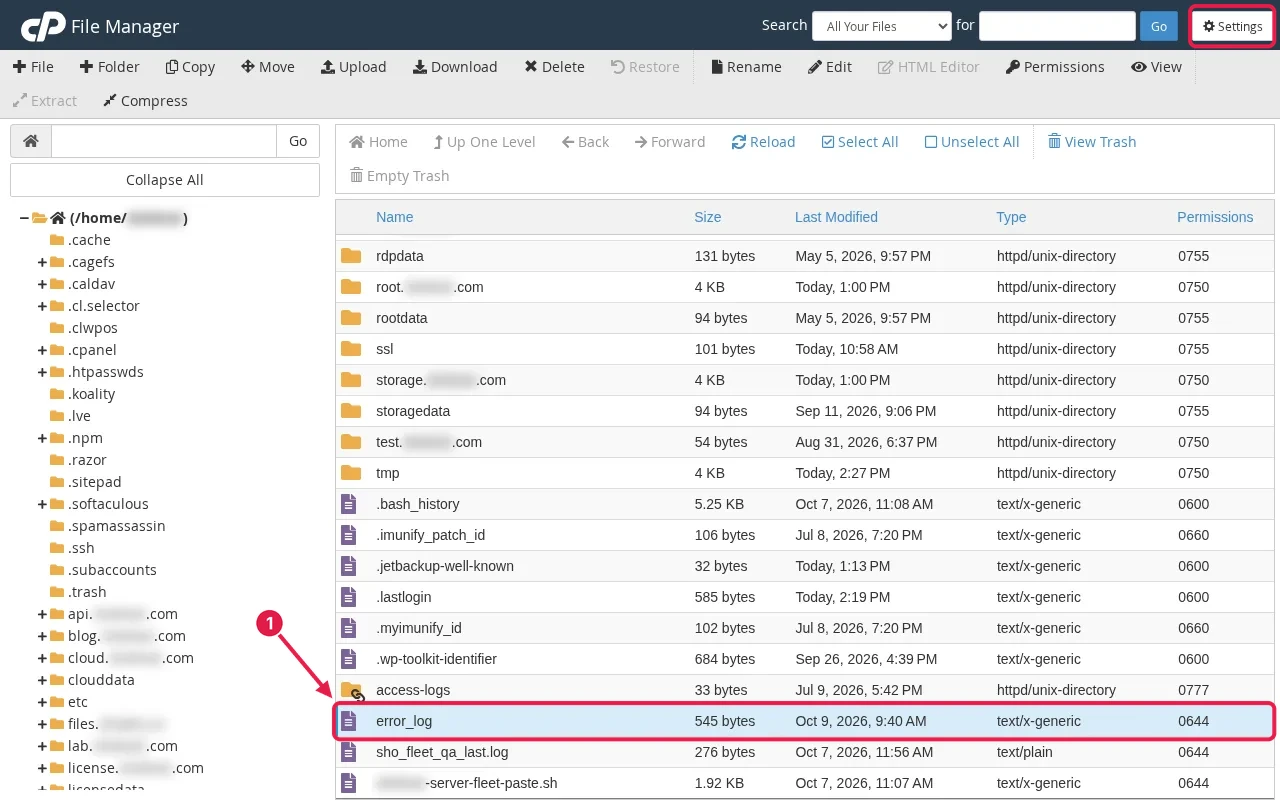
Expected result: a fatal error line with a path. If the log is empty, do Step 2.
Step 2: Turn on WP_DEBUG_LOG
In File Manager, right-click public_html/wp-config.php, choose Edit, and add these lines directly above /* That's all, stop editing! */, then click Save Changes. Reload the failing page once and open wp-content/debug.log.
define( 'WP_DEBUG', true );
define( 'WP_DEBUG_LOG', true );
define( 'WP_DEBUG_DISPLAY', false );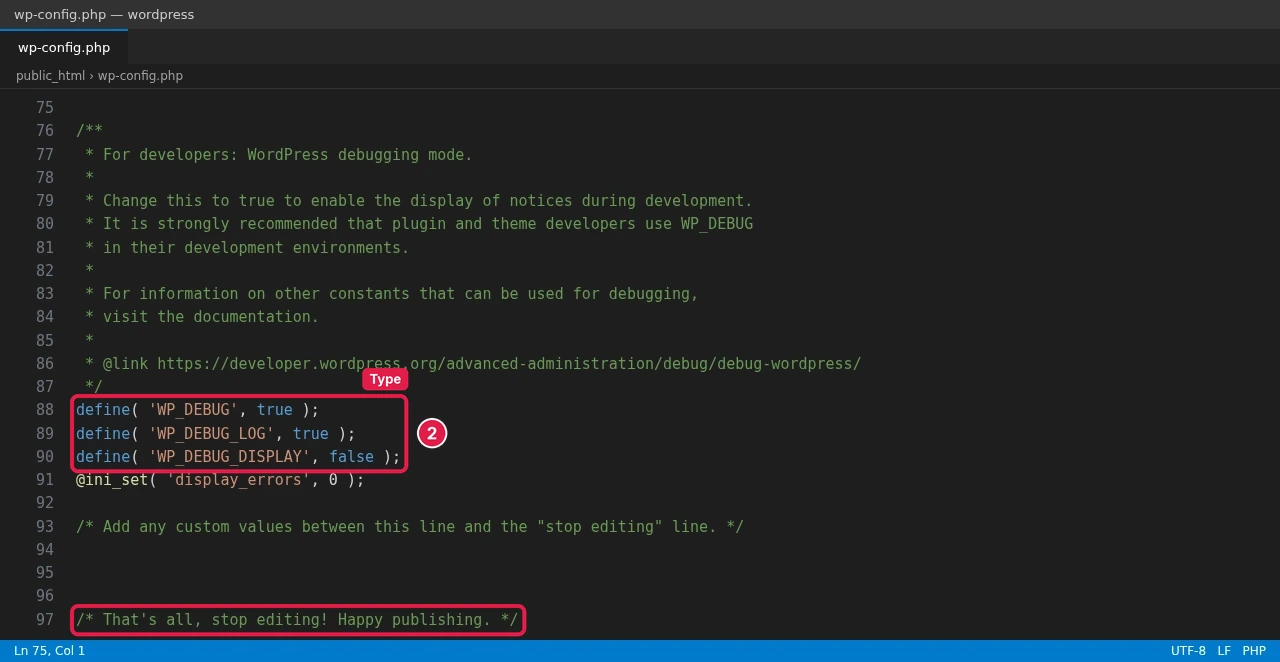
Expected result: debug.log contains the error line. Turn debugging off again afterwards (WP_DEBUG to false, delete debug.log).
Step 3: Same checks with SSH and WP-CLI
Use this when you have SSH or cPanel > Advanced > Terminal. Run:
cd ~/public_html
tail -n 30 error_log
mv .htaccess .htaccess.old
wp plugin deactivate --all --skip-plugins --skip-themes
wp plugin activate PLUGIN-SLUG --skip-themes   # repeat one by one
To find IPs that flood the site (for cause 1), count requests in the raw access log:
awk '{print $1}' ~/access-logs/example.com-ssl_log | sort | uniq -c | sort -rn | headExpected result: WP-CLI prints Success: Deactivated N of N plugins., and the awk command lists the busiest IPs first.
error_log names the plugin; .htaccess is set aside and all plugins switched off in one session.
$ cd ~/public_html
$ tail -n 30 error_log
#4 /home/exampleuser/public_html/wp-config.php(105): require_once('...')
#5 /home/exampleuser/public_html/wp-load.php(50): require_once('...')
#6 /home/exampleuser/public_html/wp-admin/admin.php(35): require_once('...')
#7 /home/exampleuser/public_html/wp-admin/index.php(10): require_once('...')
#8 {main}
  thrown in /home/exampleuser/public_html/wp-content/plugins/demo-broken-plugin/demo-broken-plugin.php on line 10
[14-Oct-2026 16:35:36 UTC] PHP Fatal error:  Uncaught Error: Call to undefined function demo_broken_plugin_get_settings() in /home/exampleuser/public_html/wp-content/plugins/demo-broken-plugin/demo-broken-plugin.php:10
Stack trace:
#0 /home/exampleuser/public_html/wp-includes/class-wp-hook.php(353): demo_broken_plugin_render_banner()
#1 /home/exampleuser/public_html/wp-includes/class-wp-hook.php(377): WP_Hook->apply_filters()
#2 /home/exampleuser/public_html/wp-includes/plugin.php(523): WP_Hook->do_action()
#3 /home/exampleuser/public_html/wp-settings.php(779): do_action()
#4 /home/exampleuser/public_html/wp-config.php(105): require_once('...')
#5 /home/exampleuser/public_html/wp-load.php(50): require_once('...')
#6 /home/exampleuser/public_html/wp-blog-header.php(13): require_once('...')
#7 /home/exampleuser/public_html/index.php(17): require('...')
#8 {main}
  thrown in /home/exampleuser/public_html/wp-content/plugins/demo-broken-plugin/demo-broken-plugin.php on line 10
[14-Oct-2026 16:35:36 UTC] PHP Fatal error:  Uncaught Error: Call to undefined function demo_broken_plugin_get_settings() in /home/exampleuser/public_html/wp-content/plugins/demo-broken-plugin/demo-broken-plugin.php:10
Stack trace:
#0 /home/exampleuser/public_html/wp-includes/class-wp-hook.php(353): demo_broken_plugin_render_banner()
#1 /home/exampleuser/public_html/wp-includes/class-wp-hook.php(377): WP_Hook->apply_filters()
#2 /home/exampleuser/public_html/wp-includes/plugin.php(523): WP_Hook->do_action()
#3 /home/exampleuser/public_html/wp-settings.php(779): do_action()
#4 /home/exampleuser/public_html/wp-config.php(105): require_once('...')
#5 /home/exampleuser/public_html/wp-load.php(50): require_once('...')
#6 /home/exampleuser/public_html/wp-admin/admin.php(35): require_once('...')
#7 /home/exampleuser/public_html/wp-admin/index.php(10): require_once('...')
#8 {main}
  thrown in /home/exampleuser/public_html/wp-content/plugins/demo-broken-plugin/demo-broken-plugin.php on line 10
$ mv .htaccess .htaccess.old
$ wp plugin deactivate --all --skip-plugins --skip-themes
Plugin 'akismet' deactivated.
Plugin 'demo-broken-plugin' deactivated.
Success: Deactivated 2 of 4 plugins.
Step 4: Fix permissions and check disk use over SSH
Use this as the SSH alternative to causes 5 and 6. The two find commands reset every folder to 755 and every file to 644, and chmod 600 locks down wp-config.php again. du -sh prints the total size of the site folder. The last command counts files; each file uses one inode, so compare the number with your plan’s inode limit.
cd ~/public_html
# set every folder to 755 and every file to 644
find ~/public_html -type d -exec chmod 755 {} \;
find ~/public_html -type f -exec chmod 644 {} \;
chmod 600 wp-config.php
# total size of the site folder
du -sh ~/public_html
# number of files (each file uses one inode)
find ~/public_html -type f | wc -l
Over SSH, permissions are reset and 62M with 3437 files is well inside typical quotas.
$ find ~/public_html -type d -exec chmod 755 {} \;
$ find ~/public_html -type f -exec chmod 644 {} \;
$ du -sh ~/public_html
62M     /home/exampleuser/public_html
$ find ~/public_html -type f | wc -l
3437
Expected result: the chmod commands print nothing. du prints one line with the folder size (62M in our example), and wc -l prints a single file count (3437 here). Your numbers will differ; compare them with the disk and inode limits for your plan.
Verify the 500 or 503 is fixed
for i in $(seq 1 10); do curl -s -o /dev/null -w "%{http_code} " https://example.com; done; echoExpected result: ten 200s in a row:
200 200 200 200 200 200 200 200 200 200Check Resource Usage again after 24 hours. Faults should be zero or close to it.
Troubleshooting 500 and 503 errors
| Symptom | Likely cause | Fix |
|---|---|---|
| 500 on every load | A plugin, .htaccess or PHP | Causes 2, 3 and 4 |
| 500 only under traffic | Resource limit showing as 500 | Cause 1: Resource Usage, caching, bots |
| 503 at busy times with faults | Entry process limit | Cause 1: caching, bot blocking, or a bigger plan |
| 503 with no faults | Maintenance file or plugin returning 503 | Delete .maintenance in public_html; check plugins (cause 2) |
| Raw PHP code shown | PHP handler broken | See “PHP is not running” in cause 4 |
| Still stuck? | — | Email support@shohost.com or WhatsApp +91 94880 91432 (9 AM to 12 midnight IST). Send your domain, the time of the error and a Resource Usage screenshot. |
When to upgrade your WordPress hosting plan
If faults keep appearing after caching and bot blocking, your site has simply outgrown the plan. Upgrading gives more entry processes, CPU and memory. ShoHost WordPress hosting plans come with cPanel Resource Usage so you can see exactly where you stand, a 98.5% uptime guarantee and a 7-day money-back guarantee. If you’re not sure whether it’s time to upgrade, send us a Resource Usage screenshot and we’ll give you a straight answer.
WordPress 500 vs 503 FAQ
Why does my site show a 500 only under traffic?
Some servers report a resource limit as a 500 instead of a 503 or 508. If Resource Usage shows faults at the same times, treat it as a limit problem.
Is a 503 error temporary?
Usually. A 503 from a load spike goes away when traffic drops, but it returns at the next spike until you cache, block bots or upgrade.
Can a plugin cause a 503?
Yes. A heavy plugin can use up entry processes, and some maintenance or security plugins return 503 on purpose.
What uptime does ShoHost offer?
98.5% uptime.
How do I contact ShoHost support?
Write to support@shohost.com or message +91 94880 91432 on WhatsApp. The team is available from 9 AM to 12 midnight IST, seven days a week.