Set Up Cron Jobs in cPanel (with Examples and Log Output)
Tested on 12 October 2026 in a ShoHost sandbox (Debian, PHP 8.4). We ran a small PHP script in a stripped-down environment like the one cron uses, once with a relative path and once with full paths and logging. cPanel’s Cron Jobs screen isn’t shown because the sandbox has no cPanel.
A cron job runs a command on a schedule: WordPress’s scheduled tasks, a WHMCS or Perfex CRM automation, a backup or a cleanup script. In cPanel you add it under Advanced → Cron Jobs. Most problems come from paths and missing logs, not the schedule.
Step 1: Choose the schedule
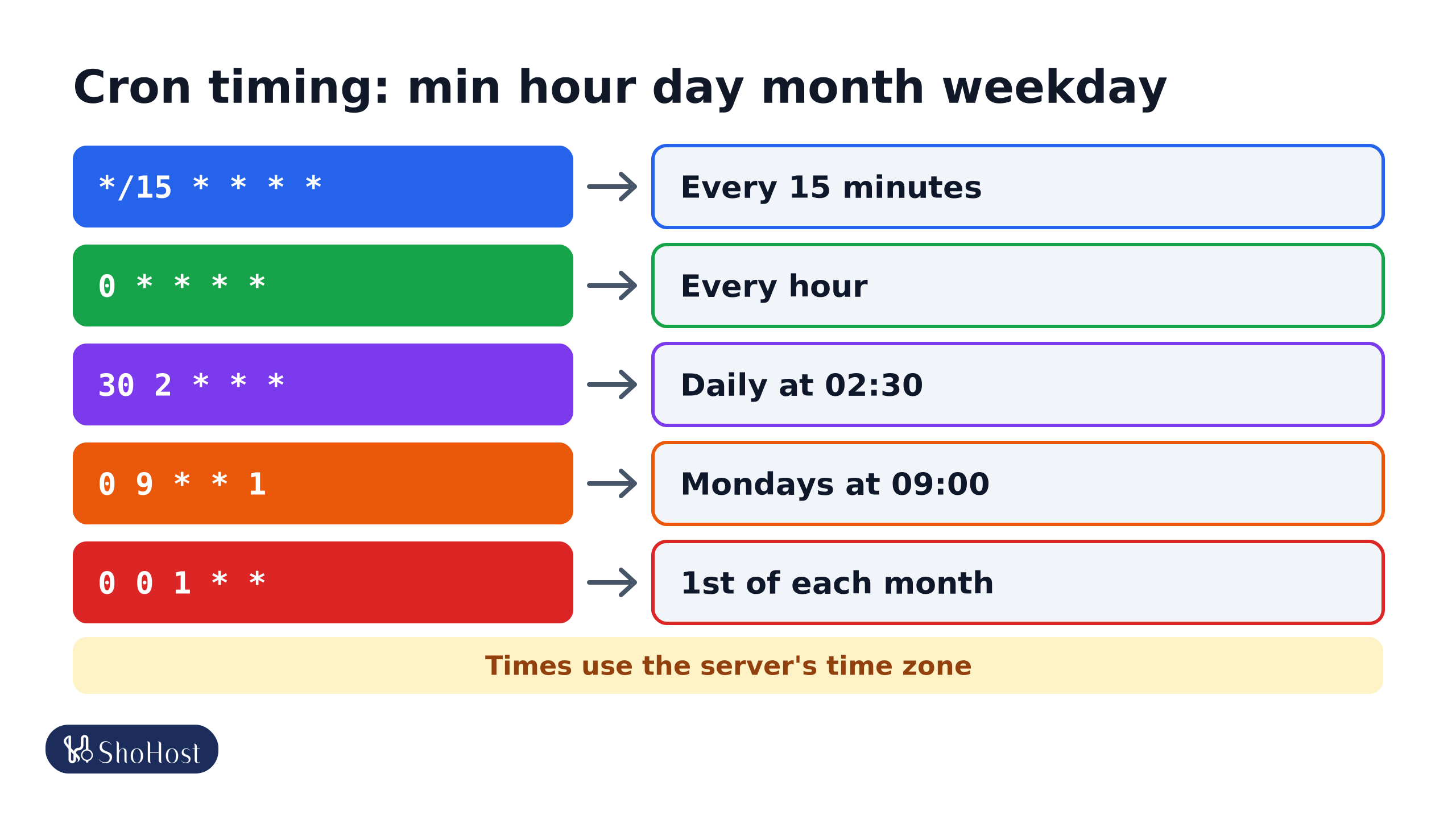
*/15 * * * *: every 15 minutes.0 * * * *: at minute 0 of every hour.30 2 * * *: every day at 02:30 (server time zone).0 9 * * 1: every Monday at 09:00.0 0 1 * *: at midnight on the 1st of every month.
Pick from Common Settings or fill in the five fields: minute, hour, day of month, month, weekday. Times are in the server’s time zone, which may not be IST. Many shared hosts don’t allow every-minute jobs, so every 5 or 15 minutes is a safer choice.
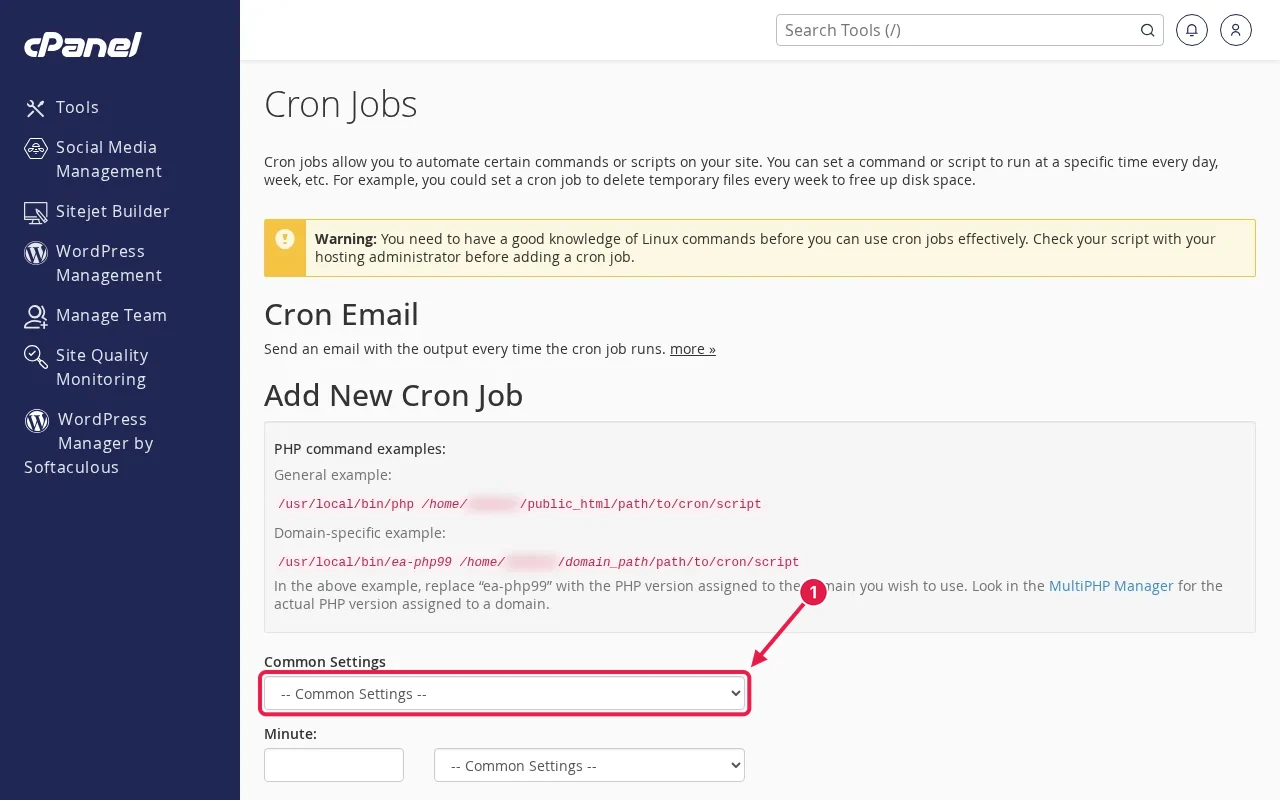
Step 2: Write the command with full paths
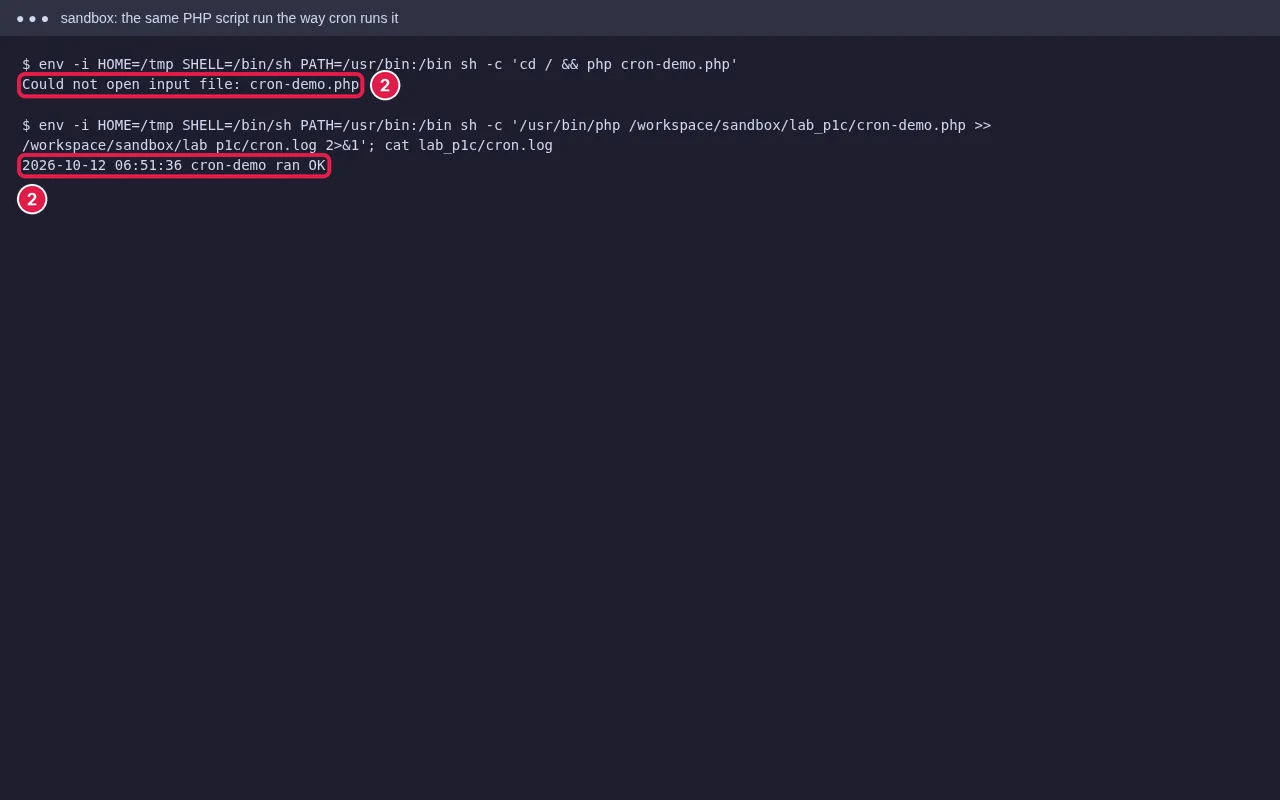
Cron doesn’t start in your website folder and has a minimal PATH. Use the full path to PHP and to the script, and save the output to a log file:
/usr/local/bin/php /home/USERNAME/public_html/cron.php >> /home/USERNAME/cron.log 2>&1The PHP path differs between servers and PHP versions; your host’s docs or support can confirm it (some servers use paths like /opt/cpanel/ea-php83/root/usr/bin/php for a specific version). For a URL-based cron, use curl -s https://example.in/cron-url >/dev/null 2>&1.
Examples
WordPress: replace WP-Cron with a real cron job
Add define('DISABLE_WP_CRON', true); to wp-config.php, then:
*/15 * * * * /usr/local/bin/php /home/USERNAME/public_html/wp-cron.php >/dev/null 2>&1Laravel scheduler
* * * * * cd /home/USERNAME/app && /usr/local/bin/php artisan schedule:run >> /dev/null 2>&1If your host doesn’t allow every minute, use */5 and set your scheduled tasks to match.
Step 3: Check it ran
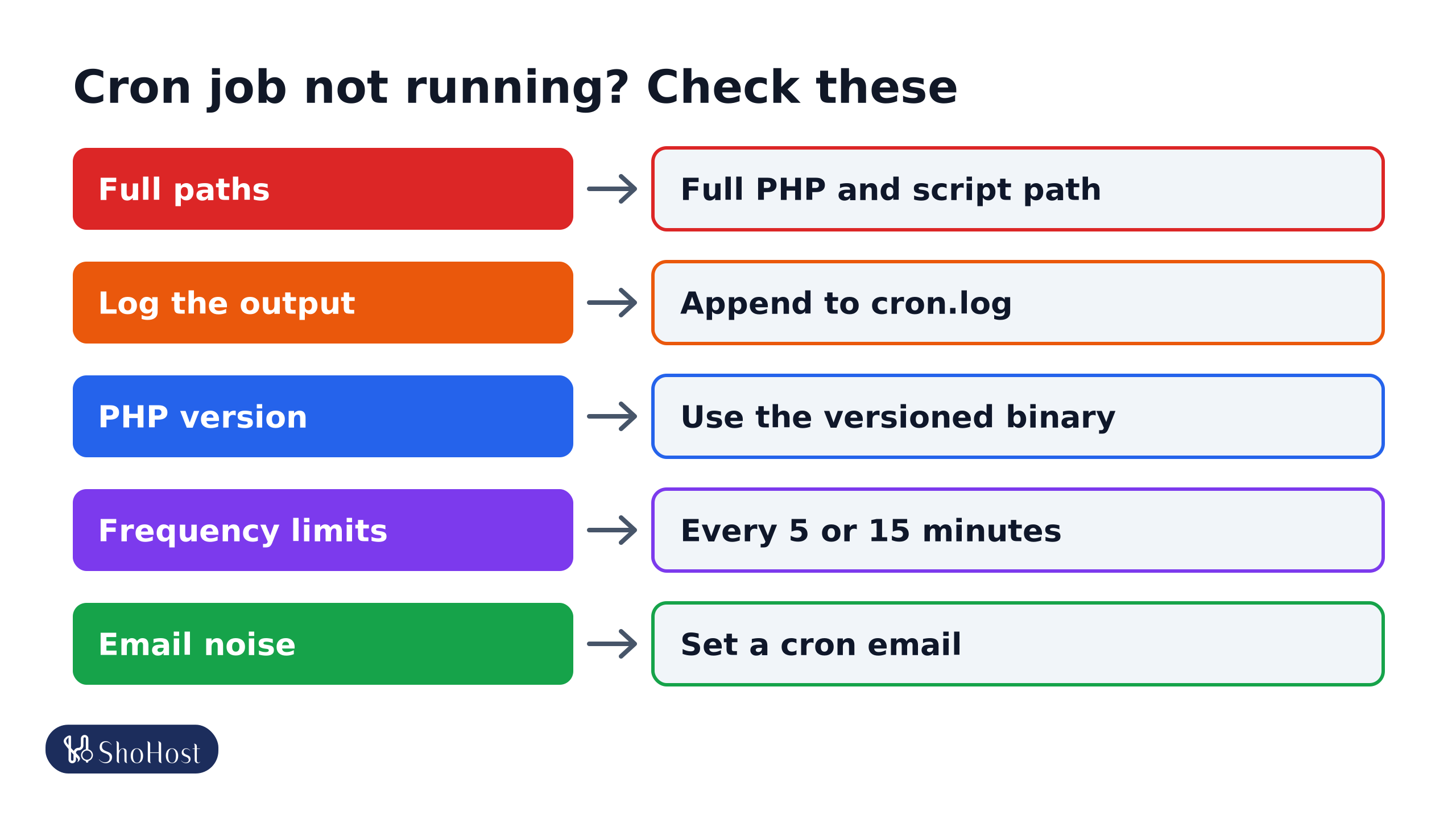
- Full paths: use
/usr/local/bin/php(or the path your host gives) and the full script path. - Log the output: add
>> /home/user/cron.log 2>&1at the end so errors are saved. - PHP version: cron may use a different PHP than the site. Use the versioned binary if needed.
- Frequency limits: many shared hosts don’t allow every-minute jobs. Every 5 or 15 minutes is safer.
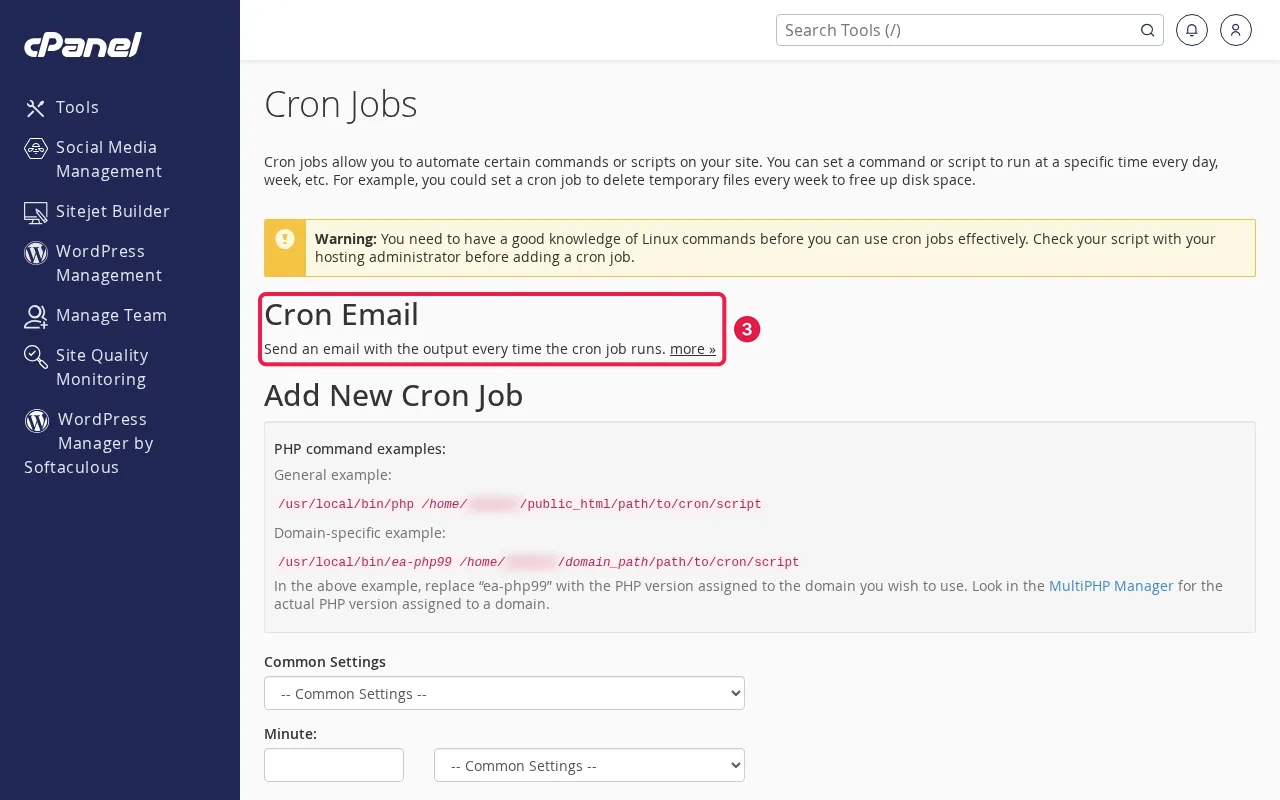
- Read the log file you set in the command. Errors such as Could not open input file or a PHP fatal error show up there.
- Add an email at the top of the Cron Jobs page to get each run’s output. Once the job works, remove it or add
>/dev/null 2>&1to the command. - Run the same command in cPanel’s Terminal to check it works by hand.
FAQ
Why does my script work in the browser but not in cron?
The browser runs it through the web server in your site folder. Cron runs it with the PHP command line, from another folder, maybe with a different PHP version and settings. Use full paths and check the log.
What does >/dev/null 2>&1 do?
It throws away all output so cron doesn’t email you every run. Use it only after the job works, and log to a file while you test.
Which time zone do cron jobs use?
The server’s. Compare the server time shown in Terminal with date before setting exact times.
Cron job still not firing? ShoHost customers can WhatsApp +91 94880 91432, and we’ll set up and test the job with you.